> ## Documentation Index
> Fetch the complete documentation index at: https://docs.upstackdata.com/llms.txt
> Use this file to discover all available pages before exploring further.

# How do I cancel my subscription?

> Step-by-step instructions to cancel your Upstack Data subscription, whether you're on Stripe direct billing or Shopify billing.

## Step 1: Identify your billing method

Upstack Data uses two billing methods. The cancellation steps depend on which one you're on.

<Steps>
  <Step title="Open your billing settings">
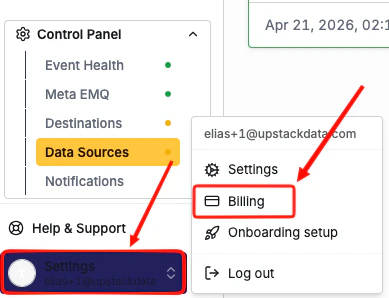
    Log in to your [Upstack Data dashboard](https://app.upstackdata.com/), then go to **Settings → Billing**.
    <img src="https://mintcdn.com/upstackdata-afbed50d/uKeYoIgKoqdkvfF5/images/intercom/cancel-subscription-settings-billing.png?fit=max&auto=format&n=uKeYoIgKoqdkvfF5&q=85&s=86cb32782f9a11479080378cd70733e0" alt="Upstack Data dashboard Settings, Billing page" style={{ width:"53%" }} width="389" height="298" data-path="images/intercom/cancel-subscription-settings-billing.png" />
  </Step>

  <Step title="Review what you see">
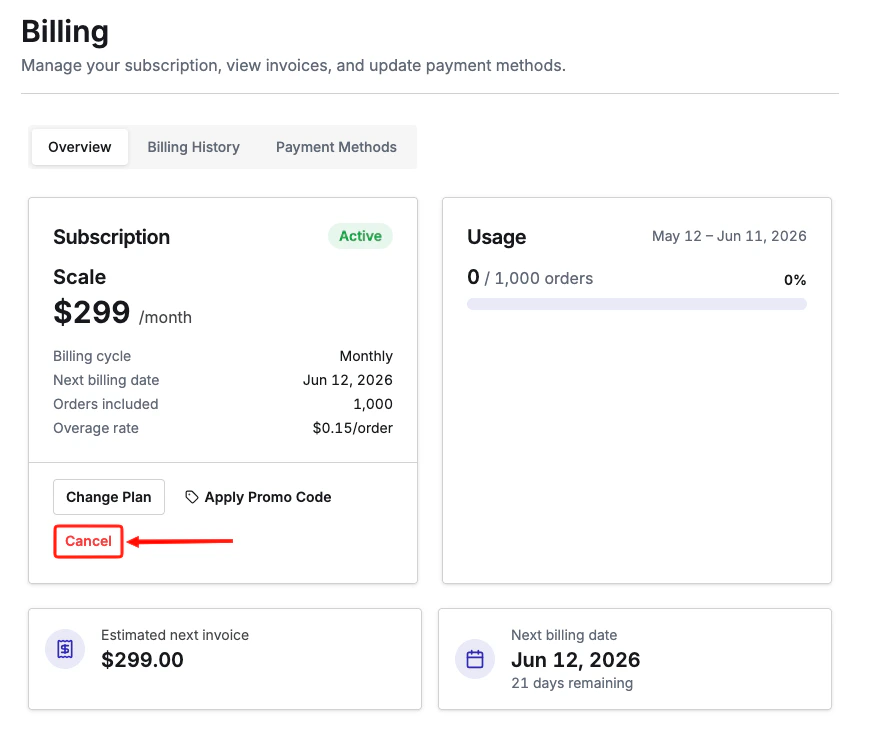
    If you see a red **Cancel** button, you're on Stripe (direct) billing. Click **Cancel** and confirm when prompted. Once this is done, your subscription is canceled.
    <img src="https://mintcdn.com/upstackdata-afbed50d/uKeYoIgKoqdkvfF5/images/intercom/cancel-subscription-stripe-cancel-button.png?fit=max&auto=format&n=uKeYoIgKoqdkvfF5&q=85&s=3f77d8e11faaa4e202abfd8cf31926f4" alt="Red Cancel button shown for Stripe direct billing" style={{ width:"53%" }} width="869" height="732" data-path="images/intercom/cancel-subscription-stripe-cancel-button.png" />

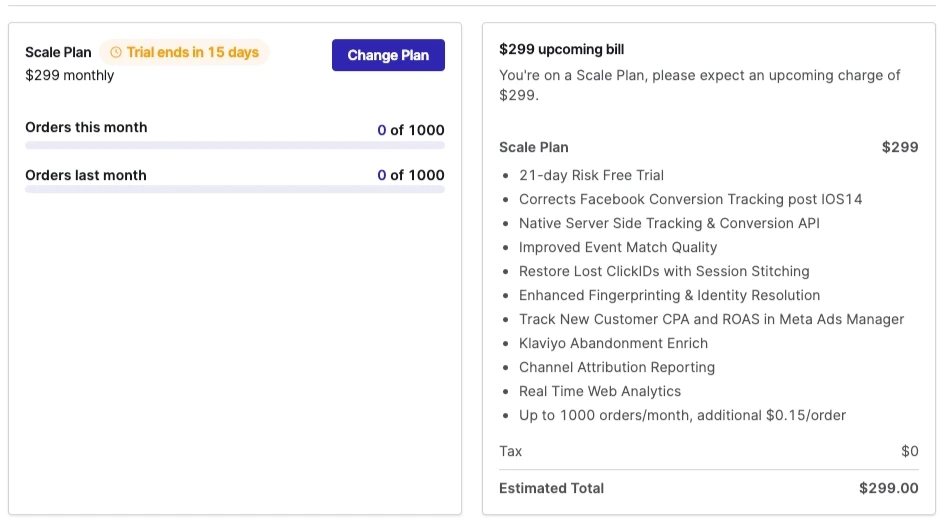
    If you only see plan options and no cancel link, you're on Shopify billing. Follow Step 2 below.
    <img src="https://mintcdn.com/upstackdata-afbed50d/uKeYoIgKoqdkvfF5/images/intercom/cancel-subscription-shopify-plan-options.png?fit=max&auto=format&n=uKeYoIgKoqdkvfF5&q=85&s=7f2fcba16846a6d33b4b1a5674d8f2c6" alt="Billing page showing only plan options, indicating Shopify billing" style={{ width:"53%" }} width="952" height="525" data-path="images/intercom/cancel-subscription-shopify-plan-options.png" />
  </Step>
</Steps>

***

## Step 2: Cancel your subscription on Shopify billing

If you're billed through Shopify, uninstalling the app cancels your subscription.

<Steps>
  <Step title="Open your Shopify apps">
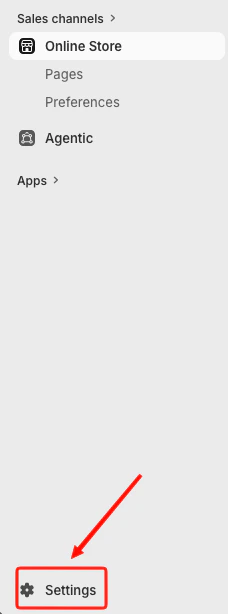
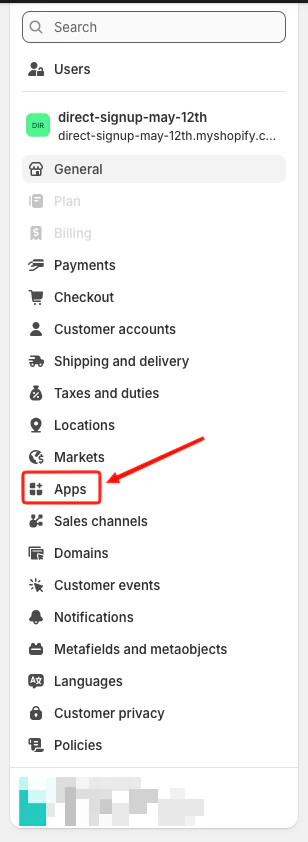
    Log in to your Shopify admin, then go to **Settings → Apps**.
    <img src="https://mintcdn.com/upstackdata-afbed50d/uKeYoIgKoqdkvfF5/images/intercom/cancel-subscription-shopify-settings-apps.png?fit=max&auto=format&n=uKeYoIgKoqdkvfF5&q=85&s=4fc9cdd1cac93f50246401f1c971618d" alt="Shopify admin Settings, Apps page" style={{ width:"29%" }} width="228" height="614" data-path="images/intercom/cancel-subscription-shopify-settings-apps.png" />
  </Step>

  <Step title="Find Upstack Data">
    Find **Upstack Data** in the list of installed apps.
    <img src="https://mintcdn.com/upstackdata-afbed50d/uKeYoIgKoqdkvfF5/images/intercom/cancel-subscription-shopify-apps-list.png?fit=max&auto=format&n=uKeYoIgKoqdkvfF5&q=85&s=659647577ee9f7a1a3595a3e0da4c567" alt="Upstack Data listed in Shopify installed apps" style={{ width:"28%" }} width="308" height="842" data-path="images/intercom/cancel-subscription-shopify-apps-list.png" />
  </Step>

  <Step title="Uninstall the app">
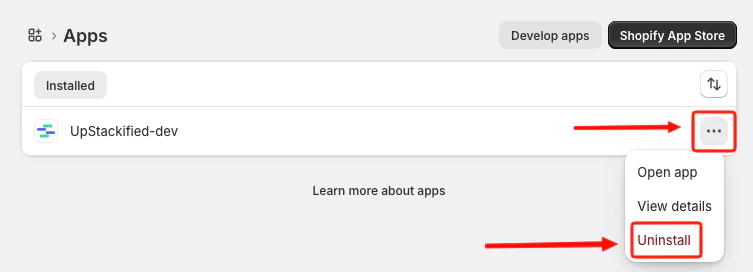
    Click the three-dot menu next to the app name, click **Uninstall**, and confirm when prompted.
    <img src="https://mintcdn.com/upstackdata-afbed50d/uKeYoIgKoqdkvfF5/images/intercom/cancel-subscription-shopify-uninstall-confirm.png?fit=max&auto=format&n=uKeYoIgKoqdkvfF5&q=85&s=f385790a41544dde1c17c2b36cb67242" alt="Confirming uninstall of the Upstack Data app in Shopify" style={{ width:"71%" }} width="753" height="272" data-path="images/intercom/cancel-subscription-shopify-uninstall-confirm.png" />
  </Step>
</Steps>

***

## Related Articles

<CardGroup cols={2}>
  <Card title="Cancelling Your Subscription" href="/billing/cancelling-your-subscription" />

  <Card title="Pause Your Subscription" href="/billing/how-can-i-pause-my-subscription" />

  <Card title="Identify Your Billing Method" href="/billing/how-do-i-identify-my-billing-method" />

  <Card title="Billing FAQ" href="/billing/subscriptions-and-billing" />
</CardGroup>
