> ## Documentation Index
> Fetch the complete documentation index at: https://docs.upstackdata.com/llms.txt
> Use this file to discover all available pages before exploring further.
# How do I update my payment method?
> Update your card on Upstack Data, with steps for Stripe billing and Shopify billing, plus how to set a default payment method.
The steps to update your payment method depend on how your account is billed. Follow the section that applies to you.
## If you're on Stripe billing
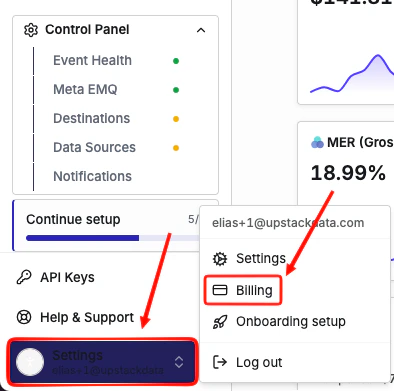
Log in to your [Upstack Data account](https://app.upstackdata.com/), then go to **Settings → Billing**.
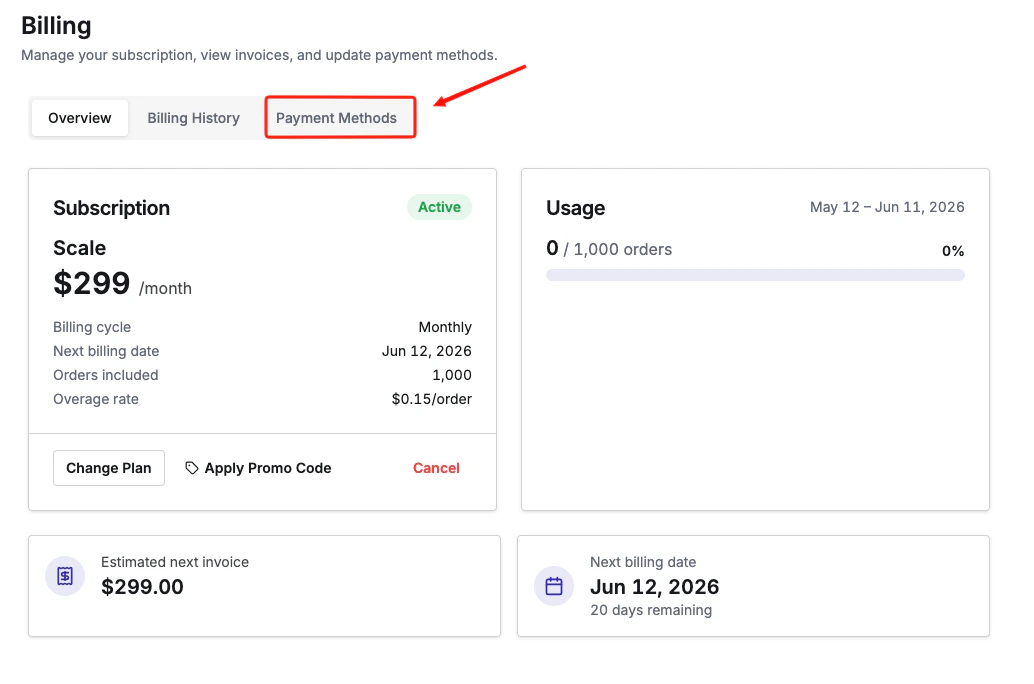
 Click **Payment Methods**.
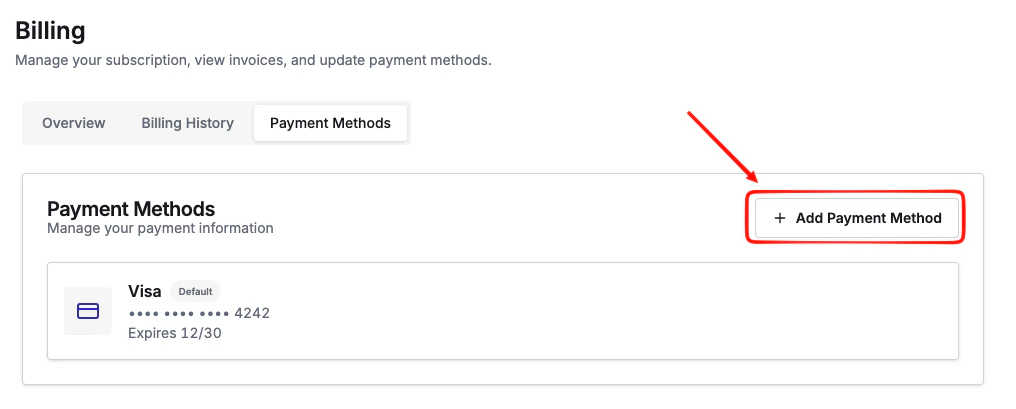
 Click **Add Payment Method** and enter your new card details.
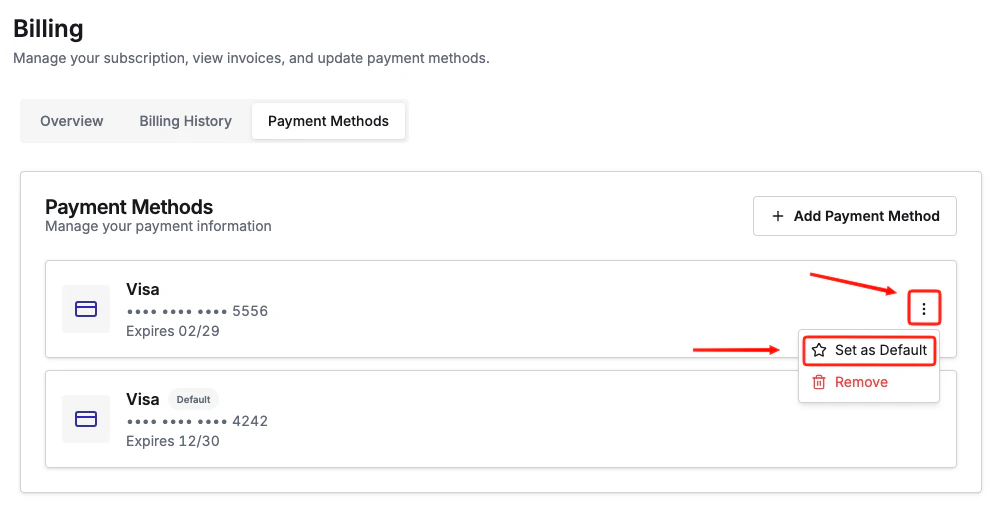
 To use the new payment method as default, click the three dots next to the payment method you want as default, then select **Set as default**.
 ## If you're on Shopify billing
Shopify manages payment methods for apps billed through the Shopify App Store. To update your card:
1. Log in to your **Shopify admin**.
2. Go to **Settings → Billing**.
3. Update your payment method there.
This change applies to all Shopify app charges, not just Upstack Data.
**Not sure which billing type you're on?**
Log in to your Upstack Data dashboard and go to the **Billing** page. If you see your card details and invoices listed directly, you're on Stripe billing. If the billing page does not display a payment method, your charges are handled through Shopify.
If you run into any issues updating your payment method, start a chat from your dashboard and we can assist you further.
***
## Related Articles
## If you're on Shopify billing
Shopify manages payment methods for apps billed through the Shopify App Store. To update your card:
1. Log in to your **Shopify admin**.
2. Go to **Settings → Billing**.
3. Update your payment method there.
This change applies to all Shopify app charges, not just Upstack Data.
**Not sure which billing type you're on?**
Log in to your Upstack Data dashboard and go to the **Billing** page. If you see your card details and invoices listed directly, you're on Stripe billing. If the billing page does not display a payment method, your charges are handled through Shopify.
If you run into any issues updating your payment method, start a chat from your dashboard and we can assist you further.
***
## Related Articles