> ## Documentation Index
> Fetch the complete documentation index at: https://docs.upstackdata.com/llms.txt
> Use this file to discover all available pages before exploring further.
# How to Create a New Upstack Data Purchase Goal in Google Ads
> Create an Upstack Data purchase conversion goal in Google Ads with Enhanced Conversions enabled — required for server-side conversion forwarding from Upstack to Google.
**Quick Summary**
* In Google Ads, navigate to **Goals → Conversions → Summary** and click **"+ Create conversion action"**.
* Select **Conversions on a website**.
* Choose **Purchase** as the goal type and select **Set up manually using a code**.
* Name the conversion **"Purchase - UpstackData"**, set **Click-through conversion window** to **30 days**, and enable **Enhanced Conversions**.
* **Save** to generate your Conversion ID and Conversion Label.
## Prerequisites
Before you start, you need:
* **Admin** or **Manager** access to a **Google Ads** account
* Permission to create conversion actions in Google Ads
## Step-by-Step Instructions
Sign in to [Google Ads](https://ads.google.com).
In the left-hand menu, navigate to **Goals → Conversions → Summary**.
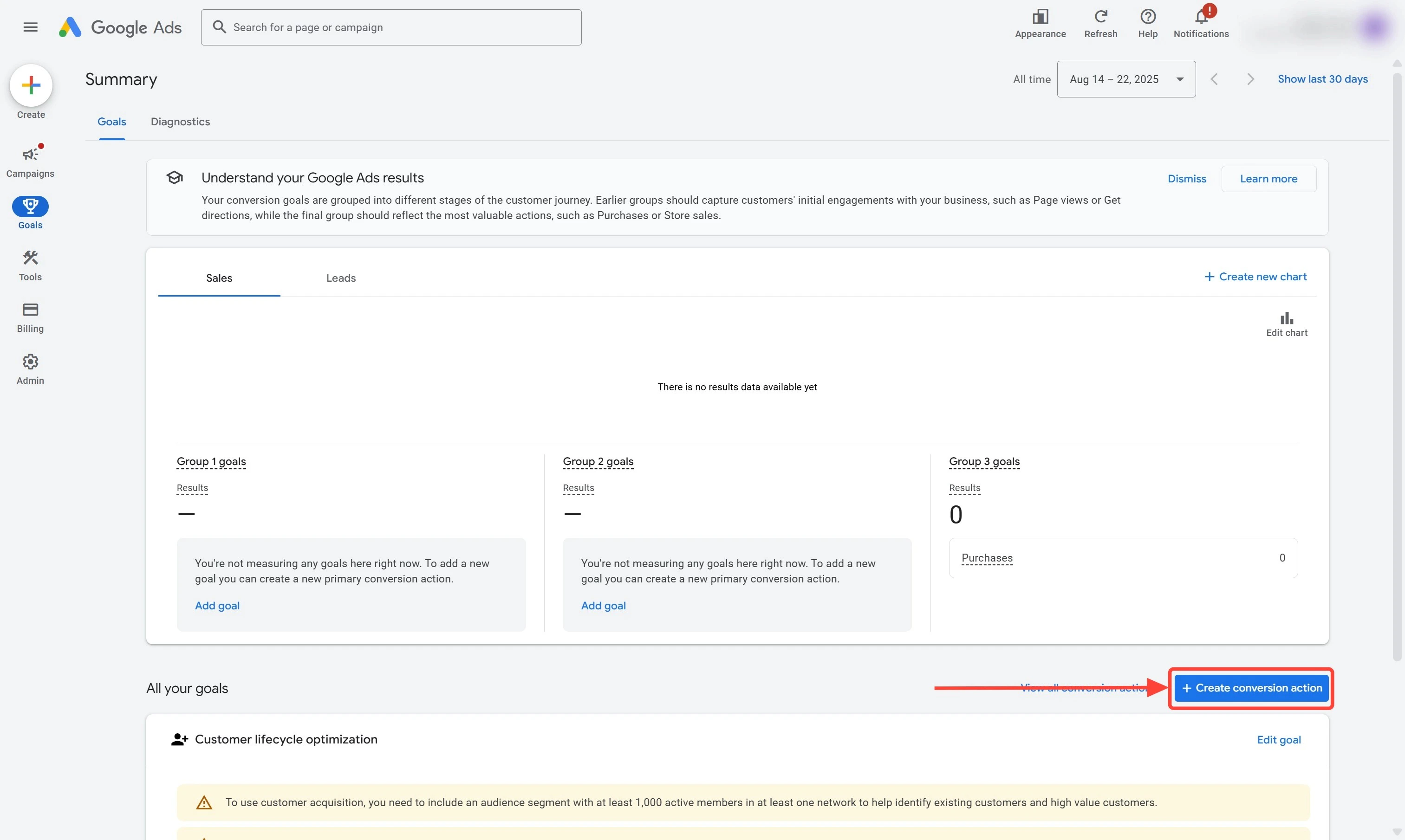
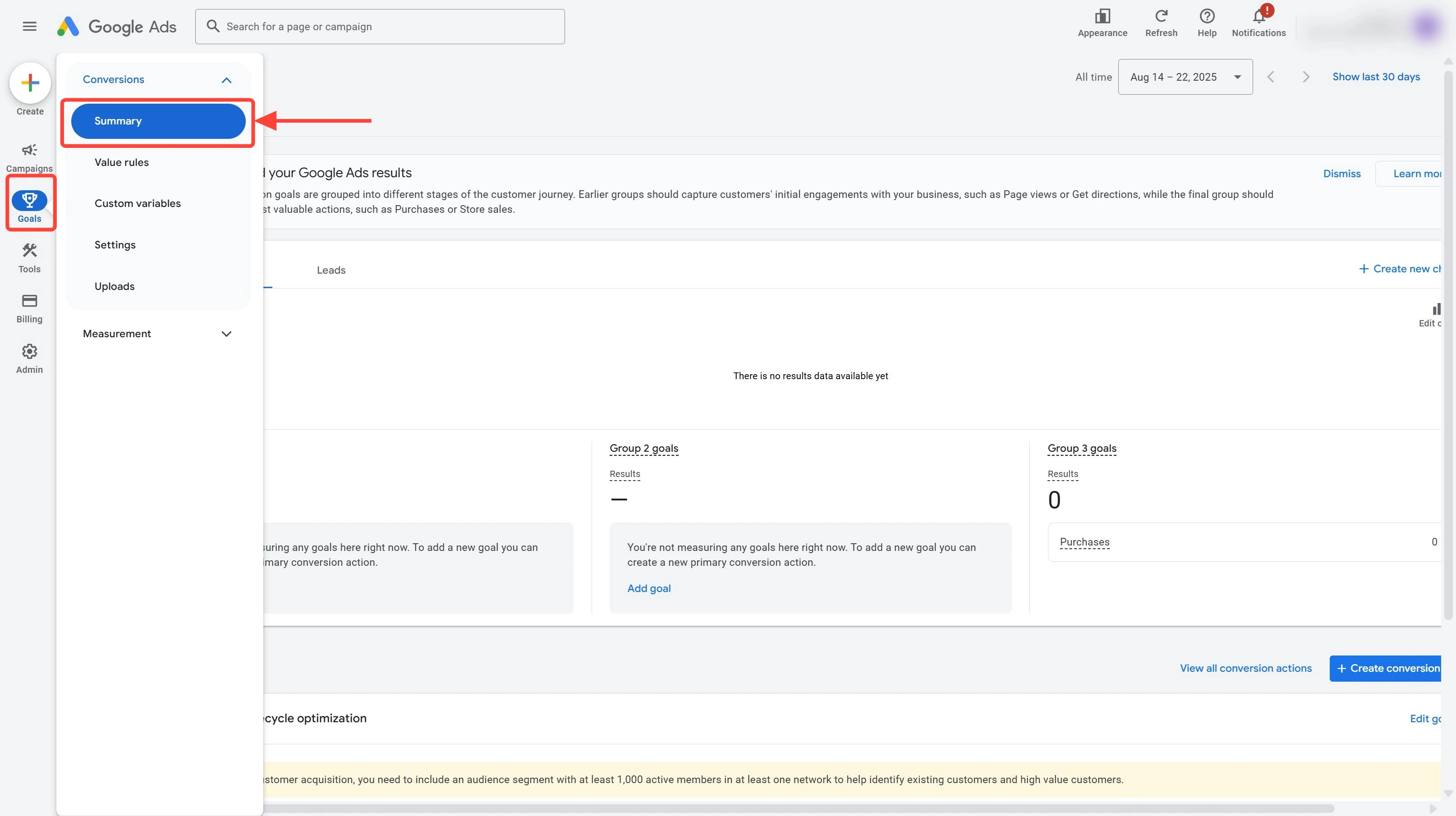 * Click the **"+ Create conversion action"** button
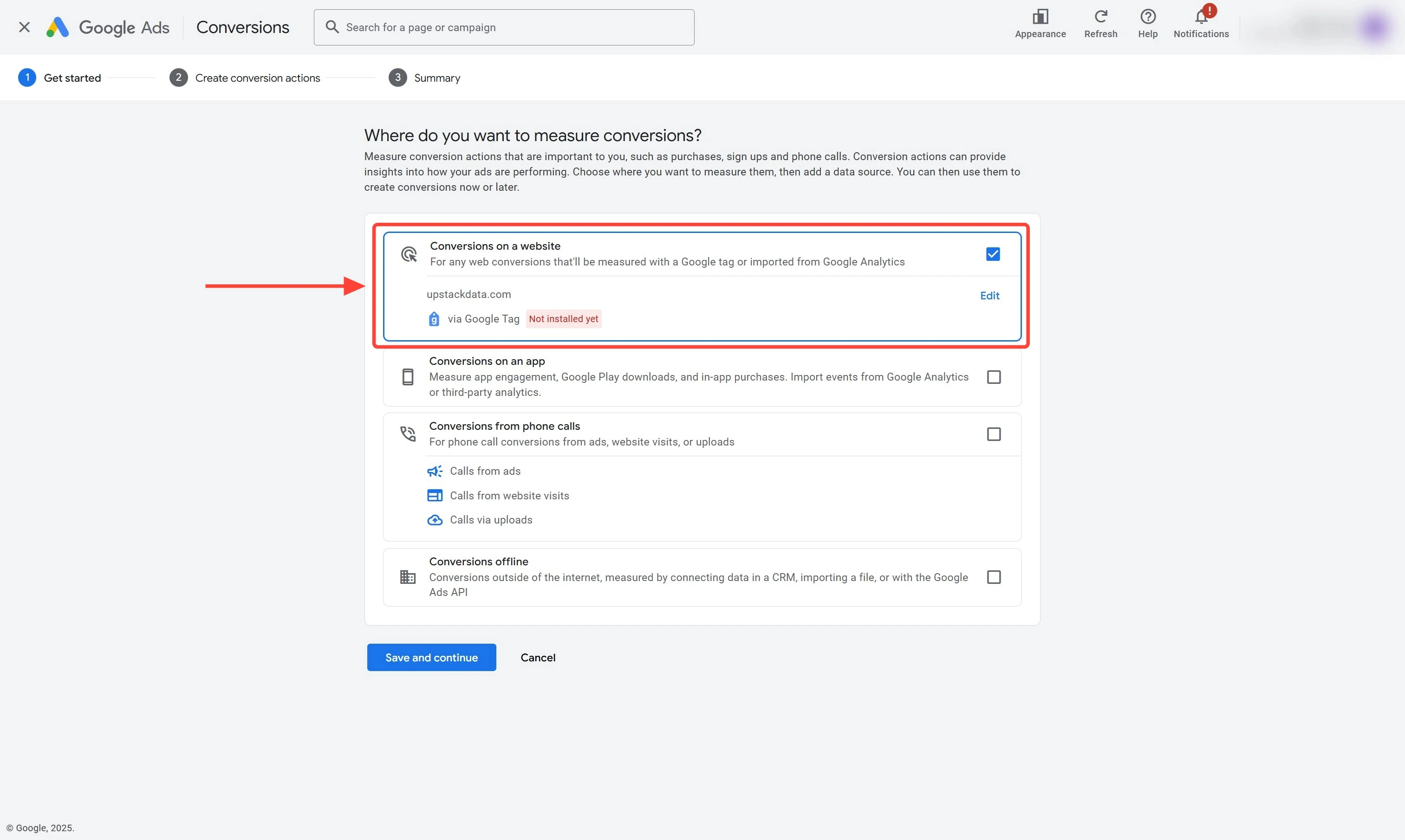
* Select **"Conversions on a website"** by ticking the checkbox on the right side of the panel
* Click **Save and continue**
* Click the **"+ Create conversion action"** button
* Select **"Conversions on a website"** by ticking the checkbox on the right side of the panel
* Click **Save and continue**
 * Select **"Purchase"** as the goal/conversion action
* In the **"Choose an event to measure Purchase"** panel, under **"Create a new conversion action"**, select **"Set up manually using a code"**
* Click **"Conversion settings"** to expand the section
* Set the **Conversion name** to **"Purchase - UpstackData"**
* Set **Click-through conversion window** to **30 days**
* Select **"Purchase"** as the goal/conversion action
* In the **"Choose an event to measure Purchase"** panel, under **"Create a new conversion action"**, select **"Set up manually using a code"**
* Click **"Conversion settings"** to expand the section
* Set the **Conversion name** to **"Purchase - UpstackData"**
* Set **Click-through conversion window** to **30 days**
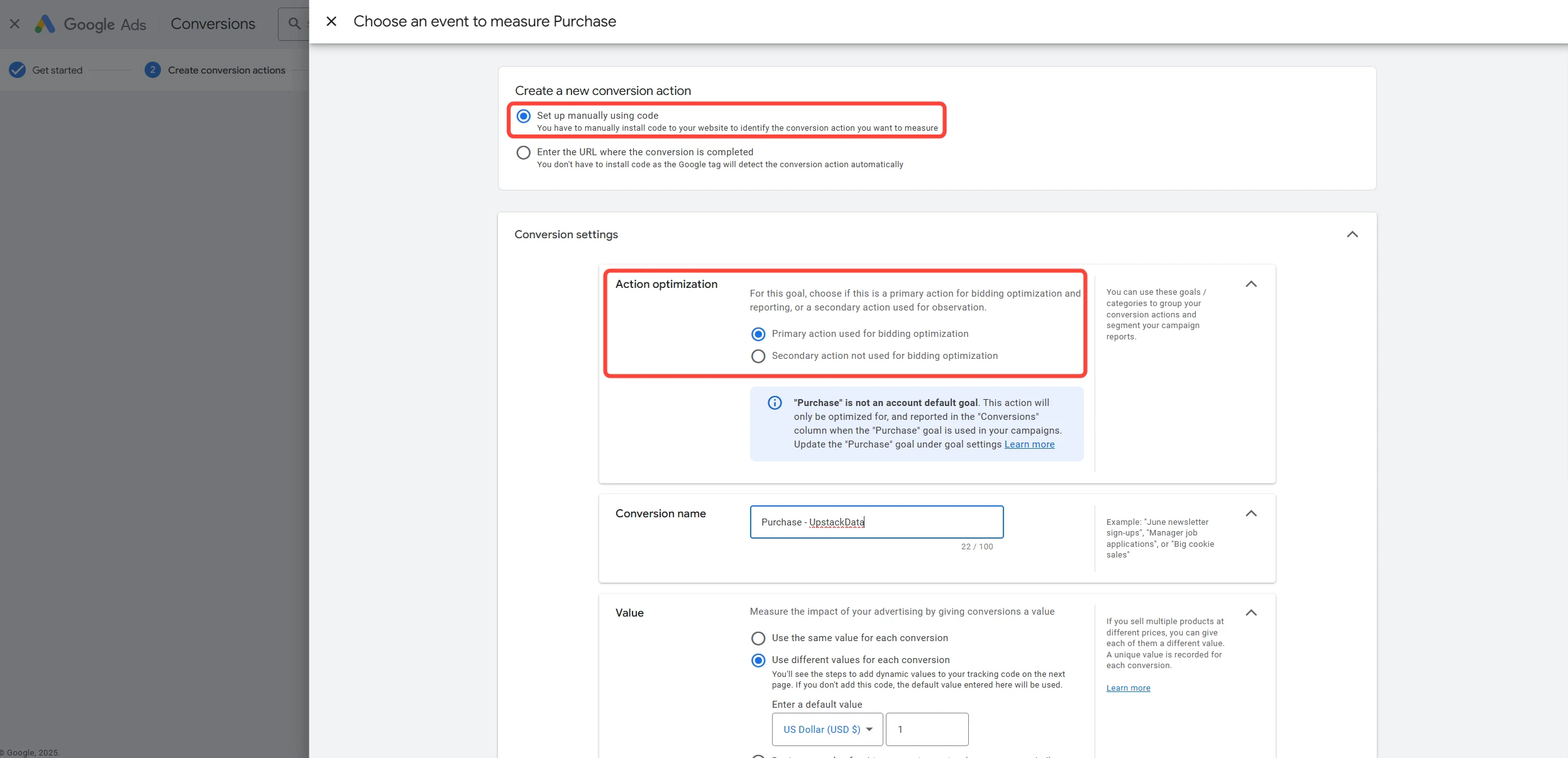 `Example - select **Set up manually using a code** and **Purchase** as the Goal/Conversion action`
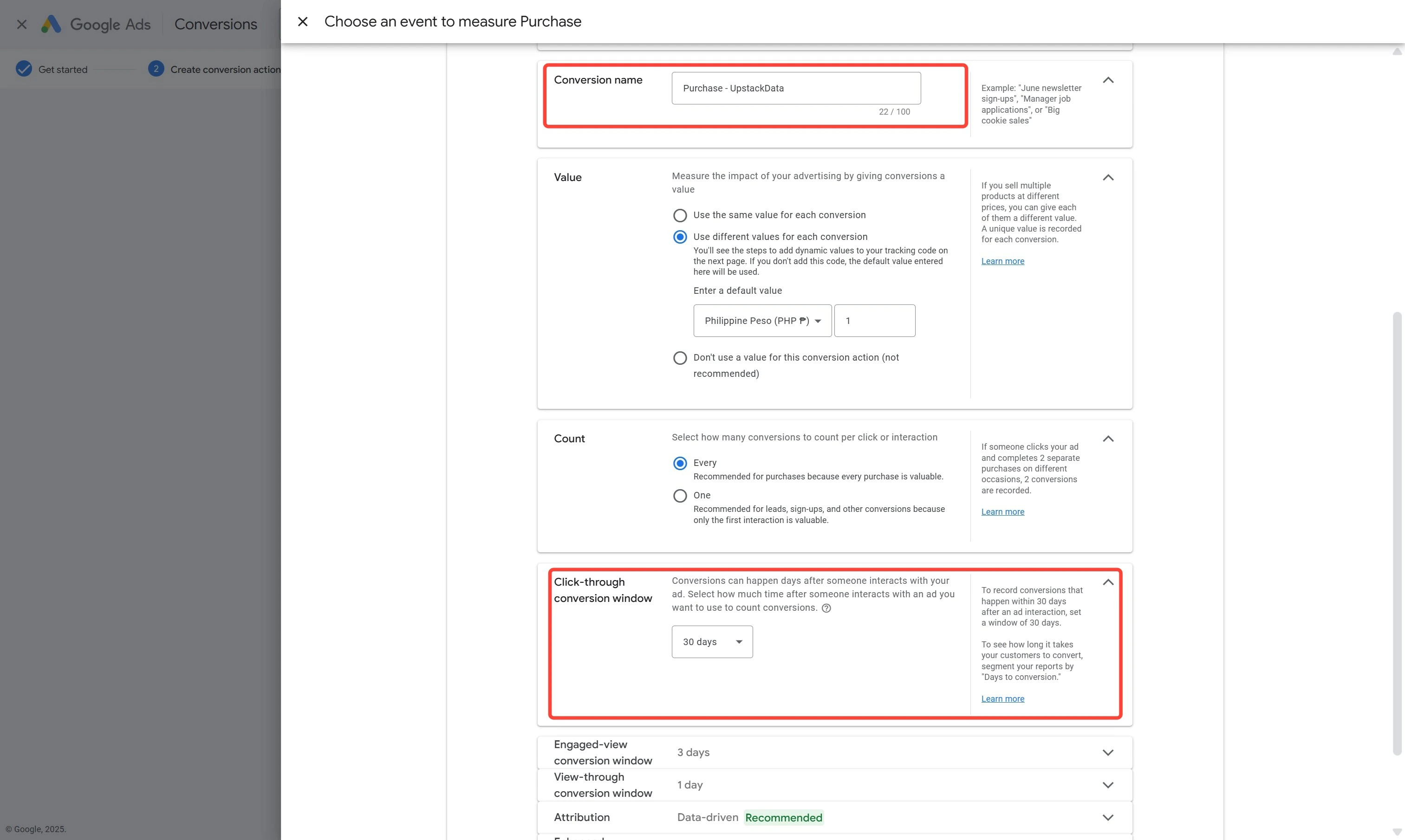 `Example - Conversion name: **Purchase - UpstackData** and Click-through conversion window: **30 days**`
Check the **"Use enhanced conversion for conversion action"** option to enable **Enhanced Conversions**.
Click **Done** to save the changes and close the panel.
`Example - Conversion name: **Purchase - UpstackData** and Click-through conversion window: **30 days**`
Check the **"Use enhanced conversion for conversion action"** option to enable **Enhanced Conversions**.
Click **Done** to save the changes and close the panel.
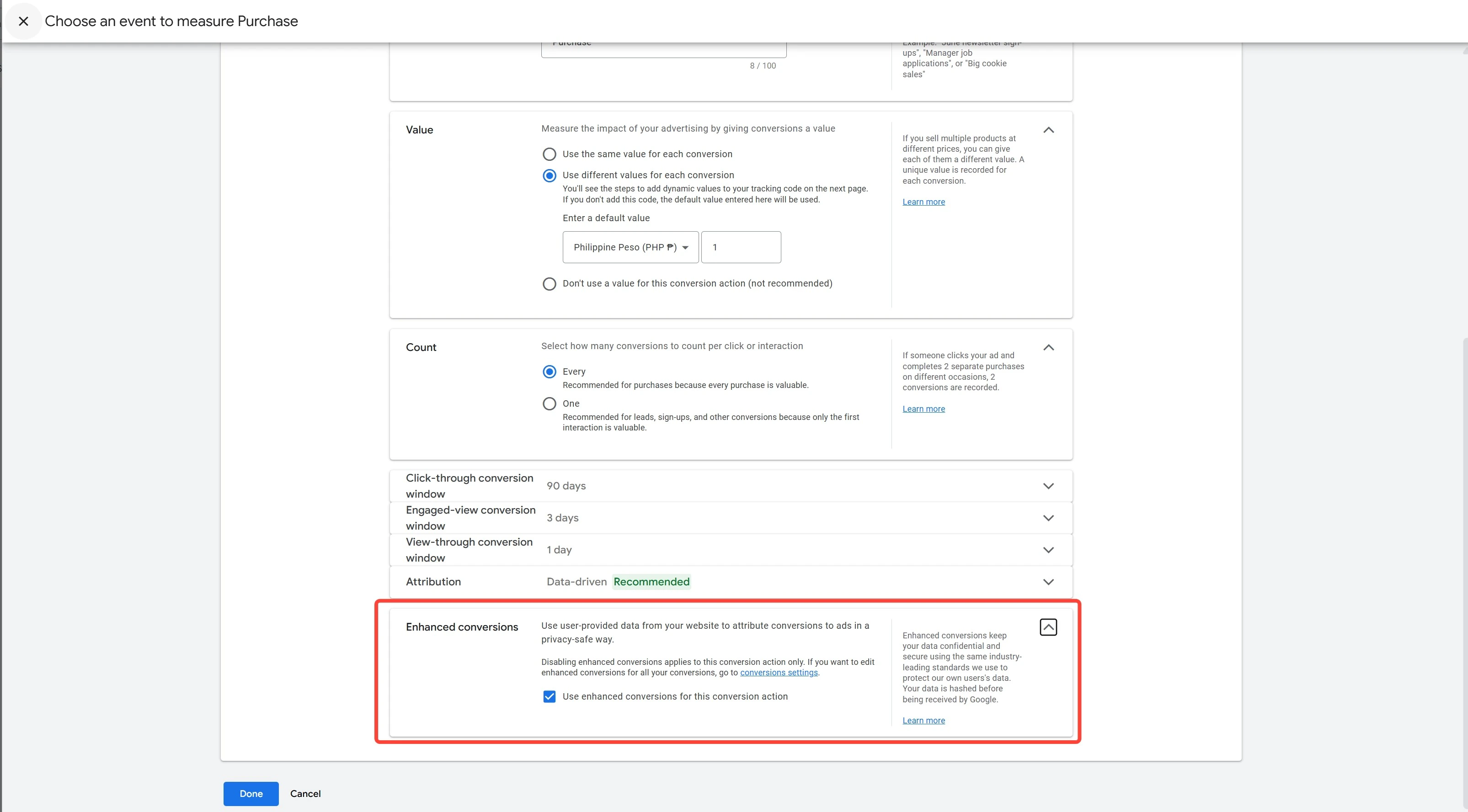 **Note:** Enhanced Conversions improves match rates by using first-party customer data securely.
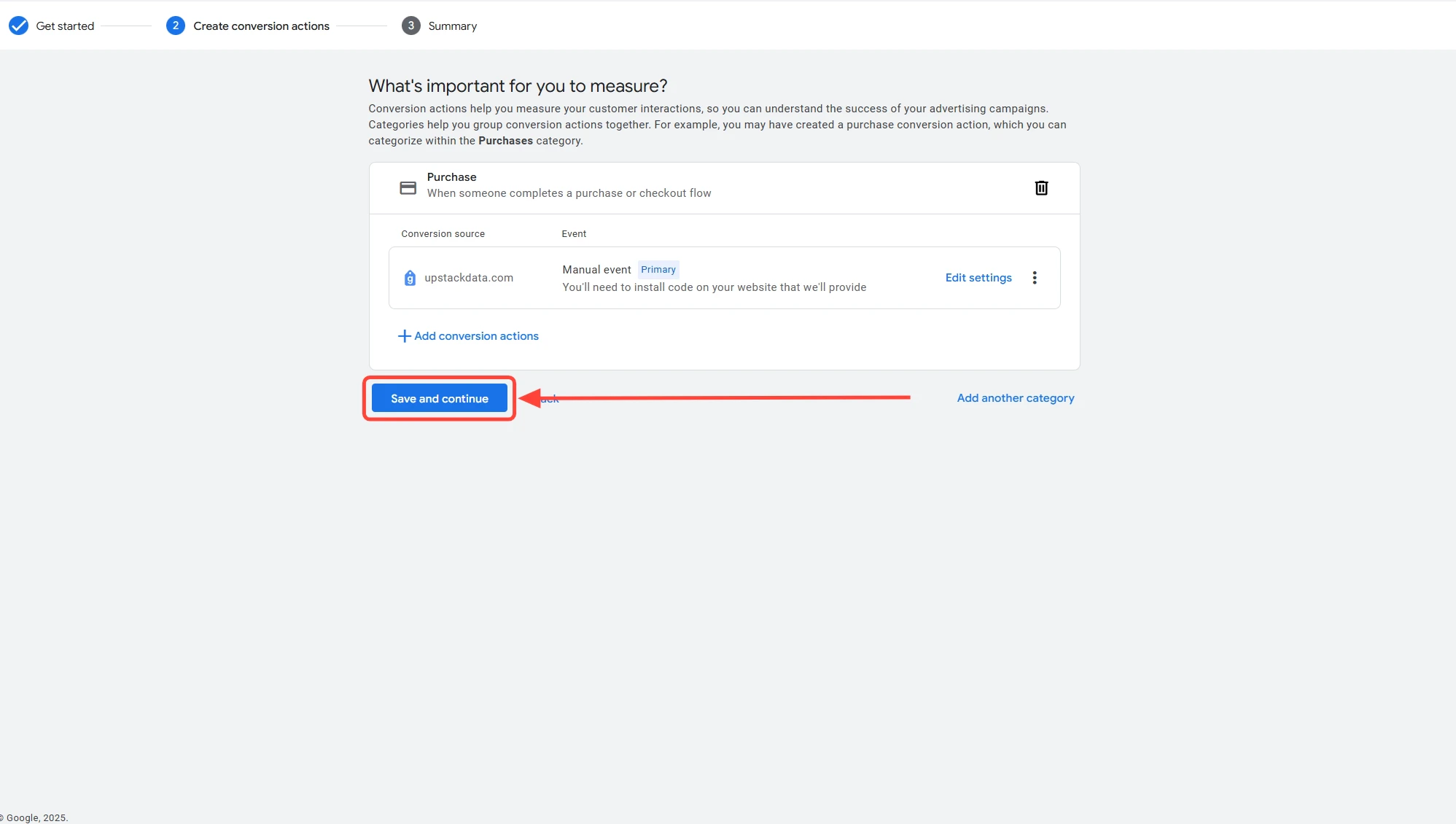
Click **Save and Continue** to complete the setup.
**Note:** Enhanced Conversions improves match rates by using first-party customer data securely.
Click **Save and Continue** to complete the setup.
 *If your Google Ads interface looks different, see:*
\*\*[How to Create a Purchase Goal in Google Ads Using the Google Ads Tag (For Different Interface) →](/destinations/catalog/google-ads/how-to-create-a-purchase-goal-in-google-ads-using-the-google-ads-tag-for-different-interface)\*\*
## What You'll Receive
After saving, Google Ads displays:
* **Conversion ID** — starts with `AW-` followed by 9–10 digits (e.g., `AW-123456789`)
* **Conversion Label** — 11-character alphanumeric string (e.g., `ABc1d2EFG3h`)
Use these values in your Upstack Data destination configuration.
## Verify the Setup
To confirm the goal was created correctly:
* Return to **Goals → Conversions → Summary** in Google Ads — the new **"Purchase - UpstackData"** conversion should appear in the list with a status of **Inactive** (it will become **Active** once it receives data).
* Confirm the **Click-through conversion window** is **30 days** and **Enhanced Conversions** is enabled on the conversion's detail page.
If the conversion is missing, refresh the page and check that you saved the action. If issues persist, contact Upstack Data support.
*If your Google Ads interface looks different, see:*
\*\*[How to Create a Purchase Goal in Google Ads Using the Google Ads Tag (For Different Interface) →](/destinations/catalog/google-ads/how-to-create-a-purchase-goal-in-google-ads-using-the-google-ads-tag-for-different-interface)\*\*
## What You'll Receive
After saving, Google Ads displays:
* **Conversion ID** — starts with `AW-` followed by 9–10 digits (e.g., `AW-123456789`)
* **Conversion Label** — 11-character alphanumeric string (e.g., `ABc1d2EFG3h`)
Use these values in your Upstack Data destination configuration.
## Verify the Setup
To confirm the goal was created correctly:
* Return to **Goals → Conversions → Summary** in Google Ads — the new **"Purchase - UpstackData"** conversion should appear in the list with a status of **Inactive** (it will become **Active** once it receives data).
* Confirm the **Click-through conversion window** is **30 days** and **Enhanced Conversions** is enabled on the conversion's detail page.
If the conversion is missing, refresh the page and check that you saved the action. If issues persist, contact Upstack Data support.