> ## Documentation Index
> Fetch the complete documentation index at: https://docs.upstackdata.com/llms.txt
> Use this file to discover all available pages before exploring further.
# How to Approve Facebook (Meta) Custom Events
> Approve custom events in Facebook (Meta) Events Manager so they become eligible for ad campaign optimization, custom audiences, and conversion reporting.
## Why event approval is required
Custom events showing the ⚠️ red triangle warning in Meta Events Manager must be approved (acknowledged and confirmed) before Meta will use them for ad delivery optimization or campaign targeting.
* Sign in to [Meta Events Manager](https://business.facebook.com/events_manager2) and open the affected pixel.
* Click the **custom event** (or its red triangle icon) and choose **Manage status**.
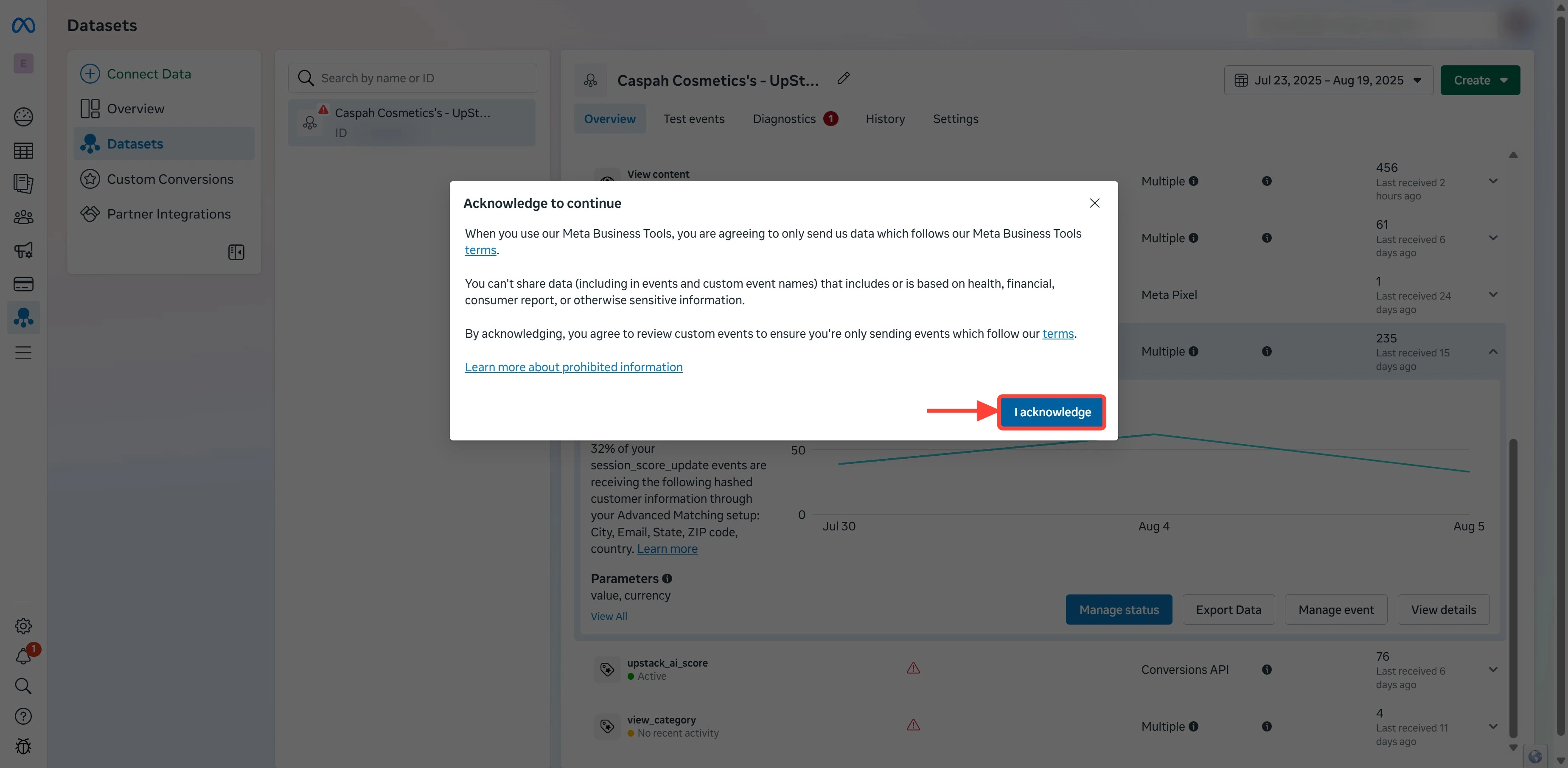
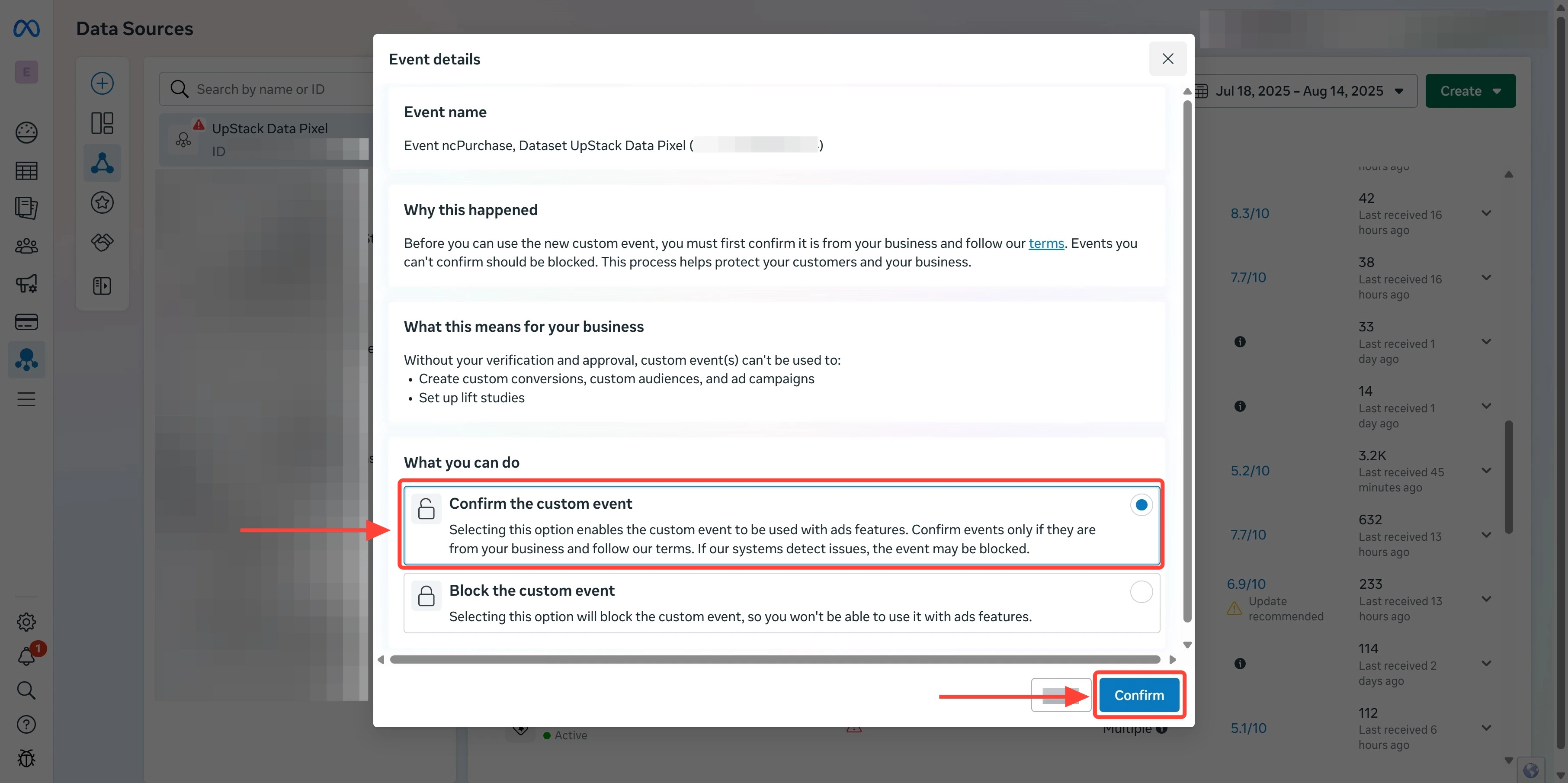
* Click **I acknowledge**, then **Confirm the custom event**, then **Confirm**.
* Refresh the events list and confirm the red triangle is gone.
## Prerequisites
Before you start, you need:
* Access to the same **Meta Business Manager** that owns the pixel firing the custom event
* Editor or admin permissions on the pixel/dataset in Meta Events Manager
* At least one fired instance of the custom event (so it appears in the events list)
## Step-by-step instructions
Sign in to Meta Events Manager at [business.facebook.com/events\_manager2](https://business.facebook.com/events_manager2) and select the pixel containing the custom event.
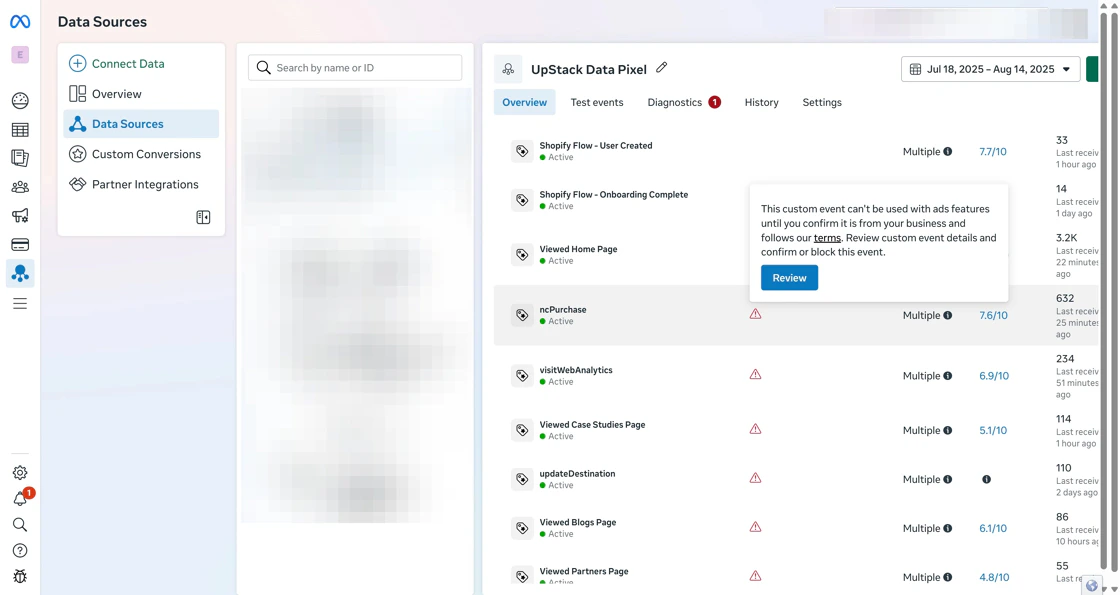 On the pixel **Overview** tab, locate the custom event with the ⚠️ warning. Click either:
* The **name** of the custom event, or
* The **red triangle ⚠️** warning icon next to it
Then click **Review** (or open **Manage status**).
On the pixel **Overview** tab, locate the custom event with the ⚠️ warning. Click either:
* The **name** of the custom event, or
* The **red triangle ⚠️** warning icon next to it
Then click **Review** (or open **Manage status**).
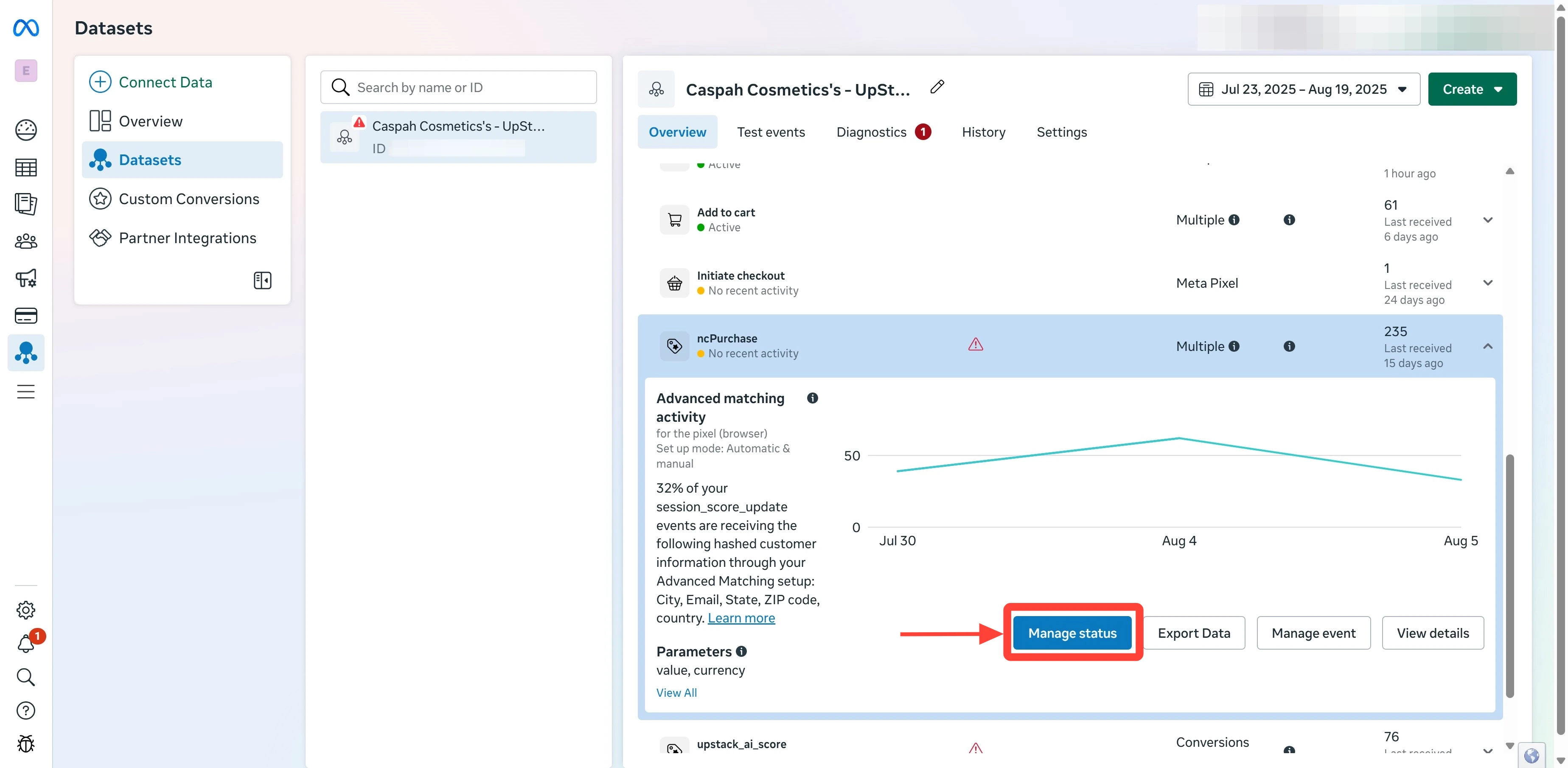
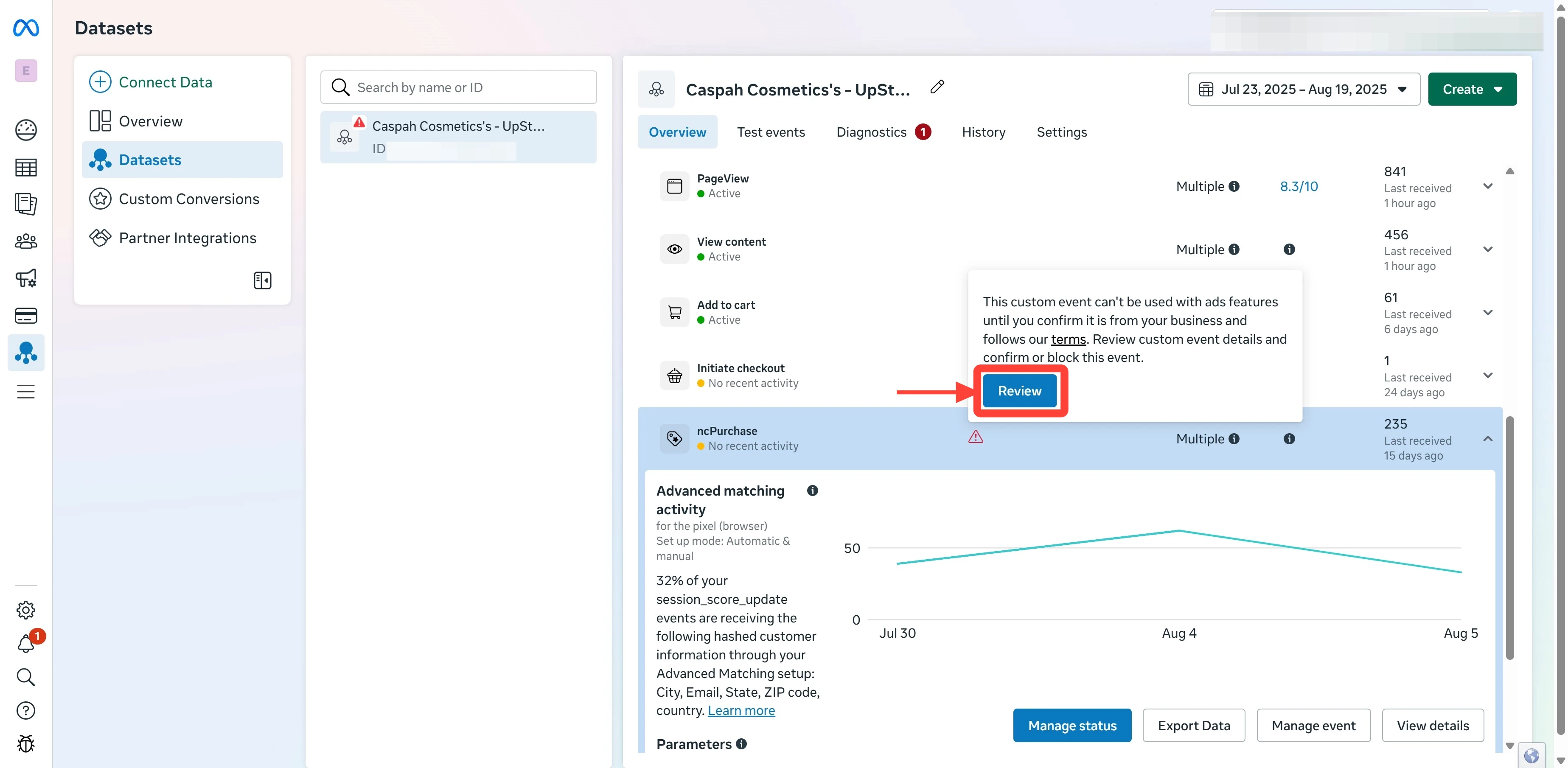 In the review dialog, click **I acknowledge**.
This confirms you understand this is a custom event you've intentionally created (in this case, sent by Upstack Data).
In the review dialog, click **I acknowledge**.
This confirms you understand this is a custom event you've intentionally created (in this case, sent by Upstack Data).
 Complete the final approval:
* Click **Confirm the custom event**
* Click **Confirm** to finalize
Complete the final approval:
* Click **Confirm the custom event**
* Click **Confirm** to finalize
 Refresh the **Overview** tab. The ⚠️ red triangle should no longer appear next to the event, and its status should read **Active**.
The event is now approved and available as an optimization or targeting event in **Meta Ads Manager**.
Refresh the **Overview** tab. The ⚠️ red triangle should no longer appear next to the event, and its status should read **Active**.
The event is now approved and available as an optimization or targeting event in **Meta Ads Manager**.