> ## Documentation Index
> Fetch the complete documentation index at: https://docs.upstackdata.com/llms.txt
> Use this file to discover all available pages before exploring further.
# How to Create and Share NC Purchase Custom Conversion in Facebook (Meta)
> Create and share an NC Purchase custom conversion in Facebook (Meta) Events Manager to attribute new-customer revenue to ads and share the metric across ad accounts.
* Sign in to [Meta Events Manager](https://business.facebook.com/events_manager) and open **Custom Conversions → Create custom conversion**.
* Name the conversion **NC Purchase** and select the **ncPurchase** event.
* Choose **Purchase** as the optimization event and add a URL rule of **doesn't contain `doesnotexist`**.
* Share the conversion with every ad account that needs to use it.
**What you'll create**
A custom conversion that tracks **new-customer** purchases, so you can optimize campaigns for customer acquisition rather than repeat purchases.
## Prerequisites
Before you start, you need:
* The **Meta destination** configured in Upstack Data — see [How to configure the Meta Pixel destination](/guides/facebook-ads/how-to-configure-facebook-meta-ads-pixel-destination-in-upstack-data)
* The **ncPurchase** event verified in Meta Events Manager — see [How to verify the NC Purchase event](/guides/facebook-ads/how-to-verify-the-nc-purchase-event-in-facebook-meta-events-manager)
* Admin access to the Meta Business Manager and to every ad account you plan to share the conversion with
## Part 1 — Create the NC Purchase custom conversion
Sign in to Meta Events Manager at [business.facebook.com/events\_manager](https://business.facebook.com/events_manager).
In the left-hand menu, click **Custom Conversions**, then click **Create custom conversion** in the top-right.
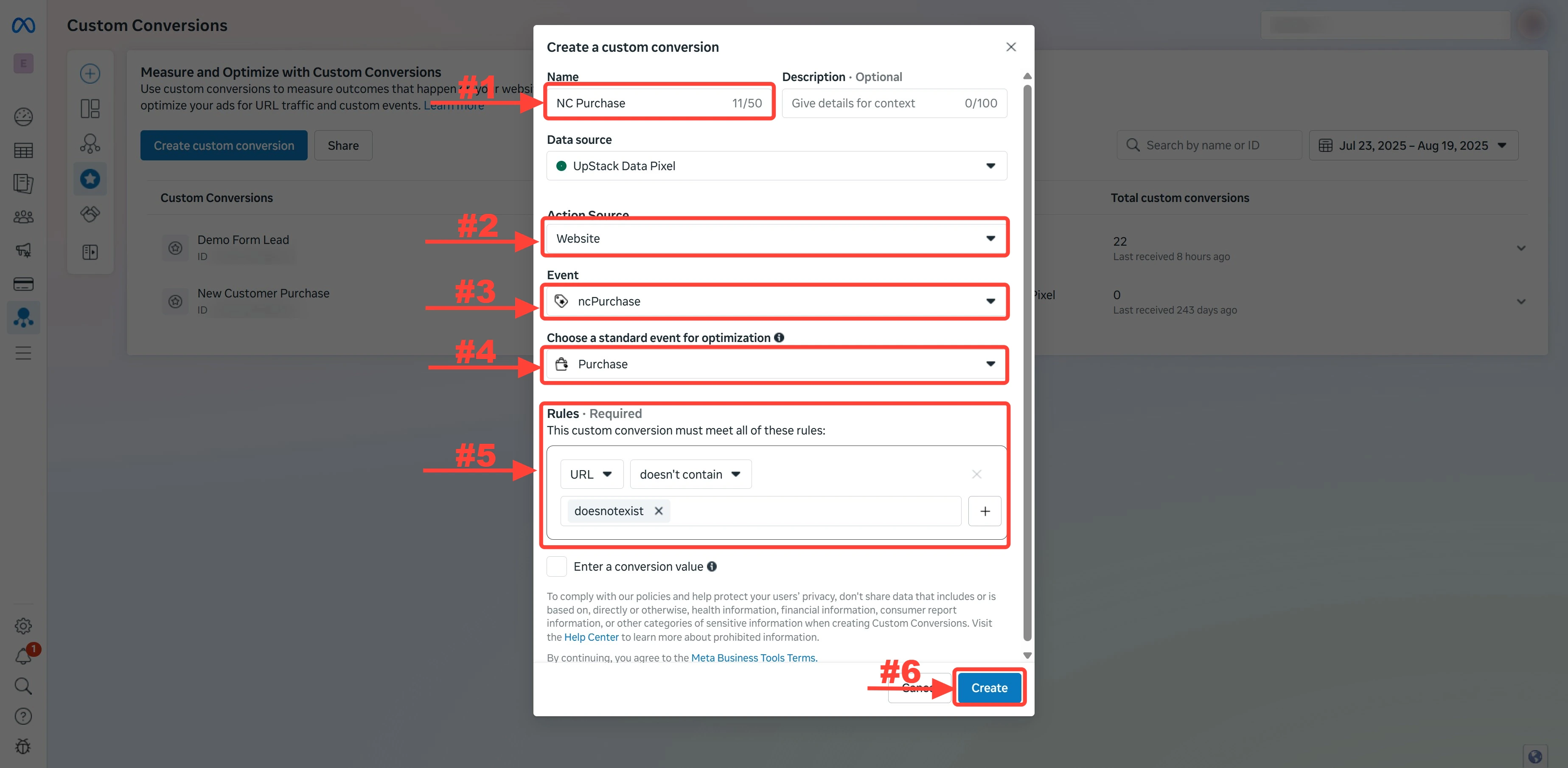
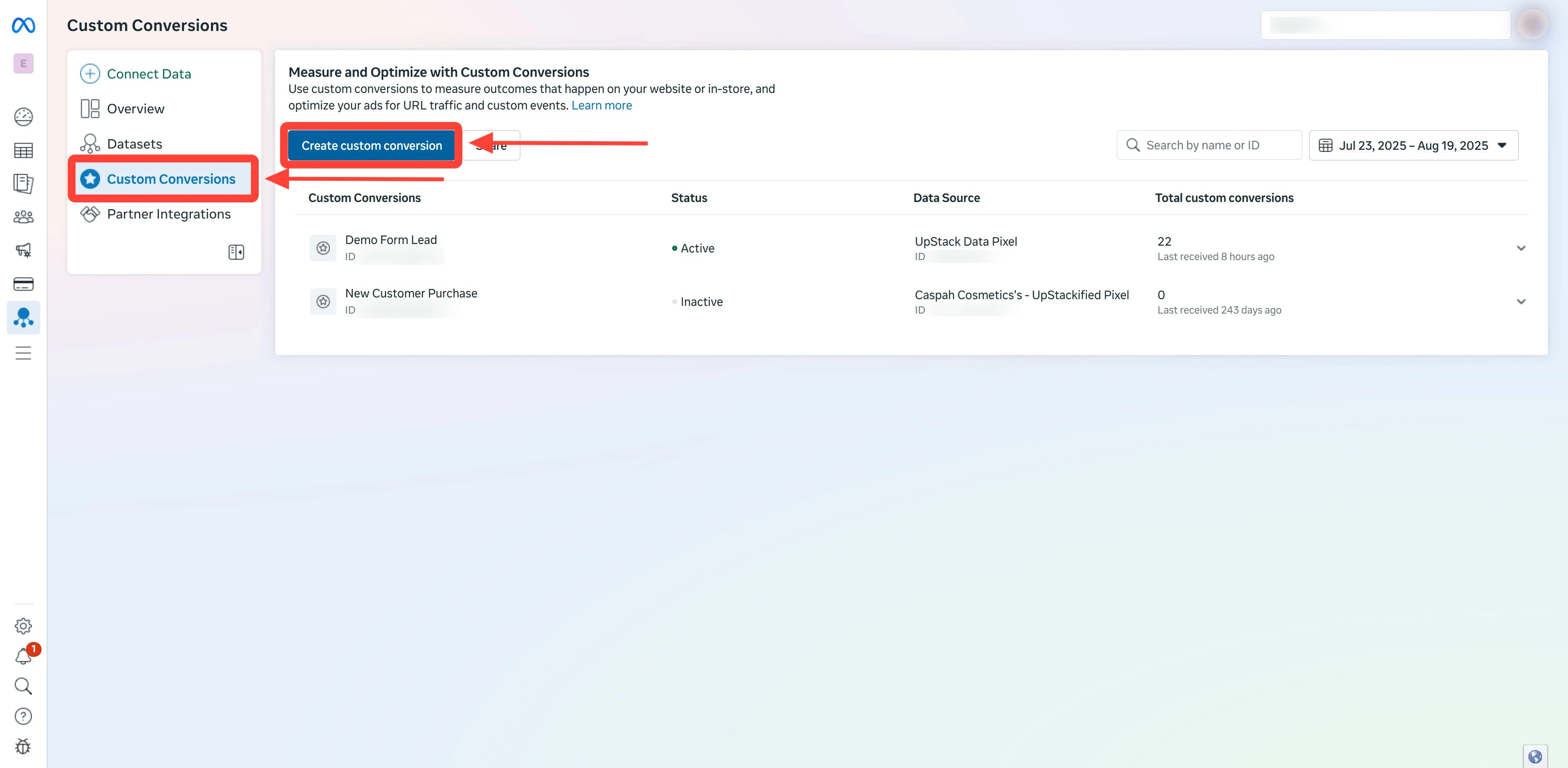 In the **Create a custom conversion** dialog:
* **Name:** `NC Purchase`
* **Event:** select **ncPurchase**
If you don't see **ncPurchase** in the Event dropdown, return to Meta Events Manager and verify the event first. See [How to verify the NC Purchase event](/guides/facebook-ads/how-to-verify-the-nc-purchase-event-in-facebook-meta-events-manager).
In the **Choose a standard event for optimization** field, select **Purchase**. This tells Meta to optimize delivery using its Purchase model when this custom conversion is used.
Under **Rules**:
1. Choose **URL** as the parameter
2. Select **doesn't contain** as the condition
3. Type `doesnotexist` in the value field
4. Press **Enter** until the value becomes a light-grey tag
5. Click **Create**
**Why this rule?** Since no URL on your store contains `doesnotexist`, this rule effectively matches every page — so the custom conversion fires for the **ncPurchase** event across your entire site.
In the **Create a custom conversion** dialog:
* **Name:** `NC Purchase`
* **Event:** select **ncPurchase**
If you don't see **ncPurchase** in the Event dropdown, return to Meta Events Manager and verify the event first. See [How to verify the NC Purchase event](/guides/facebook-ads/how-to-verify-the-nc-purchase-event-in-facebook-meta-events-manager).
In the **Choose a standard event for optimization** field, select **Purchase**. This tells Meta to optimize delivery using its Purchase model when this custom conversion is used.
Under **Rules**:
1. Choose **URL** as the parameter
2. Select **doesn't contain** as the condition
3. Type `doesnotexist` in the value field
4. Press **Enter** until the value becomes a light-grey tag
5. Click **Create**
**Why this rule?** Since no URL on your store contains `doesnotexist`, this rule effectively matches every page — so the custom conversion fires for the **ncPurchase** event across your entire site.
 ## Part 2 — Share with ad accounts
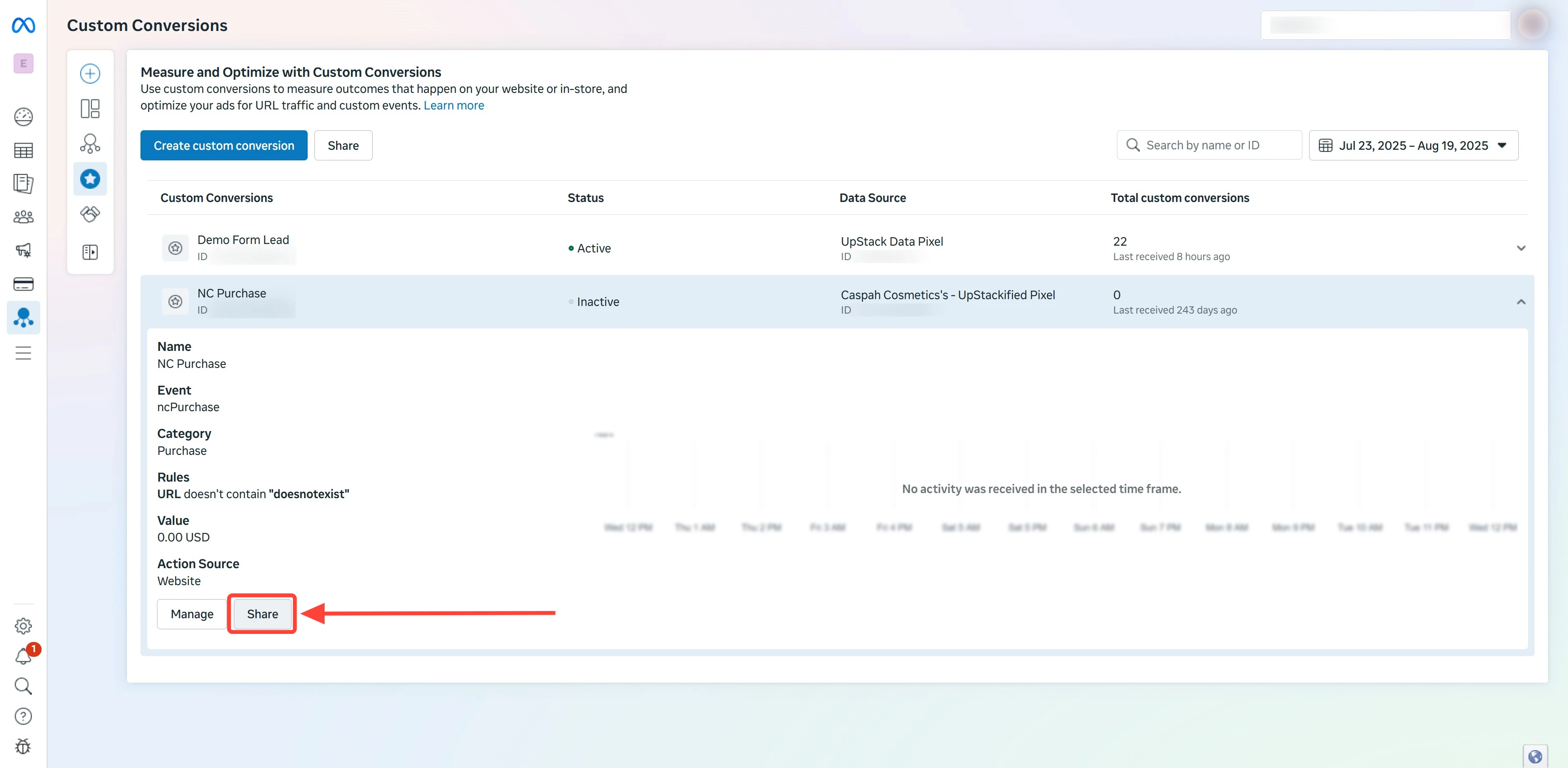
On the **Custom Conversions** page, find the **NC Purchase** conversion you just created. Click the **dropdown** (kebab menu) on the right of the row, then click **Share**.
## Part 2 — Share with ad accounts
On the **Custom Conversions** page, find the **NC Purchase** conversion you just created. Click the **dropdown** (kebab menu) on the right of the row, then click **Share**.
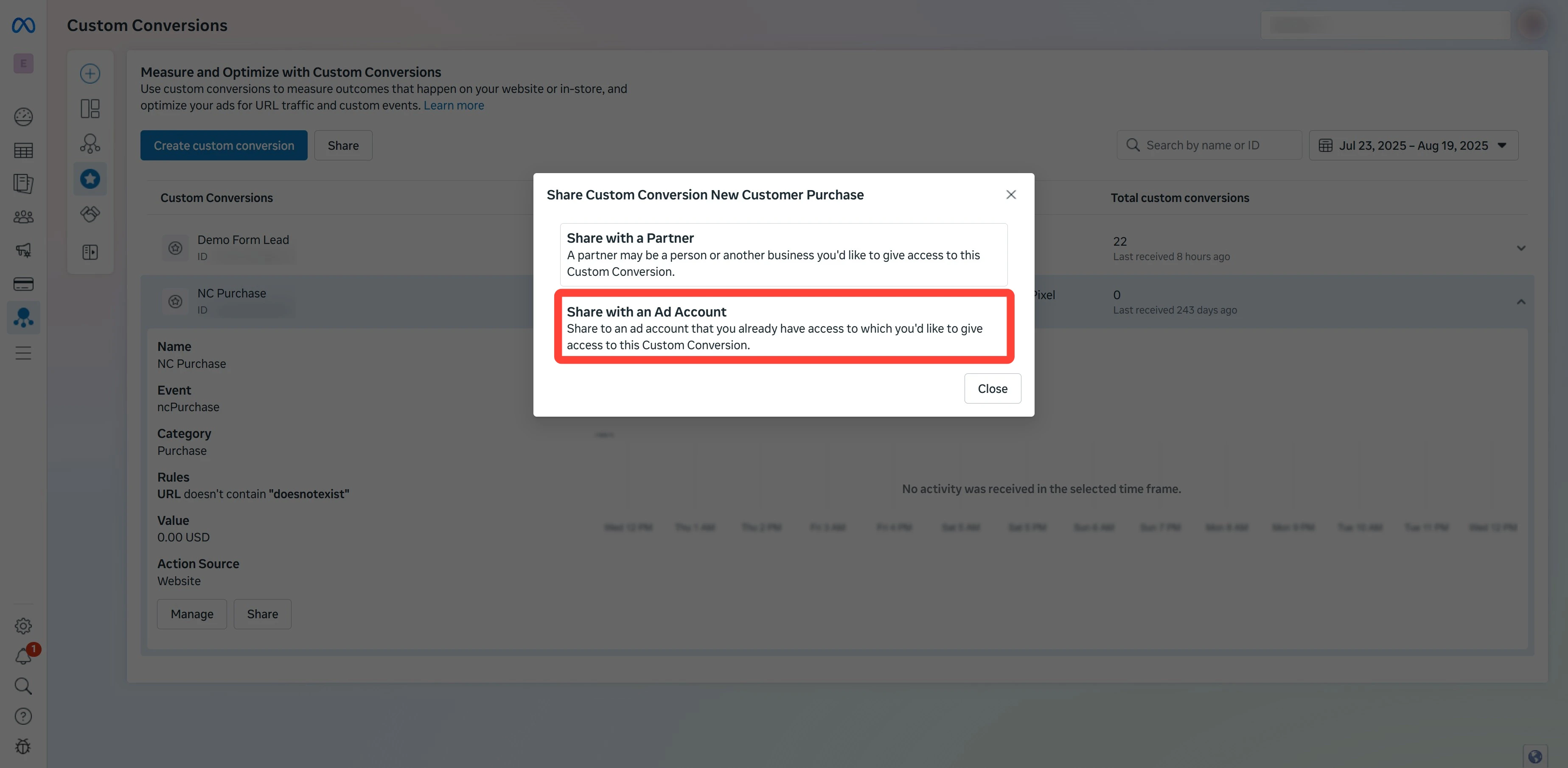
 In the share dialog, click **Share with an Ad Account**.
 Check every ad account that needs to use this custom conversion.
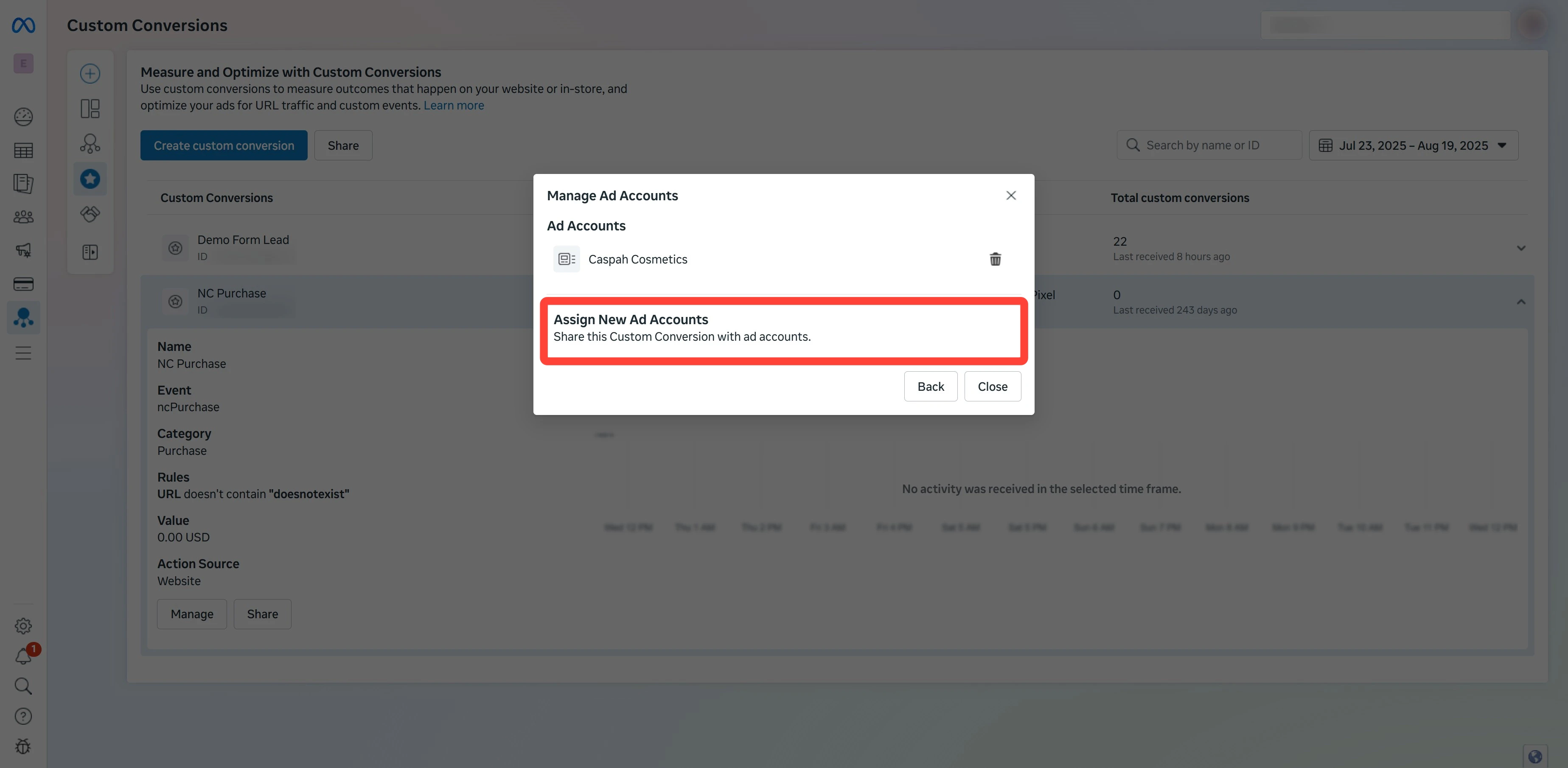
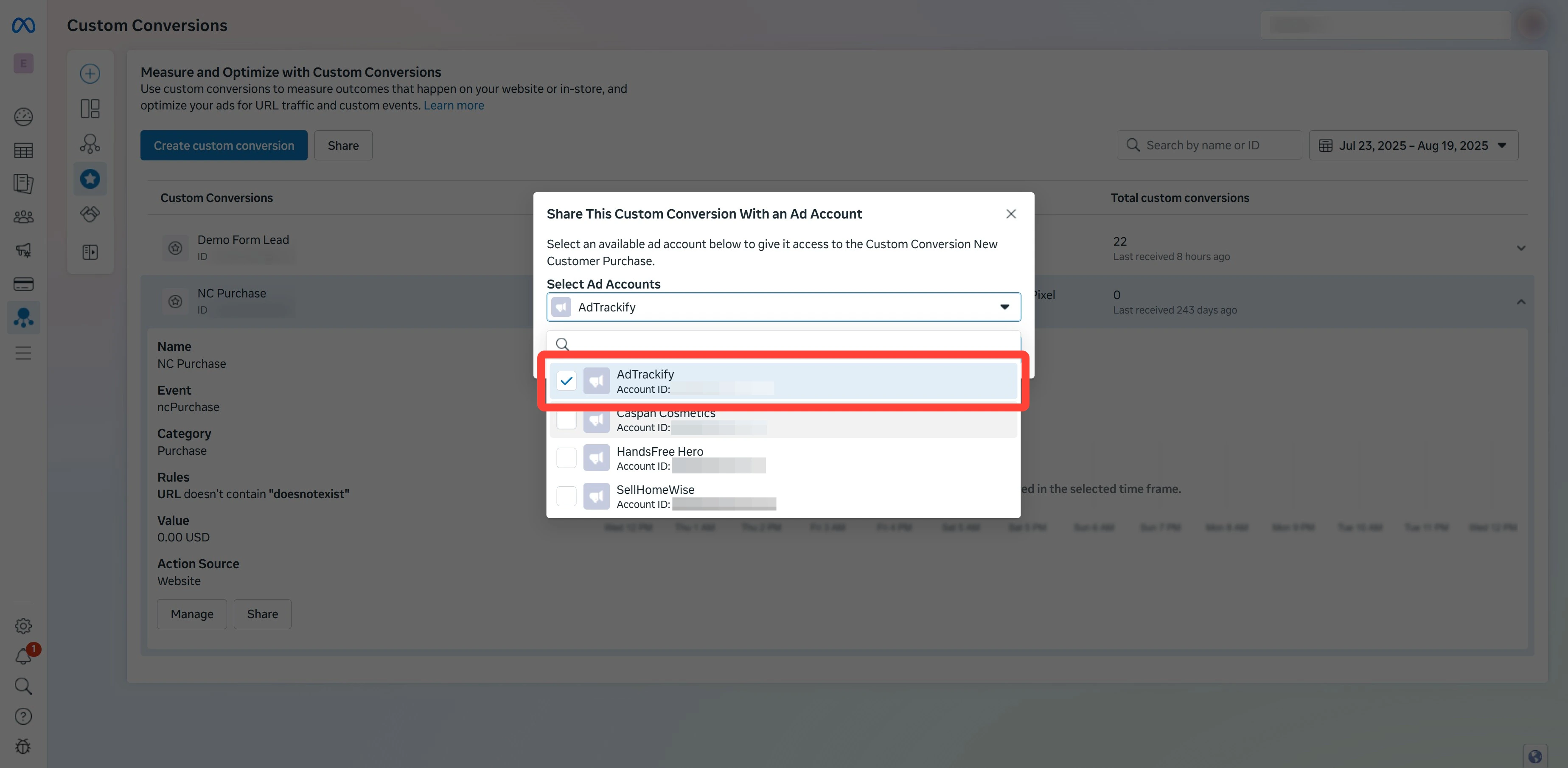 Click **Share Custom Conversion** to confirm.
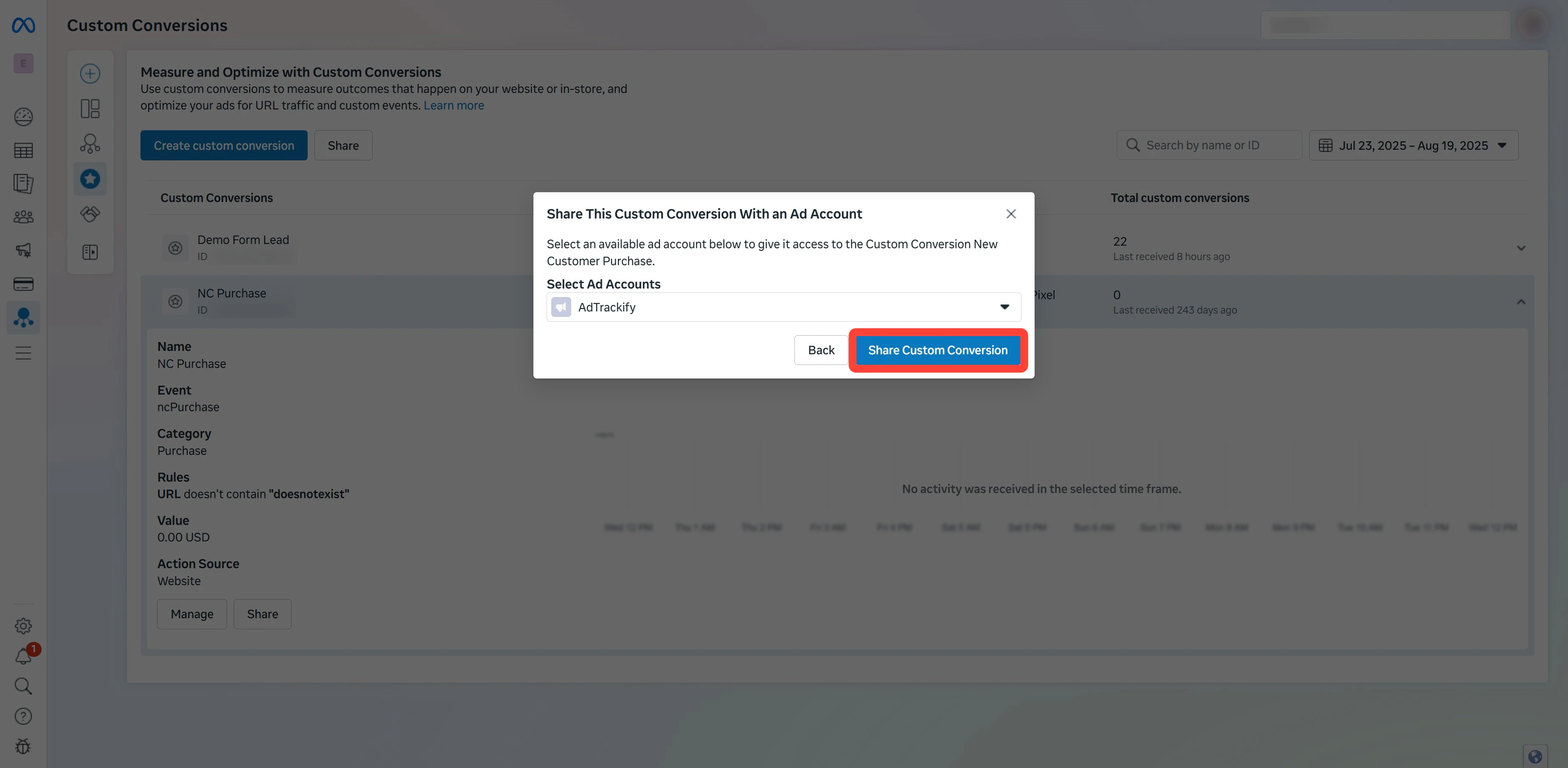 Back on the **Custom Conversions** page, the **NC Purchase** row should show:
* **Status:** Active (no warning icon)
* **Shared with:** the ad accounts you selected
Open one of those ad accounts in **Ads Manager** and confirm **NC Purchase** appears in the **Custom Conversions** list when you customize columns or pick a conversion event for a campaign.
## What's next?
After creating and sharing the conversion, set up reporting:
[Set up NC-ROAS metrics in Ads Manager →](/guides/facebook-ads/how-to-add-nc-purchase-metrics-and-nc-roas-to-facebook-meta-ads-manager)
Back on the **Custom Conversions** page, the **NC Purchase** row should show:
* **Status:** Active (no warning icon)
* **Shared with:** the ad accounts you selected
Open one of those ad accounts in **Ads Manager** and confirm **NC Purchase** appears in the **Custom Conversions** list when you customize columns or pick a conversion event for a campaign.
## What's next?
After creating and sharing the conversion, set up reporting:
[Set up NC-ROAS metrics in Ads Manager →](/guides/facebook-ads/how-to-add-nc-purchase-metrics-and-nc-roas-to-facebook-meta-ads-manager)