> ## Documentation Index
> Fetch the complete documentation index at: https://docs.upstackdata.com/llms.txt
> Use this file to discover all available pages before exploring further.
# How to Disable Facebook and Instagram Data Sharing in Shopify
> Disable Shopify's Facebook and Instagram sales channel pixel to stop duplicate Meta Pixel events and let Upstack Data deliver clean server-side conversions to Meta CAPI.
* Sign in to your Shopify admin at [admin.shopify.com](https://admin.shopify.com).
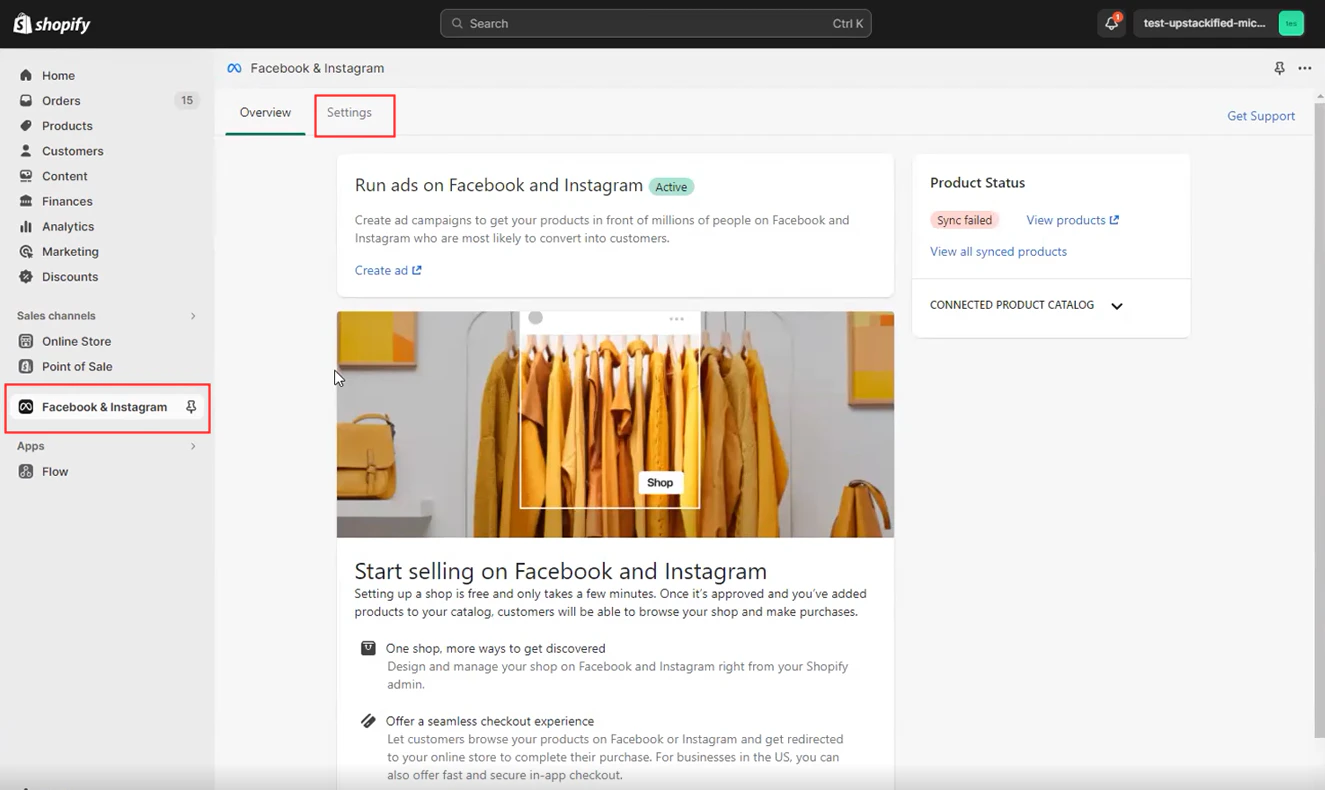
* Open **Sales channels → Facebook & Instagram → Settings**.
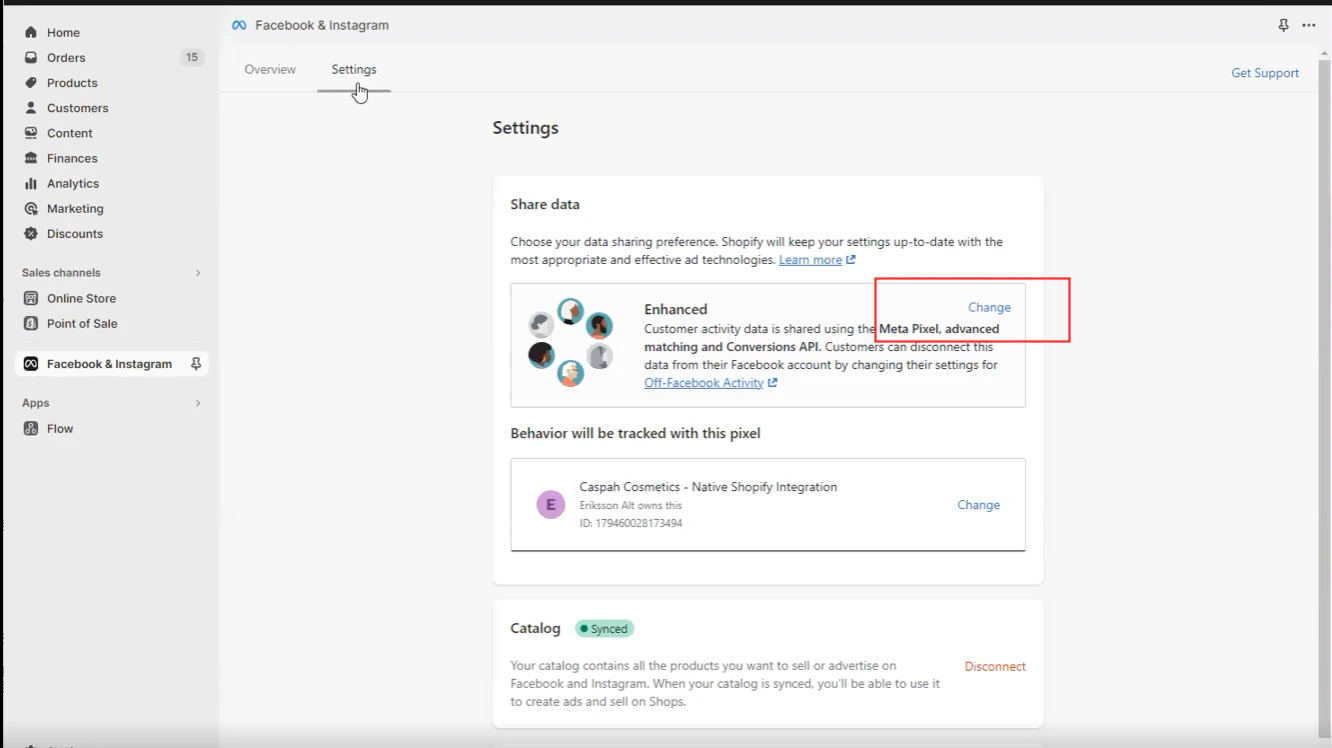
* Under **Share data**, click **Change**.
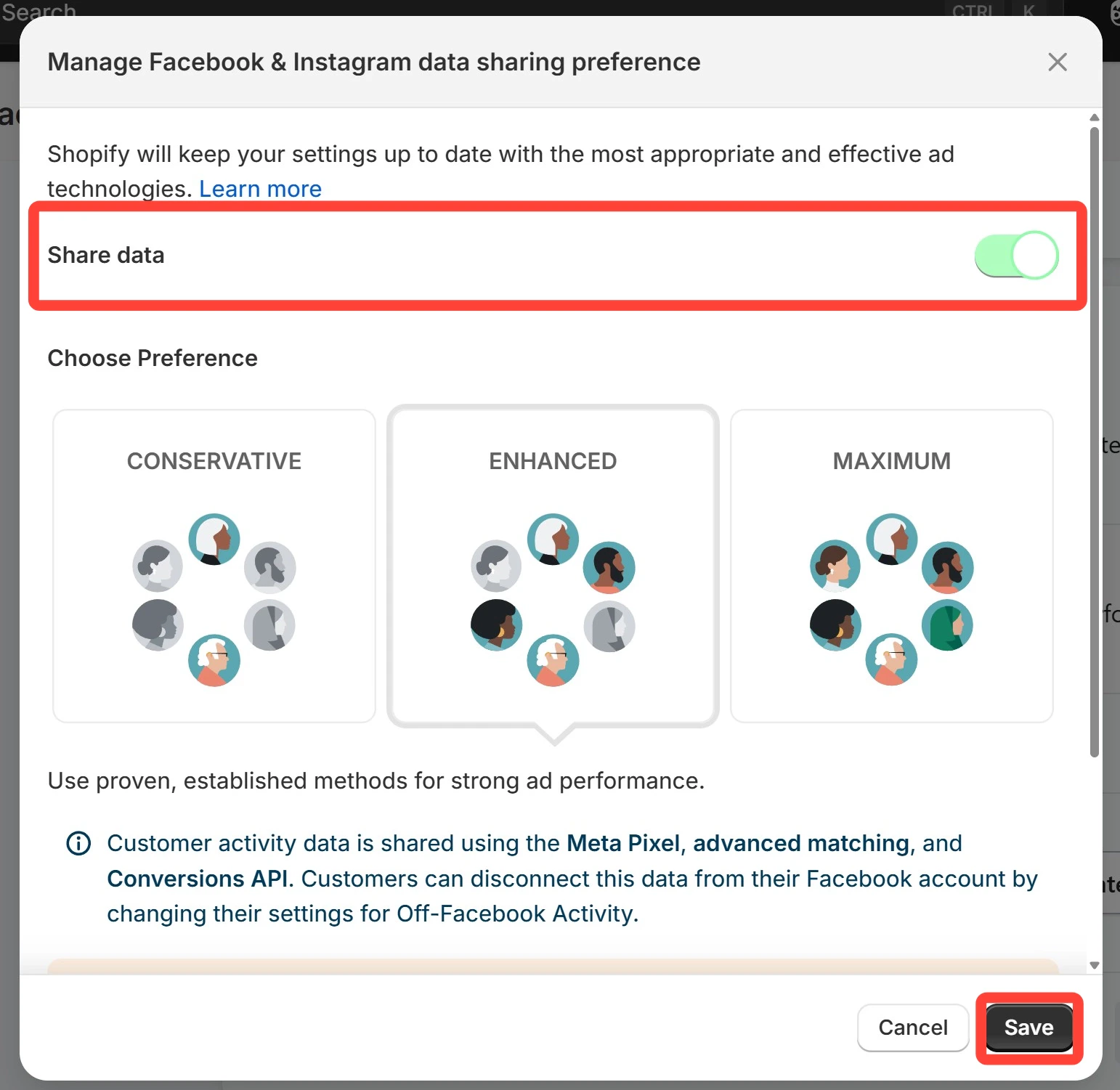
* Toggle **Share data** to **Off** and click **Save**.
Most causes of duplicate events are because you have more than one Facebook integration active on your site.
Disable the **Facebook & Instagram sales channel data sharing** in Shopify and confirm no other Facebook pixel apps (or theme-injected pixels) are installed.
## Prerequisites
Before you start, you need:
* Owner or staff access to your **Shopify admin** with permission to edit sales channels
* The **Facebook & Instagram sales channel** installed in Shopify (if it's not installed, there's nothing to disable)
* A configured Meta destination in Upstack Data so the pixel keeps firing after you disable Shopify's native integration — see [How to configure the Meta Pixel destination](/guides/facebook-ads/how-to-configure-facebook-meta-ads-pixel-destination-in-upstack-data)
## Steps to disable Facebook and Instagram data sharing in Shopify
Sign in to your Shopify admin at [admin.shopify.com](https://admin.shopify.com).
In the Shopify admin, click **Sales channels** in the left-hand menu, select **Facebook & Instagram**, then click the **Settings** tab.
*Tip: You can also use the top search bar to jump directly to the Facebook & Instagram sales channel.*
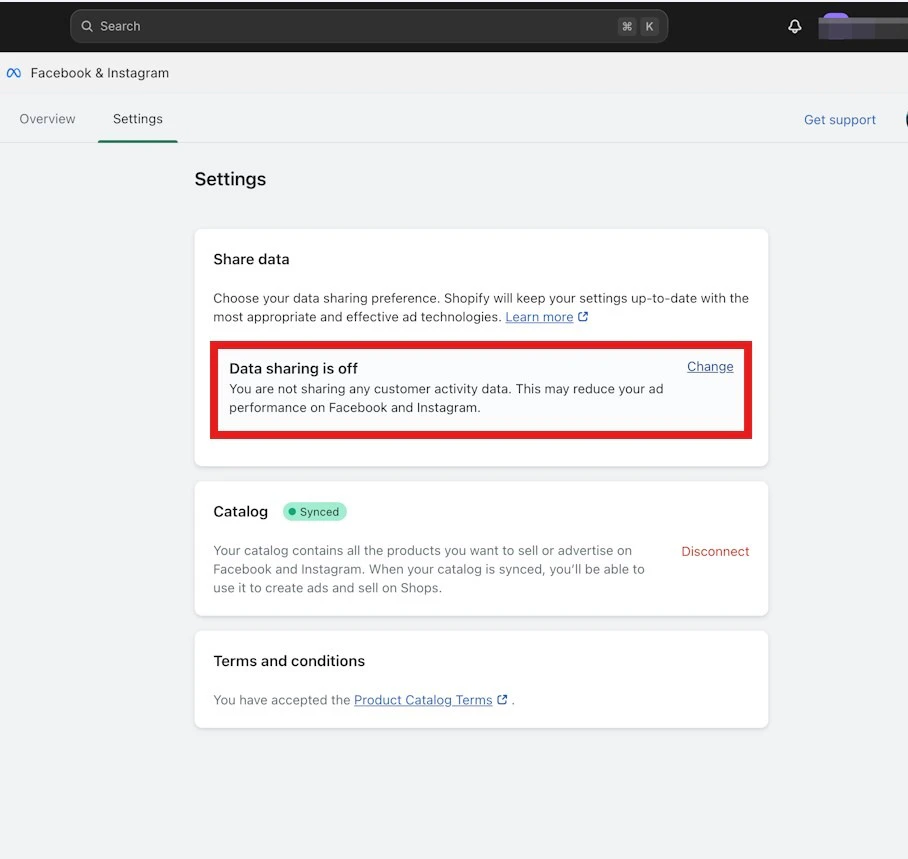
 On the Facebook & Instagram **Settings** page, locate the **Share data** section and click **Change**.
 Toggle **Share data** to **Off**.
 With **Share data** now set to **Off**, click the **Save** button at the bottom of the page.
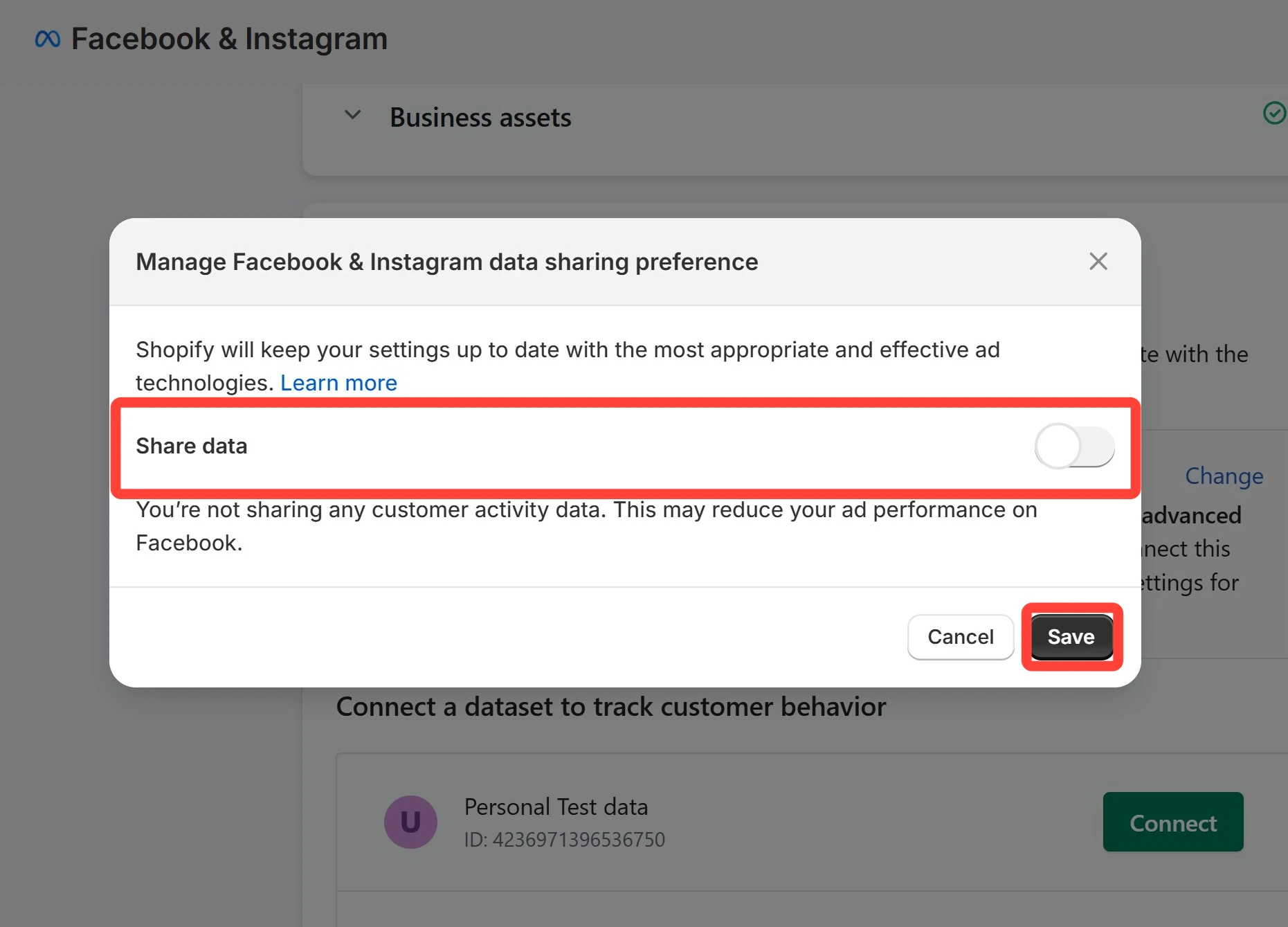 After saving, the Facebook & Instagram **Settings** page should now show **Share data: Off**.
 Within 24 hours, you should also see duplicate-event warnings clear in **Meta Events Manager**. If duplicates persist, also check for:
* Third-party Facebook pixel apps in Shopify
* Manual pixel code in your theme files (`theme.liquid`, header snippets)
* Facebook pixel tags inside Google Tag Manager
**Need help?**
If duplicate events continue after disabling Shopify's native integration, contact our support team with your Pixel ID and we'll help diagnose the source.
## Related Articles
Within 24 hours, you should also see duplicate-event warnings clear in **Meta Events Manager**. If duplicates persist, also check for:
* Third-party Facebook pixel apps in Shopify
* Manual pixel code in your theme files (`theme.liquid`, header snippets)
* Facebook pixel tags inside Google Tag Manager
**Need help?**
If duplicate events continue after disabling Shopify's native integration, contact our support team with your Pixel ID and we'll help diagnose the source.
## Related Articles