> ## Documentation Index
> Fetch the complete documentation index at: https://docs.upstackdata.com/llms.txt
> Use this file to discover all available pages before exploring further.
# How to Configure Google Ads Destination in Upstack Data
> Configure the Google Ads destination in Upstack Data with your Conversion ID and Conversion Label to forward server-side purchases with Enhanced Conversions match keys.
**Quick Summary**
* In the Upstack dashboard, click **"+ New Destination"** and select Google Ads.
* In Google Ads, find your conversion under **Goals → Conversions → Summary**.
* Open **Tag Setup** to reveal your **Conversion ID** and **Conversion Label**.
* Paste both values into the Upstack dashboard and **Create Configuration**.
## Prerequisites
Before you start, you need:
* An active Upstack Data account ([sign up](https://app.upstackdata.com))
* **Admin** or **Manager** access to a **Google Ads** account
* An existing **Purchase conversion action** in Google Ads (or follow [How to Create a New Upstack Data Purchase Goal in Google Ads](/guides/google-ads/how-to-create-a-new-upstack-data-purchase-goal-in-google-ads) first)
## Configuration Steps
Sign in to Upstack Data at [app.upstackdata.com](https://app.upstackdata.com).
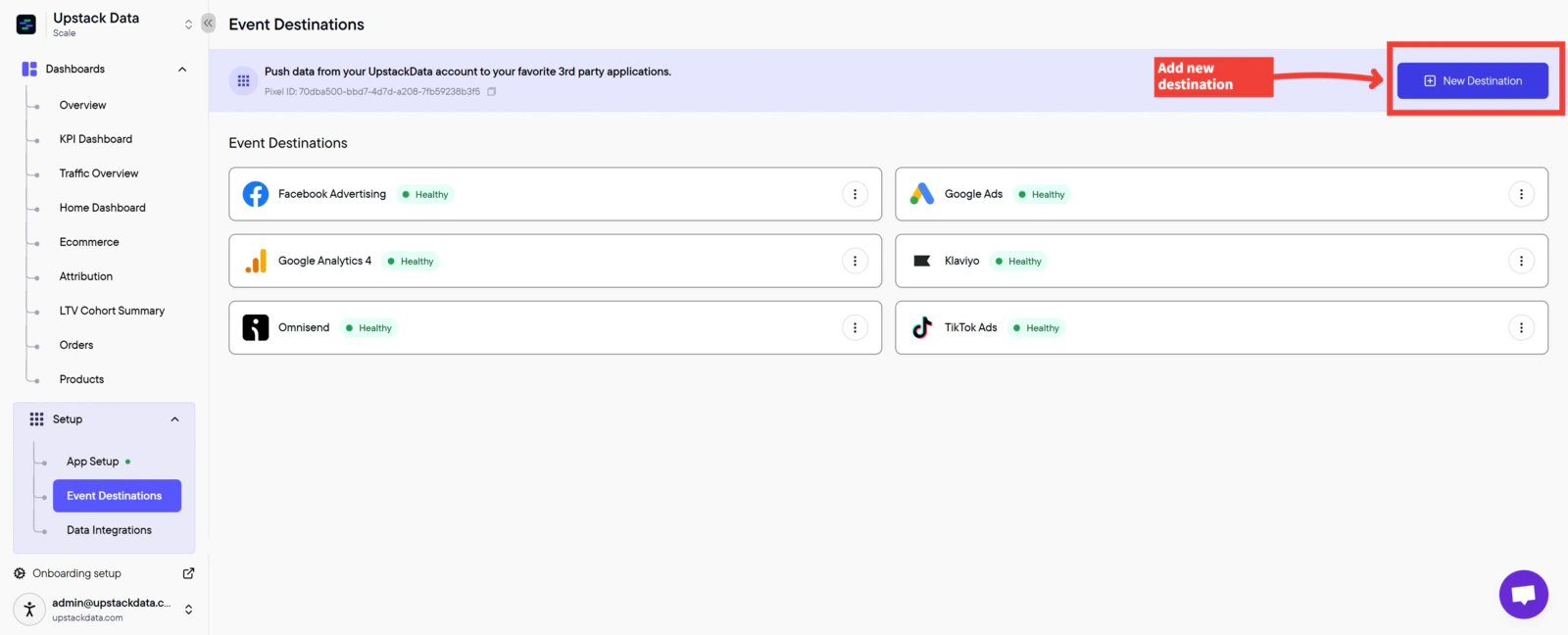
* In the Upstack dashboard, navigate to **Events Destination** ([app.upstackdata.com/pixel/event-destinations](https://app.upstackdata.com/pixel/event-destinations))
* Click **"+ New Destination"** in the top-right corner of the page
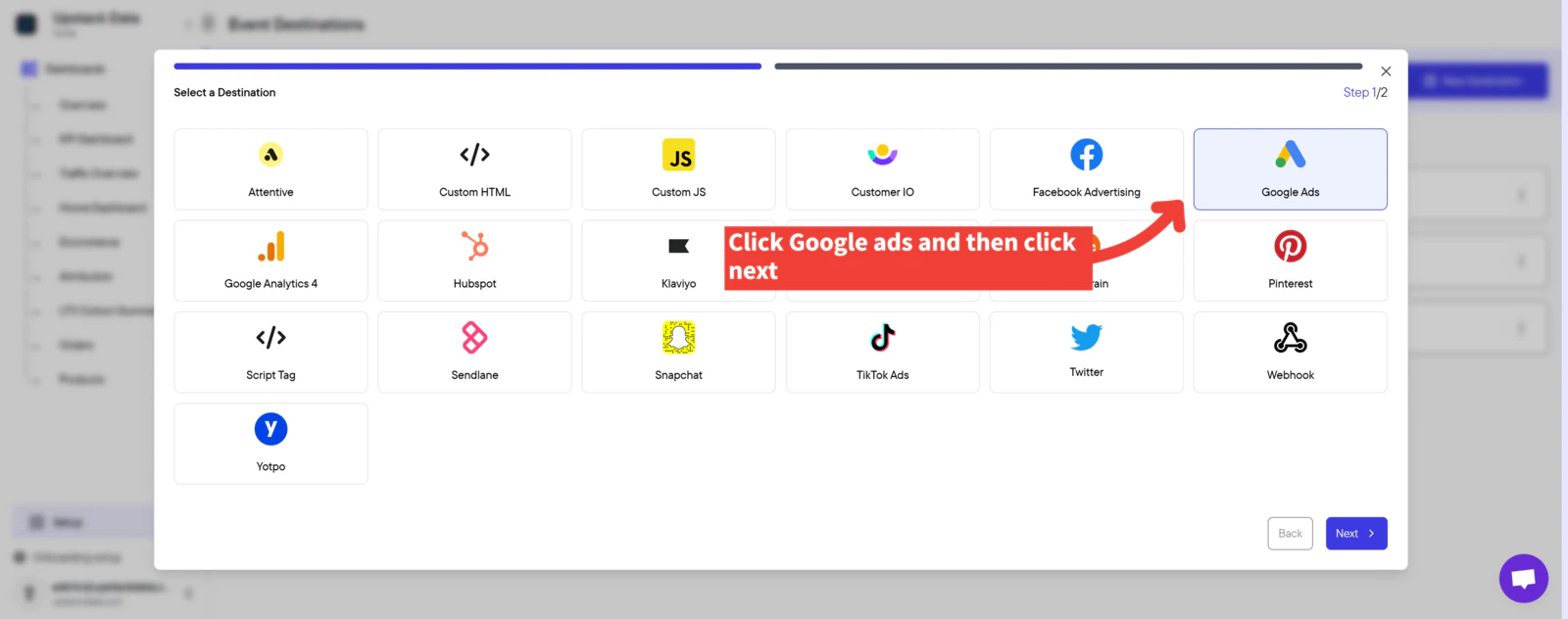
 * In the **Select a Destination** popup, click **"Google Ads"**
* Click **Next**
* In the **Select a Destination** popup, click **"Google Ads"**
* Click **Next**
 * In a new tab, sign in to [Google Ads](https://ads.google.com)
* In the left-hand menu, navigate to **Goals → Conversions → Summary**
* In a new tab, sign in to [Google Ads](https://ads.google.com)
* In the left-hand menu, navigate to **Goals → Conversions → Summary**
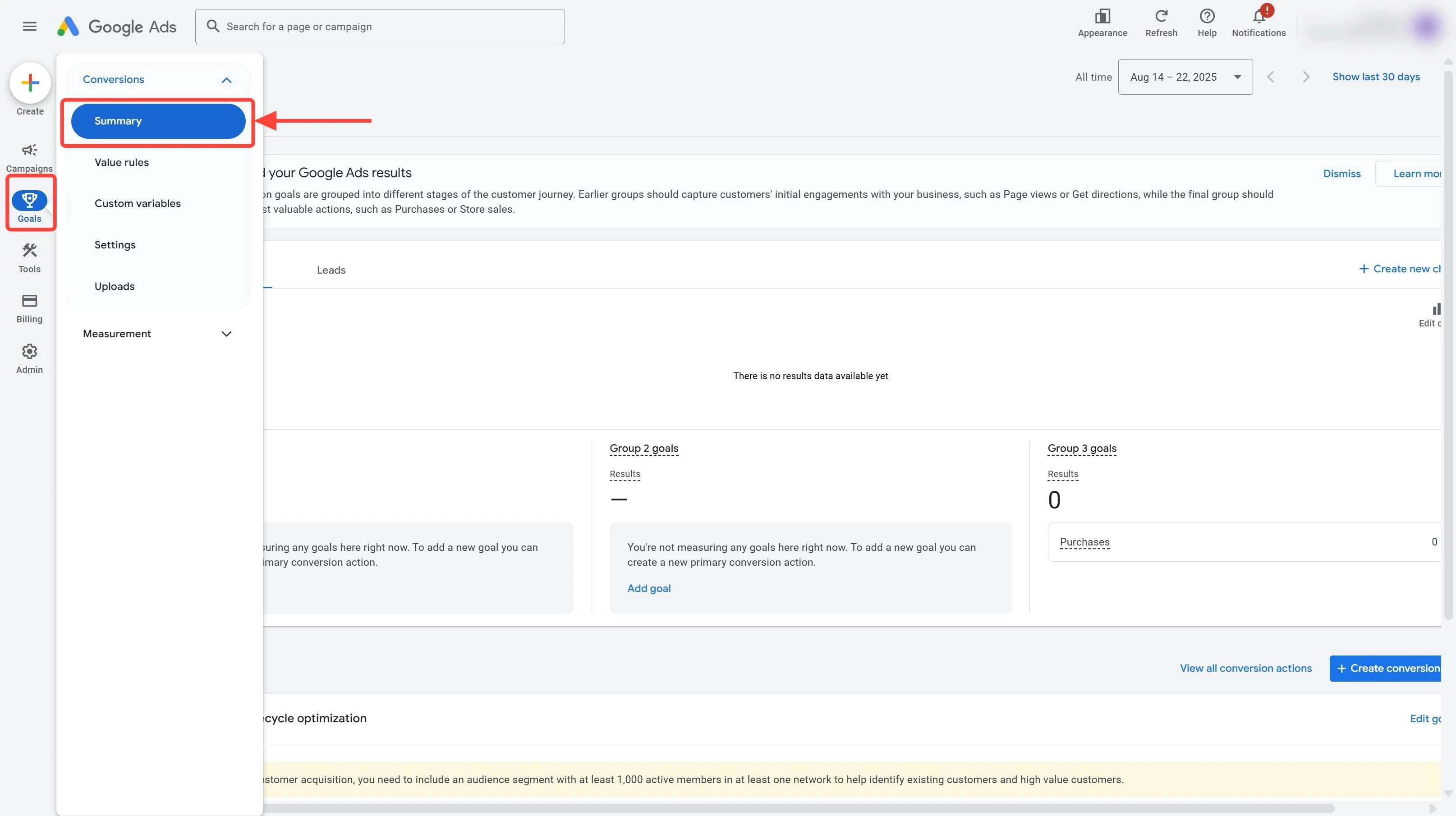 *`Google Ads Conversions Summary Page`*
Find your primary Purchase conversion (usually named **"Purchase - UpstackData"**) and click to open it.
*`Google Ads Conversions Summary Page`*
Find your primary Purchase conversion (usually named **"Purchase - UpstackData"**) and click to open it.
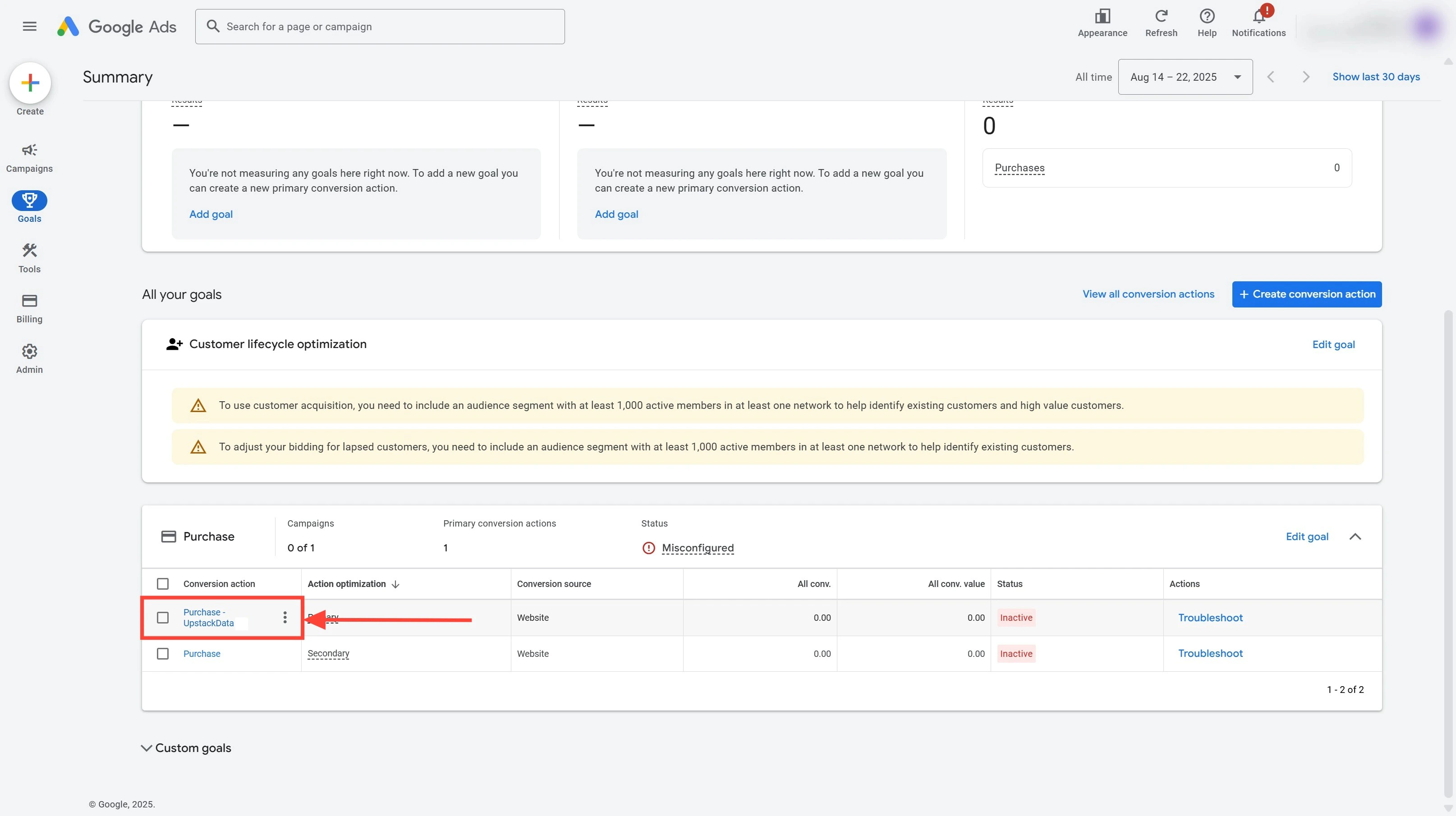 *`Example Primary Conversion Event`*
**Note:** Your conversion may be named differently. Look for the primary event linked to your purchase conversion.
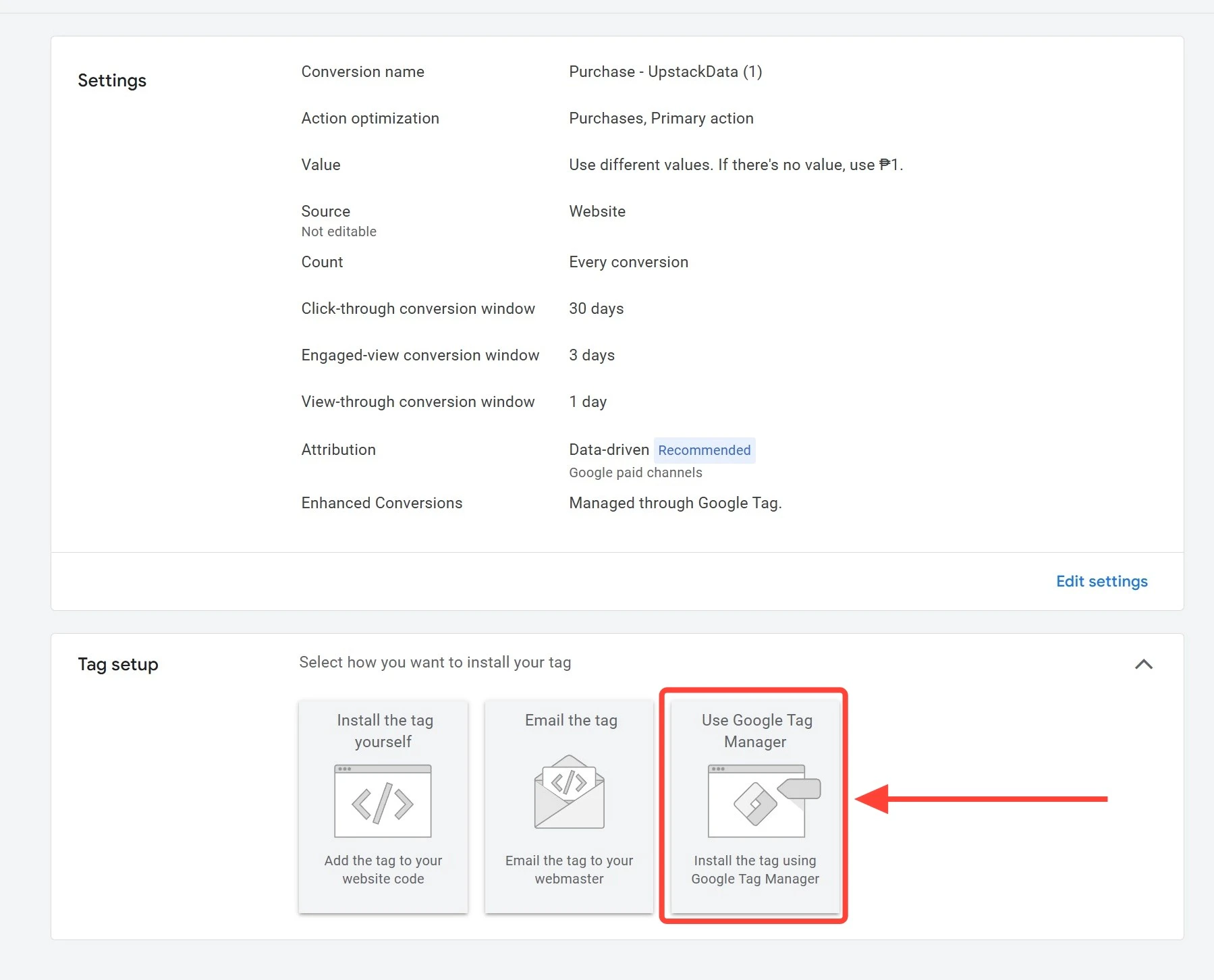
On the conversion detail page, scroll down to the **Tag Setup** section and click **"Use Google Tag Manager"**.
For a step-by-step walkthrough, see [How to Get Your Google Ads Conversion ID and Label →](/guides/google-ads/how-to-get-your-google-ads-conversion-id-and-label).
*`Example Primary Conversion Event`*
**Note:** Your conversion may be named differently. Look for the primary event linked to your purchase conversion.
On the conversion detail page, scroll down to the **Tag Setup** section and click **"Use Google Tag Manager"**.
For a step-by-step walkthrough, see [How to Get Your Google Ads Conversion ID and Label →](/guides/google-ads/how-to-get-your-google-ads-conversion-id-and-label).
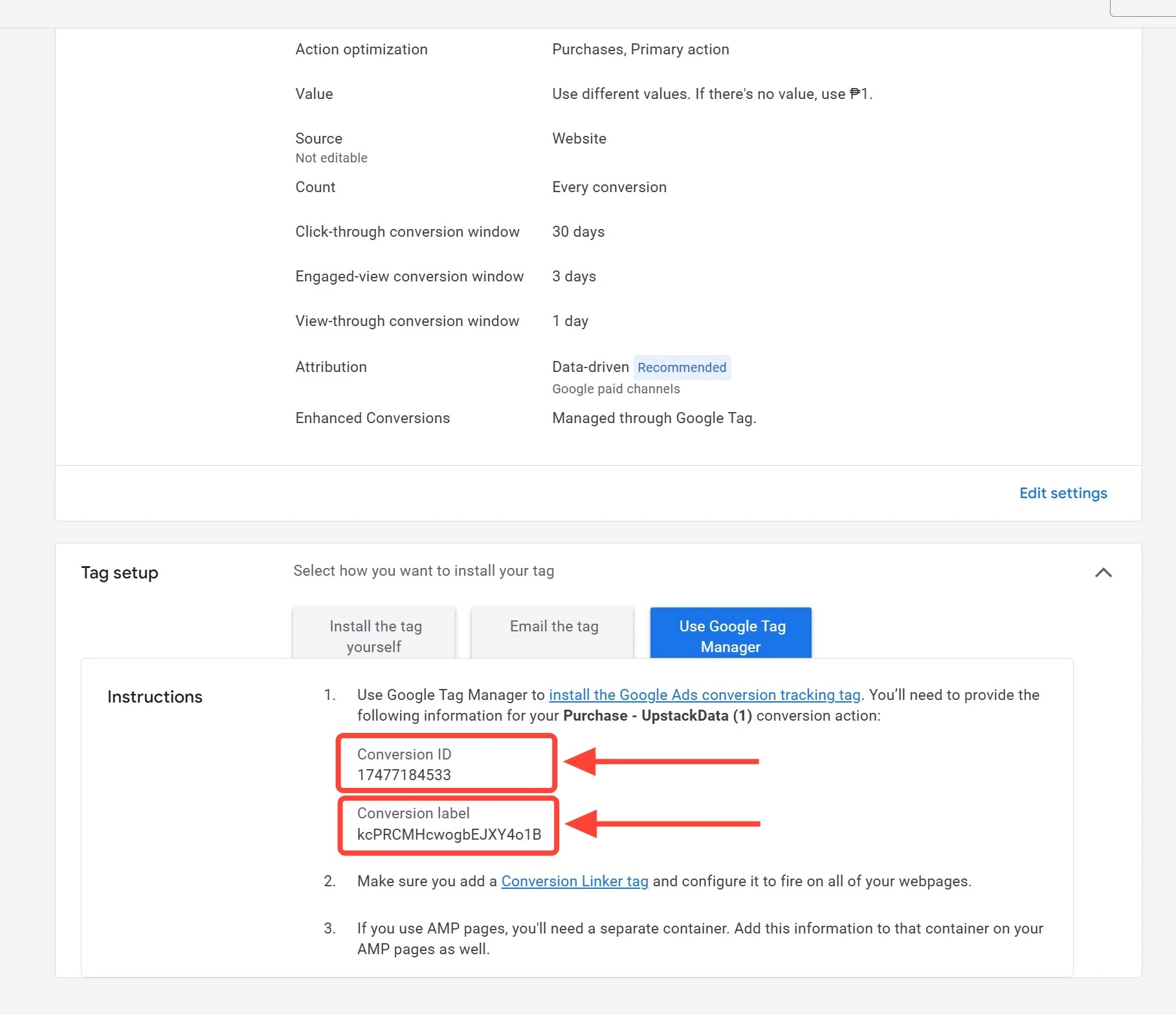
 Google Ads displays your **Conversion ID** and **Conversion Label**.
* **Conversion ID** — starts with `AW-` followed by 9–10 digits (e.g., `AW-123456789`)
* **Conversion Label** — 11-character alphanumeric string (e.g., `ABc1d2EFG3h`)
Google Ads displays your **Conversion ID** and **Conversion Label**.
* **Conversion ID** — starts with `AW-` followed by 9–10 digits (e.g., `AW-123456789`)
* **Conversion Label** — 11-character alphanumeric string (e.g., `ABc1d2EFG3h`)
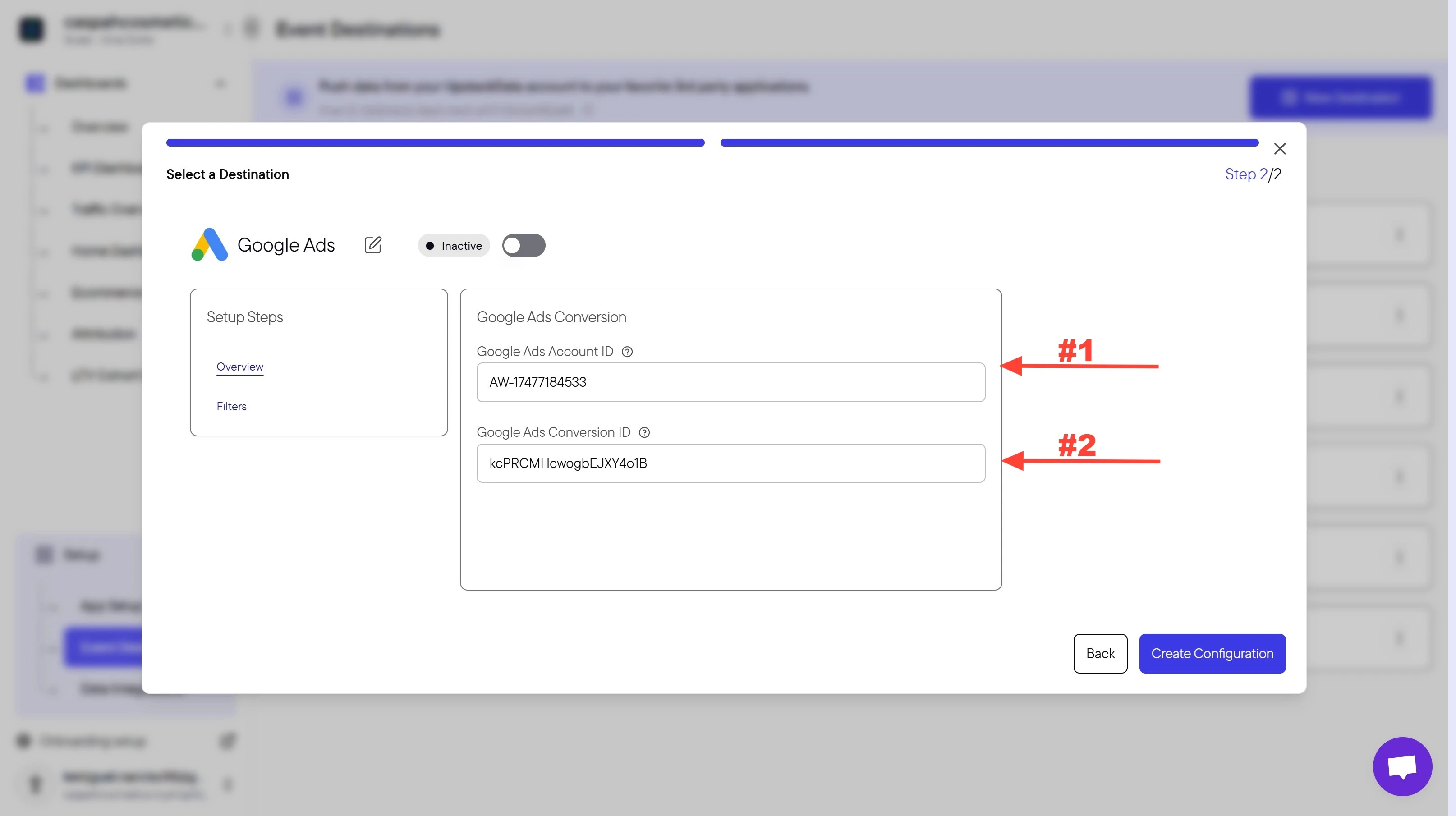
 Back in the Upstack dashboard:
* In the **Conversion ID** field, paste your full Conversion ID from Google Ads (e.g., `AW-123456789`). The `AW-` prefix is required.
* In the **Conversion Label** field, paste your Conversion Label from Google Ads (e.g., `ABc1d2EFG3h`).
Back in the Upstack dashboard:
* In the **Conversion ID** field, paste your full Conversion ID from Google Ads (e.g., `AW-123456789`). The `AW-` prefix is required.
* In the **Conversion Label** field, paste your Conversion Label from Google Ads (e.g., `ABc1d2EFG3h`).
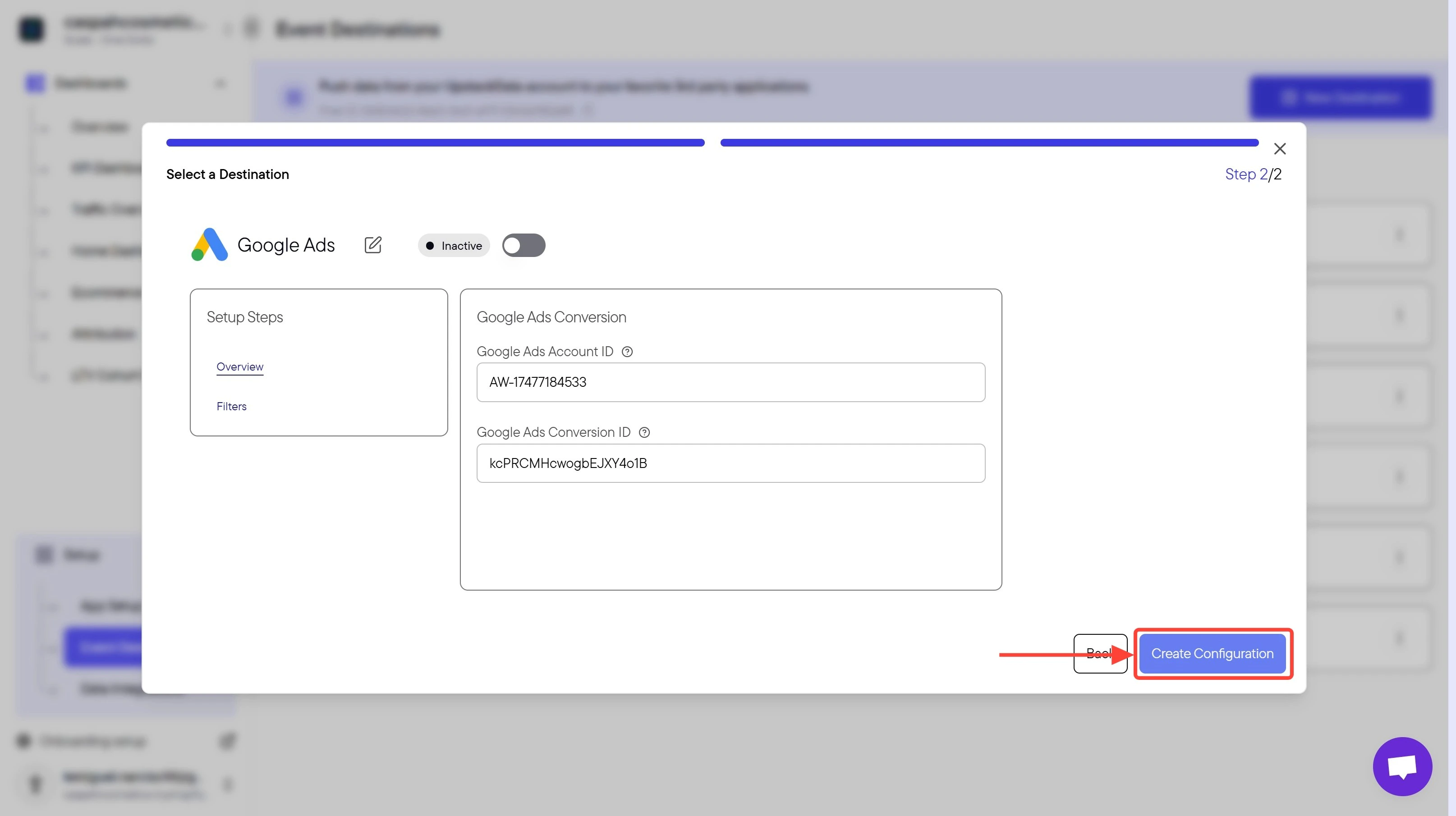
 Click the **Create Configuration** button to save the setup.
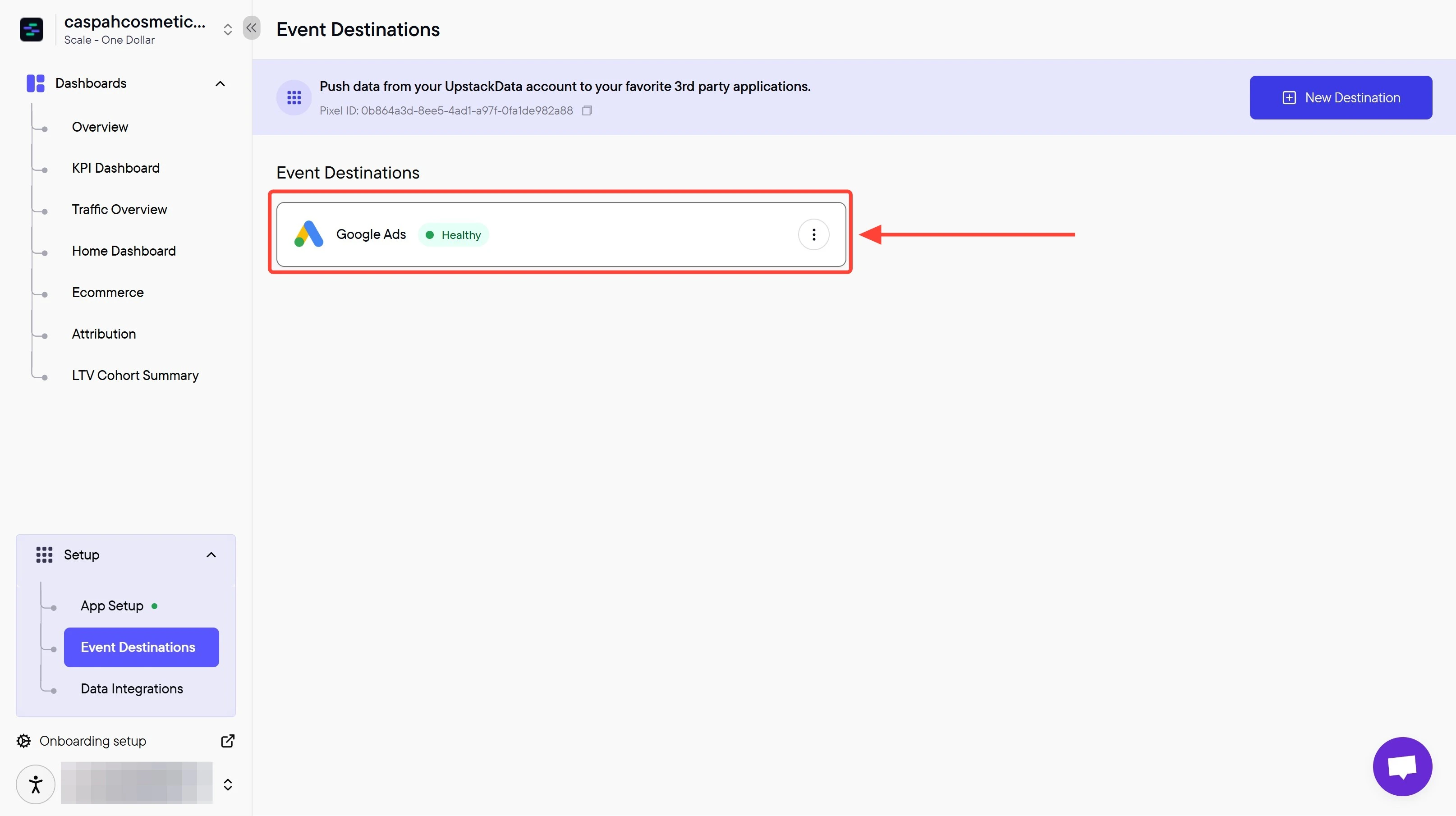
 **Success! 🎉** You should see a confirmation message and the Google Ads destination will appear as **"Healthy"** in your destinations list.
 ## Verify the Setup
To confirm the destination is working:
* In the Upstack dashboard, the Google Ads destination should show **Healthy** status under **Events Destination**.
* Place a test order on your store and check Google Ads **Goals → Conversions → Summary** within 24–48 hours to confirm the conversion is recorded.
If the destination shows **Unhealthy** or no conversions arrive, double-check that:
* The **Conversion ID** starts with `AW-` and matches the value shown in Google Ads.
* The **Conversion Label** was copied without leading or trailing spaces.
* The conversion action in Google Ads is enabled and not paused.
If issues persist, contact Upstack Data support with your **Conversion ID** and **Conversion Label**.
## Verify the Setup
To confirm the destination is working:
* In the Upstack dashboard, the Google Ads destination should show **Healthy** status under **Events Destination**.
* Place a test order on your store and check Google Ads **Goals → Conversions → Summary** within 24–48 hours to confirm the conversion is recorded.
If the destination shows **Unhealthy** or no conversions arrive, double-check that:
* The **Conversion ID** starts with `AW-` and matches the value shown in Google Ads.
* The **Conversion Label** was copied without leading or trailing spaces.
* The conversion action in Google Ads is enabled and not paused.
If issues persist, contact Upstack Data support with your **Conversion ID** and **Conversion Label**.