> ## Documentation Index
> Fetch the complete documentation index at: https://docs.upstackdata.com/llms.txt
> Use this file to discover all available pages before exploring further.
# Complete Guide to Setting Up Upstack Abandonment Flows in Klaviyo
> Set up Upstack-enhanced abandonment flows in Klaviyo — clone standard flows, swap triggers, add cross-flow exclusions, and recover 30-50% more browse, cart, and checkout abandonment revenue.
**Quick Summary**
* In Klaviyo, enable account-wide UTM tracking under **Account → Settings → Other → UTM Tracking**
* Locate the **standard abandonment flow** in **Flows**
* **Enable UTM tracking for every Email and SMS node** inside the standard flow
* **Clone** the standard flow
* Rename the clone with the **` - Upstack Data`** suffix → switch trigger to the corresponding `*- Upstackified` Klaviyo metric
* Open the standard and Upstack copies of the flow **side-by-side**
* **Add a 30-minute delay** to the Upstack copy
* Set cross-flow exclusion filters to **7 days** (or 14 days if preferred)
* Adjust re-entry timing to **7 days**
* Set the Upstack copy of the flow to **Live**
* **Match the live/draft status of every step** in the Upstack copy to the standard flow
## Prerequisites
Before you start, you need:
* The **Klaviyo destination configured in Upstack Data** ([learn how](/guides/klaviyo/how-to-configure-klaviyo-destination-in-upstack-data))
* Existing **standard abandonment flows** in your Klaviyo account (Browse, Cart, Checkout, Site)
* **Admin (manager) access** to the store's Klaviyo account
* Confirm the following Upstack-emitted events appear in Klaviyo under **Analytics → Metrics**:
* **Viewed Product - Upstackified**
* **Added to Cart - Upstackified**
* **Started Checkout - Upstackified**
* **Active on Site - Upstackified**
## Important Terms
* **Standard flow** → the existing abandonment flow already in the brand/store's Klaviyo account.
* **Upstack copy of the flow** → the cloned and modified version triggered by Upstack Data's `*- Upstackified` events. Always identifiable by the ` - Upstack Data` name suffix.
## Configuration Steps
Sign in to **[Klaviyo](https://www.klaviyo.com/login)**.
In Klaviyo, click your **profile icon** in the bottom-left navigation and go to **Settings → Other → UTM Tracking**, then ensure UTM tracking is toggled on.
Detailed walkthrough: [How to enable UTM tracking in Klaviyo](/guides/klaviyo-abandonment-flows/how-to-enable-utm-tracking-in-klaviyo).
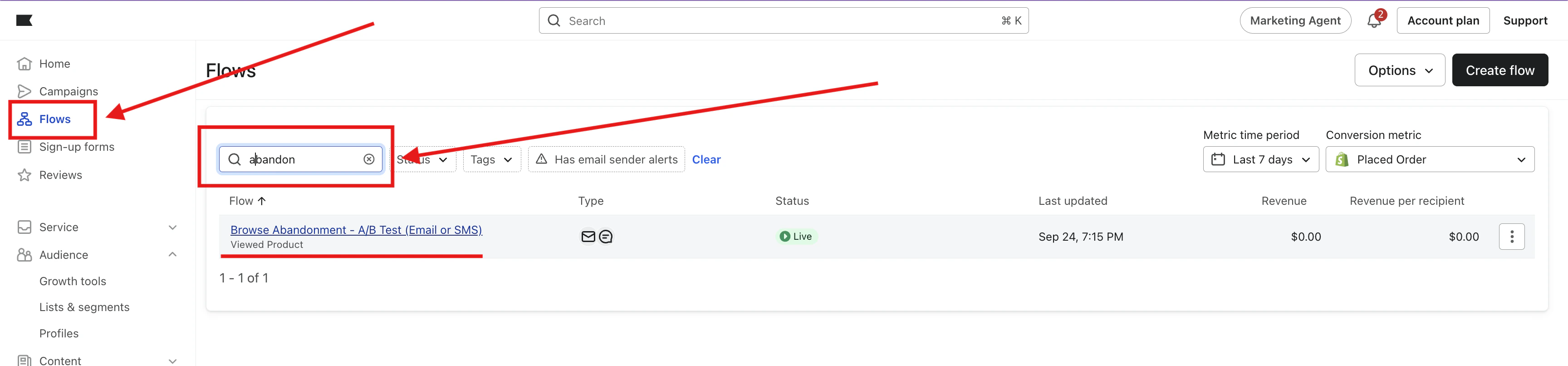
* In Klaviyo, go to **Flows** in the left navigation.
* Use the search bar and type **`abandon`**.
* Identify the four standard abandonment flows:
* **Cart Abandonment**
* **Browse Abandonment**
* **Site Abandonment**
* **Checkout Abandonment**
 Before cloning, make sure **Enable UTM Tracking** is checked on **every Email and SMS node** inside the standard flow. The setting is copied into the clone, so enabling it now saves rework.
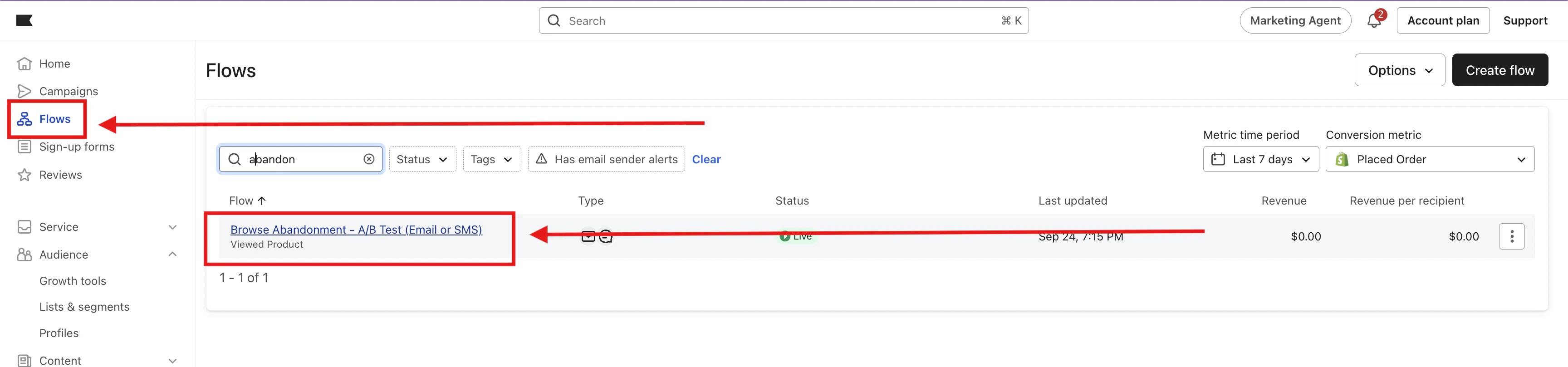
* In **Flows**, open the standard flow.
Before cloning, make sure **Enable UTM Tracking** is checked on **every Email and SMS node** inside the standard flow. The setting is copied into the clone, so enabling it now saves rework.
* In **Flows**, open the standard flow.
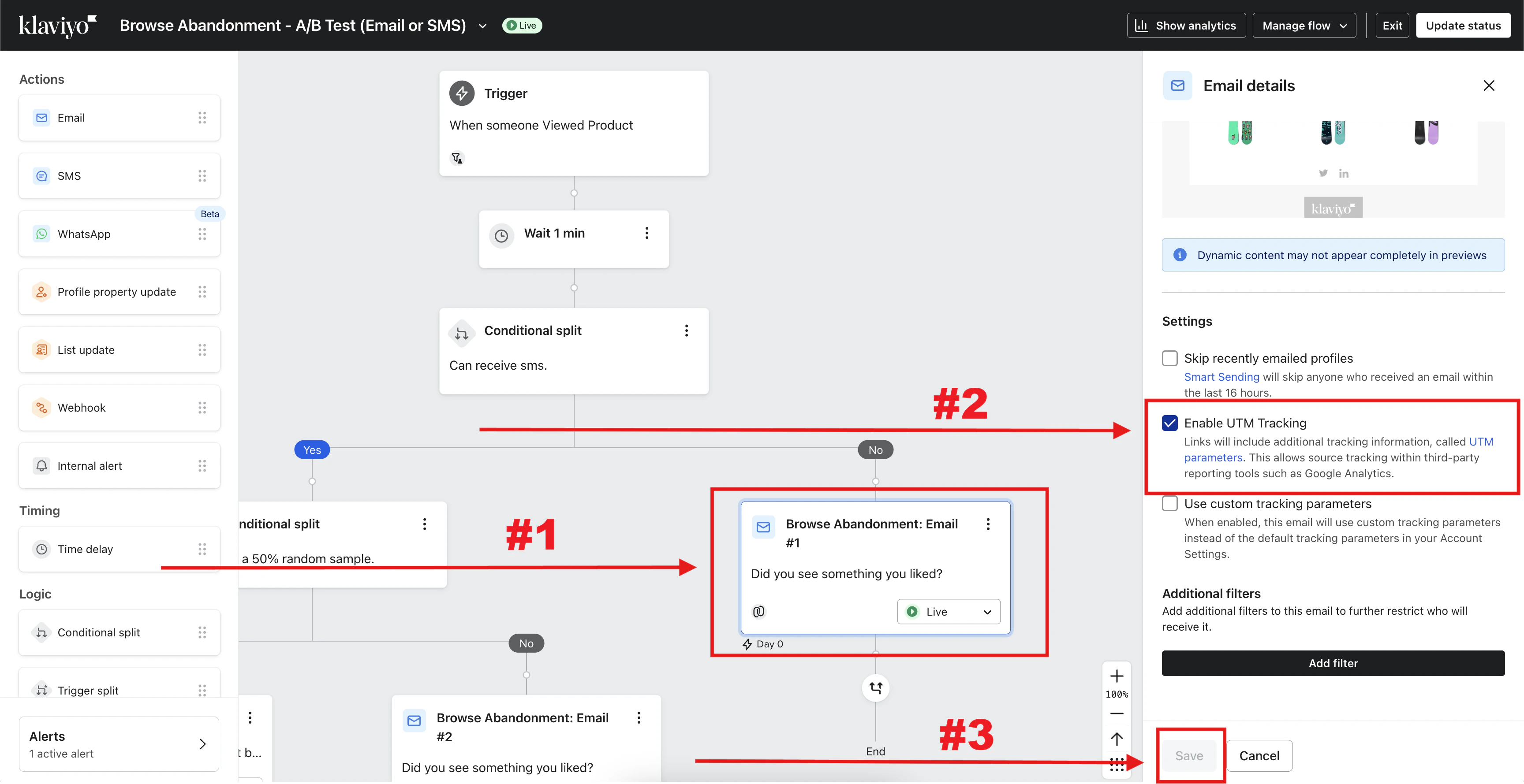
 * Click an **Email** or **SMS** node.
* In the right-hand details panel, check **Enable UTM Tracking**.
* Click **Save**.
* Click an **Email** or **SMS** node.
* In the right-hand details panel, check **Enable UTM Tracking**.
* Click **Save**.
 Repeat this step for **every Email and SMS node** inside the standard flow.
Clone each standard flow and rename the clone with the ` - Upstack Data` suffix (for example, `Abandoned Cart - Upstack Data`). When cloning, change the trigger to the corresponding `*- Upstackified` event:
* Browse Abandonment → **Viewed Product - Upstackified**
* Cart Abandonment → **Added to Cart - Upstackified**
* Checkout Abandonment → **Started Checkout - Upstackified**
* Site Abandonment → **Active on Site - Upstackified**
Detailed walkthrough: [How to clone your standard flows in Klaviyo](/guides/klaviyo-abandonment-flows/how-to-clone-your-standard-flows-in-klaviyo).
To make comparing settings easier, keep:
* The **standard flow** in one browser tab.
* The **Upstack copy of the flow** in another tab.
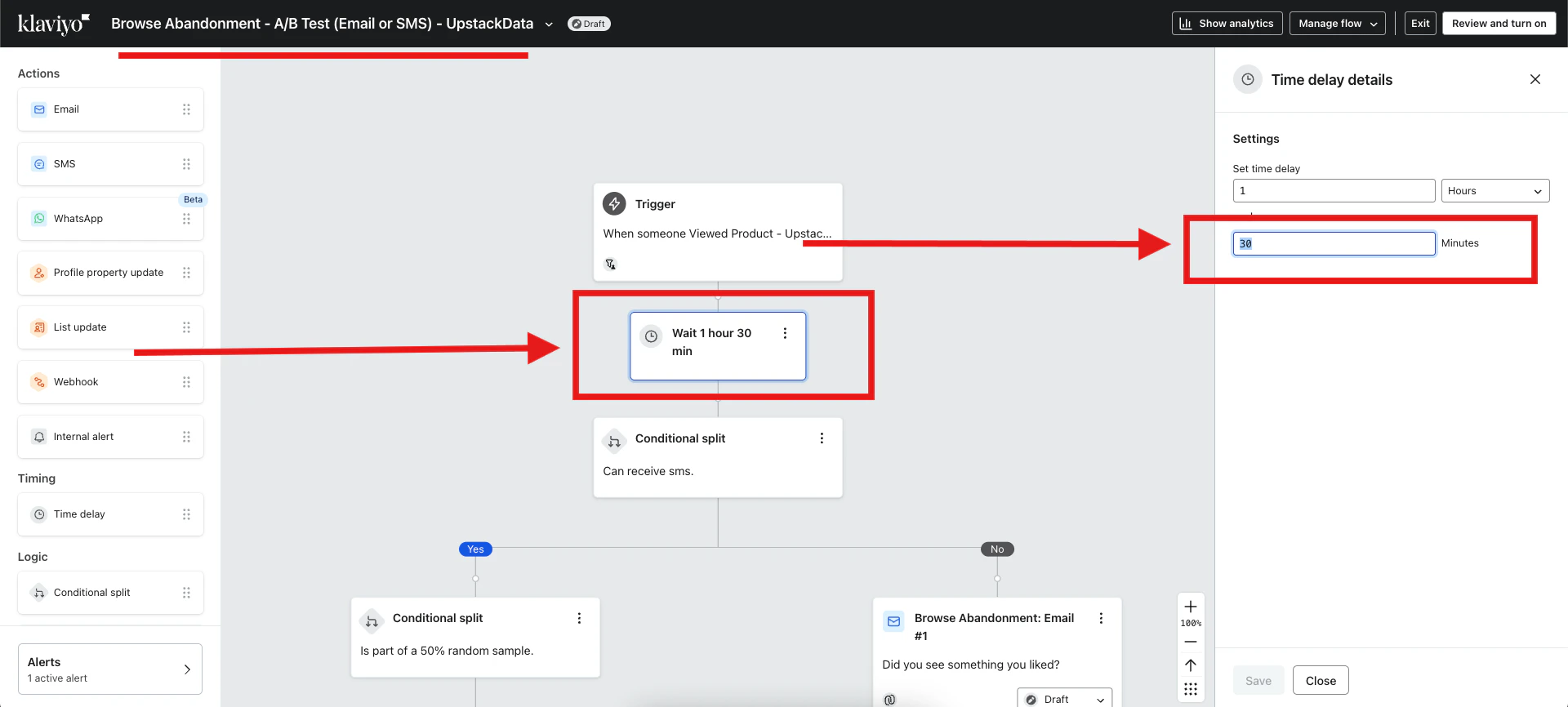
In the **Upstack copy of the flow**, add **+30 minutes** to the first wait step compared to the standard flow.
*Example: `1 hour` → `1 hour 30 minutes`*
Repeat this step for **every Email and SMS node** inside the standard flow.
Clone each standard flow and rename the clone with the ` - Upstack Data` suffix (for example, `Abandoned Cart - Upstack Data`). When cloning, change the trigger to the corresponding `*- Upstackified` event:
* Browse Abandonment → **Viewed Product - Upstackified**
* Cart Abandonment → **Added to Cart - Upstackified**
* Checkout Abandonment → **Started Checkout - Upstackified**
* Site Abandonment → **Active on Site - Upstackified**
Detailed walkthrough: [How to clone your standard flows in Klaviyo](/guides/klaviyo-abandonment-flows/how-to-clone-your-standard-flows-in-klaviyo).
To make comparing settings easier, keep:
* The **standard flow** in one browser tab.
* The **Upstack copy of the flow** in another tab.
In the **Upstack copy of the flow**, add **+30 minutes** to the first wait step compared to the standard flow.
*Example: `1 hour` → `1 hour 30 minutes`*
 **Purpose:** Prevent someone from entering both the standard and Upstack copies within a 7-day window, which would result in duplicate emails.
Add a filter on each flow's trigger:
* On the **standard flow**: **Has received email 0 times in last 7 days where Flow = `[Upstack copy of the flow]`**
* On the **Upstack copy of the flow**: **Has received email 0 times in last 7 days where Flow = `[Standard flow]`**
Detailed walkthrough: [How to add cross-flow exclusion filters in Klaviyo](/guides/klaviyo-abandonment-flows/how-to-add-cross-flow-exclusion-filters-in-klaviyo).
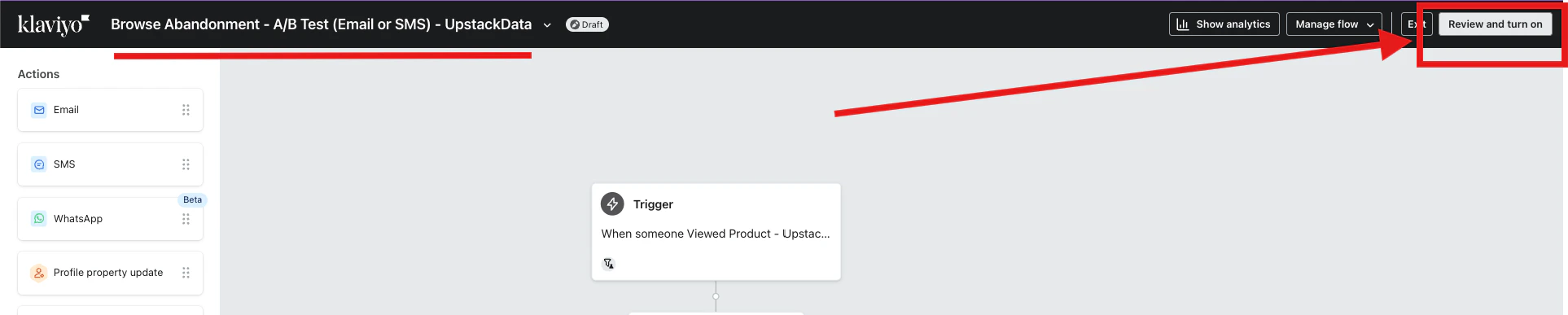
* Open the **Upstack copy of the flow**.
* In the top-right of the page, click the **Review and turn on** button.
**Purpose:** Prevent someone from entering both the standard and Upstack copies within a 7-day window, which would result in duplicate emails.
Add a filter on each flow's trigger:
* On the **standard flow**: **Has received email 0 times in last 7 days where Flow = `[Upstack copy of the flow]`**
* On the **Upstack copy of the flow**: **Has received email 0 times in last 7 days where Flow = `[Standard flow]`**
Detailed walkthrough: [How to add cross-flow exclusion filters in Klaviyo](/guides/klaviyo-abandonment-flows/how-to-add-cross-flow-exclusion-filters-in-klaviyo).
* Open the **Upstack copy of the flow**.
* In the top-right of the page, click the **Review and turn on** button.
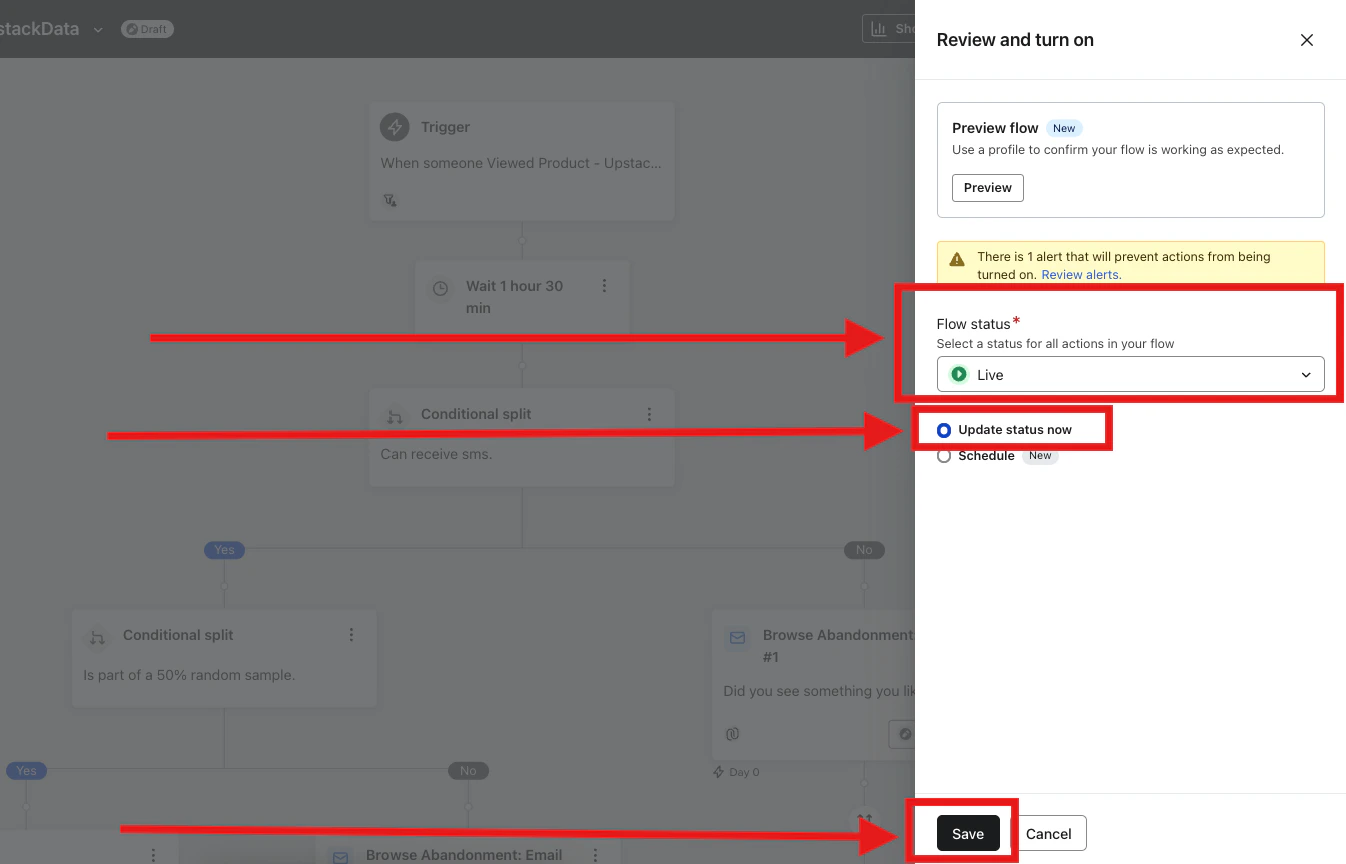
 * In the right-side panel that appears, set **Flow status** to **Live**.
* Select **Update status now**.
* Click **Save**.
* In the right-side panel that appears, set **Flow status** to **Live**.
* Select **Update status now**.
* Click **Save**.
 * In the **standard flow**, note which steps are **Live** vs **Draft / Manual**.
* In the **Upstack copy of the flow**, set each corresponding step to the **same status**.
* Double-check that every step's status matches the standard flow before continuing.
* Confirm the Upstack copy of the flow is **Live** and that step statuses mirror the standard flow exactly.
* In Klaviyo, open **Analytics → Metrics** and confirm the corresponding `*- Upstackified` event is recording activity (within minutes of live traffic).
* In **Flows**, open the Upstack copy and check the **Analytics** tab over the first 24–48 hours to confirm profiles are entering the flow.
* Spot-check a recipient profile to confirm they did **not** also receive the standard flow's email within the same 7-day window.
## Best Practices
* Always confirm timing and messaging changes between the standard flow and the Upstack copy.
* Test triggers to ensure the `*- Upstackified` events are firing correctly.
* Monitor reporting weekly after launch to assess performance.
**Repeat every step** for **each** standard abandonment flow: Cart, Browse, Site, and Checkout Abandonment.
**Need help or found an issue?**
If you encounter any issues or have questions while following this guide, you may reach out to us at **[support@upstackdata.com](mailto:support@upstackdata.com)**
* In the **standard flow**, note which steps are **Live** vs **Draft / Manual**.
* In the **Upstack copy of the flow**, set each corresponding step to the **same status**.
* Double-check that every step's status matches the standard flow before continuing.
* Confirm the Upstack copy of the flow is **Live** and that step statuses mirror the standard flow exactly.
* In Klaviyo, open **Analytics → Metrics** and confirm the corresponding `*- Upstackified` event is recording activity (within minutes of live traffic).
* In **Flows**, open the Upstack copy and check the **Analytics** tab over the first 24–48 hours to confirm profiles are entering the flow.
* Spot-check a recipient profile to confirm they did **not** also receive the standard flow's email within the same 7-day window.
## Best Practices
* Always confirm timing and messaging changes between the standard flow and the Upstack copy.
* Test triggers to ensure the `*- Upstackified` events are firing correctly.
* Monitor reporting weekly after launch to assess performance.
**Repeat every step** for **each** standard abandonment flow: Cart, Browse, Site, and Checkout Abandonment.
**Need help or found an issue?**
If you encounter any issues or have questions while following this guide, you may reach out to us at **[support@upstackdata.com](mailto:support@upstackdata.com)**