> ## Documentation Index
> Fetch the complete documentation index at: https://docs.upstackdata.com/llms.txt
> Use this file to discover all available pages before exploring further.
# How to Clone your Standard Flows in Klaviyo
> Clone your existing Klaviyo standard abandonment flows so the Upstack-enhanced versions inherit your branding, copy, and timing — preserving your design while triggering on Upstack events.
## Prerequisites
Before you start, you need:
* The **Klaviyo destination configured in Upstack Data**
* **Existing standard abandonment flows** in your Klaviyo account (Browse, Cart, Checkout, Site)
* **Admin (manager) access** to the store's Klaviyo account
* The following Upstack-emitted events present in Klaviyo (under **Analytics → Metrics**):
* **Viewed Product - Upstackified**
* **Added to Cart - Upstackified**
* **Started Checkout - Upstackified**
* **Active on Site - Upstackified**
**Key terms:**
* **Standard flow** → the existing abandonment flow in the brand/store's Klaviyo account (for example, `Abandoned Cart`).
* **Upstack copy of the flow** → the cloned and modified version triggered by Upstack Data's `*- Upstackified` events. Always identifiable by the ` - Upstack Data` name suffix (for example, `Abandoned Cart - Upstack Data`).
## Trigger mapping
Use this mapping when changing the trigger on the cloned flow:
| Standard flow | Upstack trigger event |
| -------------------- | ----------------------------------- |
| Browse Abandonment | **Viewed Product - Upstackified** |
| Cart Abandonment | **Added to Cart - Upstackified** |
| Checkout Abandonment | **Started Checkout - Upstackified** |
| Site Abandonment | **Active on Site - Upstackified** |
## Configuration Steps
Sign in to **[Klaviyo](https://www.klaviyo.com/login)**.
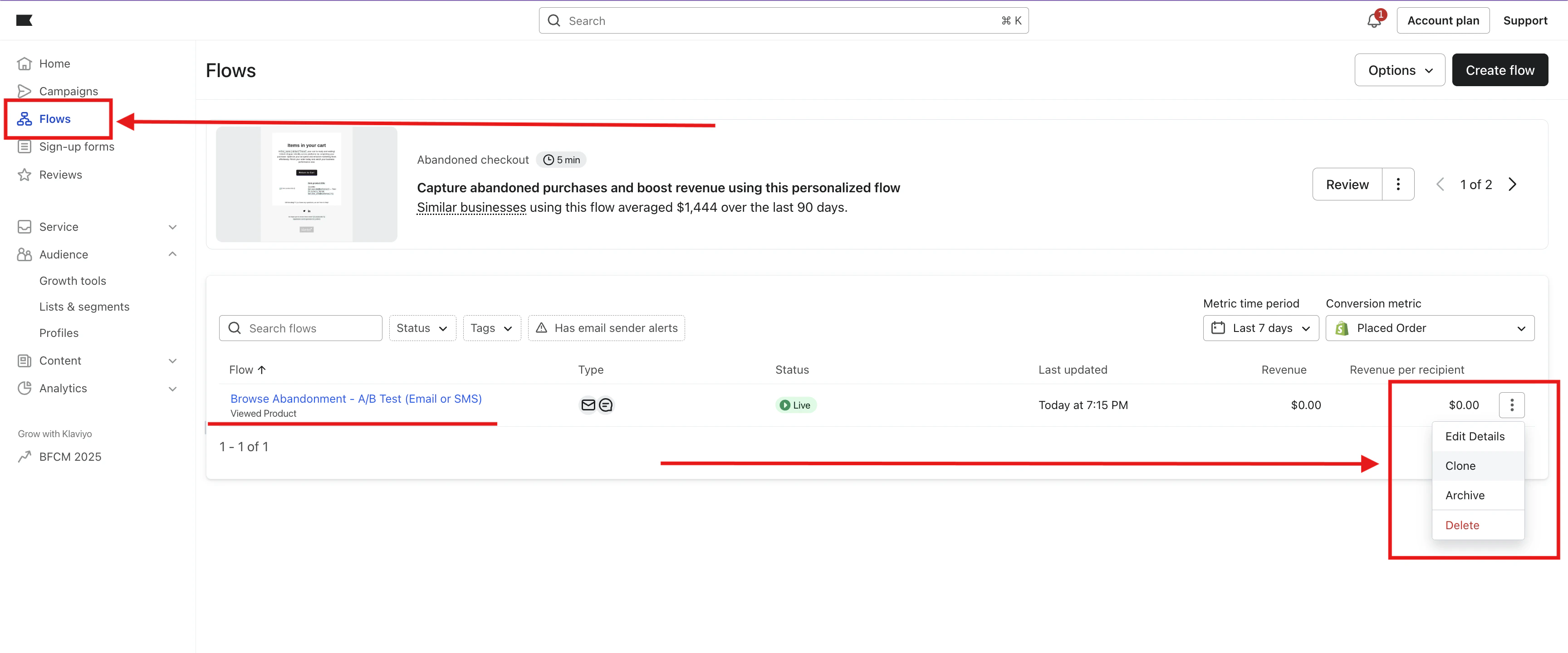
* In the left navigation, go to **Flows** and open the **standard flow** you want to clone.
* In the far-right column of the flow's row, click the **vertical three-dot (kebab) menu** and select **Clone**.
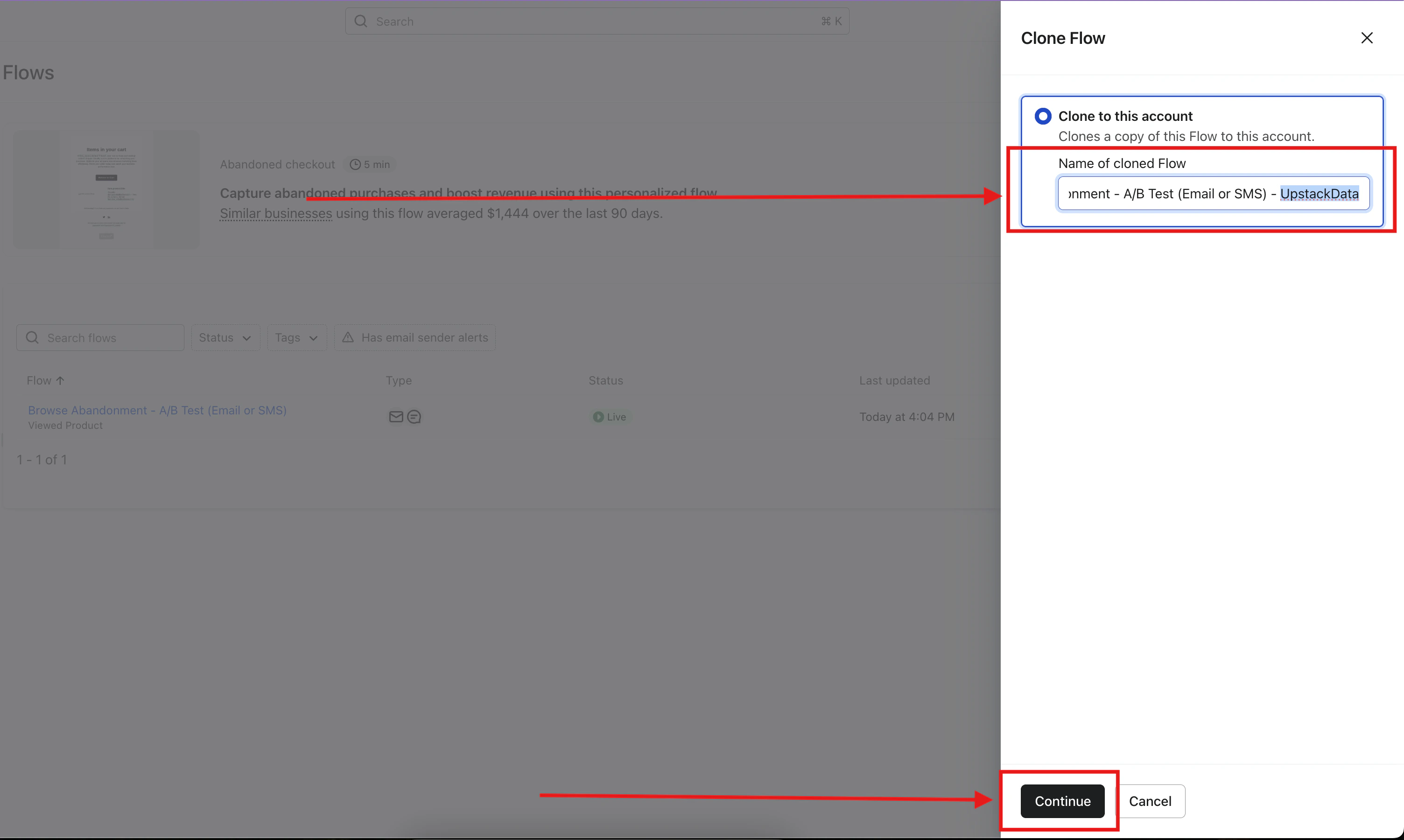
 * A right-side panel will slide in, prompting you to specify the **new flow name** for the clone.
* Name the clone the same as the original, plus the **` - Upstack Data`** suffix.
For example: `ABC | Pre | Added to Cart | Flow | Abandoned Cart` becomes `ABC | Pre | Added to Cart | Flow | Abandoned Cart - Upstack Data`.
* Click **Continue**.
* A right-side panel will slide in, prompting you to specify the **new flow name** for the clone.
* Name the clone the same as the original, plus the **` - Upstack Data`** suffix.
For example: `ABC | Pre | Added to Cart | Flow | Abandoned Cart` becomes `ABC | Pre | Added to Cart | Flow | Abandoned Cart - Upstack Data`.
* Click **Continue**.
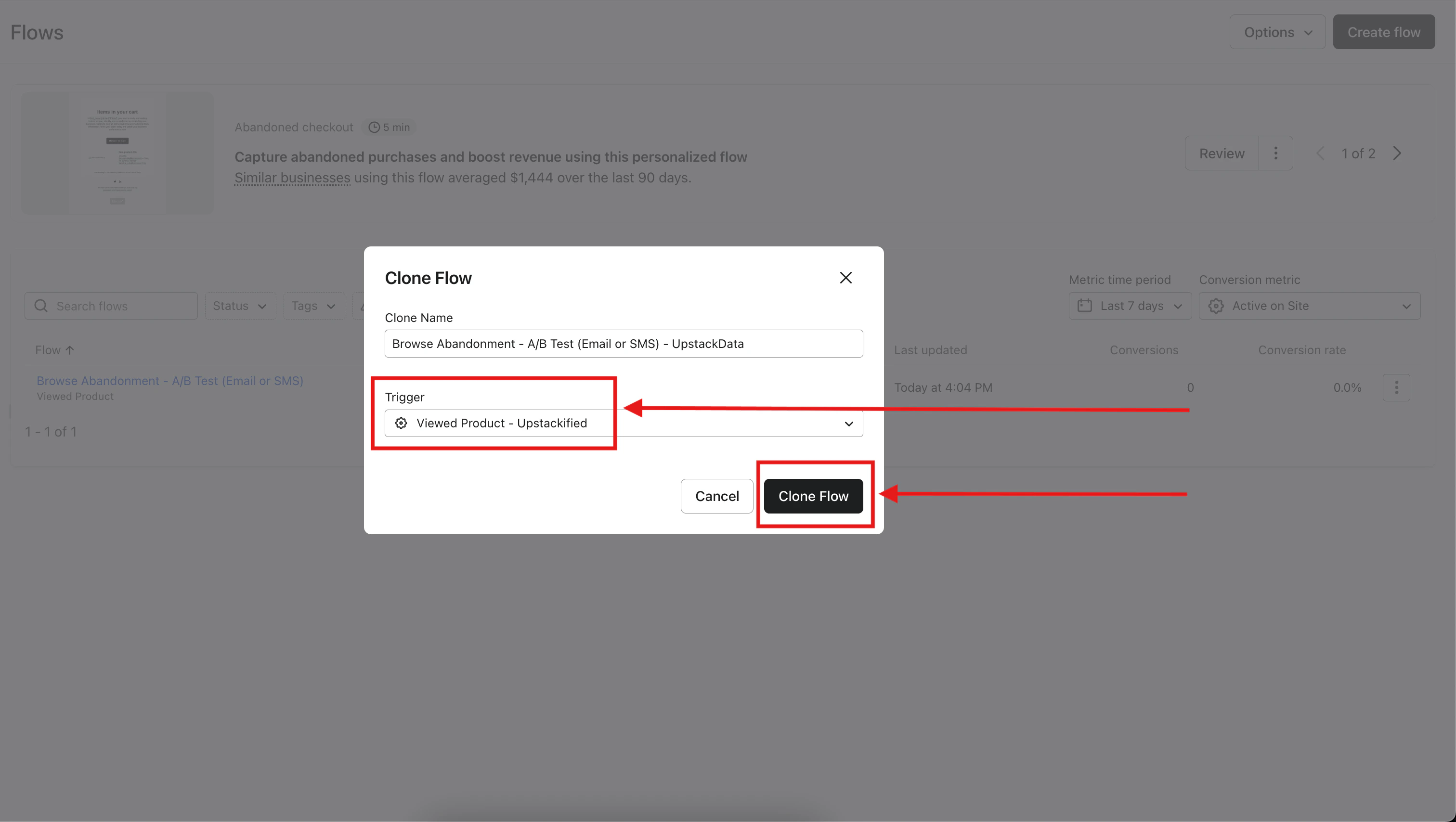
 * Change the **Trigger** to the matching `*- Upstackified` Klaviyo metric using the **Trigger mapping** table above (for example, **Viewed Product - Upstackified** for Browse Abandonment).
* Save by clicking **Clone Flow**.
* Change the **Trigger** to the matching `*- Upstackified` Klaviyo metric using the **Trigger mapping** table above (for example, **Viewed Product - Upstackified** for Browse Abandonment).
* Save by clicking **Clone Flow**.
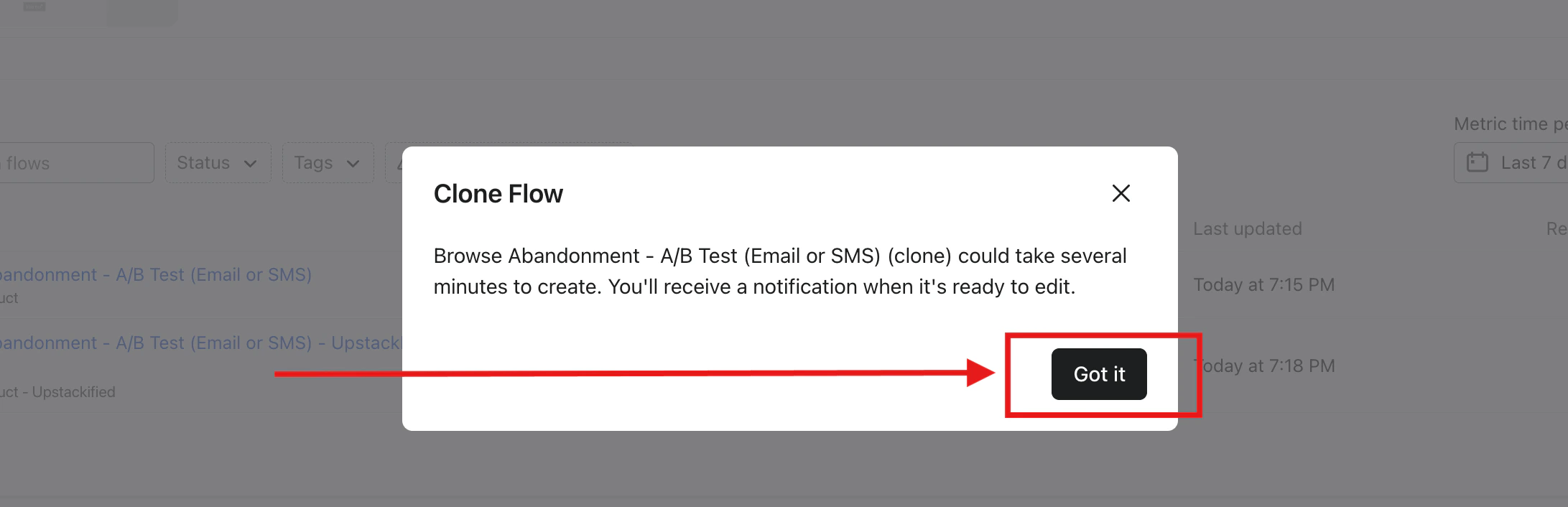
 * A confirmation modal will let you know you'll receive a notification once the cloned flow is ready to edit. Click **Got it** to proceed.
 * Once Klaviyo finishes cloning, open the new flow and confirm:
* The flow name ends with **` - Upstack Data`**.
* The **Trigger** is set to the correct `*- Upstackified` event from the trigger mapping table above.
* The flow is in **Draft** status (you'll set it Live later in the [setup guide](/guides/klaviyo-abandonment-flows/complete-guide-to-setting-up-upstack-abandonment-flows-in-klaviyo)).
**Done 🎉** Repeat these steps for **each** standard abandonment flow: **Cart, Browse, Site, and Checkout Abandonment**.
For the full setup walkthrough, see [How to set up your Upstack abandonment flows in Klaviyo](/guides/klaviyo-abandonment-flows/complete-guide-to-setting-up-upstack-abandonment-flows-in-klaviyo).
**Need help or found an issue?**
If you encounter any issues or have questions while following this guide, reach out to us at **[support@upstackdata.com](mailto:support@upstackdata.com)**.
* Once Klaviyo finishes cloning, open the new flow and confirm:
* The flow name ends with **` - Upstack Data`**.
* The **Trigger** is set to the correct `*- Upstackified` event from the trigger mapping table above.
* The flow is in **Draft** status (you'll set it Live later in the [setup guide](/guides/klaviyo-abandonment-flows/complete-guide-to-setting-up-upstack-abandonment-flows-in-klaviyo)).
**Done 🎉** Repeat these steps for **each** standard abandonment flow: **Cart, Browse, Site, and Checkout Abandonment**.
For the full setup walkthrough, see [How to set up your Upstack abandonment flows in Klaviyo](/guides/klaviyo-abandonment-flows/complete-guide-to-setting-up-upstack-abandonment-flows-in-klaviyo).
**Need help or found an issue?**
If you encounter any issues or have questions while following this guide, reach out to us at **[support@upstackdata.com](mailto:support@upstackdata.com)**.