> ## Documentation Index
> Fetch the complete documentation index at: https://docs.upstackdata.com/llms.txt
> Use this file to discover all available pages before exploring further.
# How to Configure Klaviyo Destination in Upstack Data
> Configure the Klaviyo destination in Upstack Data with your Klaviyo Private API key and verify identity-resolved events sync to power abandonment flow recovery.
**Quick Summary**
* In the **[Upstack dashboard](https://app.upstackdata.com/pixel/event-destinations)**, go to **Pixel → Event Destinations** and click **+ New Destination**
* Select **Klaviyo** from the destination options
* Enter your **Klaviyo Private API key**
* Click **Create Configuration** and verify the destination is **Healthy**
## Prerequisites
Before you start, you need:
* An active Upstack Data account ([sign up](https://app.upstackdata.com))
* Admin access to a **Klaviyo** account
* A **Klaviyo Private API key** with Full Access ([learn how to generate one](/guides/klaviyo/how-to-generate-klaviyo-api-key-for-upstack-data))
## Configuration Steps
Sign in to **[Upstack Data](https://app.upstackdata.com)**.
* In the Upstack dashboard, navigate to **Pixel → Event Destinations** (or open it directly: **[Event Destinations](https://app.upstackdata.com/pixel/event-destinations)**).
* Click **+ New Destination** in the top-right of the page.
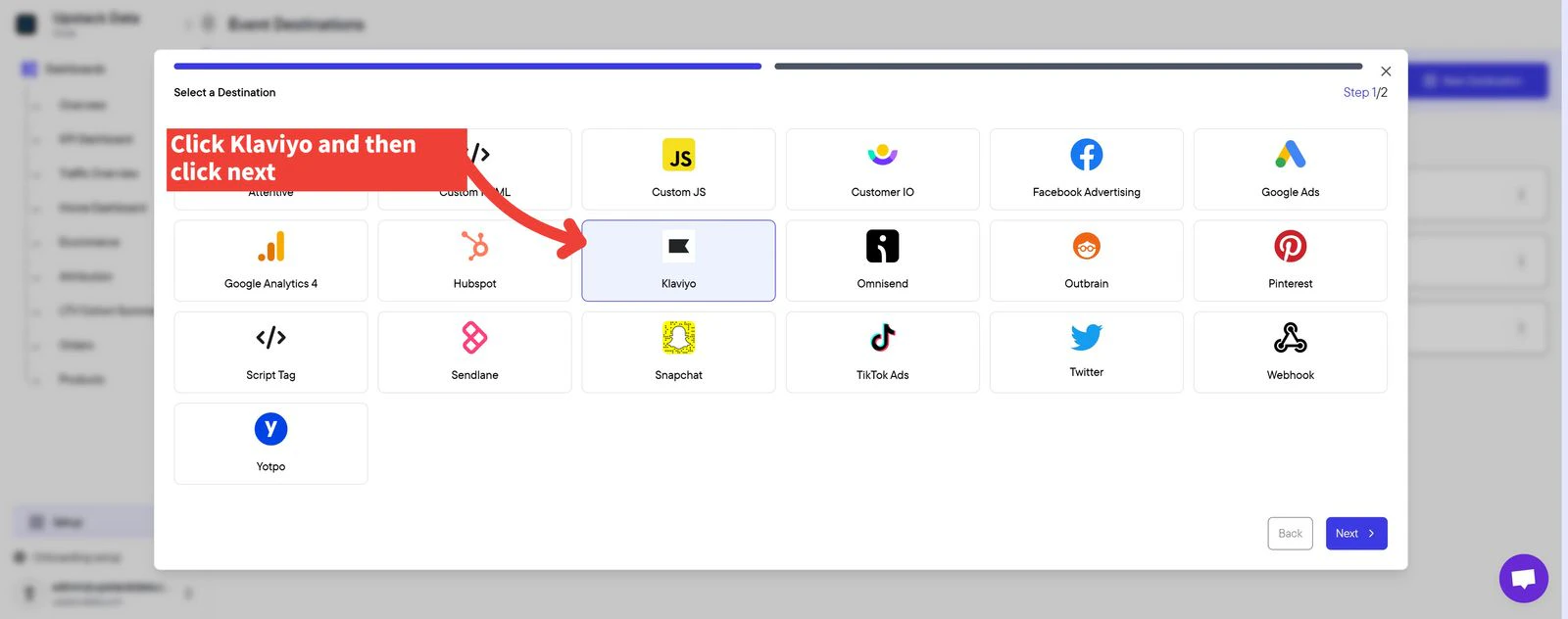
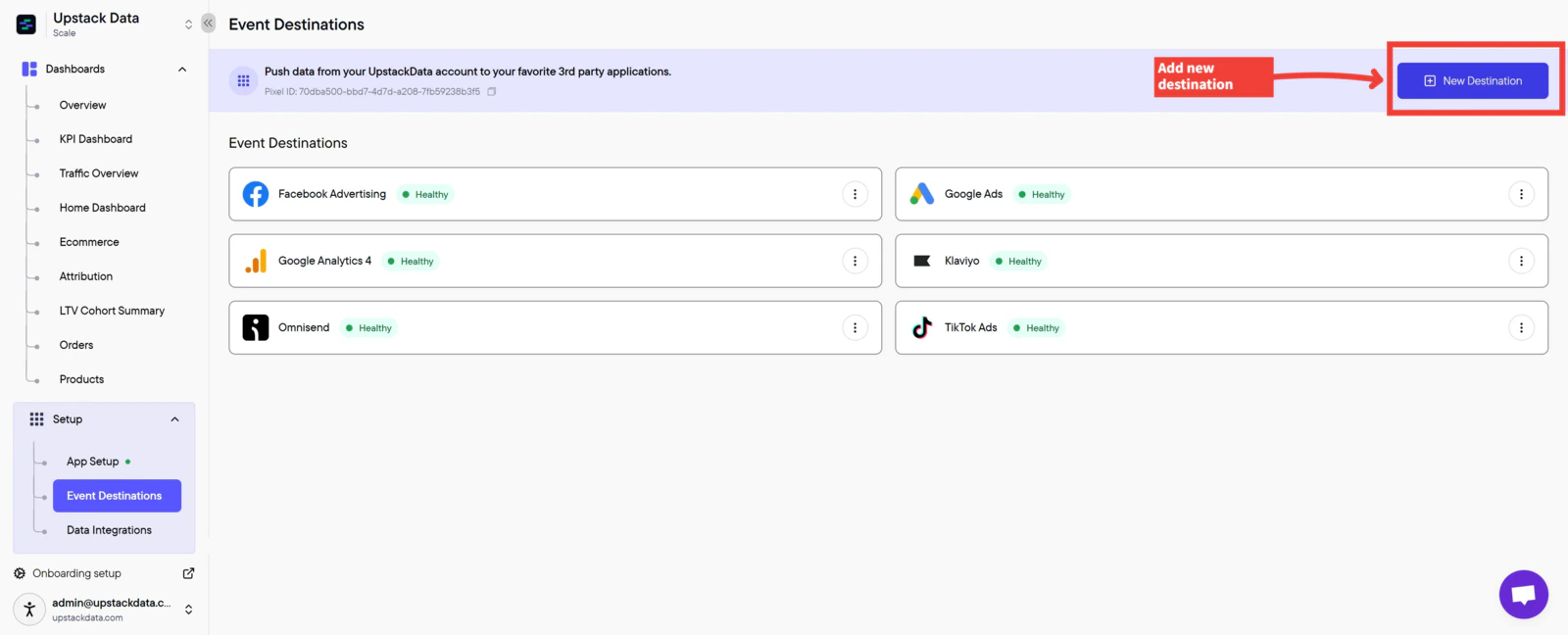 * In the *Select a Destination* popup, click **Klaviyo**.
* Click **Next**.
* In the *Select a Destination* popup, click **Klaviyo**.
* Click **Next**.
 Paste your **Klaviyo Private API key** into the *Private API Key* field. The key starts with `pk_` followed by alphanumeric characters (for example, `pk_aBcDeFgHiJkLmNoPqRsTuVwXyZ012345678`).
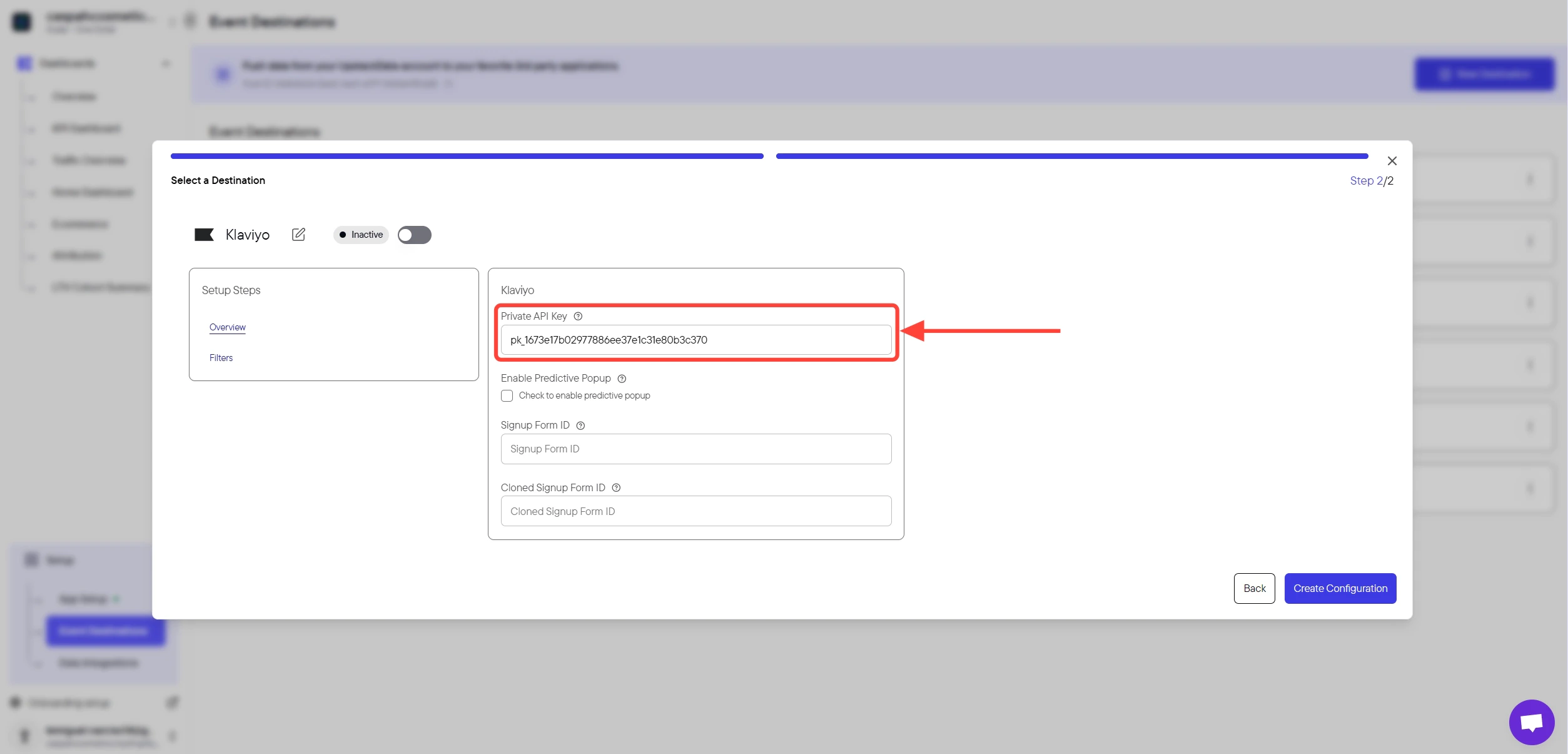 `Important: Ensure there are no extra spaces before or after the key.`
Need to generate the key first? See [How to generate a Klaviyo Private API key for Upstack Data](/guides/klaviyo/how-to-generate-klaviyo-api-key-for-upstack-data).
Click the **Create Configuration** button to save the setup.
`Important: Ensure there are no extra spaces before or after the key.`
Need to generate the key first? See [How to generate a Klaviyo Private API key for Upstack Data](/guides/klaviyo/how-to-generate-klaviyo-api-key-for-upstack-data).
Click the **Create Configuration** button to save the setup.
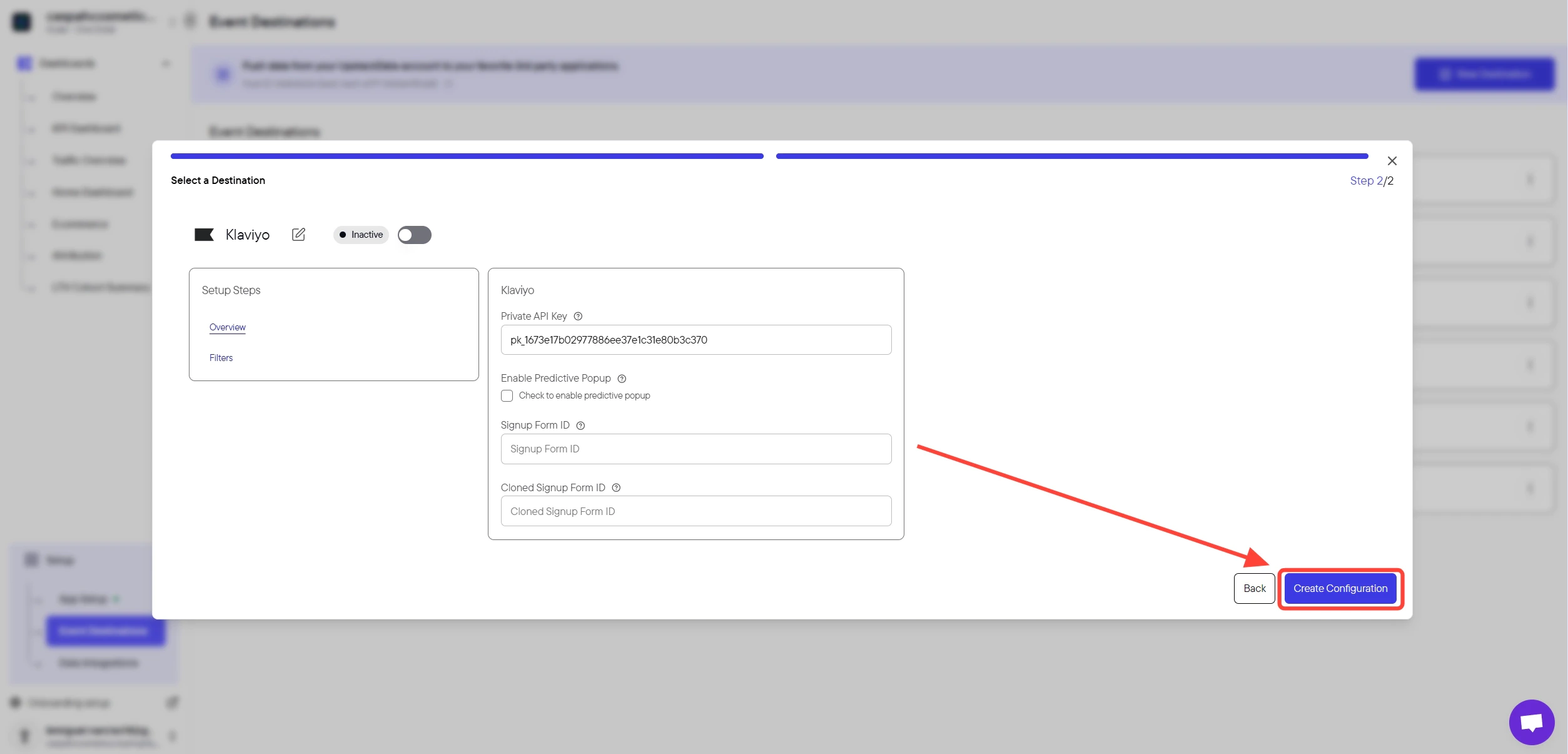 **Success! 🎉** You should see a confirmation message and the Klaviyo destination will appear as **Healthy** in your destinations list.
 * In the Upstack dashboard, return to **Pixel → Event Destinations** and confirm the **Klaviyo** row shows a **Healthy** status.
* In Klaviyo, navigate to **Analytics → Metrics** and confirm Upstack-emitted events (for example, **Viewed Product - Upstackified**, **Added to Cart - Upstackified**, **Started Checkout - Upstackified**, **Active on Site - Upstackified**) appear within a few minutes of live traffic on your store.
After completing setup, contact **[support@upstackdata.com](mailto:support@upstackdata.com)** to request your Upstack abandonment flows be set up. These additive flows improve your abandonment capture by **up to 40% or more**.
* In the Upstack dashboard, return to **Pixel → Event Destinations** and confirm the **Klaviyo** row shows a **Healthy** status.
* In Klaviyo, navigate to **Analytics → Metrics** and confirm Upstack-emitted events (for example, **Viewed Product - Upstackified**, **Added to Cart - Upstackified**, **Started Checkout - Upstackified**, **Active on Site - Upstackified**) appear within a few minutes of live traffic on your store.
After completing setup, contact **[support@upstackdata.com](mailto:support@upstackdata.com)** to request your Upstack abandonment flows be set up. These additive flows improve your abandonment capture by **up to 40% or more**.