> ## Documentation Index
> Fetch the complete documentation index at: https://docs.upstackdata.com/llms.txt
> Use this file to discover all available pages before exploring further.
# How to Generate Klaviyo API Key for Upstack Data
> Generate a Klaviyo Private API key with Full Access permissions to authenticate the Upstack Data Klaviyo destination and enable identity-enriched event sync.
**Quick Summary**
* In Klaviyo, navigate to **Settings → Account → [API Keys](https://www.klaviyo.com/create-private-api-key)**
* Click **Create Private API Key**
* Name it **`UpstackData`** and select **Full Access Key**
* **Copy and save** the key securely (it starts with `pk_`)
## Prerequisites
Before you start, you need:
* Admin access to a **Klaviyo** account (required to create Private API keys)
* Permission to grant **Full Access** to API keys
## Steps to Generate the Klaviyo Private API key
Sign in to **[Klaviyo](https://www.klaviyo.com/login)**.
* Click your **profile icon** in the bottom-left navigation.
* Go to **Settings → Account → [API Keys](https://www.klaviyo.com/create-private-api-key)**.
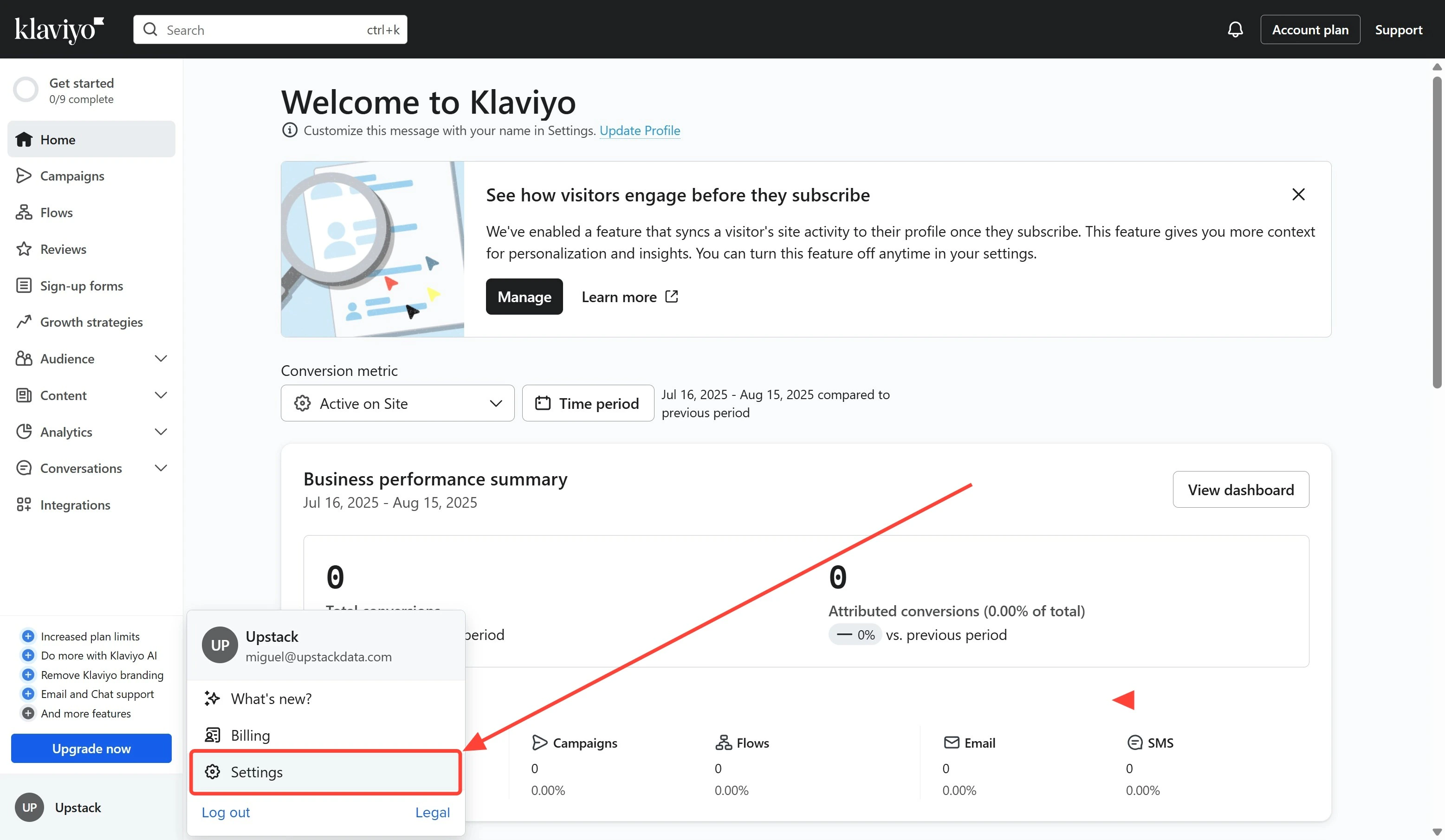 `Settings menu`
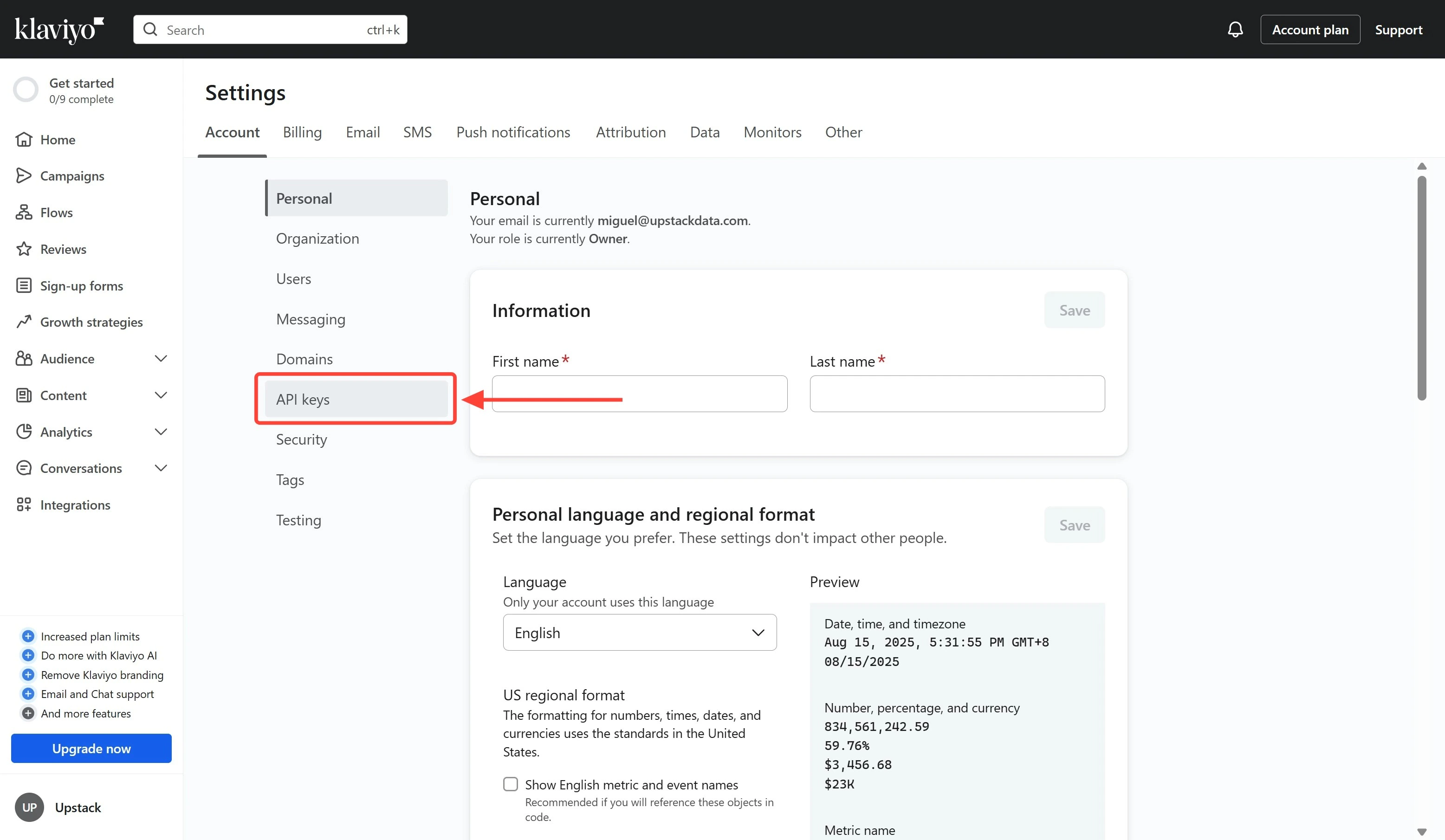 `API keys menu`
Click the **Create Private API Key** button.
`API keys menu`
Click the **Create Private API Key** button.
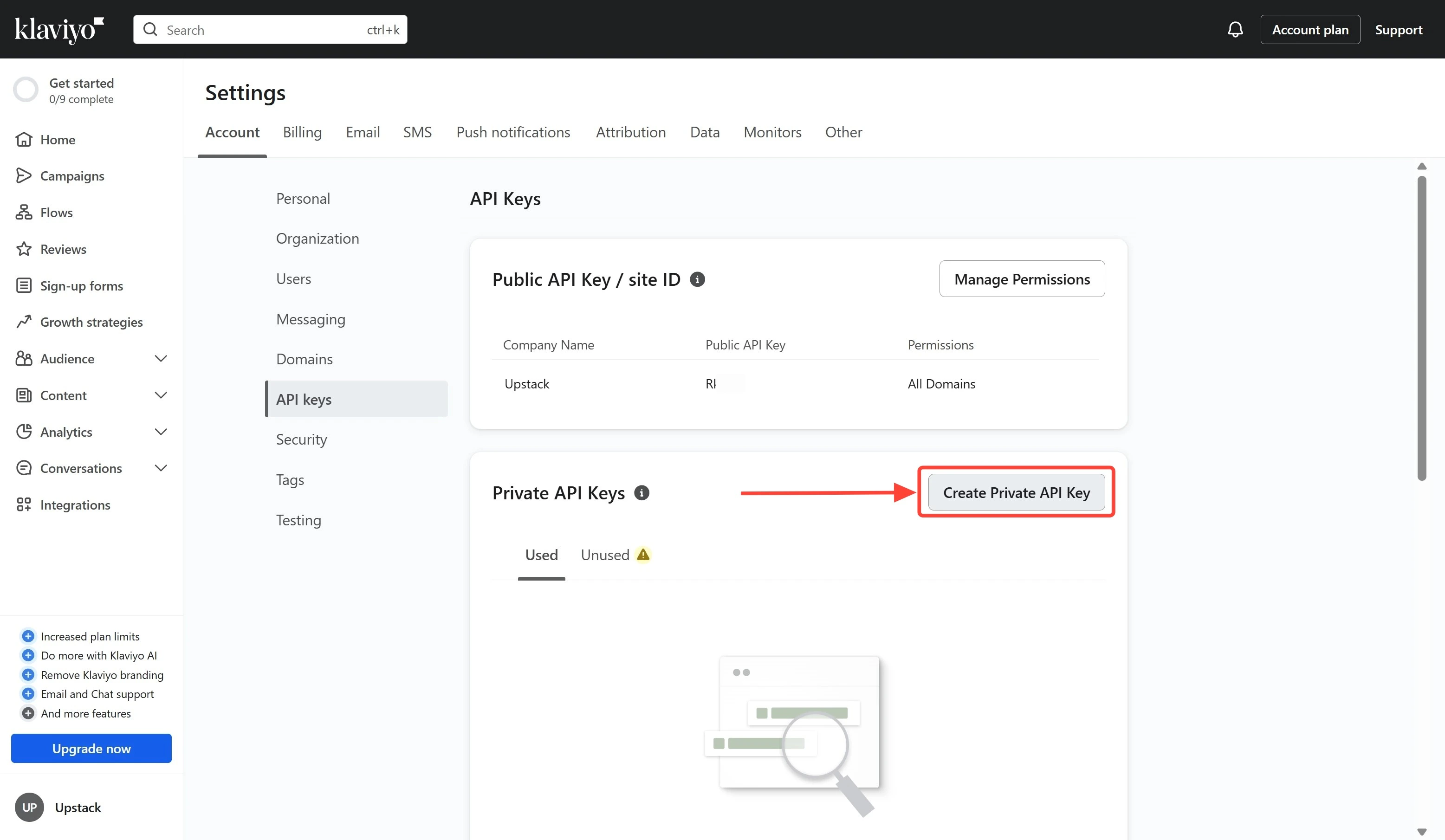 * Name your Klaviyo Private API key **`UpstackData`**.
* Under *Select Access Level*, choose **Full Access Key**.
* Click the **Create** button.
* Name your Klaviyo Private API key **`UpstackData`**.
* Under *Select Access Level*, choose **Full Access Key**.
* Click the **Create** button.
 Full Access is required for all Upstack Data features to work properly.
Copy the generated key immediately. It starts with `pk_` followed by alphanumeric characters (for example, `pk_aBcDeFgHiJkLmNoPqRsTuVwXyZ012345678`).
Full Access is required for all Upstack Data features to work properly.
Copy the generated key immediately. It starts with `pk_` followed by alphanumeric characters (for example, `pk_aBcDeFgHiJkLmNoPqRsTuVwXyZ012345678`).
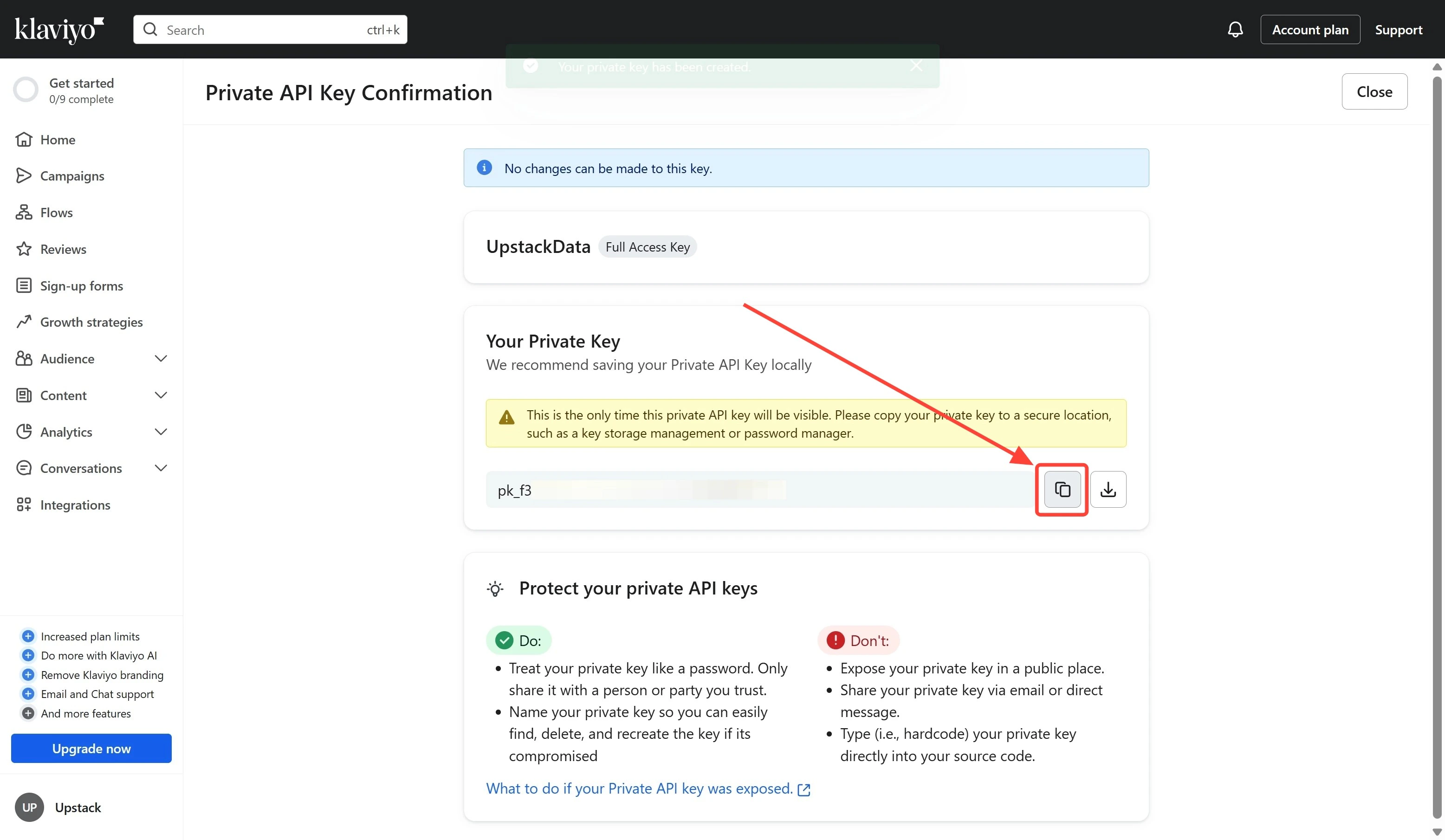 This key will only be shown once. Store it securely — you will need it to configure the Klaviyo destination in the Upstack dashboard.
* Return to **Settings → Account → API Keys** in Klaviyo.
* Confirm the new **`UpstackData`** key appears in the list with **Full Access** permissions.
* Continue to [How to configure the Klaviyo destination in Upstack Data](/guides/klaviyo/how-to-configure-klaviyo-destination-in-upstack-data) to paste the key into the Upstack dashboard.
This key will only be shown once. Store it securely — you will need it to configure the Klaviyo destination in the Upstack dashboard.
* Return to **Settings → Account → API Keys** in Klaviyo.
* Confirm the new **`UpstackData`** key appears in the list with **Full Access** permissions.
* Continue to [How to configure the Klaviyo destination in Upstack Data](/guides/klaviyo/how-to-configure-klaviyo-destination-in-upstack-data) to paste the key into the Upstack dashboard.