> ## Documentation Index
> Fetch the complete documentation index at: https://docs.upstackdata.com/llms.txt
> Use this file to discover all available pages before exploring further.
# How to Generate your Omnisend API Key
> Generate or locate your Omnisend API key in the Omnisend dashboard — required to authenticate the Upstack Data Omnisend destination and forward server-side events.
**Quick Summary**
* Sign in to [Omnisend](https://app.omnisend.com)
* Open **Store settings → API**
* Click **+ Create API key**, name it `UpstackData`, then click **Create API key**
* **Copy** the generated API key and store it securely (Omnisend only shows it once)
* Paste the API key into the Omnisend destination form in your Upstack dashboard
What is an **Omnisend API key**?
An **Omnisend API key** is a unique credential generated in your Omnisend account that allows Upstack Data to securely access and interact with your Omnisend data. It is a long alphanumeric string, typically structured as a 64-character secret followed by a `-` and a short identifier (for example, `xxxxxxxxxxxxxxxxxxxxxxxxxxxxxxxxxxxxxxxxxxxxxxxxxxxxxxxxxxxxxxxx-xxxxxxxxxx`).
## Prerequisites
Before you start, you need:
* Admin access to your [Omnisend](https://app.omnisend.com) account
* Permission to create API keys in Omnisend
* A secure place to store the generated API key (Omnisend only displays it once)
## Steps to Generate the API Key
Sign in to [Omnisend](https://app.omnisend.com) to open your dashboard.
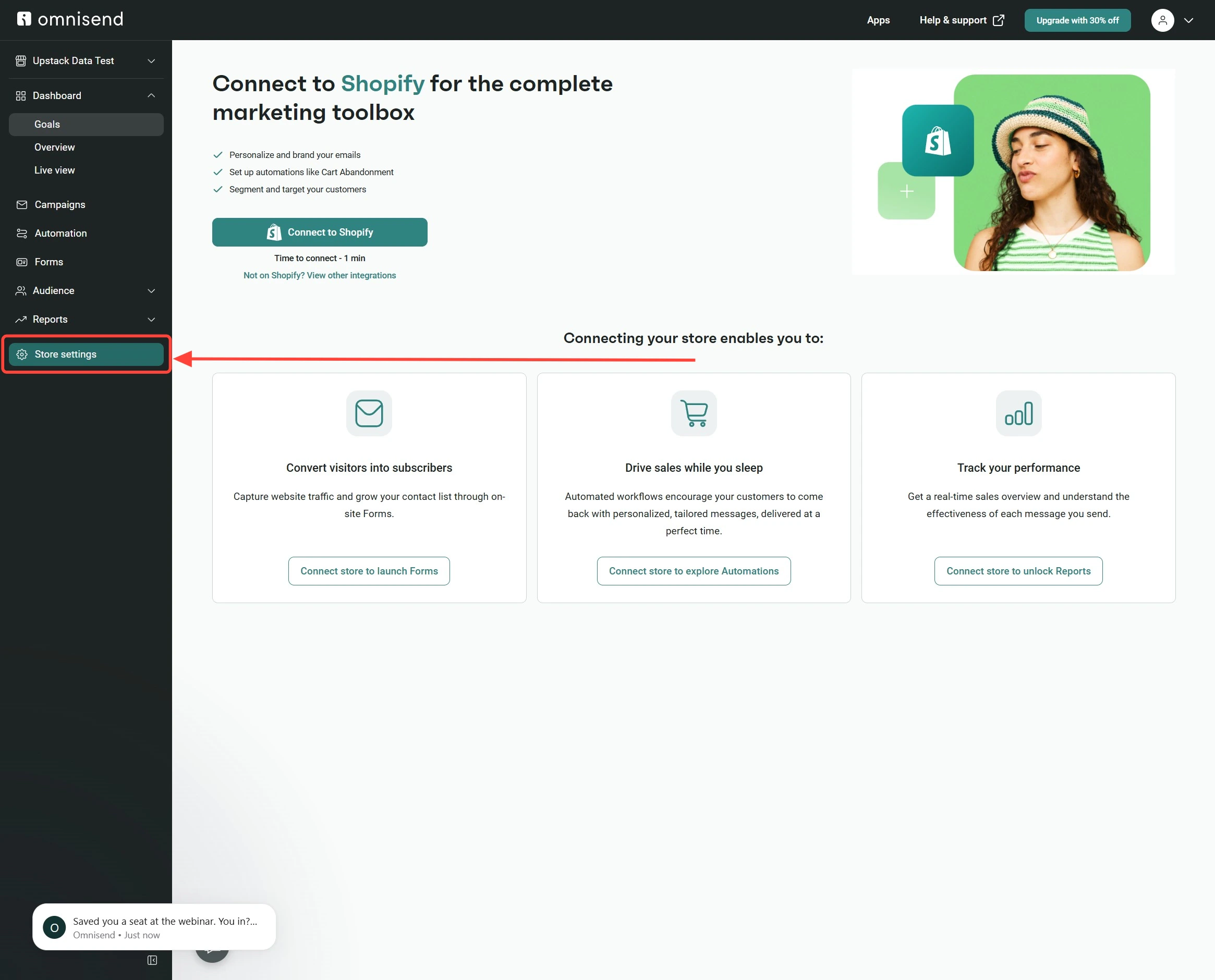
In the left-hand menu, click **Store settings**, then go to the **API** tab.
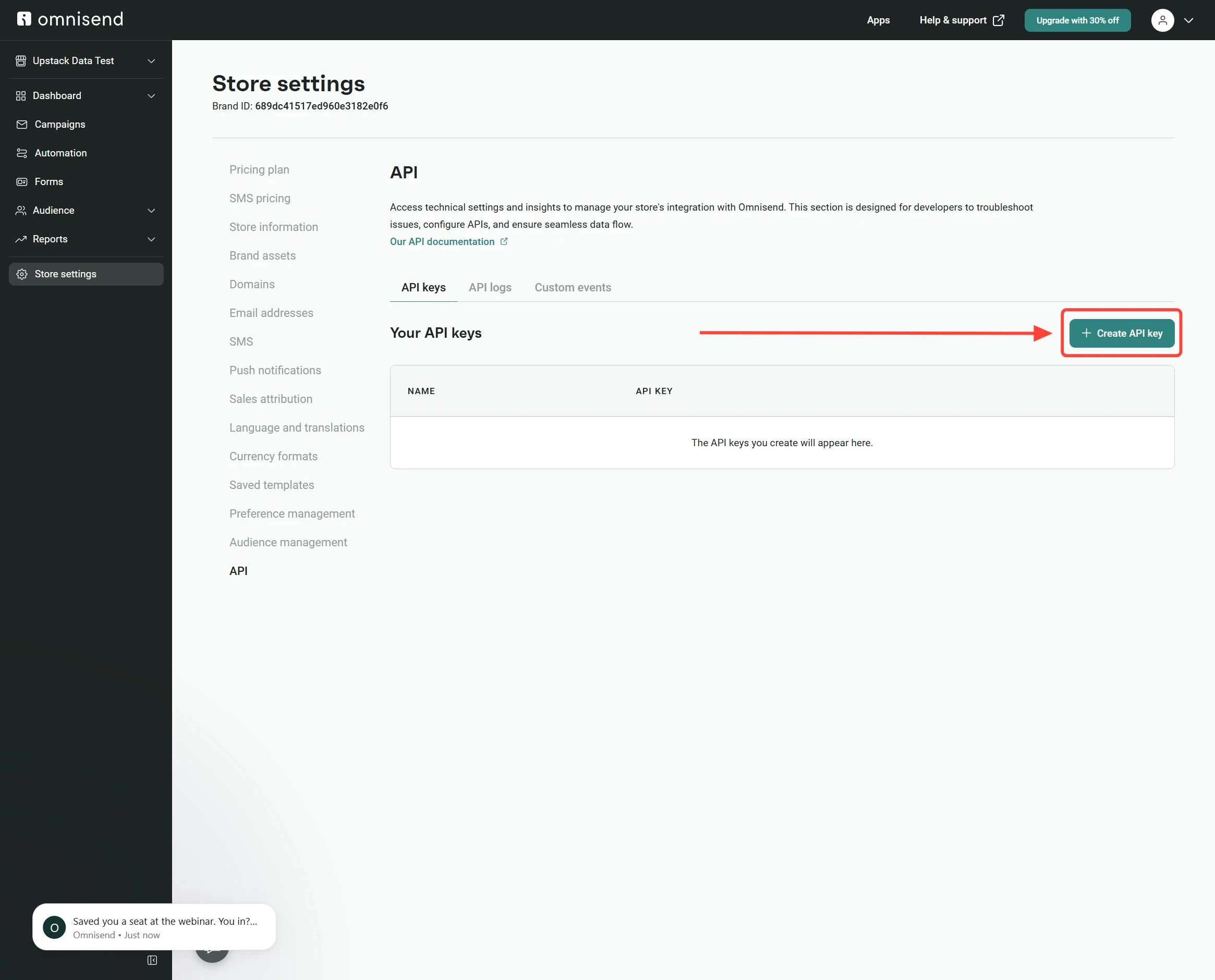
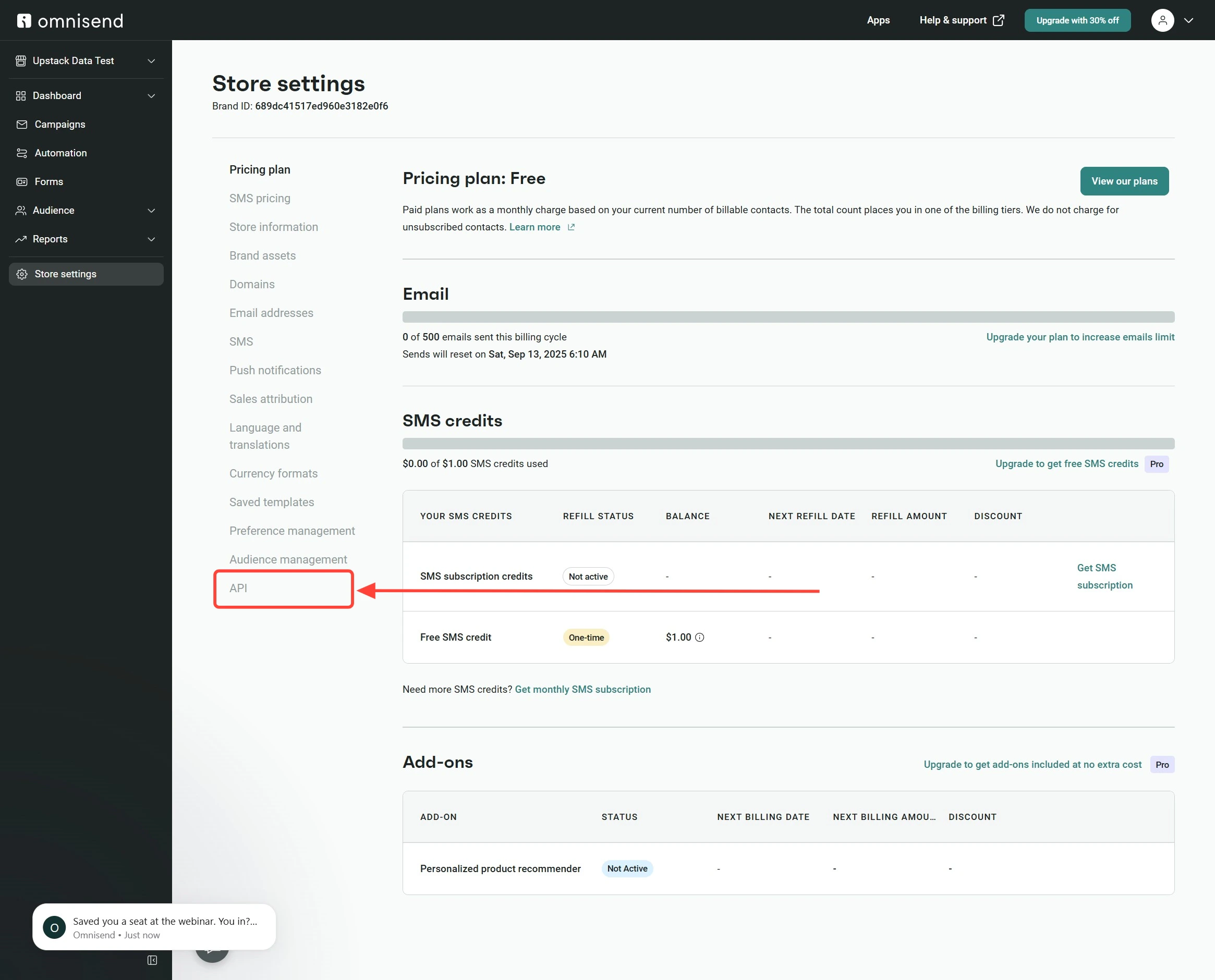 On the **API** settings page, click the **+ Create API key** button.
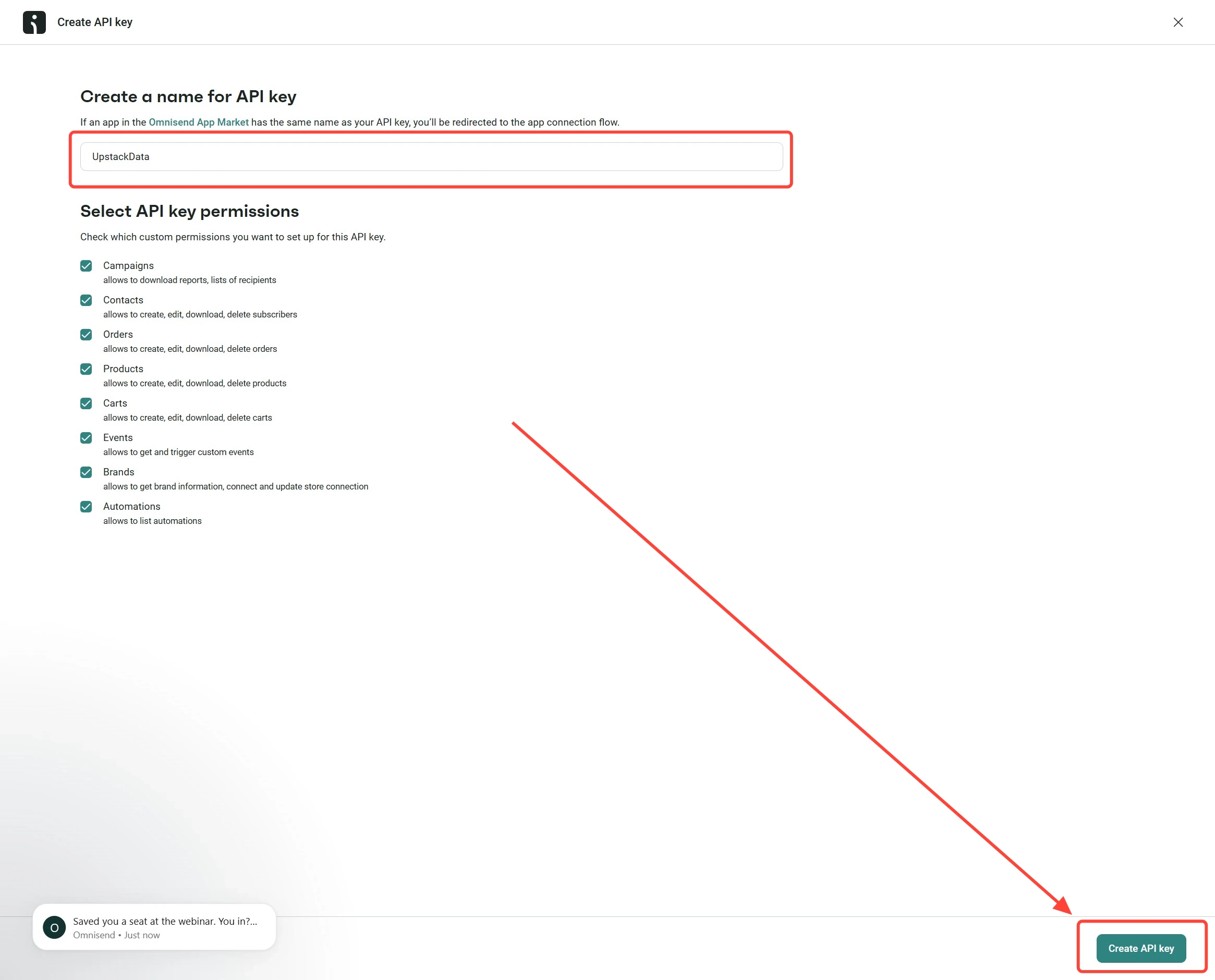
 Enter `UpstackData` as the API key name, then click **Create API key**.
 Click the **Copy API key** button to copy the generated API key, then store it securely (for example, in a password manager).
Paste the API key into the **API key** field when [configuring the Omnisend destination](/guides/omnisend/how-to-configure-omnisend-pixel-destination-in-upstack-data) in your Upstack dashboard.
This API key is only shown once — copy it immediately. The API key is sensitive: anyone with it can read and write data in your Omnisend account, so store it in a secure location and never share it.
Click the **Copy API key** button to copy the generated API key, then store it securely (for example, in a password manager).
Paste the API key into the **API key** field when [configuring the Omnisend destination](/guides/omnisend/how-to-configure-omnisend-pixel-destination-in-upstack-data) in your Upstack dashboard.
This API key is only shown once — copy it immediately. The API key is sensitive: anyone with it can read and write data in your Omnisend account, so store it in a secure location and never share it.
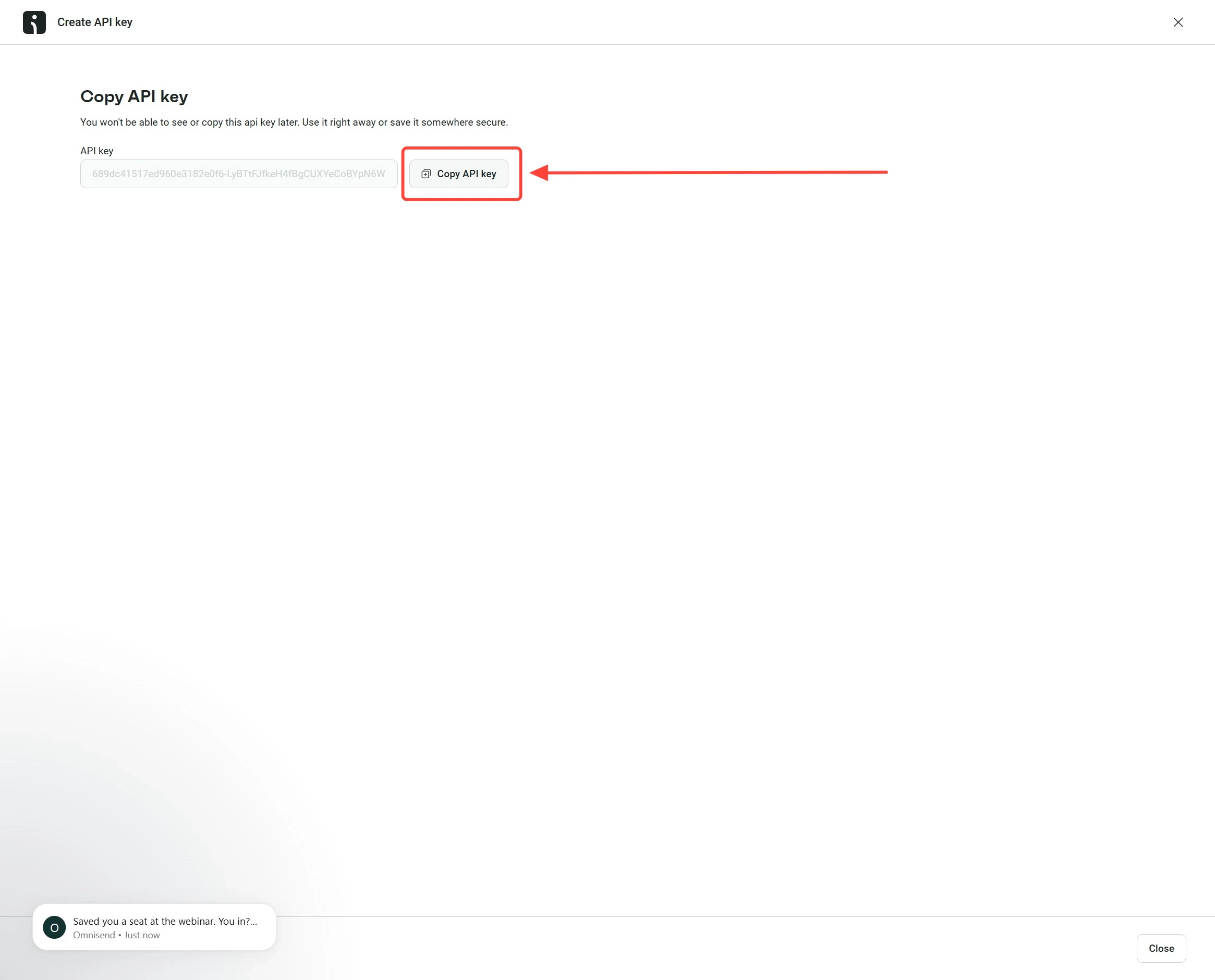 Confirm the value you copied is a long alphanumeric string with no extra spaces — typically a 64-character secret followed by a `-` and a short identifier. You can paste it into the **API key** field when configuring the Omnisend destination in your Upstack dashboard.
Here's a help guide on
**[How to Configure Omnisend Pixel Destination in Upstack Data →](/guides/omnisend/how-to-configure-omnisend-pixel-destination-in-upstack-data)**
Confirm the value you copied is a long alphanumeric string with no extra spaces — typically a 64-character secret followed by a `-` and a short identifier. You can paste it into the **API key** field when configuring the Omnisend destination in your Upstack dashboard.
Here's a help guide on
**[How to Configure Omnisend Pixel Destination in Upstack Data →](/guides/omnisend/how-to-configure-omnisend-pixel-destination-in-upstack-data)**