> ## Documentation Index
> Fetch the complete documentation index at: https://docs.upstackdata.com/llms.txt
> Use this file to discover all available pages before exploring further.
# How to Configure Pinterest Destination in Upstack Data
> Configure the Pinterest destination in Upstack Data with your Pinterest Conversions API key, Pixel ID, and Advertiser ID to forward server-side conversions to Pinterest CAPI.
**Quick Summary**
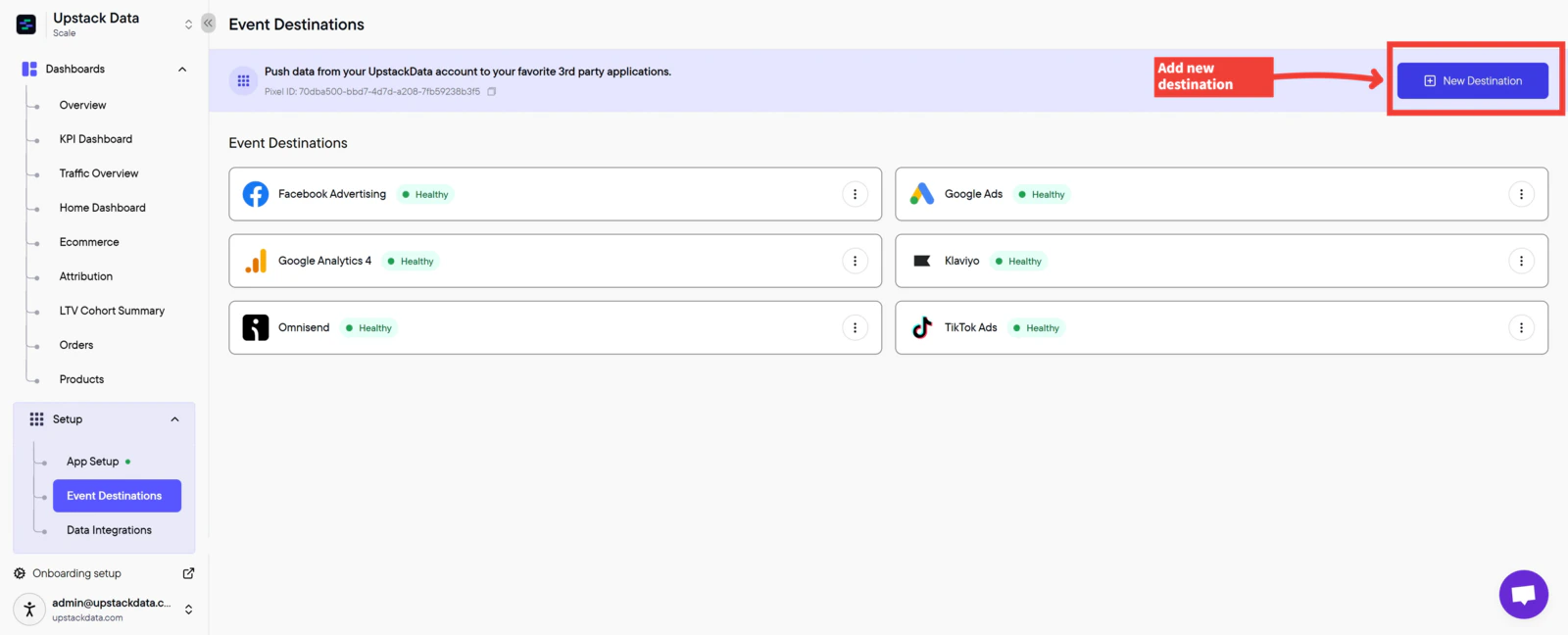
* In the Upstack dashboard, open **Events Destination** and click **+ New Destination**
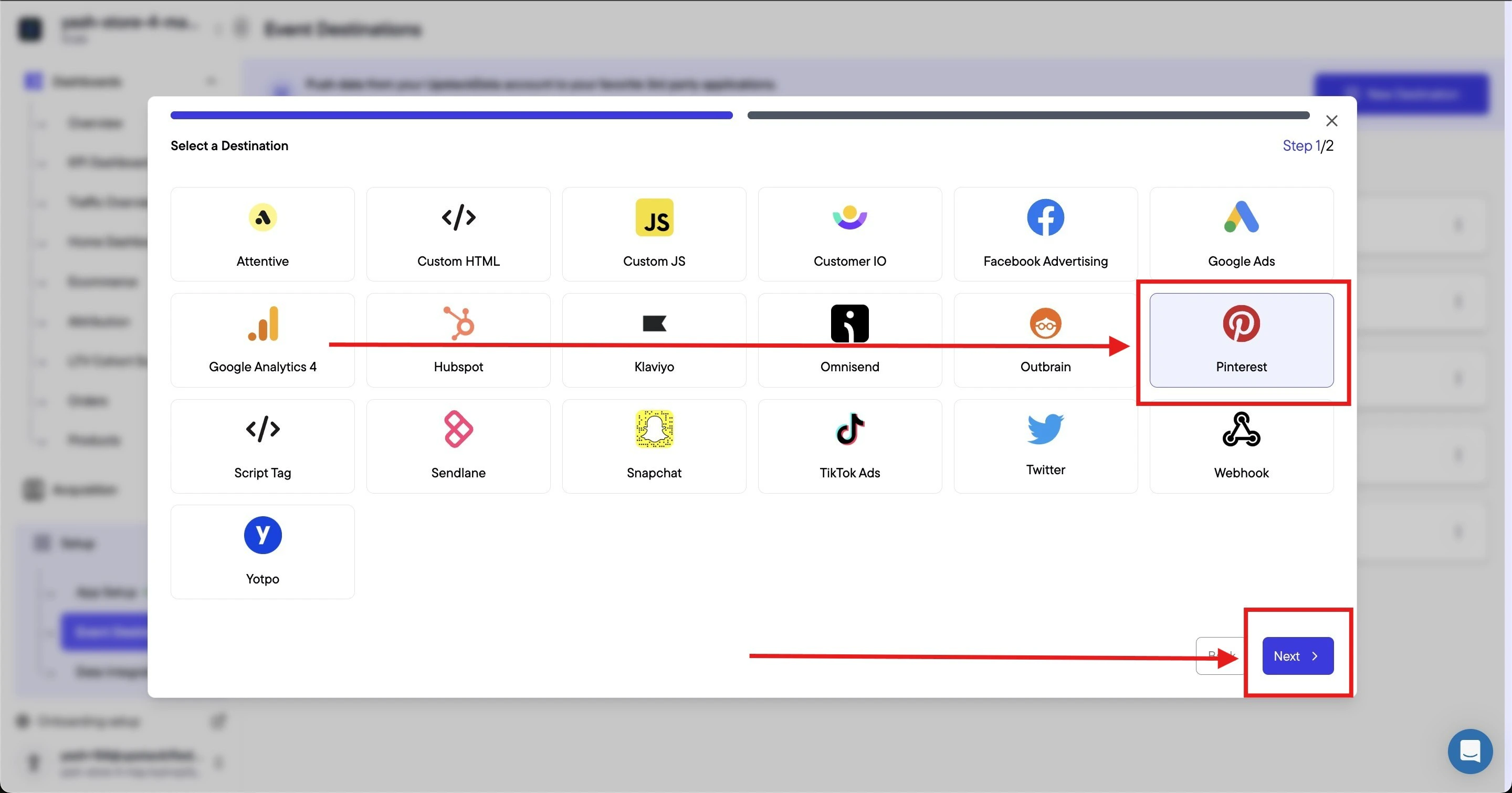
* Select **Pinterest** from the destination options
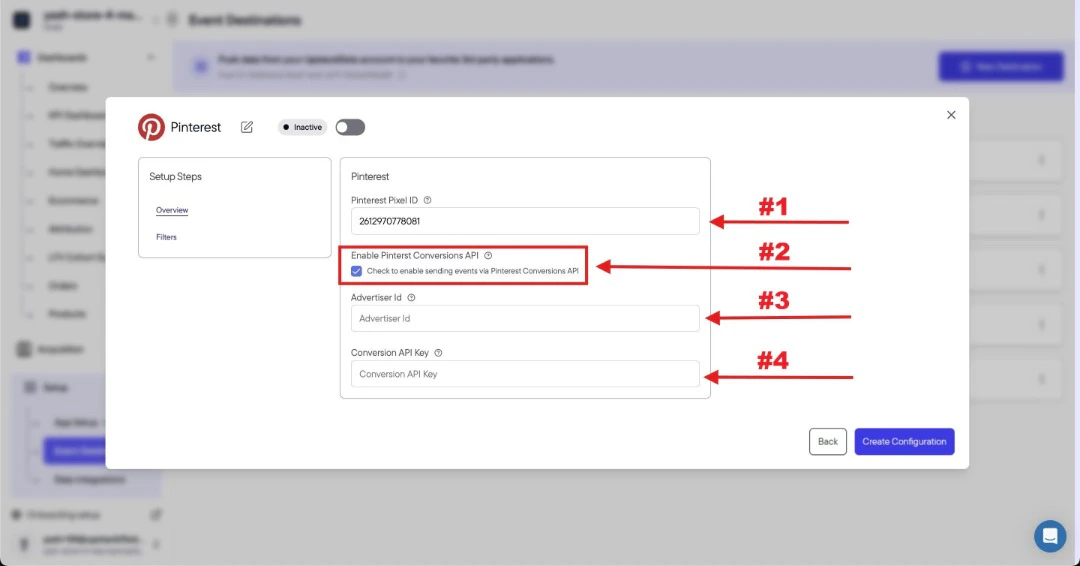
* Enter your **Pixel Tag ID**, **Advertiser ID**, and **Conversion API key**
* Check the box to **enable Pinterest Conversions API**
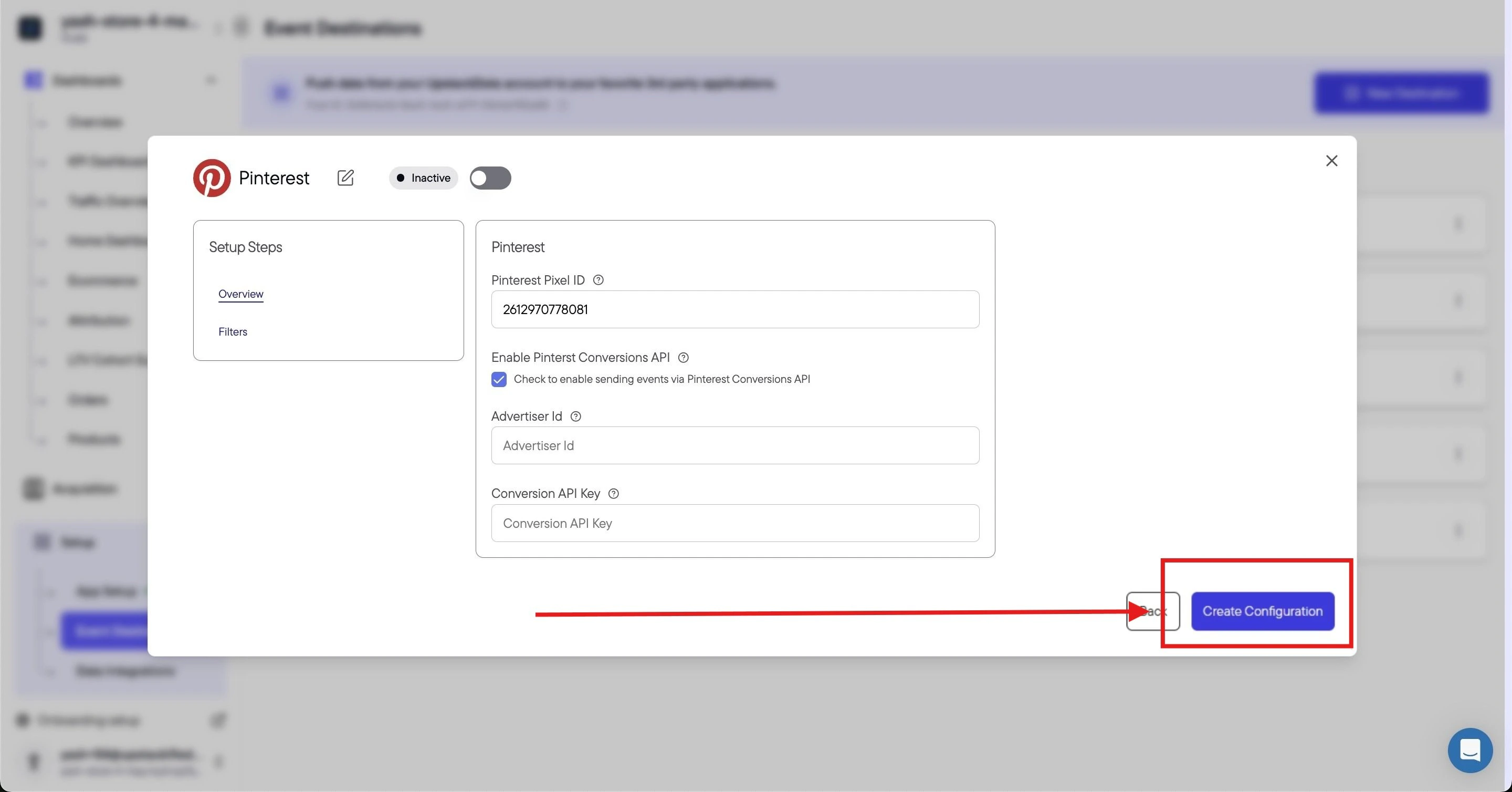
* Click **Create Configuration** and verify the destination shows as **Healthy**
## Prerequisites
Before you start, you need:
* An active Upstack Data account ([sign up](https://app.upstackdata.com))
* Admin access to your Pinterest Business account
* Your Pinterest **Pixel Tag ID** ([how to find it](/guides/pinterest-ads/how-to-find-pinterest-pixel-tag-id))
* Your Pinterest **Advertiser ID** ([how to find it](/guides/pinterest-ads/how-to-find-pinterest-advertiser-id))
* Your Pinterest **Conversion API key** ([how to generate it](/guides/pinterest-ads/how-to-generate-pinterest-conversion-api-key-access-token))
## Configuration Steps
Sign in to [Upstack Data](https://app.upstackdata.com) and open the [Events Destination](https://app.upstackdata.com/pixel/event-destinations) page.
In the **Events Destination** page, click **+ New Destination** in the top-right of the page.
 In the **Select a Destination** popup, click **Pinterest**, then click **Next**.
 Fill out the form with the following:
1. **Pinterest Pixel Tag ID** — a 13-digit number, for example `2613000000000`
2. Check the box **Check to enable sending events via Pinterest Conversions API**
3. **Advertiser ID** — a 12-digit numeric ID, for example `549000000000`
4. **Conversion API key** — the access token starting with `pina_`
The **Conversions API checkbox must be selected** for server-side tracking to work.
Fill out the form with the following:
1. **Pinterest Pixel Tag ID** — a 13-digit number, for example `2613000000000`
2. Check the box **Check to enable sending events via Pinterest Conversions API**
3. **Advertiser ID** — a 12-digit numeric ID, for example `549000000000`
4. **Conversion API key** — the access token starting with `pina_`
The **Conversions API checkbox must be selected** for server-side tracking to work.
 ***Need help finding these?***
**[How to Find Pinterest Pixel Tag ID →](/guides/pinterest-ads/how-to-find-pinterest-pixel-tag-id)**
**[How to Generate Pinterest Conversion API Key →](/guides/pinterest-ads/how-to-generate-pinterest-conversion-api-key-access-token)**
**[How to Find Pinterest Advertiser ID →](/guides/pinterest-ads/how-to-find-pinterest-advertiser-id)**
Click the **Create Configuration** button at the bottom of the form.
***Need help finding these?***
**[How to Find Pinterest Pixel Tag ID →](/guides/pinterest-ads/how-to-find-pinterest-pixel-tag-id)**
**[How to Generate Pinterest Conversion API Key →](/guides/pinterest-ads/how-to-generate-pinterest-conversion-api-key-access-token)**
**[How to Find Pinterest Advertiser ID →](/guides/pinterest-ads/how-to-find-pinterest-advertiser-id)**
Click the **Create Configuration** button at the bottom of the form.
 **Success! 🎉** You should see a confirmation message and the Pinterest destination will appear as **Healthy** in your destinations list.
Back in the [Events Destination](https://app.upstackdata.com/pixel/event-destinations) page, confirm that the new **Pinterest** destination shows a **Healthy** status.
Then, in [Pinterest Business](https://business.pinterest.com), open **Conversions → Pinterest tag** and confirm that events are being received from your Conversions API integration. New events typically appear within a few minutes after a test purchase or page view.
**Success! 🎉** You should see a confirmation message and the Pinterest destination will appear as **Healthy** in your destinations list.
Back in the [Events Destination](https://app.upstackdata.com/pixel/event-destinations) page, confirm that the new **Pinterest** destination shows a **Healthy** status.
Then, in [Pinterest Business](https://business.pinterest.com), open **Conversions → Pinterest tag** and confirm that events are being received from your Conversions API integration. New events typically appear within a few minutes after a test purchase or page view.