> ## Documentation Index
> Fetch the complete documentation index at: https://docs.upstackdata.com/llms.txt
> Use this file to discover all available pages before exploring further.
# How to Disable Pinterest Data Sharing in Shopify
> Disable Shopify's Pinterest sales channel data sharing to stop duplicate Pinterest pixel events and let Upstack Data deliver clean server-side conversions to Pinterest CAPI.
**Quick Summary**
* In Shopify admin, open **Settings → Apps and sales channels**
* Find **Pinterest** and click the **three-dot (⋮) menu**
* Select **Uninstall** and confirm in the popup
If you're using **Upstack Data** for Pinterest event tracking, you need to uninstall the **Pinterest Sales Channel** from your Shopify store to remove Shopify's native pixel tracking.
Disabling Pinterest data sharing is crucial to prevent duplicate events, which can distort reporting and attribution. It ensures Pinterest only receives clean, accurate data through Upstack Data for reliable insights and better ad optimization.
## Prerequisites
Before you start, you need:
* Admin access to your Shopify store ([Shopify admin](https://admin.shopify.com))
* The Pinterest Sales Channel currently installed in Shopify
* A configured Pinterest destination in your [Upstack dashboard](https://app.upstackdata.com/pixel/event-destinations) ([setup guide](/guides/pinterest-ads/how-to-configure-pinterest-destination-in-upstack-data))
## Why You Should Disable Pinterest Data Sharing
Shopify's Pinterest Sales Channel automatically enables both catalog and pixel tracking, without allowing you to manage them separately. It can cause duplicate events because it sends conversion data from both your browser and server.
When combined with Upstack Data's server-side tracking, this may inflate conversions, ROAS, and event counts.
Disabling Pinterest's own data-sharing features allows Upstack Data to:
* Ensure consistent and deduplicated event tracking
* Improve attribution accuracy across platforms
* Maintain reliable performance reporting
## Steps to Disable Pinterest Data Sharing in Shopify
Sign in to [Shopify admin](https://admin.shopify.com) for the store where Pinterest is installed.
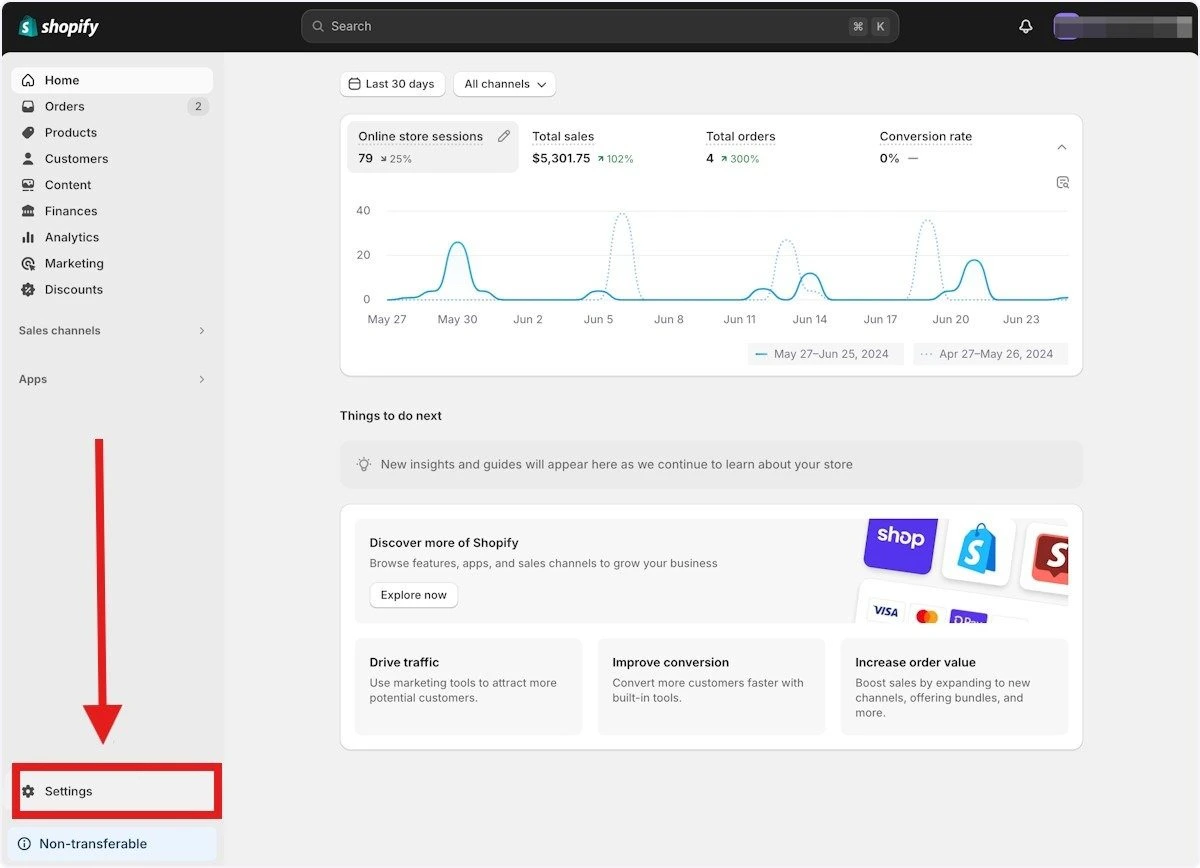
In the left-hand menu, click **Settings**, then select **Apps and sales channels**.
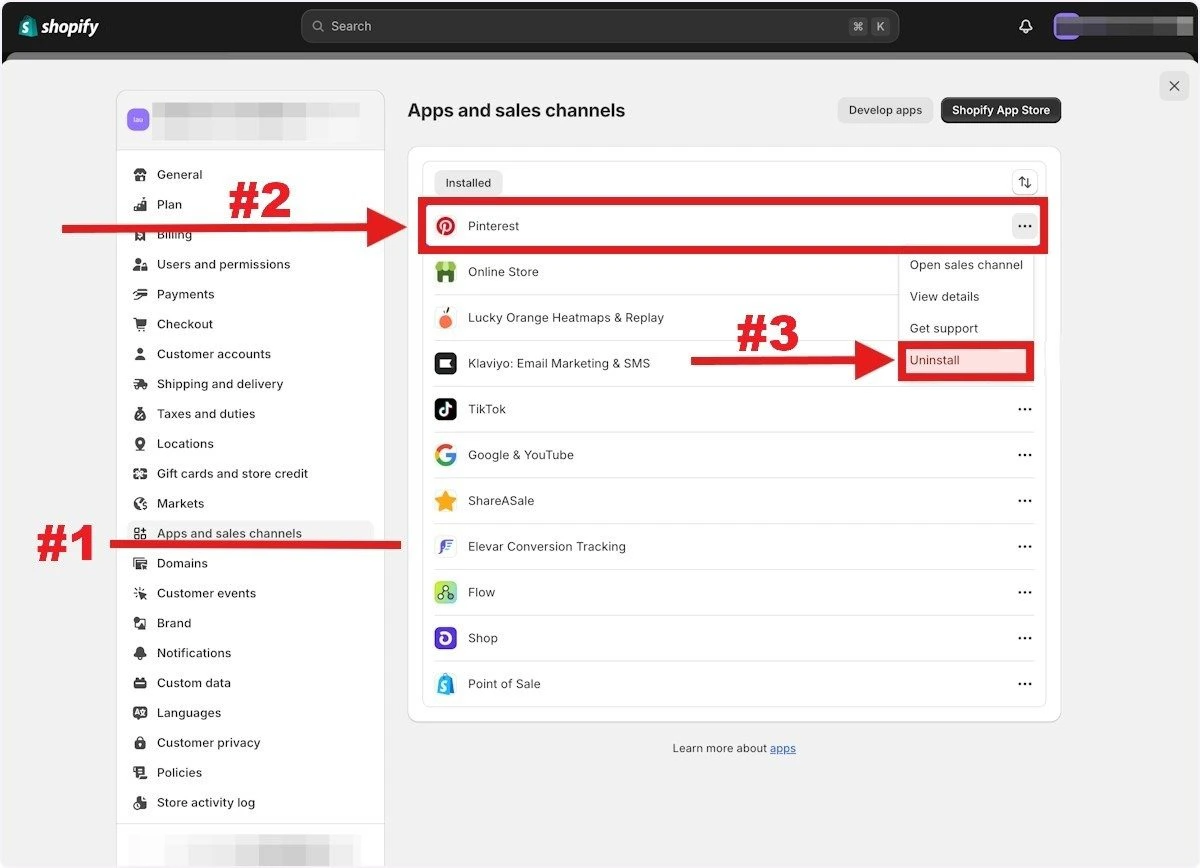
 Locate **Pinterest** in the list, click the **three-dot (⋮) menu**, then select **Uninstall**.
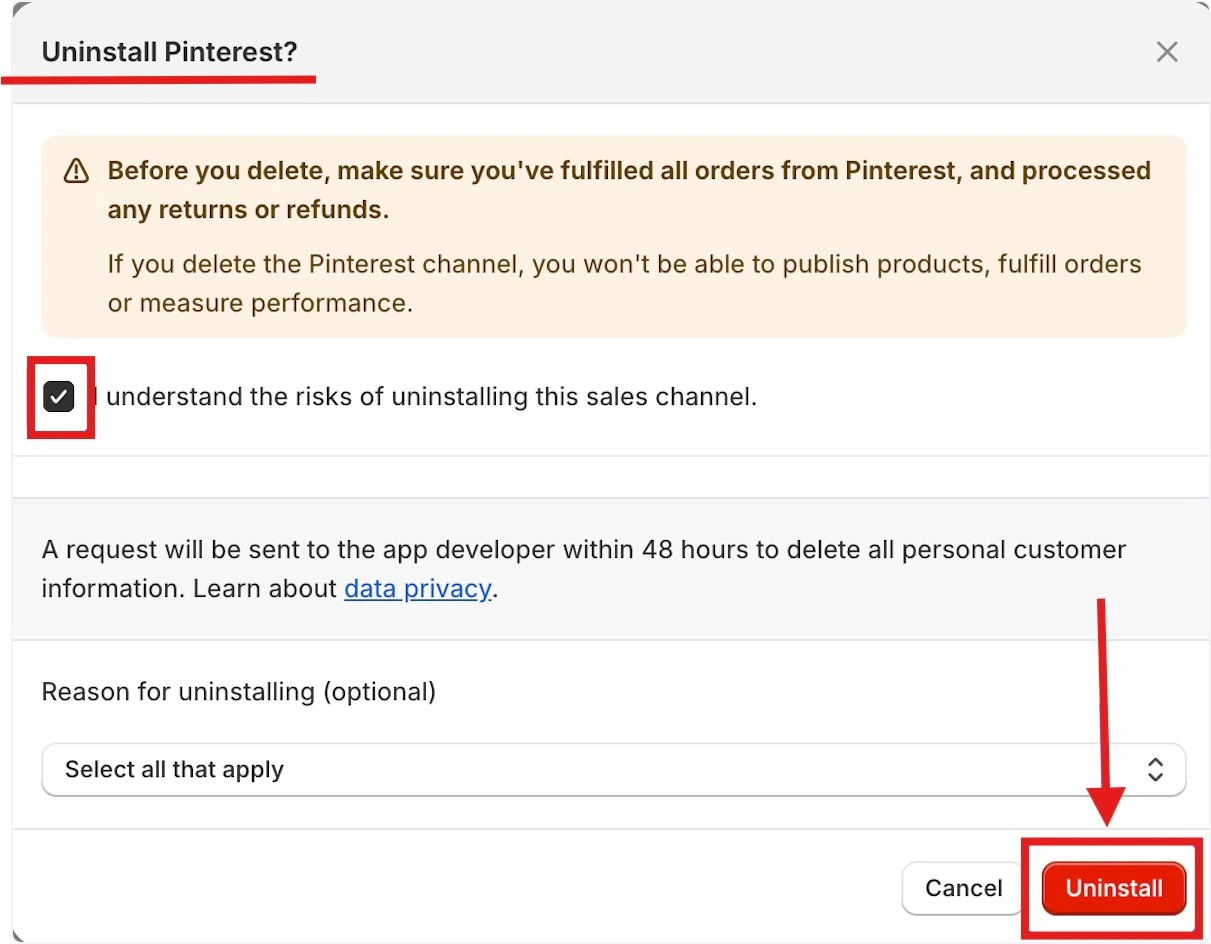
 A confirmation window will appear. Review the warning, then click **Uninstall** in the bottom-right of the dialog.
 Refresh the **Apps and sales channels** page and confirm **Pinterest** no longer appears in the list of installed channels.
Then, in your [Upstack dashboard](https://app.upstackdata.com/pixel/event-destinations), confirm the **Pinterest** destination is still **Healthy** and continuing to send events through Upstack Data.
Uninstalling the Pinterest app in Shopify is important because it helps **prevent duplicate tracking and data conflicts** between Pinterest's native integration and Upstack Data.
**Need Help?**
If you encounter any issues during setup, contact our support team and we'll help diagnose the problem.
Refresh the **Apps and sales channels** page and confirm **Pinterest** no longer appears in the list of installed channels.
Then, in your [Upstack dashboard](https://app.upstackdata.com/pixel/event-destinations), confirm the **Pinterest** destination is still **Healthy** and continuing to send events through Upstack Data.
Uninstalling the Pinterest app in Shopify is important because it helps **prevent duplicate tracking and data conflicts** between Pinterest's native integration and Upstack Data.
**Need Help?**
If you encounter any issues during setup, contact our support team and we'll help diagnose the problem.