> ## Documentation Index
> Fetch the complete documentation index at: https://docs.upstackdata.com/llms.txt
> Use this file to discover all available pages before exploring further.
# How to Find Pinterest Advertiser ID
> Find your Pinterest Advertiser ID in Pinterest Business Manager — required (alongside the Pixel ID and CAPI token) to configure the Upstack Data Pinterest destination.
**Quick Summary**
* Sign in to [Pinterest Business](https://business.pinterest.com)
* In the top-right of the page, click your **Business account name** and select your business
* In the left-hand menu, open **Ad Accounts**
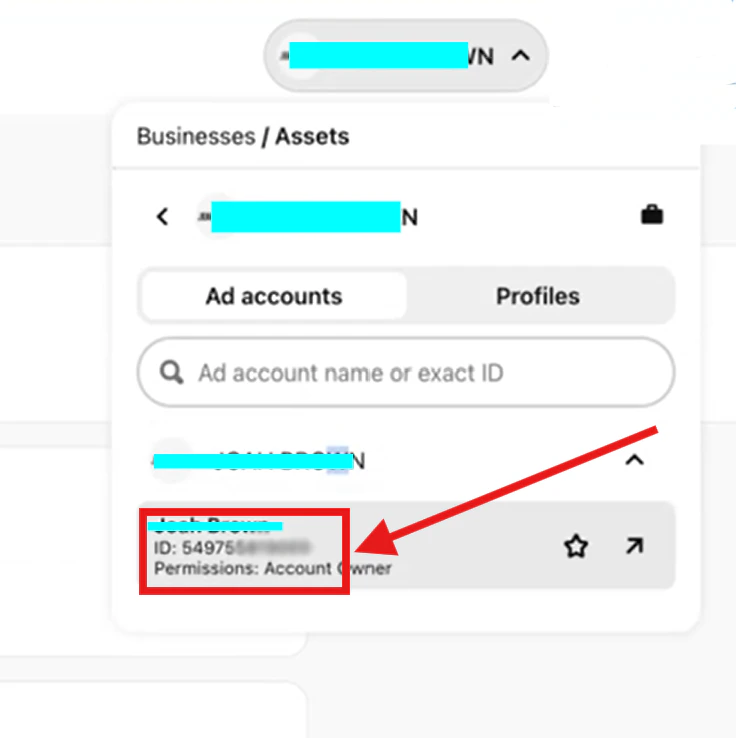
* Select the ad account you want to use, then **copy** the **Advertiser ID**
## What is a Pinterest Advertiser ID?
A **Pinterest Advertiser ID** is a unique numeric identifier assigned to your Pinterest Business advertising account. It is typically a 12-digit number (for example, `549000000000`).
## Prerequisites
Before you start, you need:
* Admin access to your Pinterest Business account
* At least one Pinterest ad account associated with your business
## Steps to Find Your Advertiser ID
Sign in to [Pinterest Business](https://business.pinterest.com).
In the top-right of the page, click your **Business account name**.
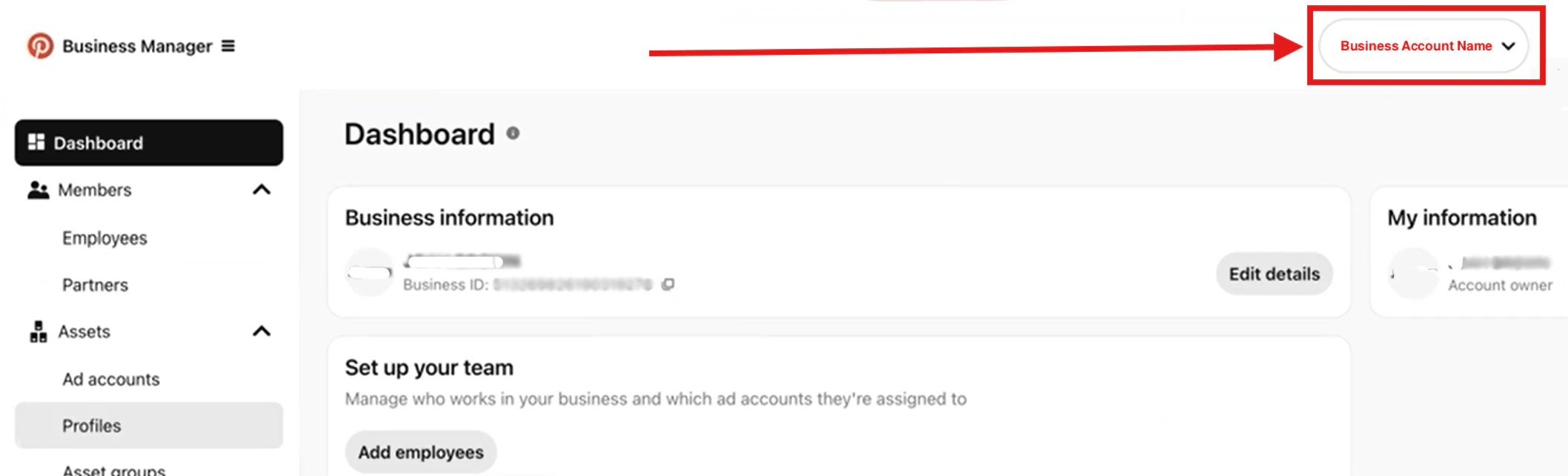 From the dropdown, select your business name.
 In the left-hand menu, click **Ad Accounts**.
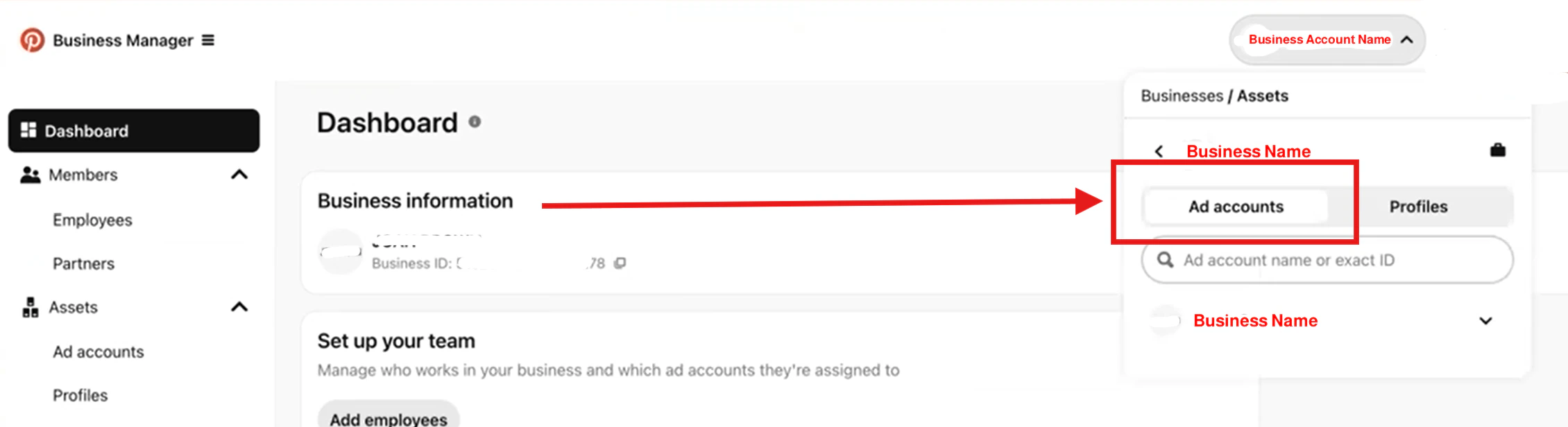 Select the ad account you want to connect to Upstack Data. The **Advertiser ID** is displayed next to the ad account name as a 12-digit numeric value (for example, `549000000000`).
Copy the **Advertiser ID** — you'll paste it into the Pinterest destination form in your Upstack dashboard.
Select the ad account you want to connect to Upstack Data. The **Advertiser ID** is displayed next to the ad account name as a 12-digit numeric value (for example, `549000000000`).
Copy the **Advertiser ID** — you'll paste it into the Pinterest destination form in your Upstack dashboard.
 Confirm the value you copied is a 12-digit number with no extra characters or spaces. You can paste it into the **Advertiser ID** field when [configuring the Pinterest destination](/guides/pinterest-ads/how-to-configure-pinterest-destination-in-upstack-data) in your Upstack dashboard.
***Need help finding these?***
**[How to Find Pinterest Pixel Tag ID →](/guides/pinterest-ads/how-to-find-pinterest-pixel-tag-id)**
**[How to Generate Pinterest Conversion API Key →](/guides/pinterest-ads/how-to-generate-pinterest-conversion-api-key-access-token)**
Confirm the value you copied is a 12-digit number with no extra characters or spaces. You can paste it into the **Advertiser ID** field when [configuring the Pinterest destination](/guides/pinterest-ads/how-to-configure-pinterest-destination-in-upstack-data) in your Upstack dashboard.
***Need help finding these?***
**[How to Find Pinterest Pixel Tag ID →](/guides/pinterest-ads/how-to-find-pinterest-pixel-tag-id)**
**[How to Generate Pinterest Conversion API Key →](/guides/pinterest-ads/how-to-generate-pinterest-conversion-api-key-access-token)**