> ## Documentation Index
> Fetch the complete documentation index at: https://docs.upstackdata.com/llms.txt
> Use this file to discover all available pages before exploring further.
# How to Ensure Upstack Data Theme App Extension is Enabled
> Enable the Upstack Data theme app embed in your Shopify theme editor so the tracking pixel loads on every storefront page and captures events server-side.
* In Shopify Admin, navigate to **Online Store → Themes → Customize**
* Click the **App embeds** icon in the theme customizer
* Enable **UpStackified Pixel** and click **Save**
* **Verify** with a test purchase
For your tracking events to fire correctly in Shopify, you need to ensure the **UpStackified Pixel** Theme App Extension is enabled in your live theme. Once complete, we recommend a test purchase to verify conversion tracking is working properly.
## Prerequisites
* The Upstack Data app installed on your Shopify store (see [How to Download and Install Upstack Data App in Shopify](/guides/shopify/how-to-download-and-install-upstack-data-app-in-shopify))
* [Shopify Admin](https://admin.shopify.com) access with permission to edit themes
* Your live theme accessible from **Online Store → Themes**
## Steps to enable Upstack Data Theme App Extension
Sign in to your [Shopify Admin](https://admin.shopify.com).
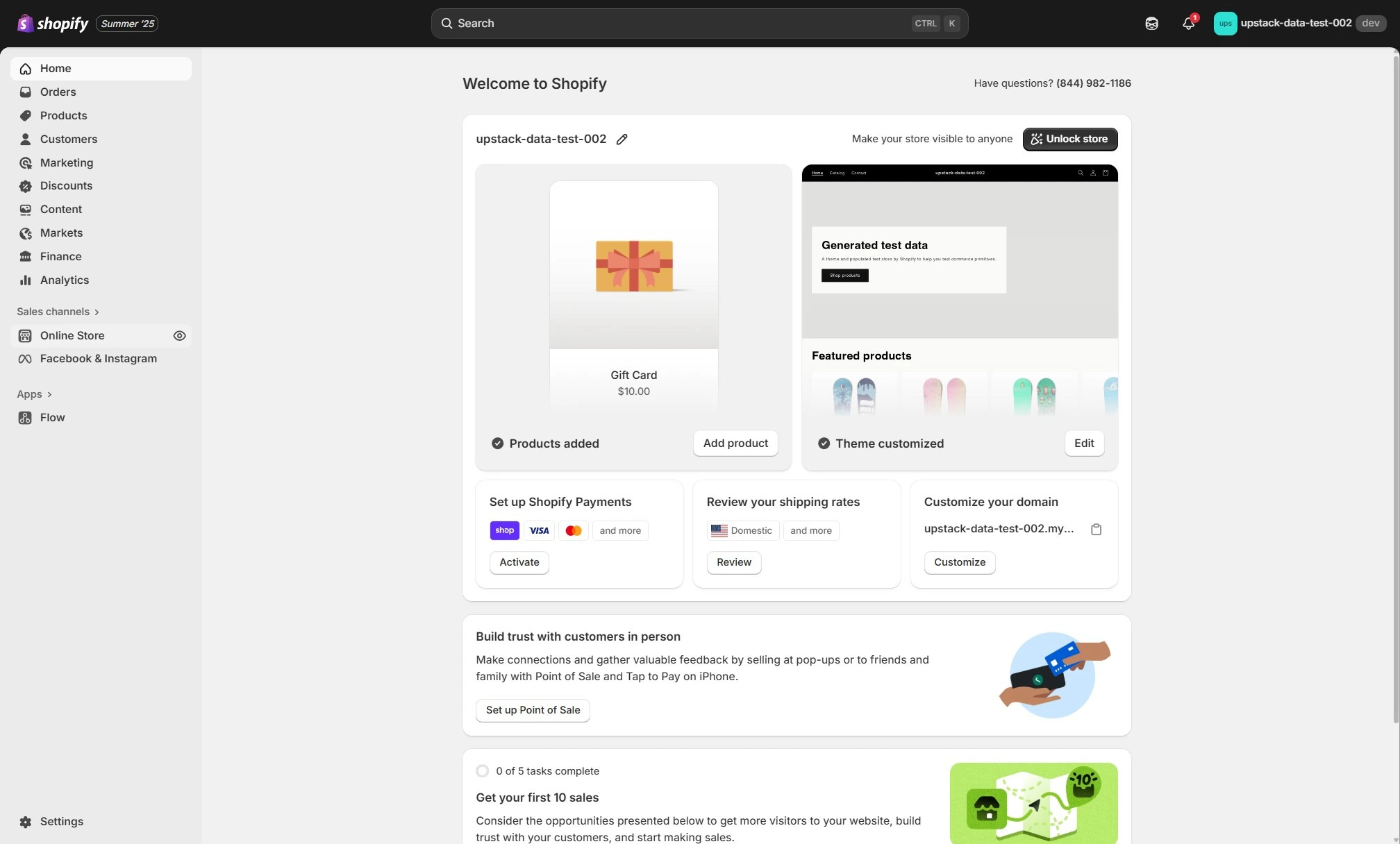 In the left sidebar, navigate to **Online Store → Themes**.
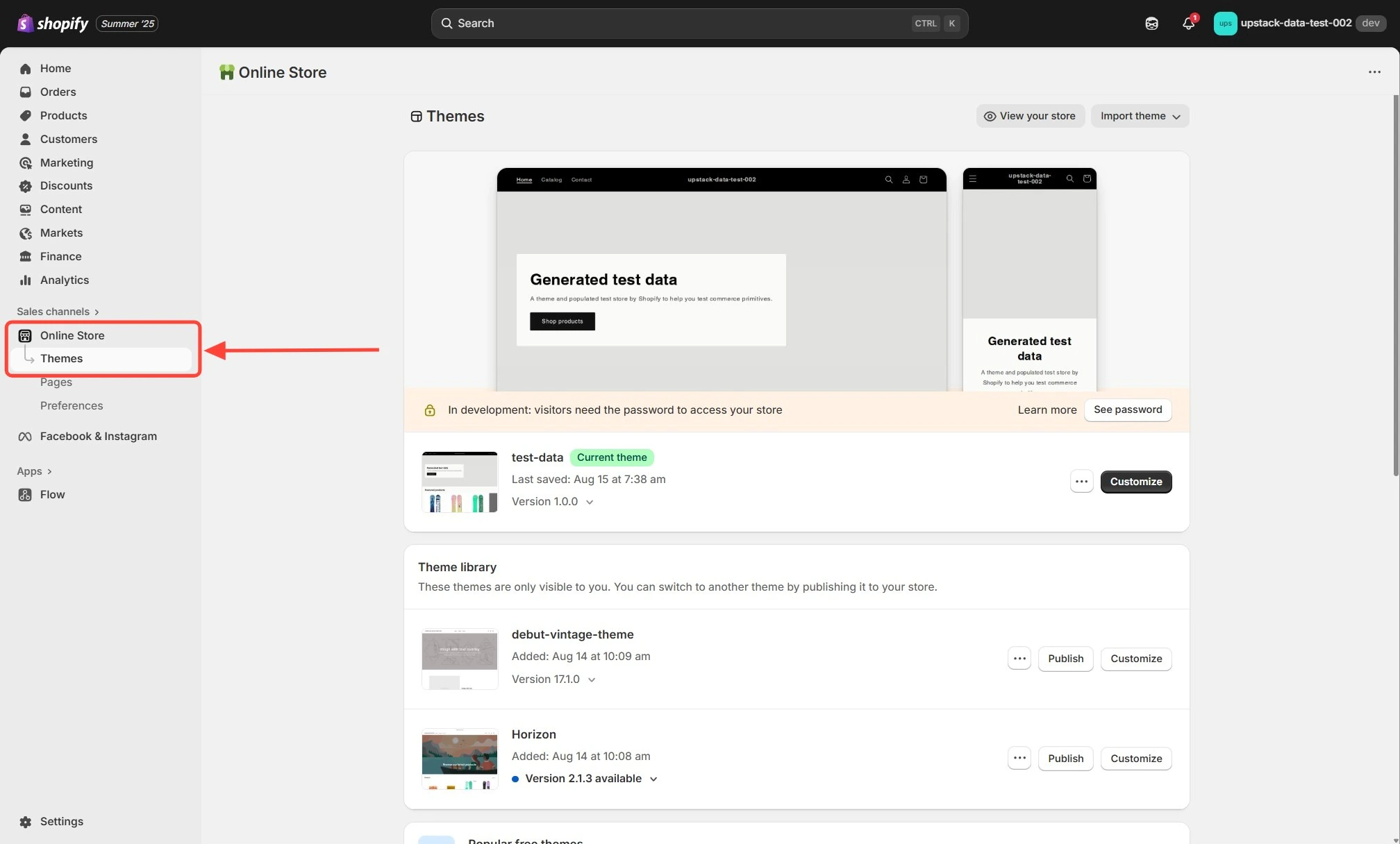 On your live theme, click the **Customize** button.
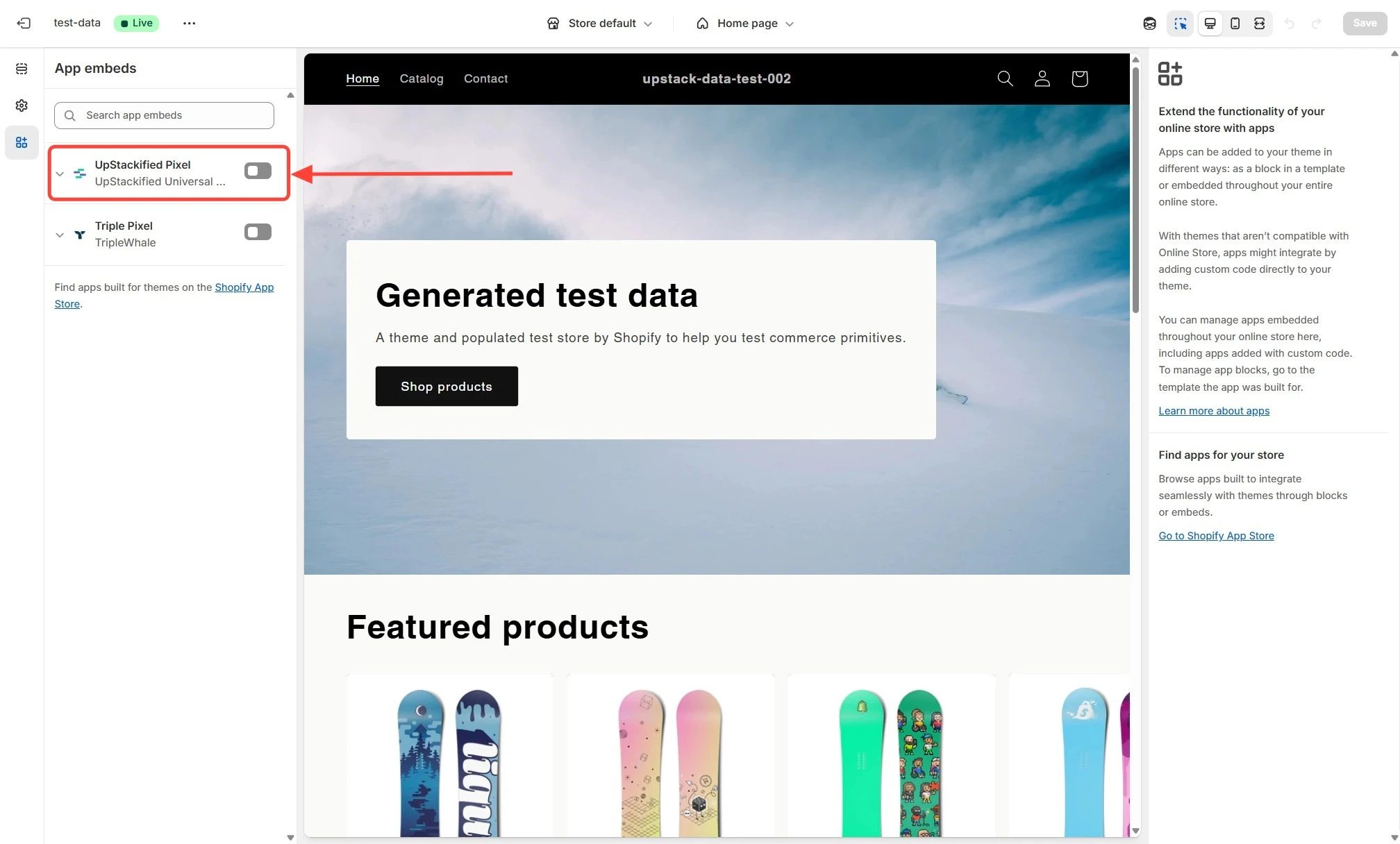
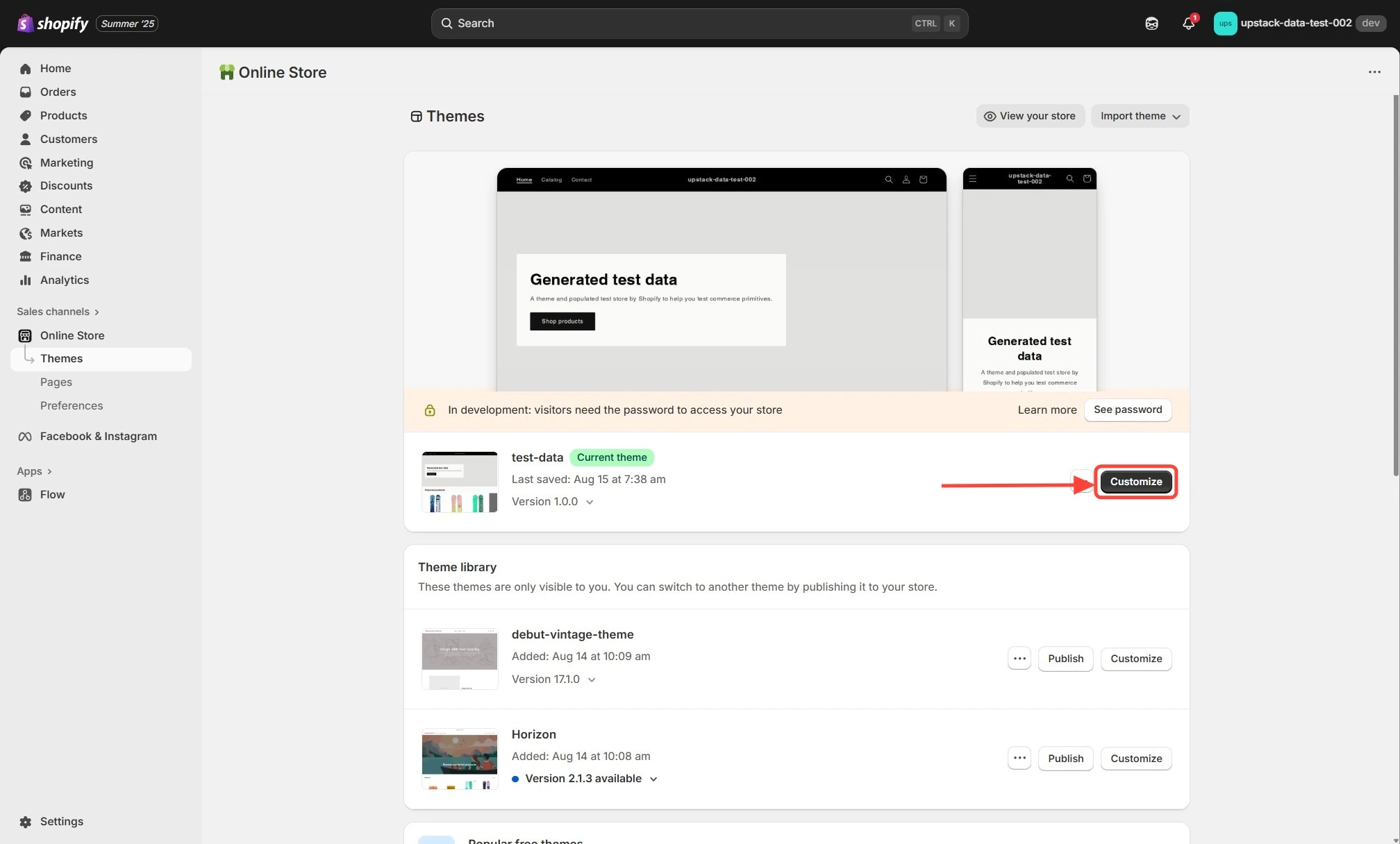 In the left sidebar of the theme customizer, click the **App embeds** icon.
 In the list, locate **UpStackified Pixel** and toggle the switch to **enable** it.
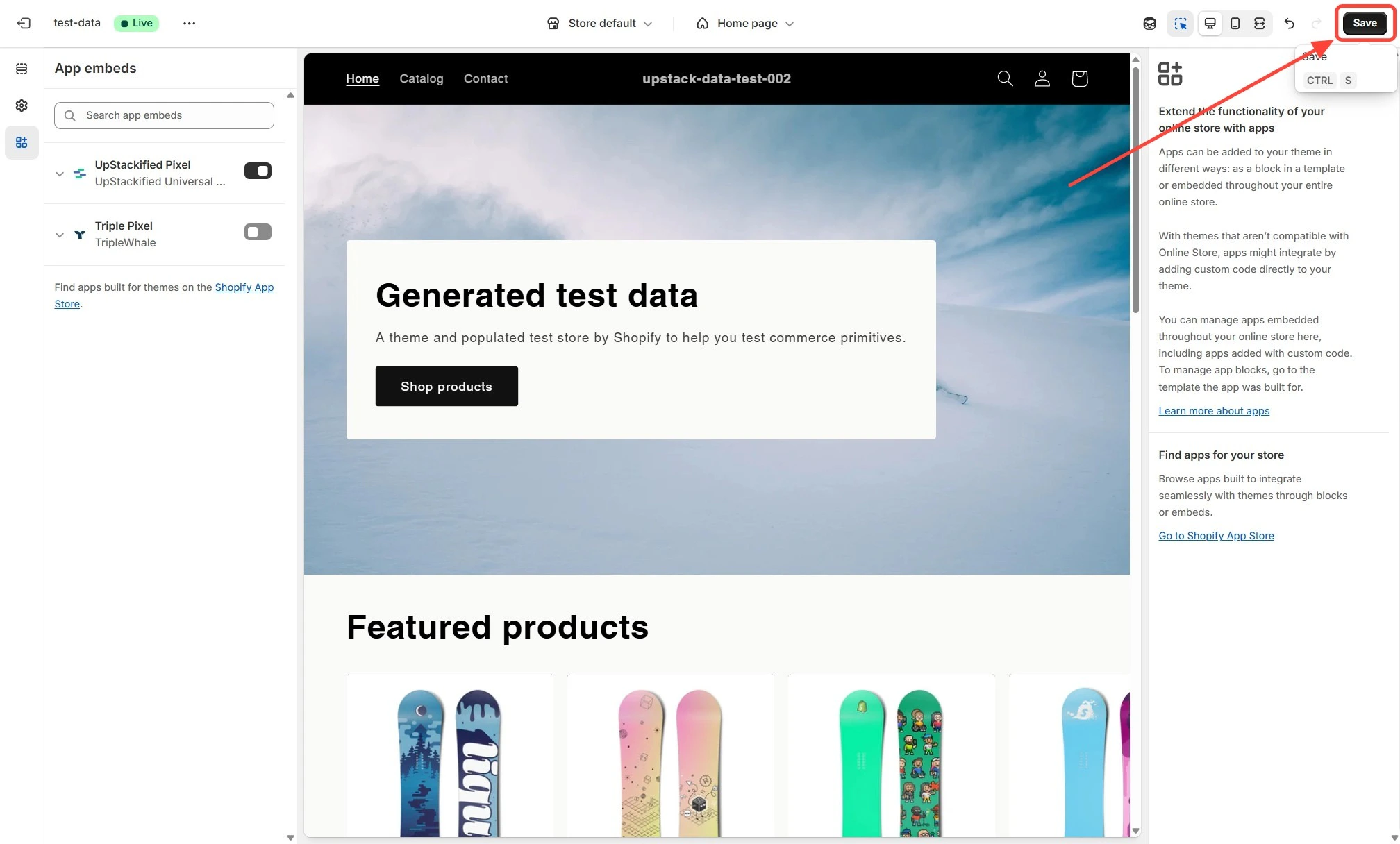
Click **Save** at the top-right of the page to apply the changes.
In the list, locate **UpStackified Pixel** and toggle the switch to **enable** it.
Click **Save** at the top-right of the page to apply the changes.
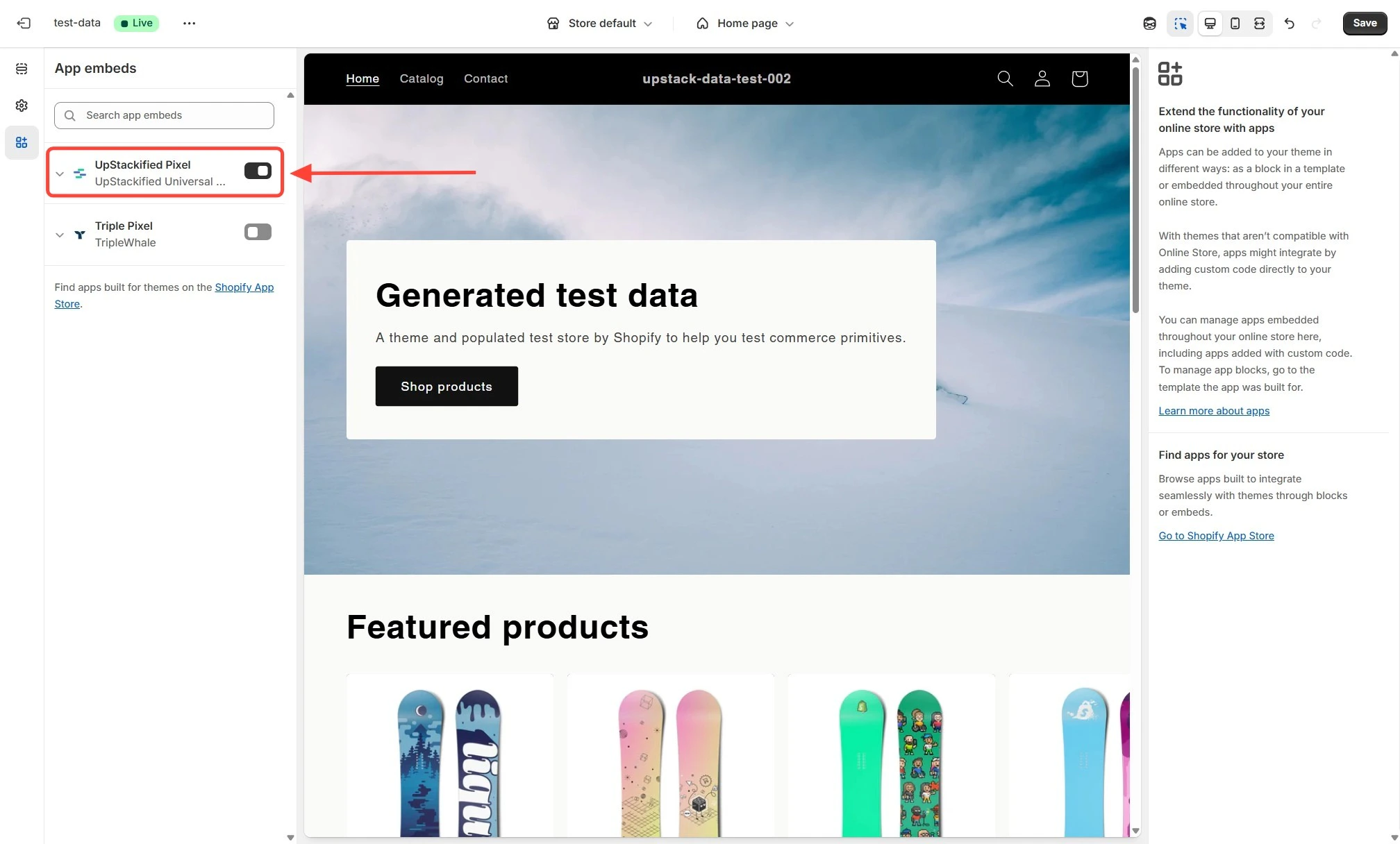
 Once enabled, **UpStackified Pixel** will show as active with a green check mark or **Enabled** status.
 Place a test order on your store, then open the [Upstack dashboard](https://app.upstackdata.com) and confirm a `Purchase` event appears under **Event Health** within a few minutes. If the event does not appear, recheck that the App embed is enabled and saved on your **live** theme (not a draft).
## Related Articles
Place a test order on your store, then open the [Upstack dashboard](https://app.upstackdata.com) and confirm a `Purchase` event appears under **Event Health** within a few minutes. If the event does not appear, recheck that the App embed is enabled and saved on your **live** theme (not a draft).
## Related Articles