> ## Documentation Index
> Fetch the complete documentation index at: https://docs.upstackdata.com/llms.txt
> Use this file to discover all available pages before exploring further.
# How to Setup Upstack Custom Pixel Privacy Settings
> Configure consent mode and privacy settings on the Upstack Data custom pixel in Shopify — control which events fire for opted-out shoppers while preserving attribution for opted-in shoppers.
* In Shopify Admin, navigate to **Settings → Customer events** and select your Upstack Data Custom Pixel.
* For **Permission**, choose **Not required** — the pixel will always run.
* For **Data sale**, choose **Data collected does not qualify as data sale** — the pixel will collect data even when a customer opts out of their data being sold.
* Click **Save**.
## Prerequisites
* The Upstack Data app installed on your Shopify store
* The **UpstackData** Custom Pixel already added under **Shopify Admin → Settings → Customer events** (see [Complete How-To Guide for Setting Up the Upstack Data App in Shopify](/guides/shopify/complete-how-to-guide-for-setting-up-the-upstack-data-app-in-shopify))
* [Shopify Admin](https://admin.shopify.com) access with permission to manage Customer Events
## Key points to remember
When configuring the Upstack Data Custom Pixel in Shopify, several options control consent mode. These settings can have a material impact on your tracking, data quality, and attribution.
If you are running cookie consent banners, ensure they are properly configured to get the most accurate data. If **Permission: Required** is set, the Custom Pixel will not load or track user behavior until the consent banner is accepted.
**Privacy regulations vary by jurisdiction.** This does not constitute legal advice. We recommend you consult your legal representative to determine which settings are appropriate for your business.
## Configuration steps
Sign in to your [Shopify Admin](https://admin.shopify.com).
* In the bottom-left of the page, click **Settings**.
* In the settings menu, click **Customer events**.
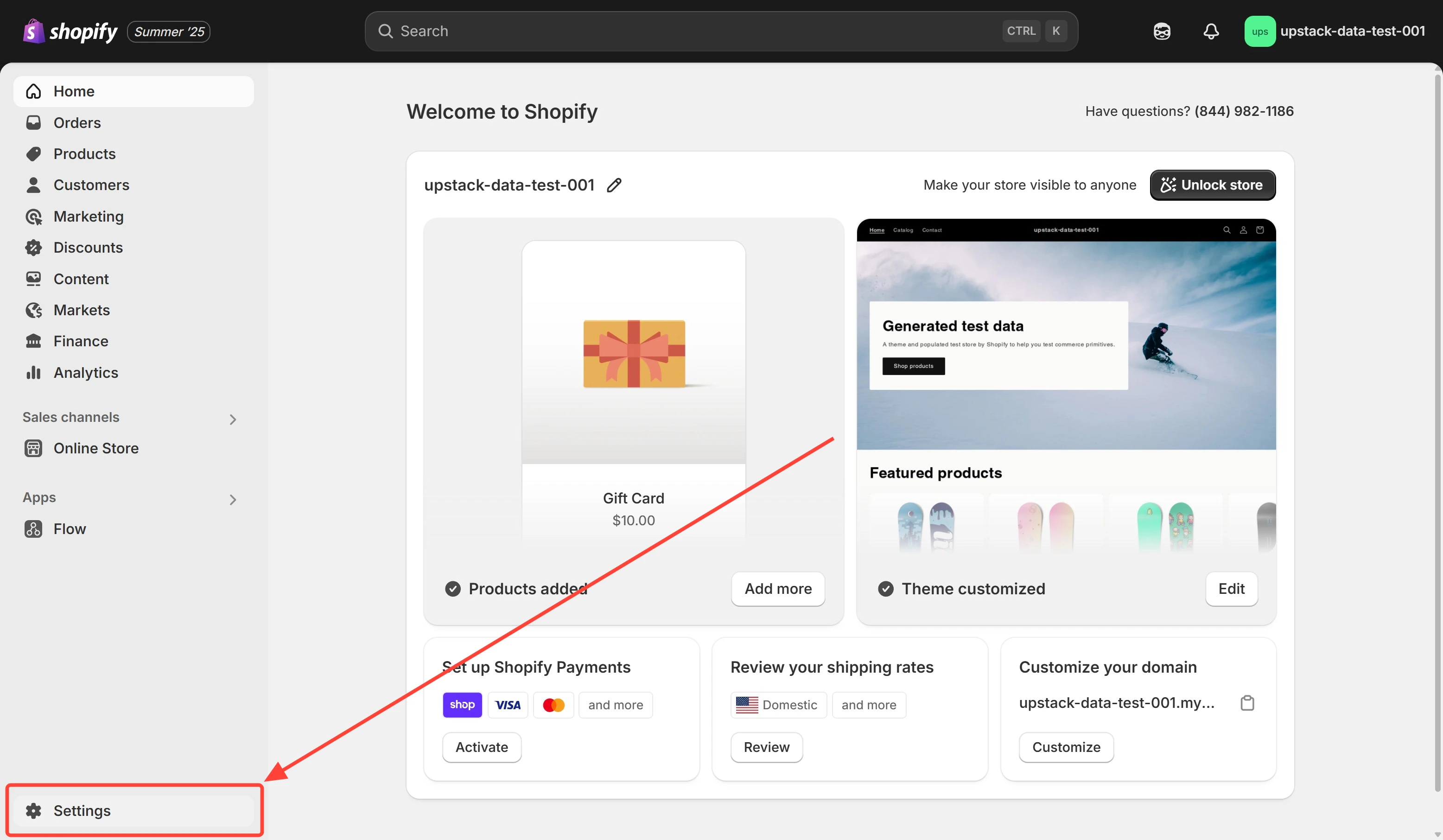
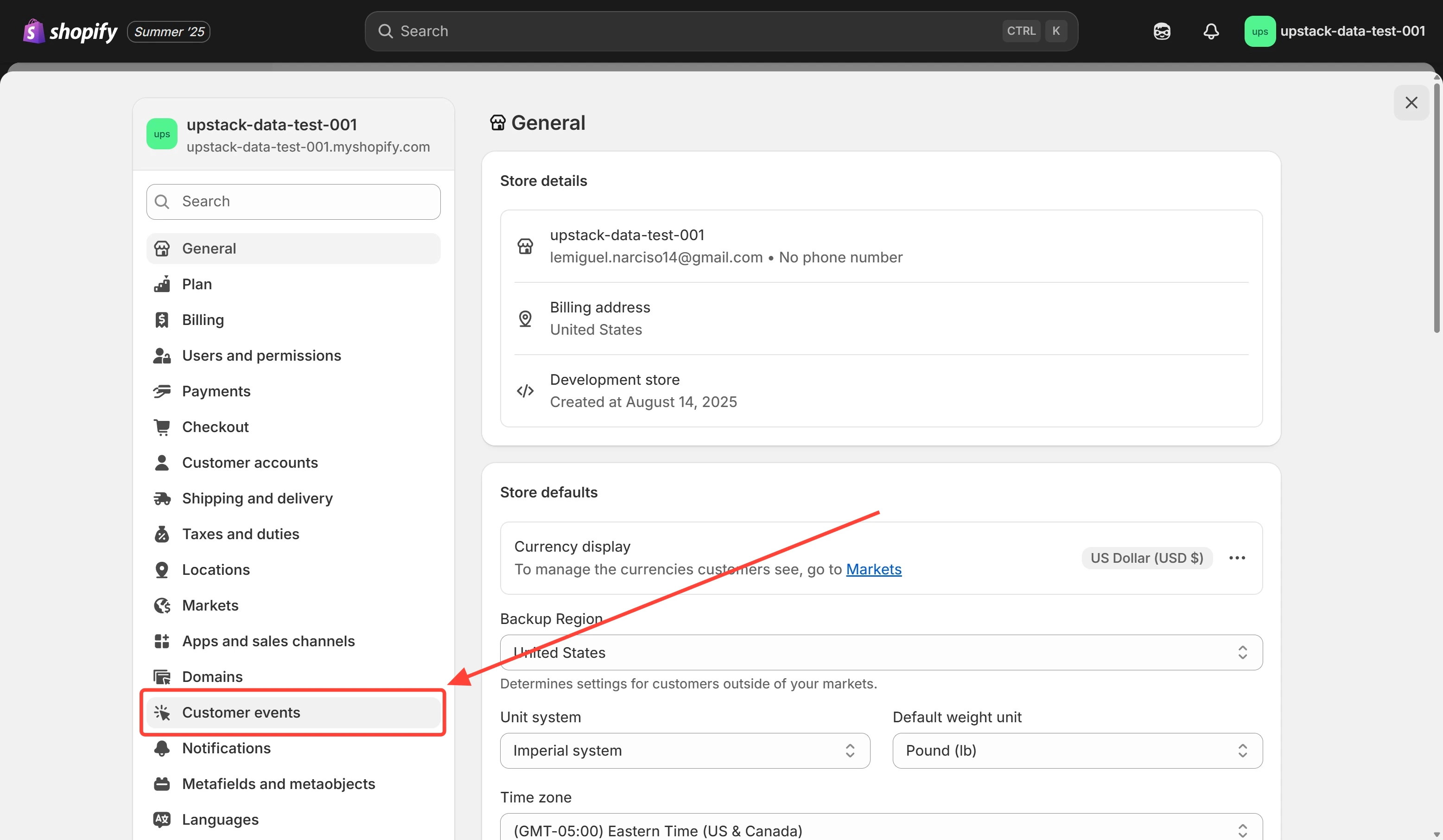 From your list of pixels, click the **UpstackData** Custom Pixel.
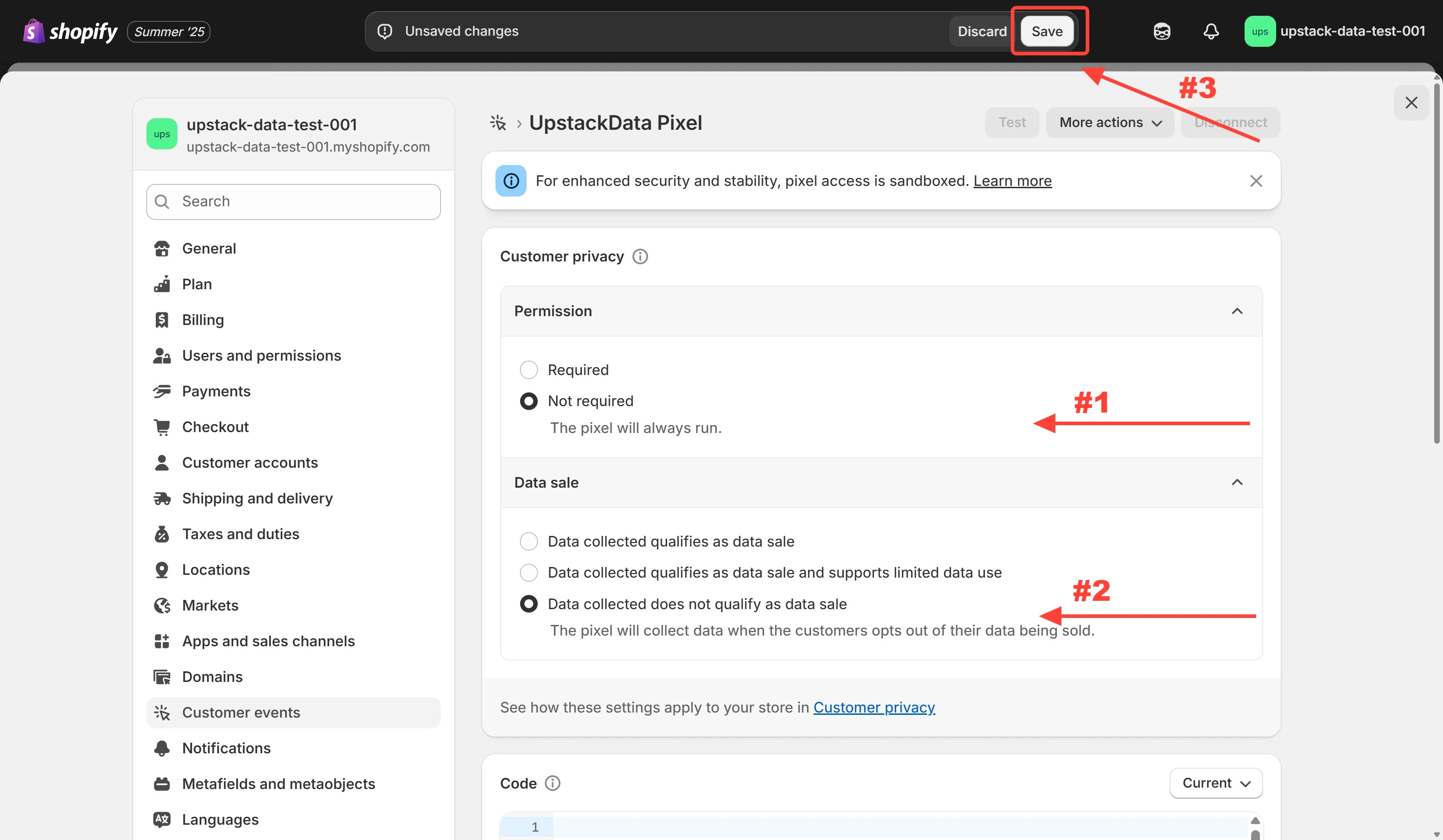
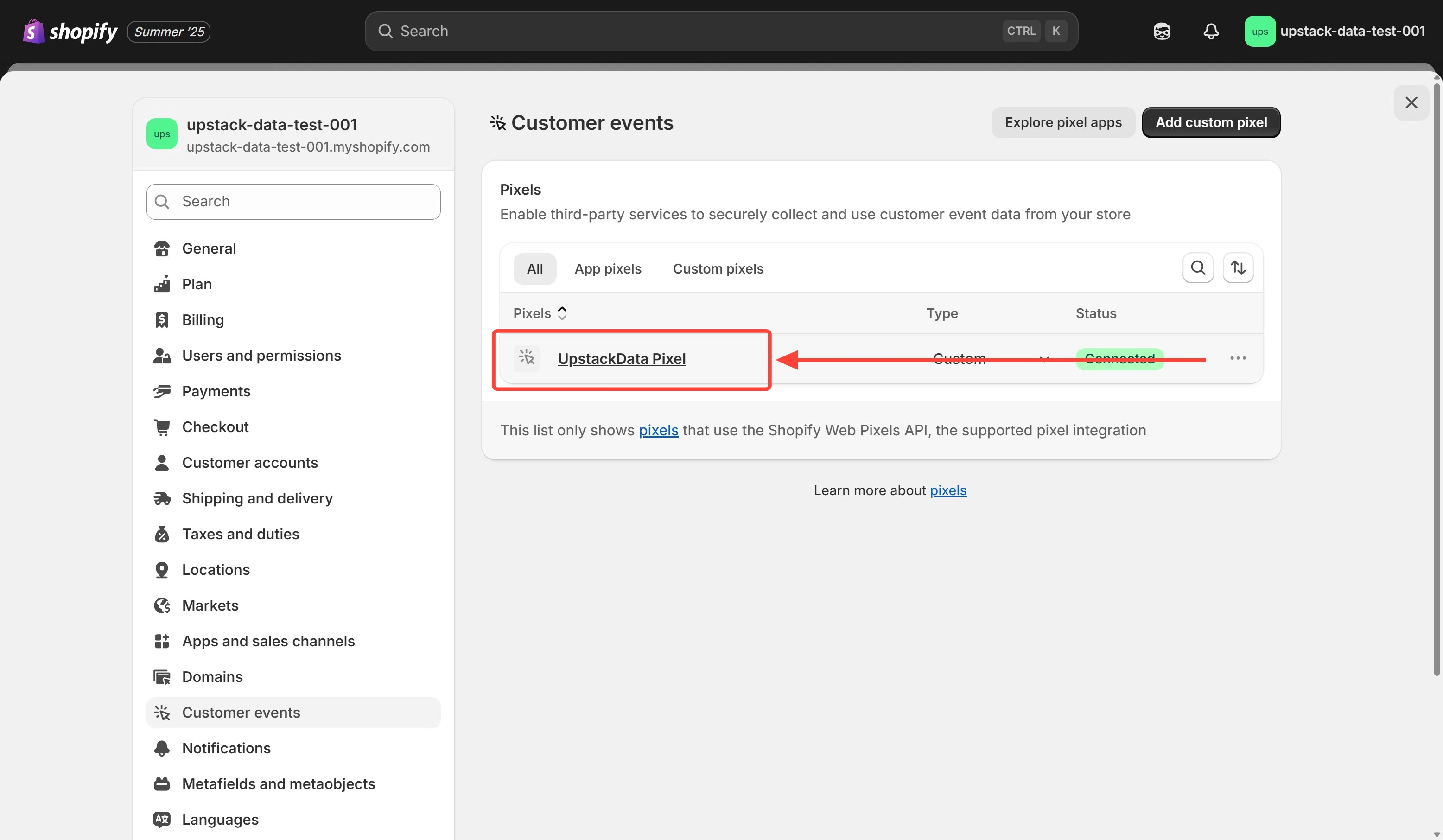 For maximum attribution and data quality, set the following:
* **Permission:** *Not required*
* **Data sale:** *Data collected does not qualify as data sale*
Click **Save** to update the Upstack Data Custom Pixel privacy settings.
For maximum attribution and data quality, set the following:
* **Permission:** *Not required*
* **Data sale:** *Data collected does not qualify as data sale*
Click **Save** to update the Upstack Data Custom Pixel privacy settings.
 **Upstack Data does not sell any data.** We are a privacy-first solution and committed to adhering to the regulations for each jurisdiction.
* Refresh the Custom Pixel page in [Shopify Admin](https://admin.shopify.com) and confirm the **Permission** and **Data sale** values match what you selected.
* In the [Upstack dashboard](https://app.upstackdata.com), open **Event Health** and confirm events continue to arrive after the change.
## Related Articles
**Upstack Data does not sell any data.** We are a privacy-first solution and committed to adhering to the regulations for each jurisdiction.
* Refresh the Custom Pixel page in [Shopify Admin](https://admin.shopify.com) and confirm the **Permission** and **Data sale** values match what you selected.
* In the [Upstack dashboard](https://app.upstackdata.com), open **Event Health** and confirm events continue to arrive after the change.
## Related Articles