> ## Documentation Index
> Fetch the complete documentation index at: https://docs.upstackdata.com/llms.txt
> Use this file to discover all available pages before exploring further.
# How to Disable Snapchat Data Sharing in Shopify
> Disable Shopify's Snapchat sales channel data sharing to stop duplicate Snapchat pixel events and let Upstack Data deliver clean server-side conversions to Snapchat CAPI.
**Quick Summary**
* In Shopify admin, open the **Sales channels** section
* Select **Snapchat Ads**, then open the **Settings** tab
* Open the **Data sharing** tab and find the **Pixel ID** section
* Click **Disconnect** to unlink the Snapchat Pixel from Shopify
Disabling Snapchat data sharing is crucial to prevent duplicate events, which can distort reporting and attribution. It ensures Snapchat only receives clean, accurate data through Upstack Data for reliable insights and better ad optimization.
## Prerequisites
Before you start, you need:
* Admin access to your Shopify store ([Shopify admin](https://admin.shopify.com))
* The Snapchat Ads sales channel currently installed in Shopify
* A configured Snapchat destination in your [Upstack dashboard](https://app.upstackdata.com/pixel/event-destinations) ([setup guide](/guides/snapchat-ads/how-to-configure-snapchat-pixel-destination-in-upstack-data))
## Steps to Disable Snapchat Data Sharing in Shopify
Sign in to [Shopify admin](https://admin.shopify.com) for the store where the Snapchat Ads sales channel is installed.
In the left-hand menu, click **Sales channels**, then select **Snapchat Ads**. (You can also use the search bar at the top of Shopify admin to locate the Snapchat Ads sales channel.)
Make sure you are on the **Settings** tab of the Snapchat Ads sales channel.
In the Snapchat Ads settings, click the **Data sharing** tab.
Scroll to the **Pixel ID** section and find your connected Snapchat Pixel.
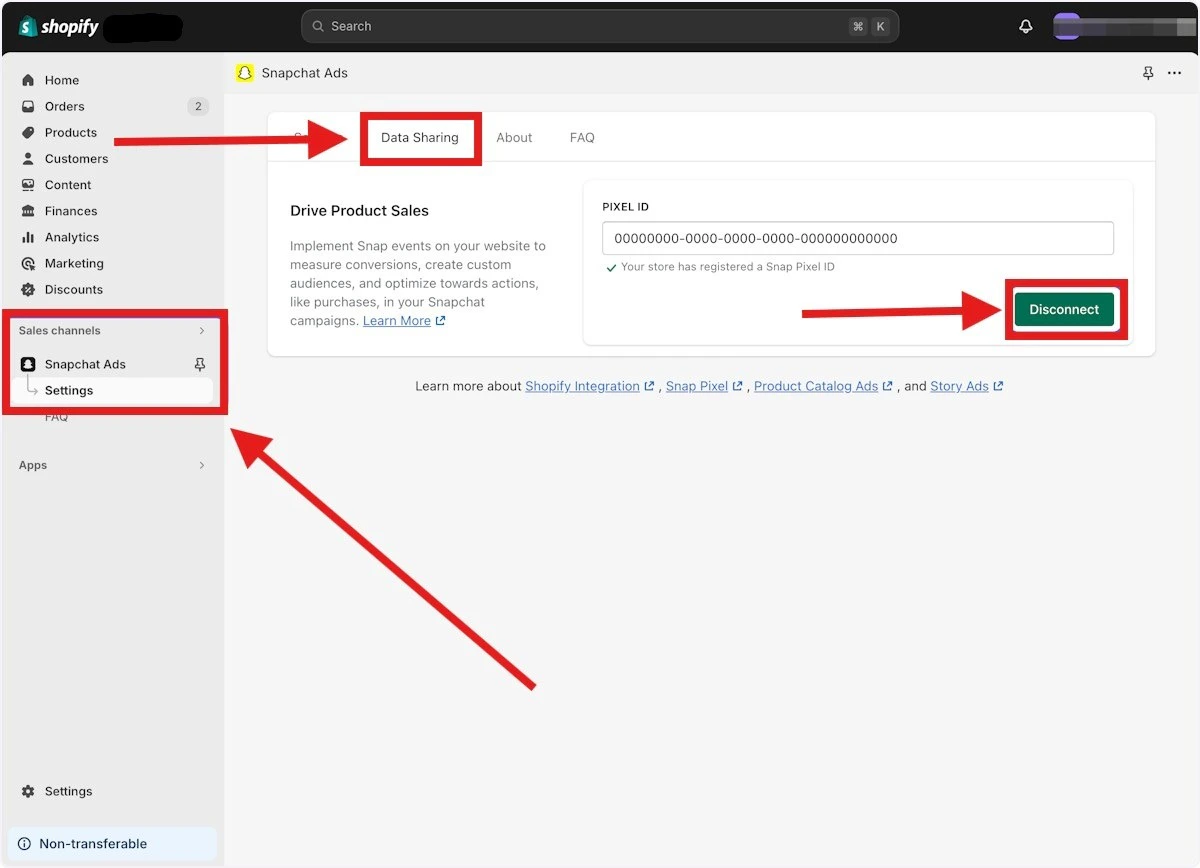 Click **Disconnect** next to the connected Pixel ID to unlink it from Shopify, then confirm the action in the dialog.
Refresh the **Data sharing** tab and confirm the Pixel ID section no longer shows a connected pixel.
Then, in your [Upstack dashboard](https://app.upstackdata.com/pixel/event-destinations), confirm the **Snapchat** destination is still **Healthy** and continuing to send events through Upstack Data.
**Need Help?**
If you encounter any issues during setup, contact our support team and we'll help diagnose the problem.
Click **Disconnect** next to the connected Pixel ID to unlink it from Shopify, then confirm the action in the dialog.
Refresh the **Data sharing** tab and confirm the Pixel ID section no longer shows a connected pixel.
Then, in your [Upstack dashboard](https://app.upstackdata.com/pixel/event-destinations), confirm the **Snapchat** destination is still **Healthy** and continuing to send events through Upstack Data.
**Need Help?**
If you encounter any issues during setup, contact our support team and we'll help diagnose the problem.