> ## Documentation Index
> Fetch the complete documentation index at: https://docs.upstackdata.com/llms.txt
> Use this file to discover all available pages before exploring further.
# How to Create New TikTok Ads Pixel ID
> Create a new TikTok Ads Pixel ID in TikTok Ads Manager to track website conversions, measure ad performance, and feed Upstack Data's TikTok Events API destination.
**Quick Summary**
* In TikTok Events Manager, click **"+ Connect data source"**.
* Select **Web** as the data source type.
* Name your Pixel **"UpstackData"**.
* Enter your website URL and complete setup.
## Prerequisites
Before you start, you need:
* Admin access to your **TikTok Business Center**
* A **TikTok Ads Manager** account linked to your Business Center
* The URL of the website where the Pixel will be installed
## Pixel Creation Process
* Sign in to [TikTok Events Manager](https://ads.tiktok.com/i18n/events_manager/home)
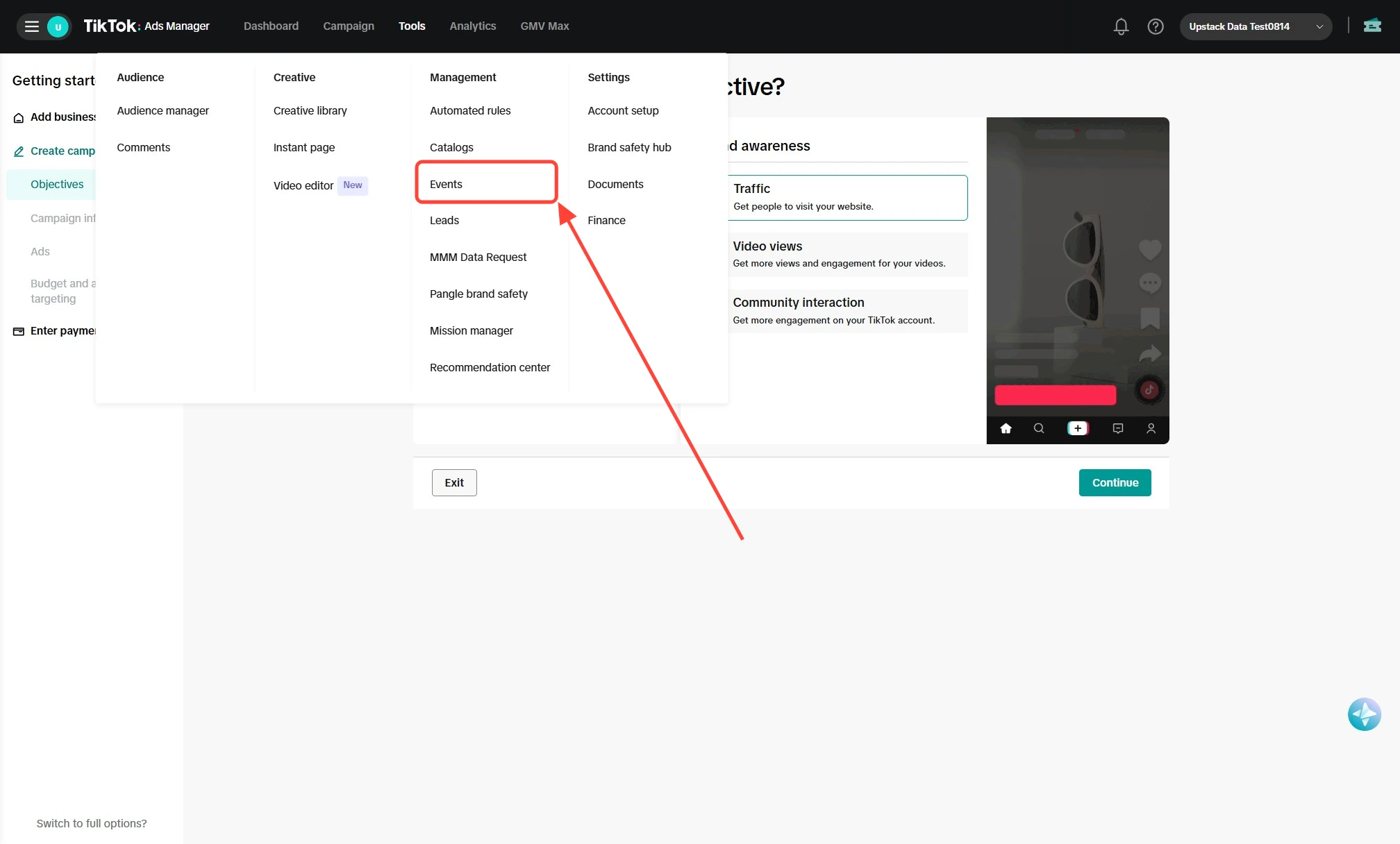
* In the top navigation, click **Tools → Events**
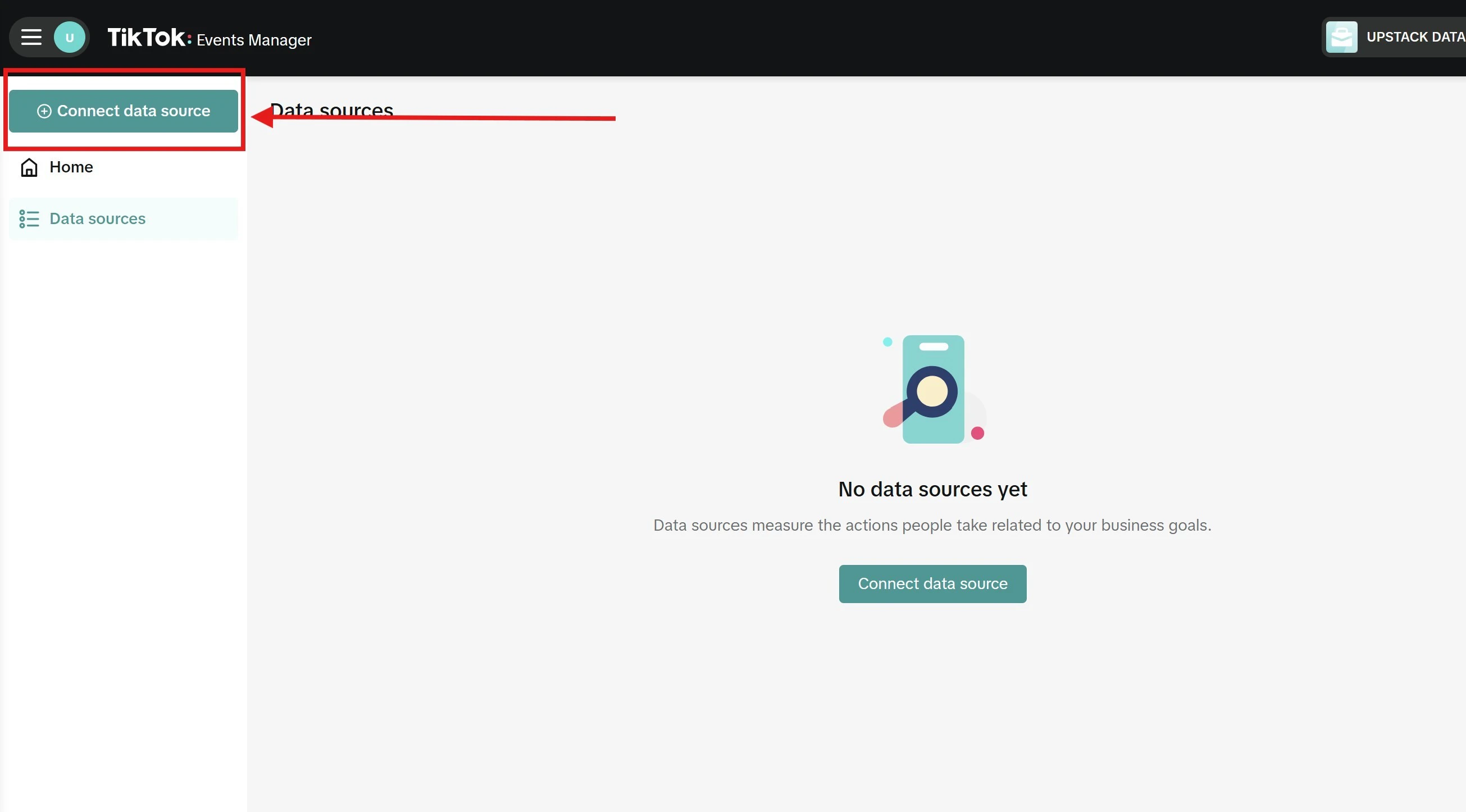
 * In TikTok Events Manager, click **"+ Connect data source"** in the upper-left corner of the page (or the **Connect Data Sources** button in the center of the screen if no data sources exist yet)
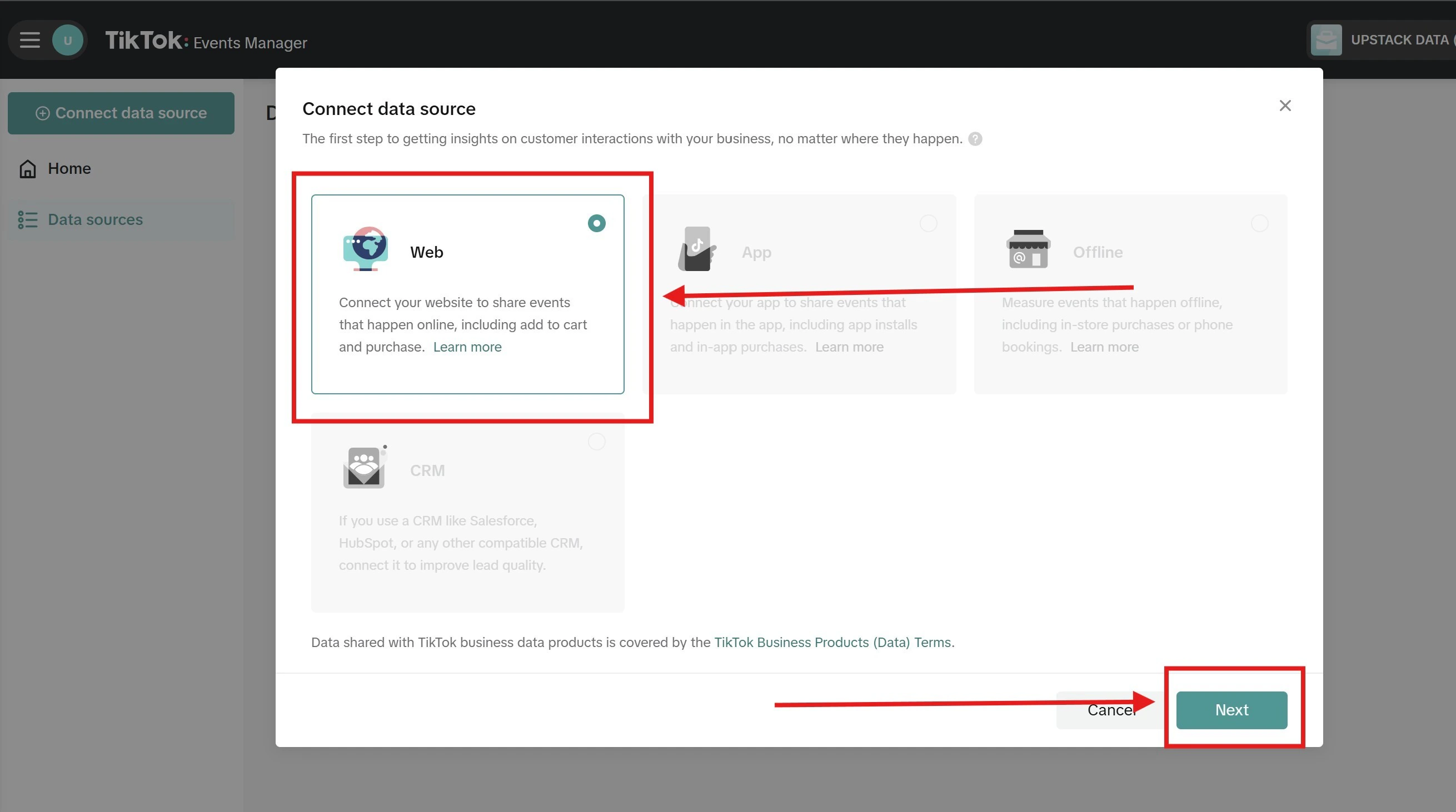
* Select **Web** and click **Next**
* In TikTok Events Manager, click **"+ Connect data source"** in the upper-left corner of the page (or the **Connect Data Sources** button in the center of the screen if no data sources exist yet)
* Select **Web** and click **Next**
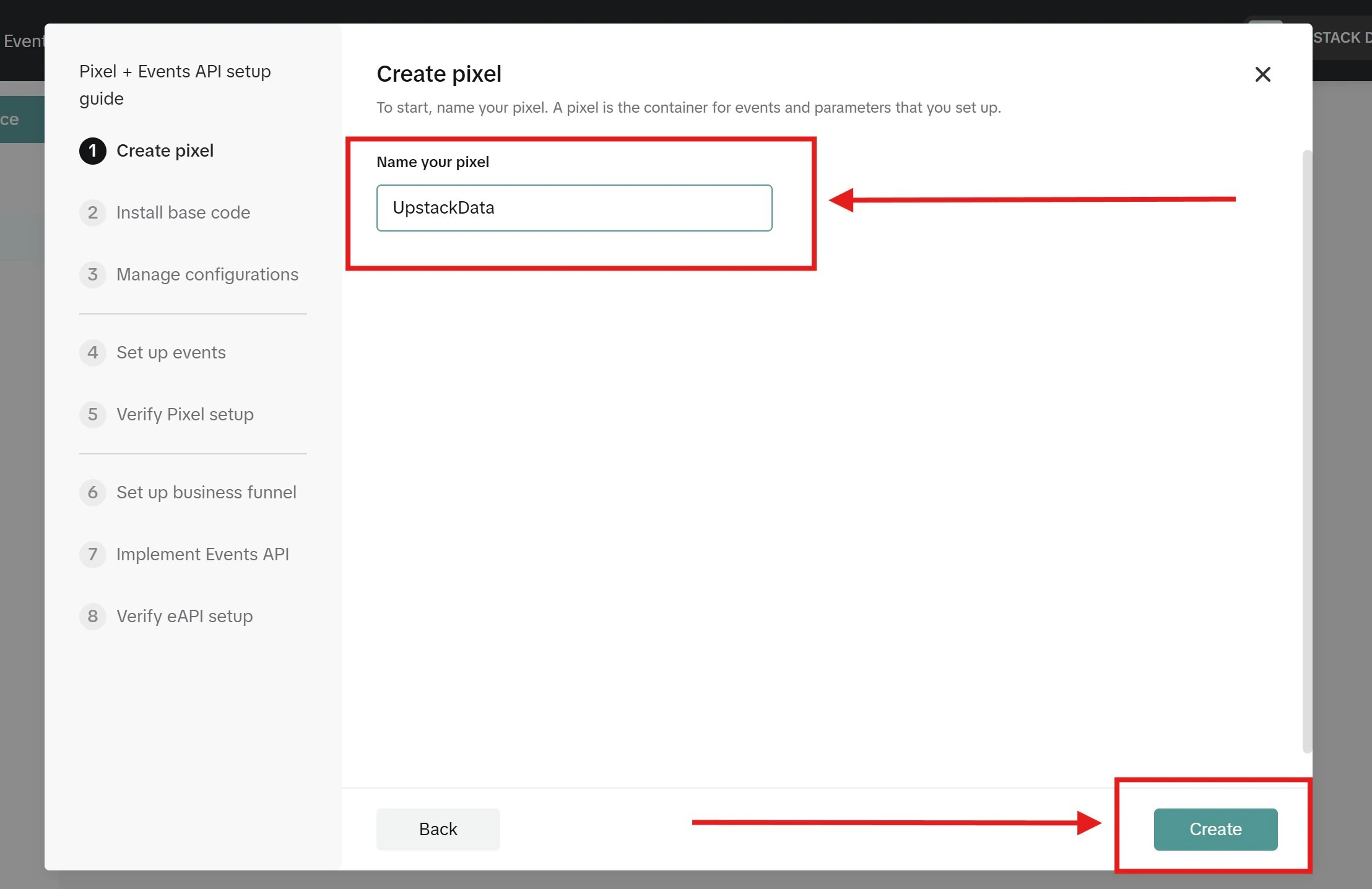
 * Set the Pixel name to **"UpstackData"**
* Click **Create**
* Set the Pixel name to **"UpstackData"**
* Click **Create**
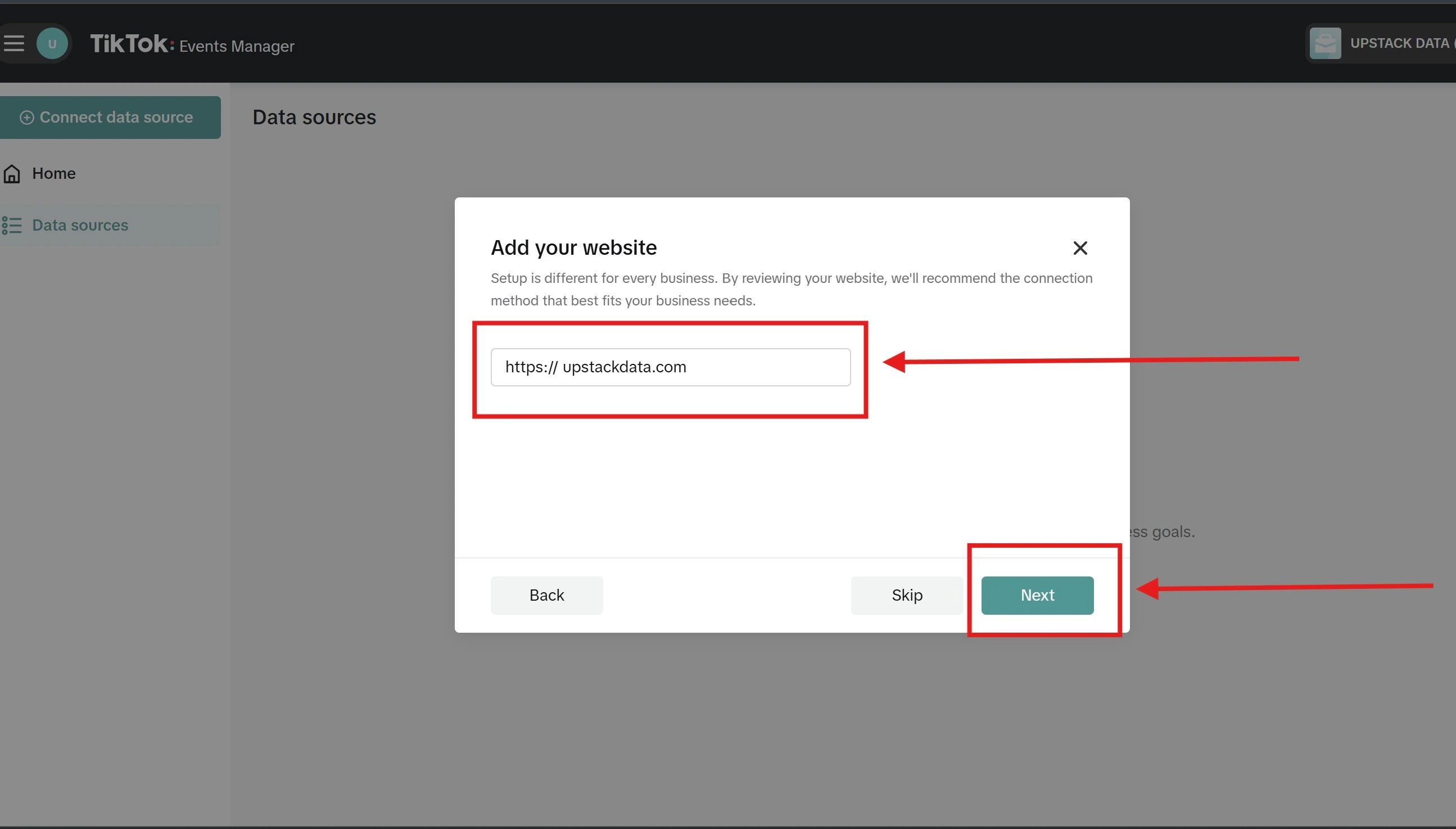
 * Enter your business website URL
* Click **Next**
* Enter your business website URL
* Click **Next**
 * Choose an installation method (partner integration or manual code)
* Configure tracking events
* Install the Pixel code on your website
* Verify the Pixel code using TikTok's Pixel Helper or TikTok Events Manager
* When everything is confirmed, click **Finish** to complete setup
* Choose an installation method (partner integration or manual code)
* Configure tracking events
* Install the Pixel code on your website
* Verify the Pixel code using TikTok's Pixel Helper or TikTok Events Manager
* When everything is confirmed, click **Finish** to complete setup
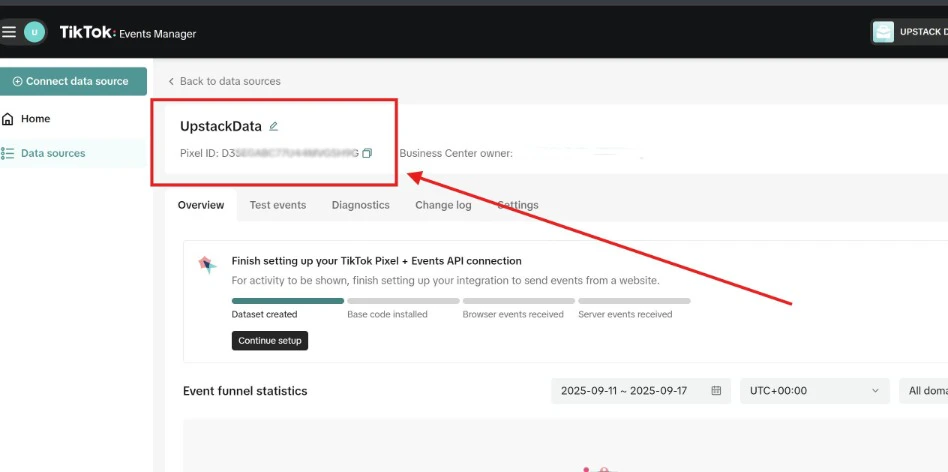 Your new TikTok Pixel is ready to integrate with Upstack Data.
## Verify the Setup
To confirm the Pixel was created:
* In TikTok Events Manager, navigate to **Tools → Events → Data sources** — your **UpstackData** Pixel should appear in the list.
* Open the Pixel and confirm it has a **Pixel ID** (a 20-character alphanumeric string, e.g., `C2A3B4C5D6E7F8G9H0I1`).
Next steps:
* [How to Find your TikTok Ads Pixel ID →](/guides/tiktok-ads/how-to-find-your-tiktok-ads-pixel-id)
* [How to Generate Your TikTok API Access Token →](/guides/tiktok-ads/how-to-generate-your-tiktok-api-access-token)
If the Pixel does not appear after creation, refresh the page or contact Upstack Data support.
Your new TikTok Pixel is ready to integrate with Upstack Data.
## Verify the Setup
To confirm the Pixel was created:
* In TikTok Events Manager, navigate to **Tools → Events → Data sources** — your **UpstackData** Pixel should appear in the list.
* Open the Pixel and confirm it has a **Pixel ID** (a 20-character alphanumeric string, e.g., `C2A3B4C5D6E7F8G9H0I1`).
Next steps:
* [How to Find your TikTok Ads Pixel ID →](/guides/tiktok-ads/how-to-find-your-tiktok-ads-pixel-id)
* [How to Generate Your TikTok API Access Token →](/guides/tiktok-ads/how-to-generate-your-tiktok-api-access-token)
If the Pixel does not appear after creation, refresh the page or contact Upstack Data support.