> ## Documentation Index
> Fetch the complete documentation index at: https://docs.upstackdata.com/llms.txt
> Use this file to discover all available pages before exploring further.
# How to Disable TikTok Data Sharing in Shopify
> Disable Shopify's TikTok sales channel pixel to stop duplicate TikTok conversion events and let Upstack Data deliver clean server-side conversions to TikTok Events API.
**Quick Summary**
* Sign in to your Shopify admin and open the **Sales channels** menu.
* Open the **TikTok** sales channel and click **Settings**.
* In **Data sharing → Customer Data Sharing**, click **Disconnect** on the connected TikTok Pixel.
* Confirm the disconnection in the popup.
## Prerequisites
Before you start, you need:
* Admin access to your **Shopify** store
* The **TikTok** sales channel installed in Shopify with an active TikTok Pixel connection
* Your Upstack Data TikTok destination already configured ([How to Configure TikTok Ads Pixel Destination in Upstack Data →](/guides/tiktok-ads/how-to-configure-tiktok-ads-pixel-destination-in-upstack-data))
Duplicate TikTok events typically occur when multiple TikTok Pixel integrations are active on your site. You must disable TikTok Sales Channel data sharing and ensure no other TikTok Pixel apps are installed.
## Steps to Disable TikTok Data Sharing in Shopify
Sign in to your [Shopify admin](https://admin.shopify.com/).
* In the Shopify admin sidebar, click **Sales channels**
* Select **TikTok**, then click the **Settings** tab
*Tip: You can also use the Shopify admin search to locate the TikTok sales channel.*
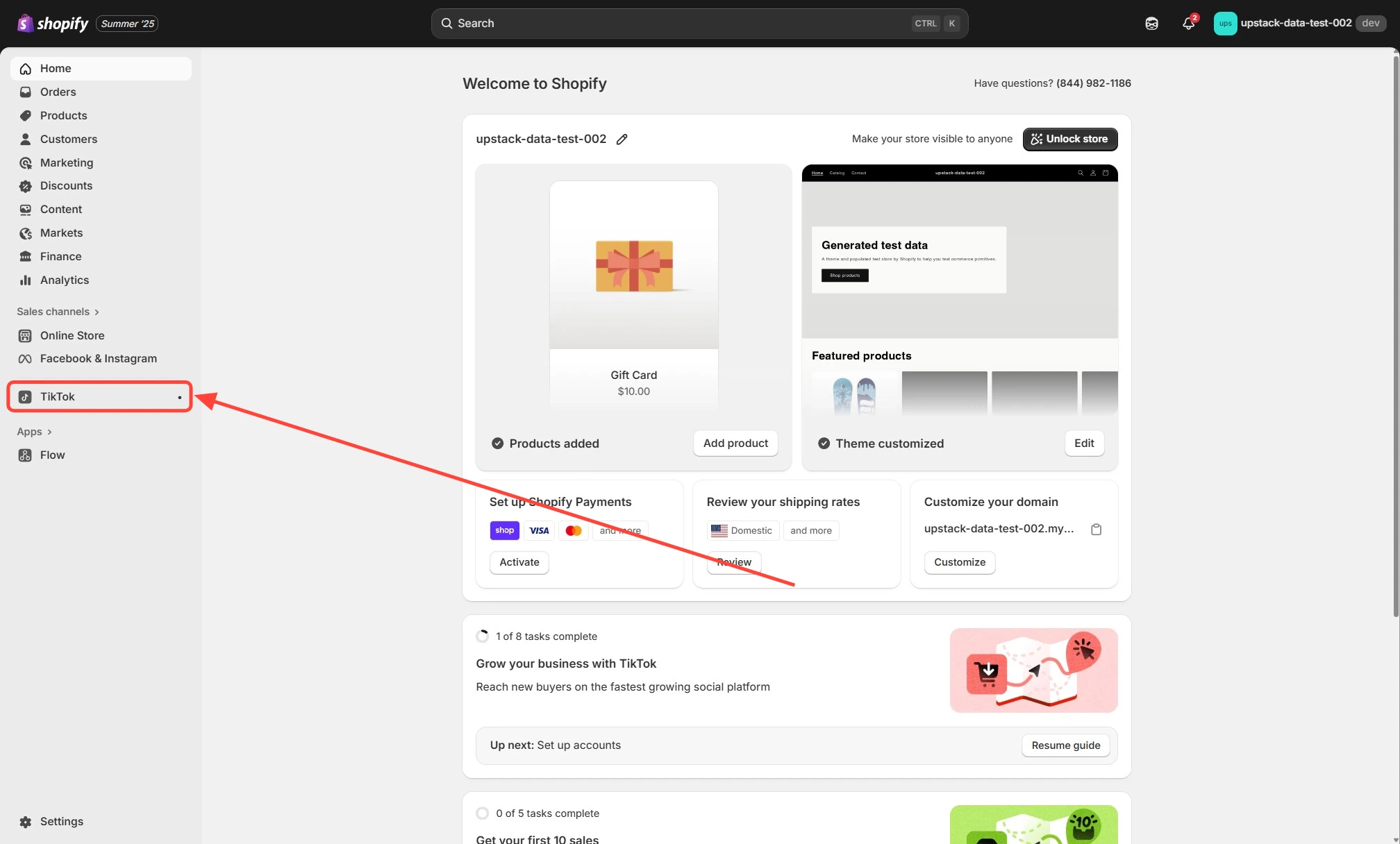
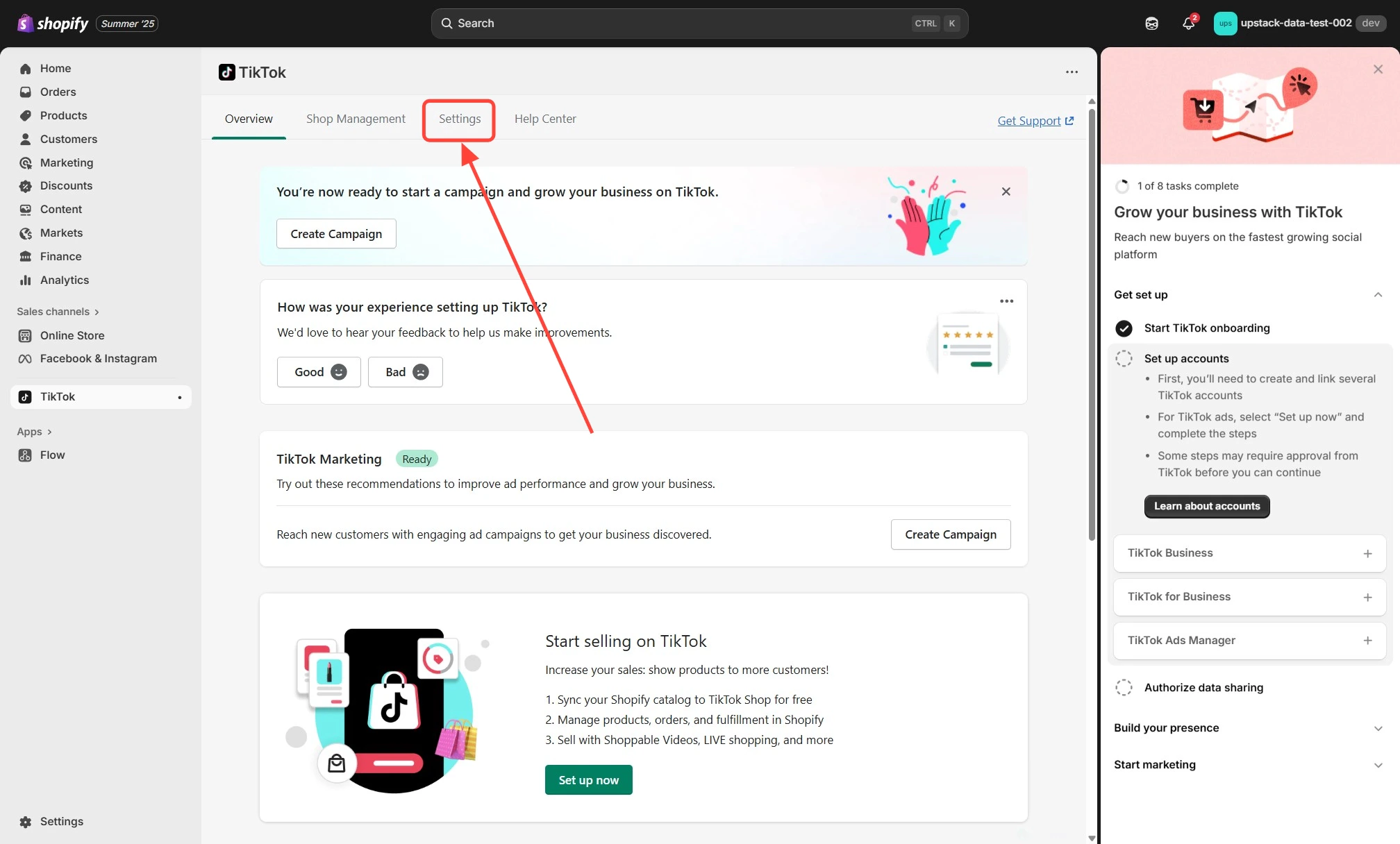 In the TikTok sales channel settings, click the **Data sharing** tab in the left-hand menu.
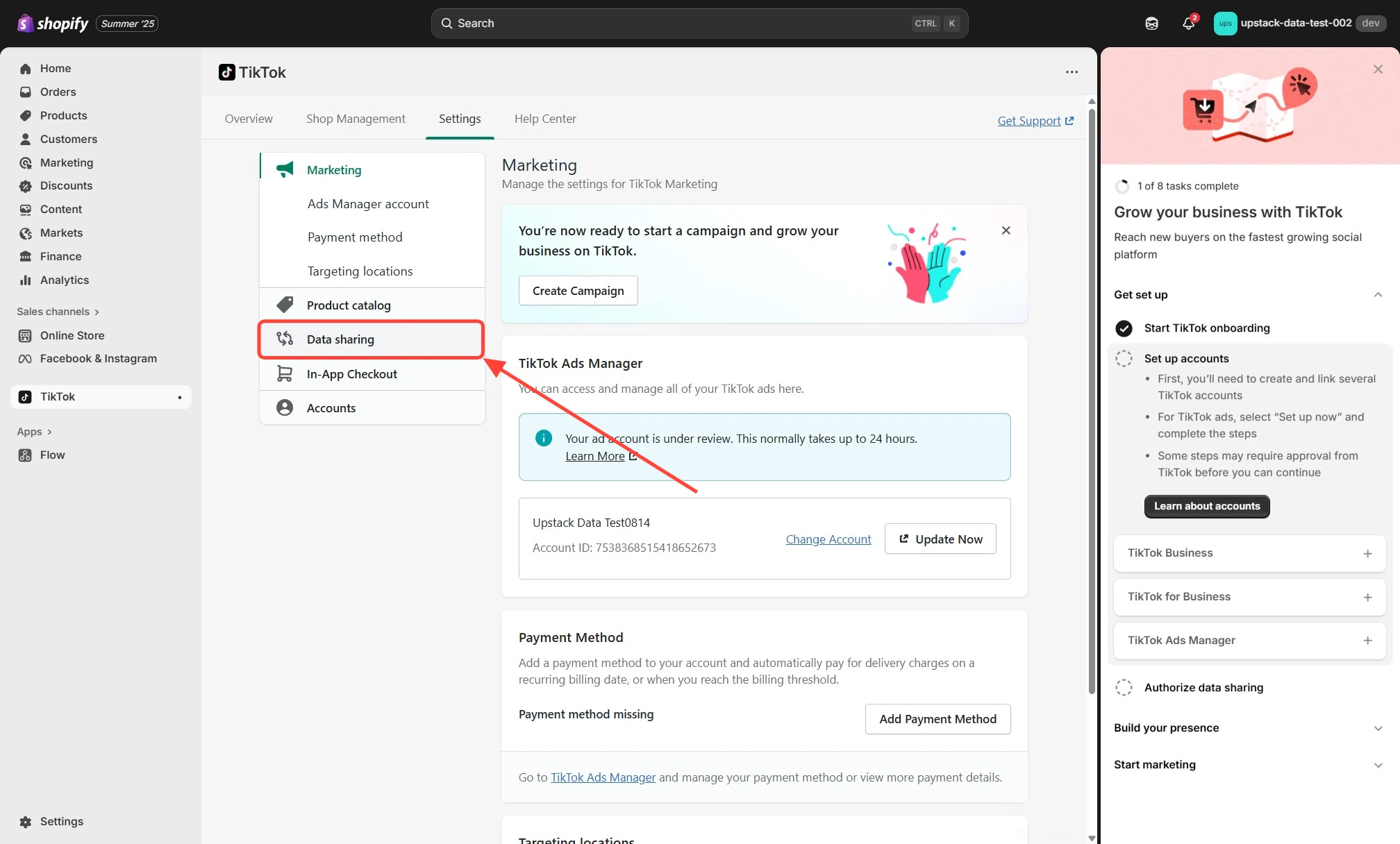 * Scroll to the **Customer Data Sharing** section and locate your connected TikTok Pixel
* Click the **Disconnect** button
* Scroll to the **Customer Data Sharing** section and locate your connected TikTok Pixel
* Click the **Disconnect** button
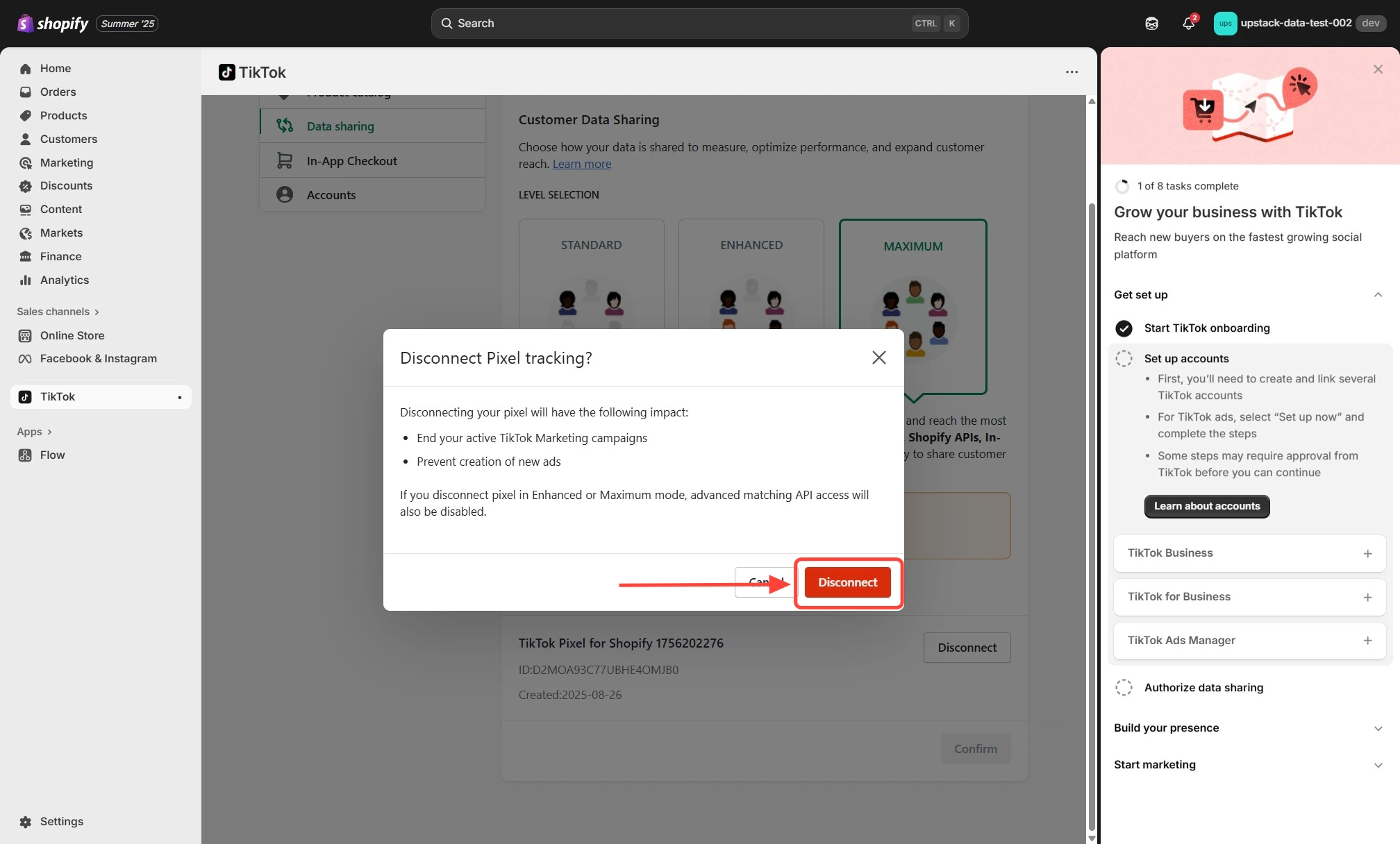
 * A confirmation window appears explaining how disconnecting the Pixel affects tracking
* Click **Disconnect** again in the lower-right corner to confirm
* A confirmation window appears explaining how disconnecting the Pixel affects tracking
* Click **Disconnect** again in the lower-right corner to confirm
 ## Verify the Setup
To confirm data sharing is disabled:
* Return to **Sales channels → TikTok → Settings → Data sharing** in Shopify and confirm the **Customer Data Sharing** section no longer shows a connected Pixel.
* Place a test order on your store and check [TikTok Events Manager](https://ads.tiktok.com/i18n/events_manager/home) — you should see exactly **one** Purchase event arriving from your Upstack Data integration (not duplicates).
If duplicate events continue:
* Check the Shopify **Apps** menu for any other TikTok Pixel apps and remove them.
* Inspect your theme for hard-coded TikTok Pixel snippets and remove them.
**Need help?** If you encounter any issues, contact our support team and we'll help diagnose the problem.
## Verify the Setup
To confirm data sharing is disabled:
* Return to **Sales channels → TikTok → Settings → Data sharing** in Shopify and confirm the **Customer Data Sharing** section no longer shows a connected Pixel.
* Place a test order on your store and check [TikTok Events Manager](https://ads.tiktok.com/i18n/events_manager/home) — you should see exactly **one** Purchase event arriving from your Upstack Data integration (not duplicates).
If duplicate events continue:
* Check the Shopify **Apps** menu for any other TikTok Pixel apps and remove them.
* Inspect your theme for hard-coded TikTok Pixel snippets and remove them.
**Need help?** If you encounter any issues, contact our support team and we'll help diagnose the problem.