> ## Documentation Index
> Fetch the complete documentation index at: https://docs.upstackdata.com/llms.txt
> Use this file to discover all available pages before exploring further.
# How to Generate Your TikTok API Access Token
> Generate a TikTok Events API access token in TikTok Ads Manager — required to authenticate the Upstack Data TikTok destination and sync server-side conversions and ads data.
**Quick Summary**
* Sign in to TikTok Events Manager.
* Open **Data sources** and select your **UpstackData** Pixel.
* Open the **Settings** tab and scroll to **Events API**.
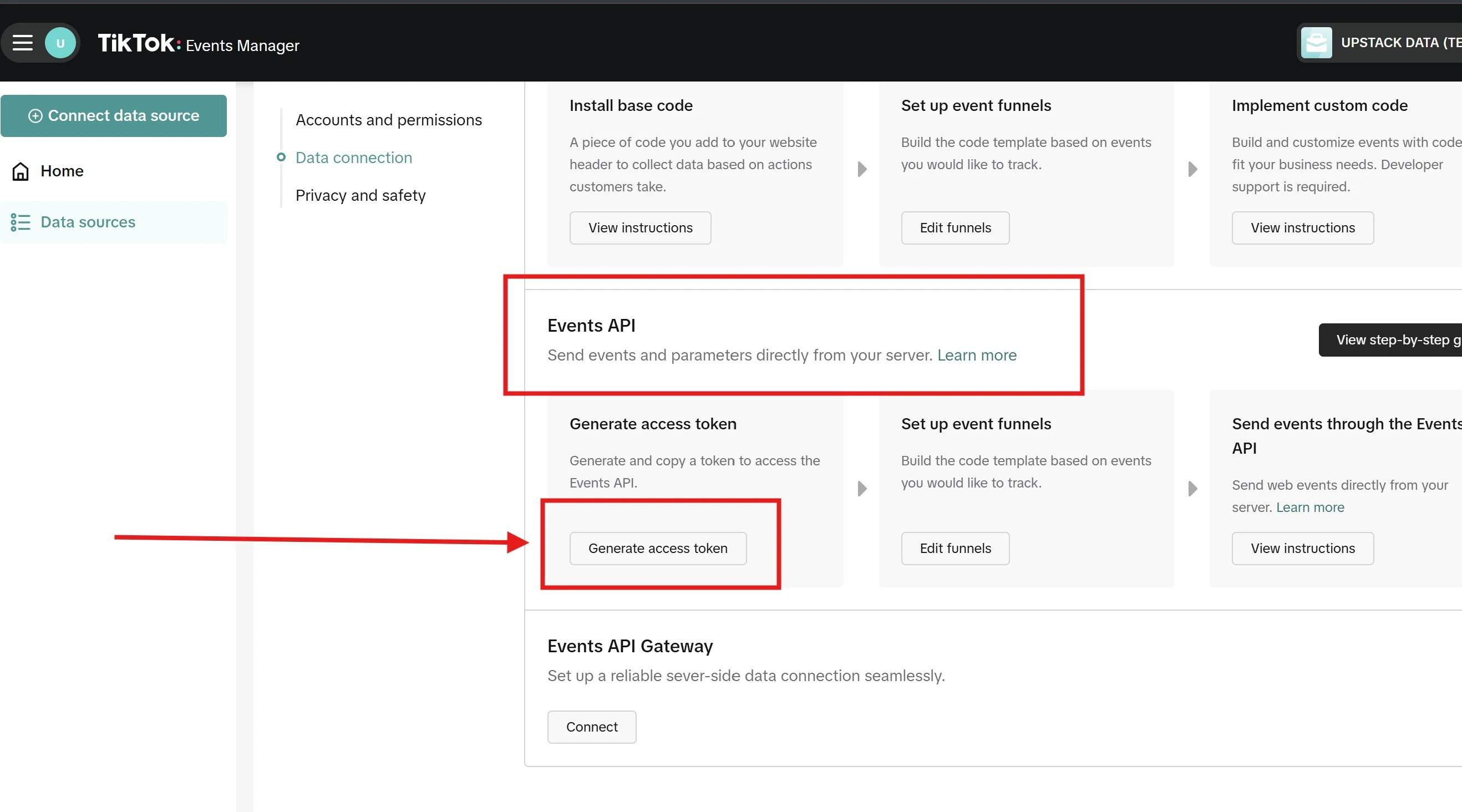
* Click **"Generate access token"**.
* Copy the **Access Token** immediately — it is shown only once.
## Prerequisites
Before you start, you need:
* Admin access to your **TikTok Business Center**
* A **TikTok Pixel** already created (see [How to Create New TikTok Ads Pixel ID →](/guides/tiktok-ads/how-to-create-new-tiktok-ads-pixel-id))
* Permission to manage Events API settings on the Pixel
## What is a TikTok Access Token?
A **TikTok Access Token** is a secure credential that lets platforms like Upstack Data connect to your TikTok Ads account to sync performance data, enable server-side tracking via the Conversions API (CAPI), and improve attribution and optimization.
## Configuration Steps
* Sign in to [TikTok Events Manager](https://ads.tiktok.com/i18n/events_manager/home)
* In the top navigation, click **Tools → Events**, then open **Data sources**
* Click your **UpstackData** Pixel to open its overview page
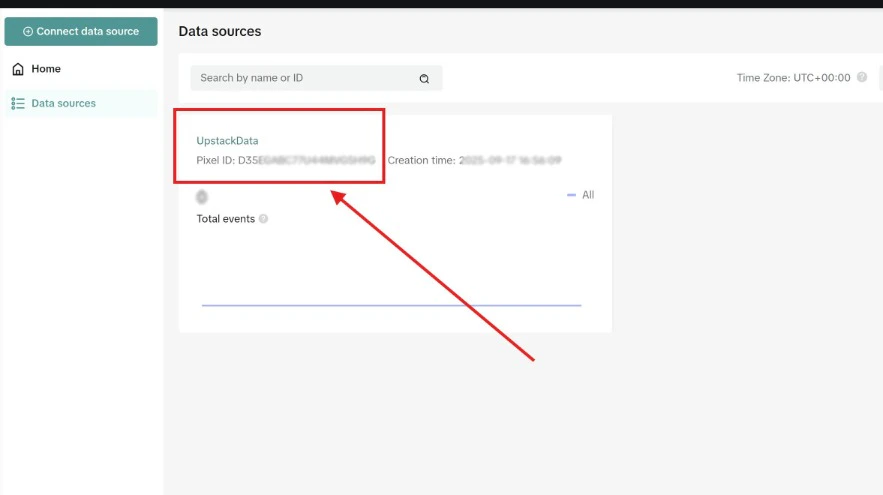 **Note:** If you haven't created a Pixel yet, see [How to Create New TikTok Ads Pixel ID →](/guides/tiktok-ads/how-to-create-new-tiktok-ads-pixel-id) first.
On the Pixel overview page, click the **Settings** tab.
**Note:** If you haven't created a Pixel yet, see [How to Create New TikTok Ads Pixel ID →](/guides/tiktok-ads/how-to-create-new-tiktok-ads-pixel-id) first.
On the Pixel overview page, click the **Settings** tab.
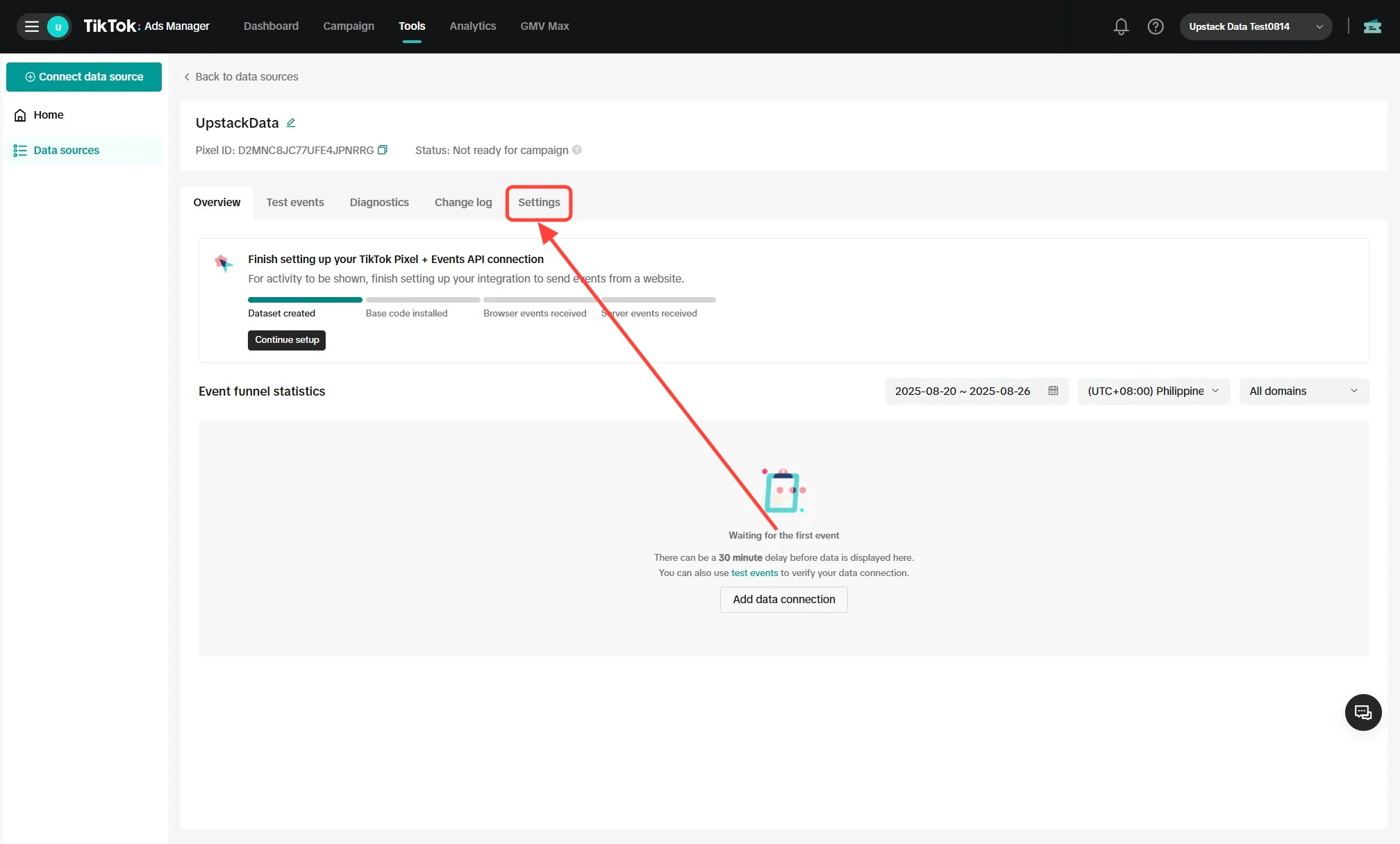 On the **Settings** tab:
* Scroll down to the **Events API** section
* Click the **"Generate access token"** button
On the **Settings** tab:
* Scroll down to the **Events API** section
* Click the **"Generate access token"** button
 * Click the copy icon next to the generated **Access Token** — it is a long alphanumeric string starting with letters/numbers
* Paste it into the **Access Token** field in the Upstack dashboard at [app.upstackdata.com/pixel/event-destinations](https://app.upstackdata.com/pixel/event-destinations)
* Click the copy icon next to the generated **Access Token** — it is a long alphanumeric string starting with letters/numbers
* Paste it into the **Access Token** field in the Upstack dashboard at [app.upstackdata.com/pixel/event-destinations](https://app.upstackdata.com/pixel/event-destinations)
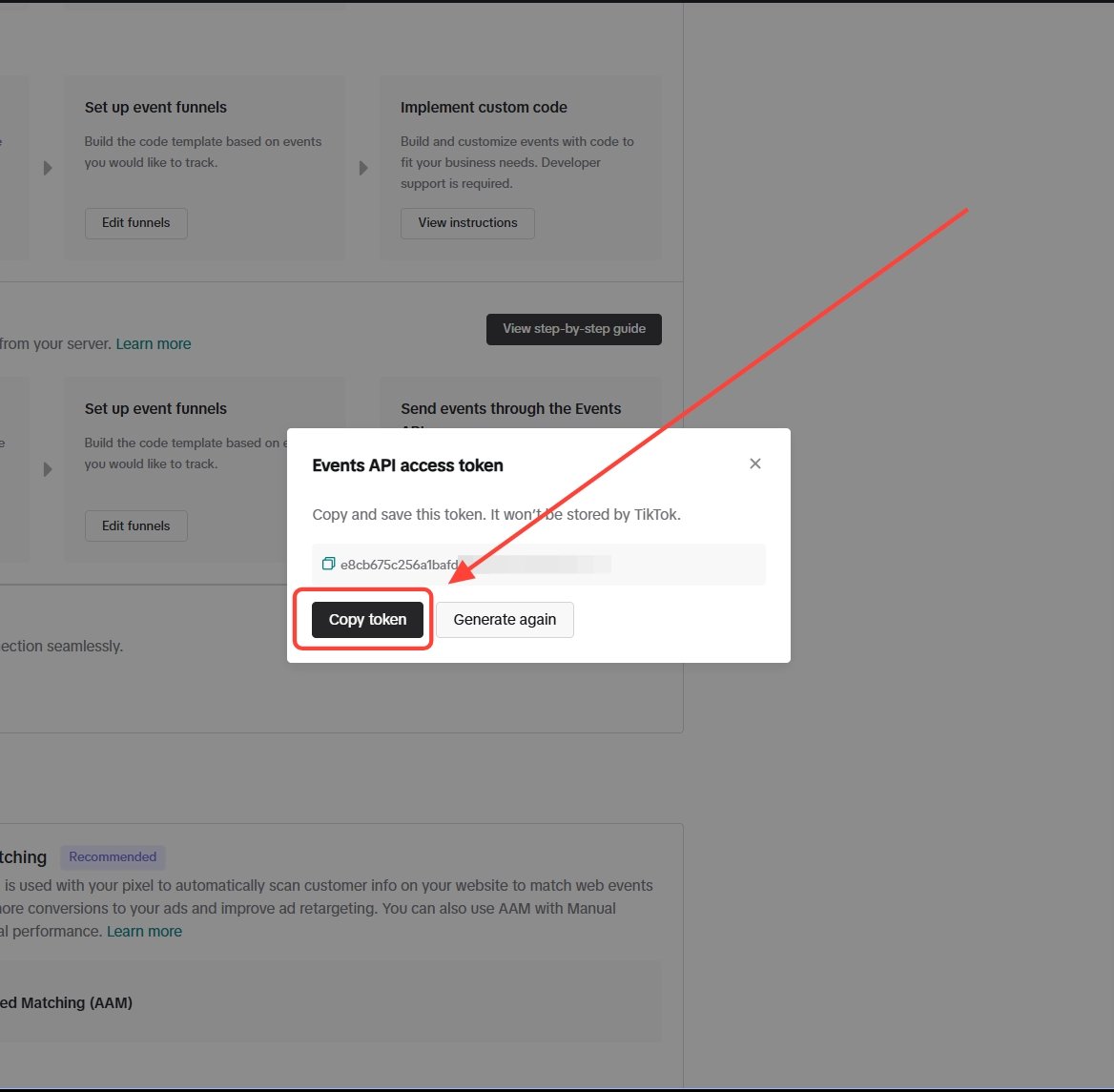 The Access Token is shown **only once**. Copy and store it securely immediately. If you lose it, you'll need to generate a new one.
## Verify the Setup
To confirm the Access Token works:
* In the Upstack dashboard, after saving your TikTok destination it should show as **Healthy** under **Events Destination**.
* In TikTok Events Manager, return to the Pixel **Settings → Events API** section — the token should be listed as active.
If the destination is **Unhealthy**:
* Re-check that the **Access Token** was pasted with no leading or trailing spaces.
* Confirm the **Pixel ID** matches the Pixel that owns the token.
* Generate a new token if needed and update it in the Upstack dashboard.
**Need to find your Pixel ID?** See [How to Find your TikTok Ads Pixel ID →](/guides/tiktok-ads/how-to-find-your-tiktok-ads-pixel-id).
The Access Token is shown **only once**. Copy and store it securely immediately. If you lose it, you'll need to generate a new one.
## Verify the Setup
To confirm the Access Token works:
* In the Upstack dashboard, after saving your TikTok destination it should show as **Healthy** under **Events Destination**.
* In TikTok Events Manager, return to the Pixel **Settings → Events API** section — the token should be listed as active.
If the destination is **Unhealthy**:
* Re-check that the **Access Token** was pasted with no leading or trailing spaces.
* Confirm the **Pixel ID** matches the Pixel that owns the token.
* Generate a new token if needed and update it in the Upstack dashboard.
**Need to find your Pixel ID?** See [How to Find your TikTok Ads Pixel ID →](/guides/tiktok-ads/how-to-find-your-tiktok-ads-pixel-id).