> ## Documentation Index
> Fetch the complete documentation index at: https://docs.upstackdata.com/llms.txt
> Use this file to discover all available pages before exploring further.
# How to find my Upstack Data Pixel ID?
> Find your Upstack Data Pixel ID in the dashboard under Settings → Pixel — required for installing the tracking script on Shopify, headless storefronts, and third-party landing pages.
***
## **Prerequisites**
* An [Upstack Data](https://app.upstackdata.com/login) account with the email and password you used during sign-up.
* The Upstack Data app installed on your Shopify store (your Pixel ID is generated when the app is installed).
## **Steps to Locate Your Pixel ID**
## **Step 1: Sign in to your Upstack Data account**
* Go to [https://app.upstackdata.com/login](https://app.upstackdata.com/login).
* Enter your **email and password**.
* Click **Sign In**.
***
## **Step 2: Open the Event Health page**
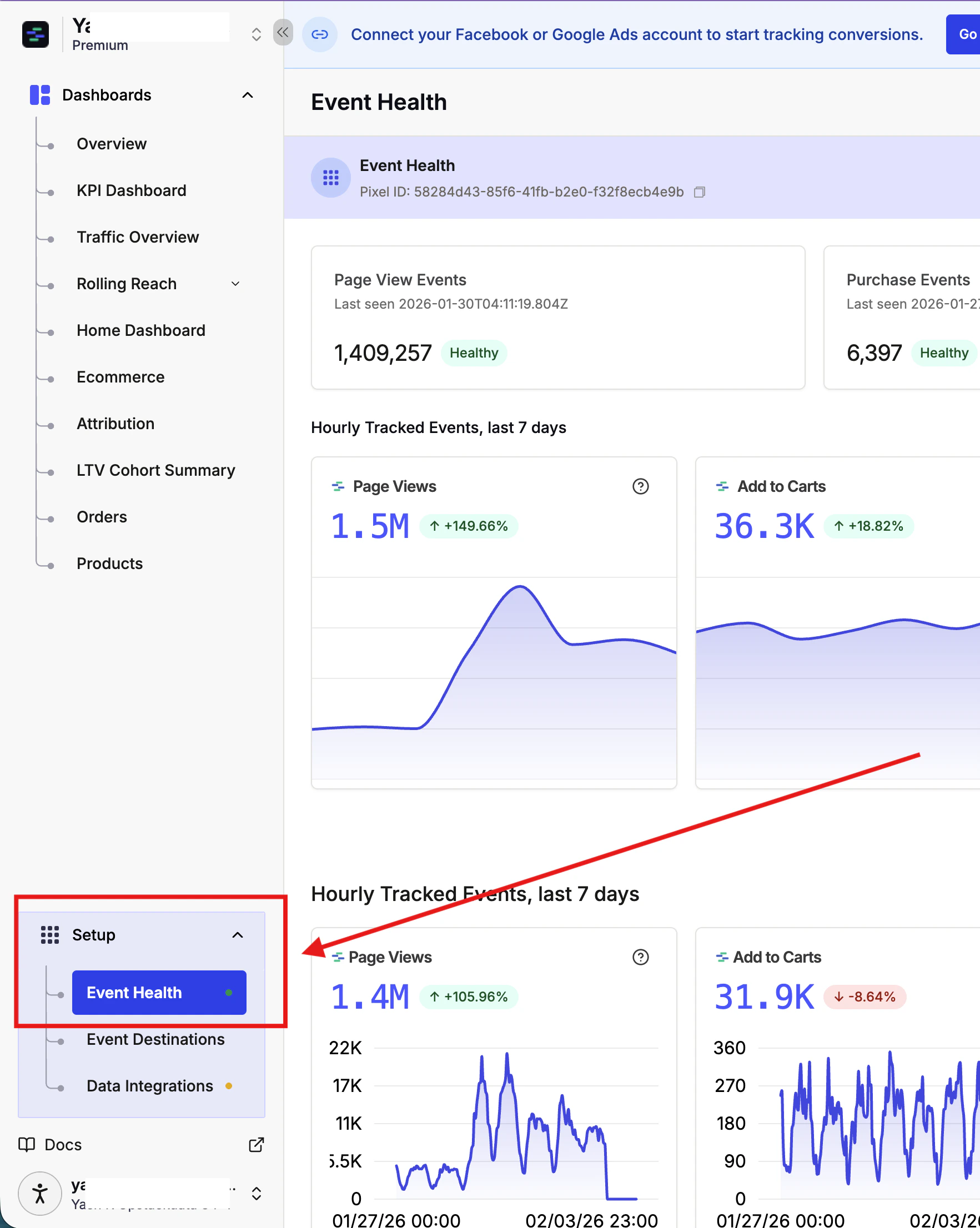
* Once signed in, click **Settings** in the bottom-left of the [Upstack dashboard](https://app.upstackdata.com).
* In the Settings menu, open **Event Health**.
 ***
## **Step 3: Locate your Pixel ID**
* Your Pixel ID is displayed at the top of the **Event Health** page, clearly labelled **Pixel ID**.
***
## **Step 3: Locate your Pixel ID**
* Your Pixel ID is displayed at the top of the **Event Health** page, clearly labelled **Pixel ID**.
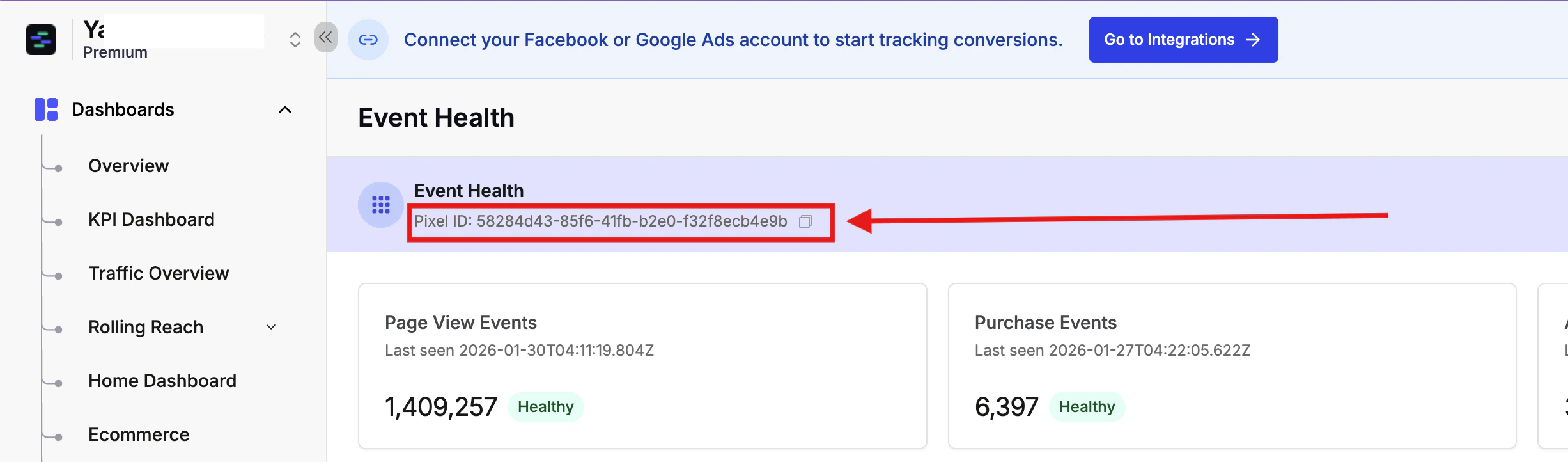 Your Upstack Pixel ID format is a UUID like:
`XXXXXXXX-XXXX-XXXX-XXXX-XXXXXXXXXXXX`
For example: `58284d43-85f6-41fb-b2e0-f32f8ecb4e9b`
**Note:** Your Pixel ID will be different from this example as it is unique to your Shopify store.
***
## **Step 4: Copy and save your Pixel ID**
* **Copy** your Pixel ID for use in your setup, and **store** it in a secure location for future reference.
* Paste it exactly as shown — Pixel IDs are case-sensitive and any extra whitespace will break tracking.
***
## **Step 5: Verify the Pixel ID works**
* Paste the Pixel ID into the destination you're configuring (landing page, GTM, Checkout Champ, etc.).
* Visit the page in a browser and use the [Upstack Data Pixel Helper](/guides/shopify/how-to-install-upstack-data-pixel-helper) to confirm the pixel fires with this Pixel ID.
* In the [Upstack dashboard](https://app.upstackdata.com) under **Event Health**, confirm the new events arrive against your Pixel ID.
***
## **Can't see your Pixel ID?**
* Make sure you're on the **Event Health** page in the [Upstack dashboard](https://app.upstackdata.com).
* Confirm the Upstack Data app is still installed in your Shopify Admin under **Settings → Apps and sales channels**.
* Contact Upstack support at [support@upstackdata.com](mailto:support@upstackdata.com).
Your Upstack Pixel ID format is a UUID like:
`XXXXXXXX-XXXX-XXXX-XXXX-XXXXXXXXXXXX`
For example: `58284d43-85f6-41fb-b2e0-f32f8ecb4e9b`
**Note:** Your Pixel ID will be different from this example as it is unique to your Shopify store.
***
## **Step 4: Copy and save your Pixel ID**
* **Copy** your Pixel ID for use in your setup, and **store** it in a secure location for future reference.
* Paste it exactly as shown — Pixel IDs are case-sensitive and any extra whitespace will break tracking.
***
## **Step 5: Verify the Pixel ID works**
* Paste the Pixel ID into the destination you're configuring (landing page, GTM, Checkout Champ, etc.).
* Visit the page in a browser and use the [Upstack Data Pixel Helper](/guides/shopify/how-to-install-upstack-data-pixel-helper) to confirm the pixel fires with this Pixel ID.
* In the [Upstack dashboard](https://app.upstackdata.com) under **Event Health**, confirm the new events arrive against your Pixel ID.
***
## **Can't see your Pixel ID?**
* Make sure you're on the **Event Health** page in the [Upstack dashboard](https://app.upstackdata.com).
* Confirm the Upstack Data app is still installed in your Shopify Admin under **Settings → Apps and sales channels**.
* Contact Upstack support at [support@upstackdata.com](mailto:support@upstackdata.com).