> ## Documentation Index
> Fetch the complete documentation index at: https://docs.upstackdata.com/llms.txt
> Use this file to discover all available pages before exploring further.
# How to invite a team member to your Upstack account
> A step-by-step guide for account owners and admins to invite a teammate, agency partner, or stakeholder to their Upstack workspace, including roles and common scenarios.
This is a step-by-step guide for account owners and admins who need to add a teammate — a developer, marketer, agency partner, or another stakeholder — to their Upstack workspace.
## Steps
Sign in to your Upstack account.
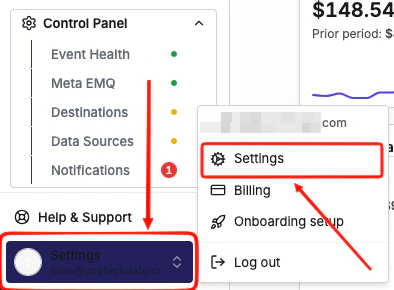
Open **Settings**. It sits in the bottom-left of the navigation.
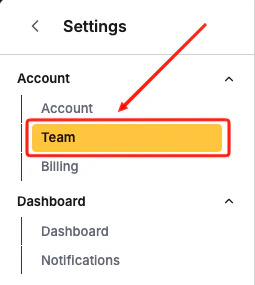
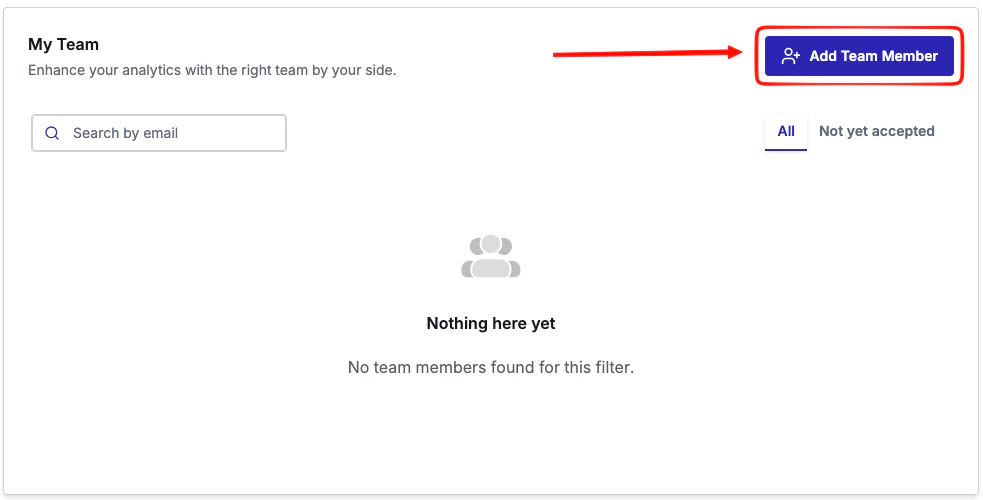
 Go to the **Team** tab inside Settings, then click **Add Team member**.
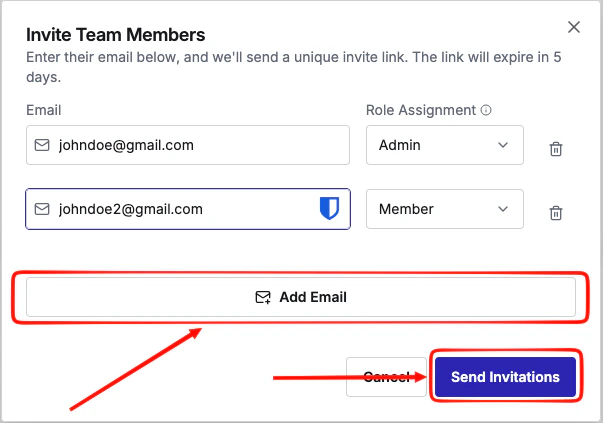
 * Enter the new teammate's **email address** in the email field.
* Choose a **role**. For full access — including the ability to invite others, manage billing, and remove users — select **Admin**.
* Click **Add Email** for each user you add. You can add multiple users. When you're done, click **Send Invitations** to invite everyone you added.
* Enter the new teammate's **email address** in the email field.
* Choose a **role**. For full access — including the ability to invite others, manage billing, and remove users — select **Admin**.
* Click **Add Email** for each user you add. You can add multiple users. When you're done, click **Send Invitations** to invite everyone you added.
 The user receives an invite like the following:
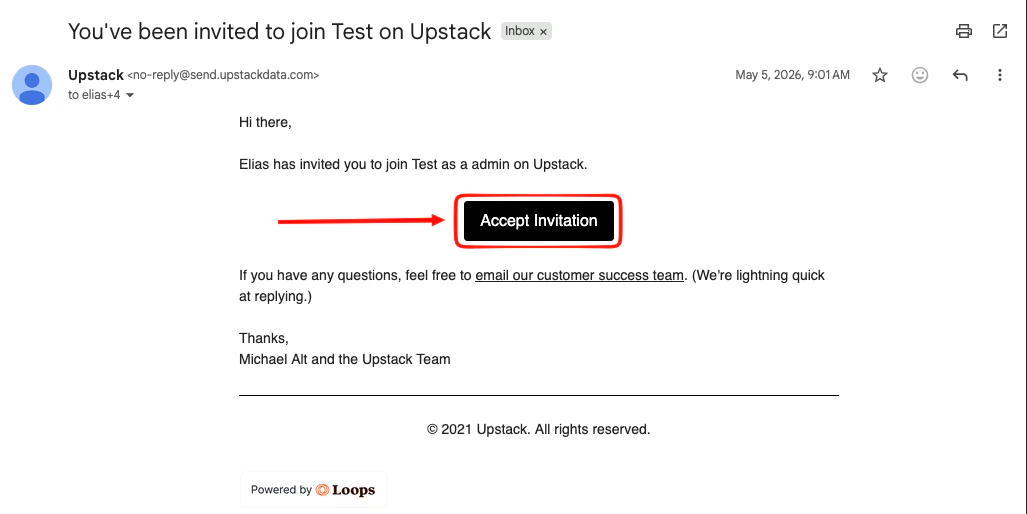 After accepting the invite, the user is prompted to create their credentials. They can then log in and see the organization's dashboard in the platform.
## What the invitee should expect
An email invite arrives in the inbox of the address you entered. If they don't see it, ask them to search their inbox for "upstack" — the from address and subject line both reference the brand. Check the spam folder in case it isn't in the main inbox.
They click the link in the email to confirm the invite and finish signing in.
Invites are time-limited. They are valid for 5 days before the invitee link expires. To send a fresh one, go back to the Team page and re-add the email.
If they already have an Upstack login under that email, accepting the invite simply attaches the new account to their existing user. They can switch between accounts from the account switcher.
## Common scenarios
A teammate may accidentally create their own Upstack account instead of joining yours. Invite their email to the correct account as an admin. Have them log out, accept the invite from their email, sign back in, and switch into the shared account. They can then cancel the duplicate account they created.
Yes. Use the same flow — add their work email as an admin, or a more limited role if available on your plan. Remove them from the Team page when the engagement ends.
Re-send by re-adding the email on the Team page. The previous invite is automatically superseded.
## Roles
| Role | Typical use |
| ------ | -------------------------------------------------------------------------------- |
| Admin | Full access — manage users, billing, integrations, and data. |
| Owner | Account creator; only another owner can remove an owner. |
| Member | Can view dashboards and event streams but cannot modify integrations or billing. |
After accepting the invite, the user is prompted to create their credentials. They can then log in and see the organization's dashboard in the platform.
## What the invitee should expect
An email invite arrives in the inbox of the address you entered. If they don't see it, ask them to search their inbox for "upstack" — the from address and subject line both reference the brand. Check the spam folder in case it isn't in the main inbox.
They click the link in the email to confirm the invite and finish signing in.
Invites are time-limited. They are valid for 5 days before the invitee link expires. To send a fresh one, go back to the Team page and re-add the email.
If they already have an Upstack login under that email, accepting the invite simply attaches the new account to their existing user. They can switch between accounts from the account switcher.
## Common scenarios
A teammate may accidentally create their own Upstack account instead of joining yours. Invite their email to the correct account as an admin. Have them log out, accept the invite from their email, sign back in, and switch into the shared account. They can then cancel the duplicate account they created.
Yes. Use the same flow — add their work email as an admin, or a more limited role if available on your plan. Remove them from the Team page when the engagement ends.
Re-send by re-adding the email on the Team page. The previous invite is automatically superseded.
## Roles
| Role | Typical use |
| ------ | -------------------------------------------------------------------------------- |
| Admin | Full access — manage users, billing, integrations, and data. |
| Owner | Account creator; only another owner can remove an owner. |
| Member | Can view dashboards and event streams but cannot modify integrations or billing. |