

For your tracking events to fire correctly in Shopify, you need to ensure the UpStackified Pixel Theme App Extension is enabled in your live theme. Once complete, we recommend a test purchase to verify conversion tracking is working properly.
Prerequisites
- The Upstack Data app installed on your Shopify store (see How to Download and Install Upstack Data App in Shopify)
- Shopify Admin access with permission to edit themes
- Your live theme accessible from Online Store → Themes
Steps to enable Upstack Data Theme App Extension
1
Sign in to Shopify Admin
Sign in to your Shopify Admin.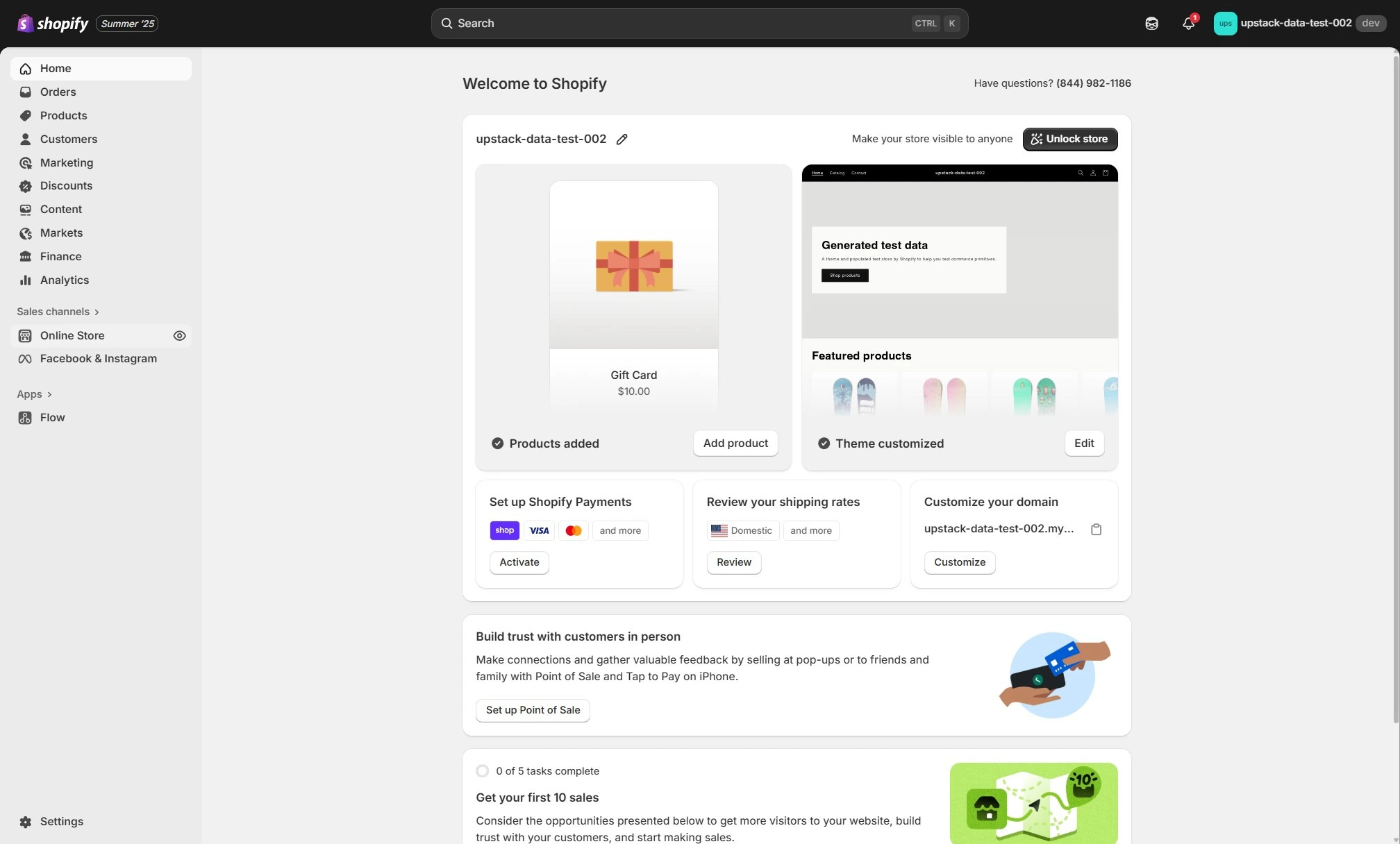
2
Open Themes
In the left sidebar, navigate to Online Store → Themes.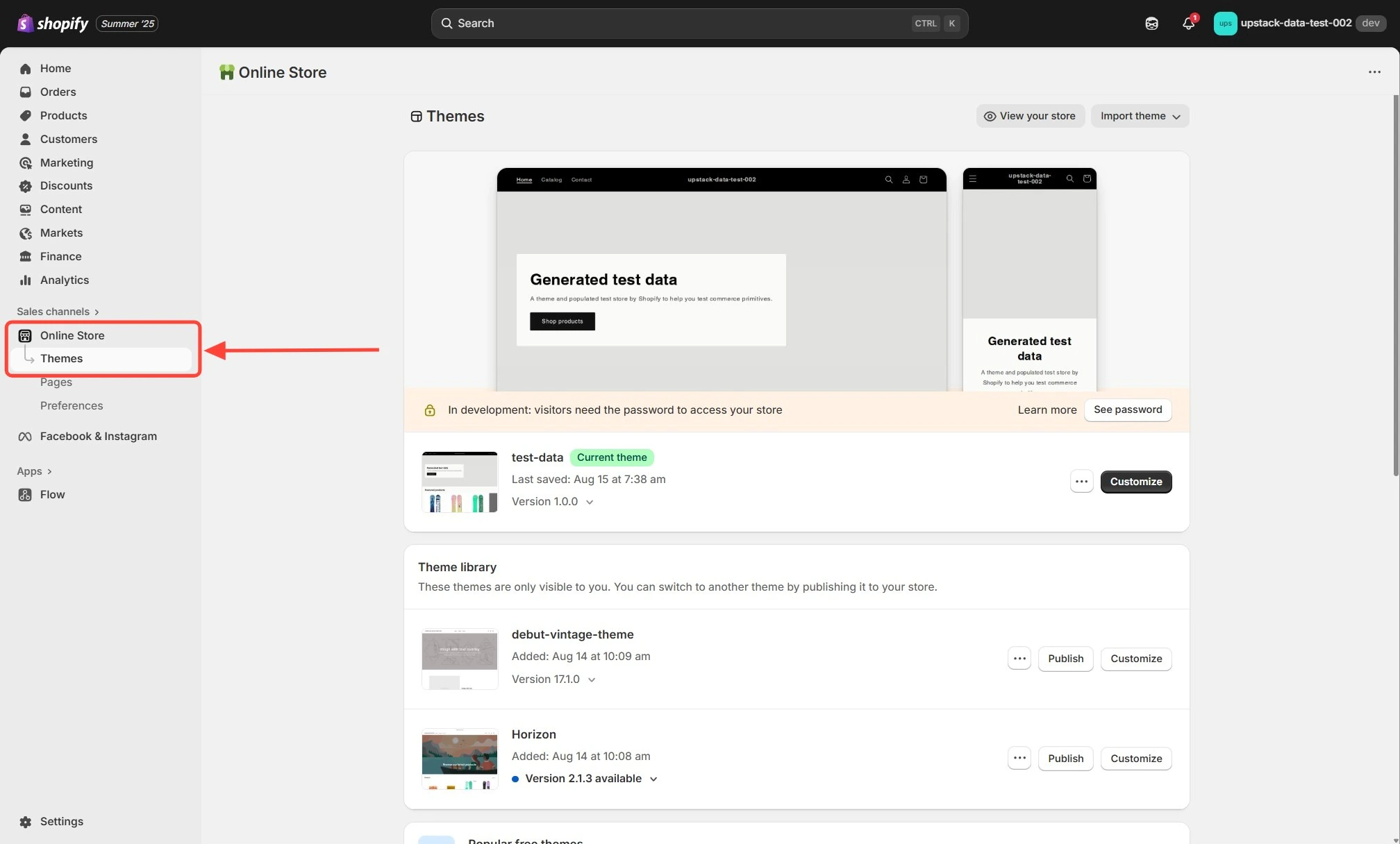
3
Open the theme customizer
On your live theme, click the Customize button.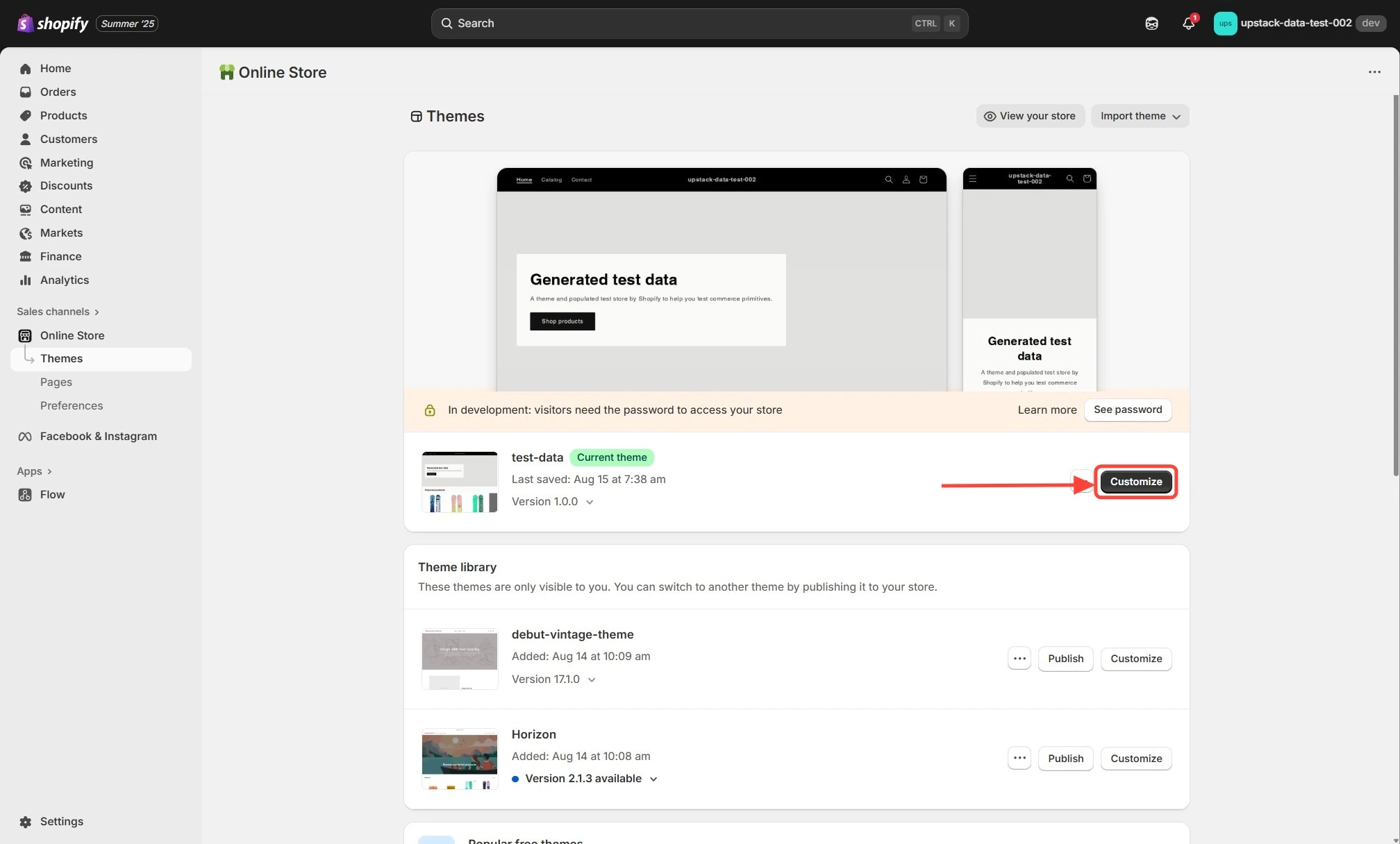
4
Open App embeds
In the left sidebar of the theme customizer, click the App embeds icon.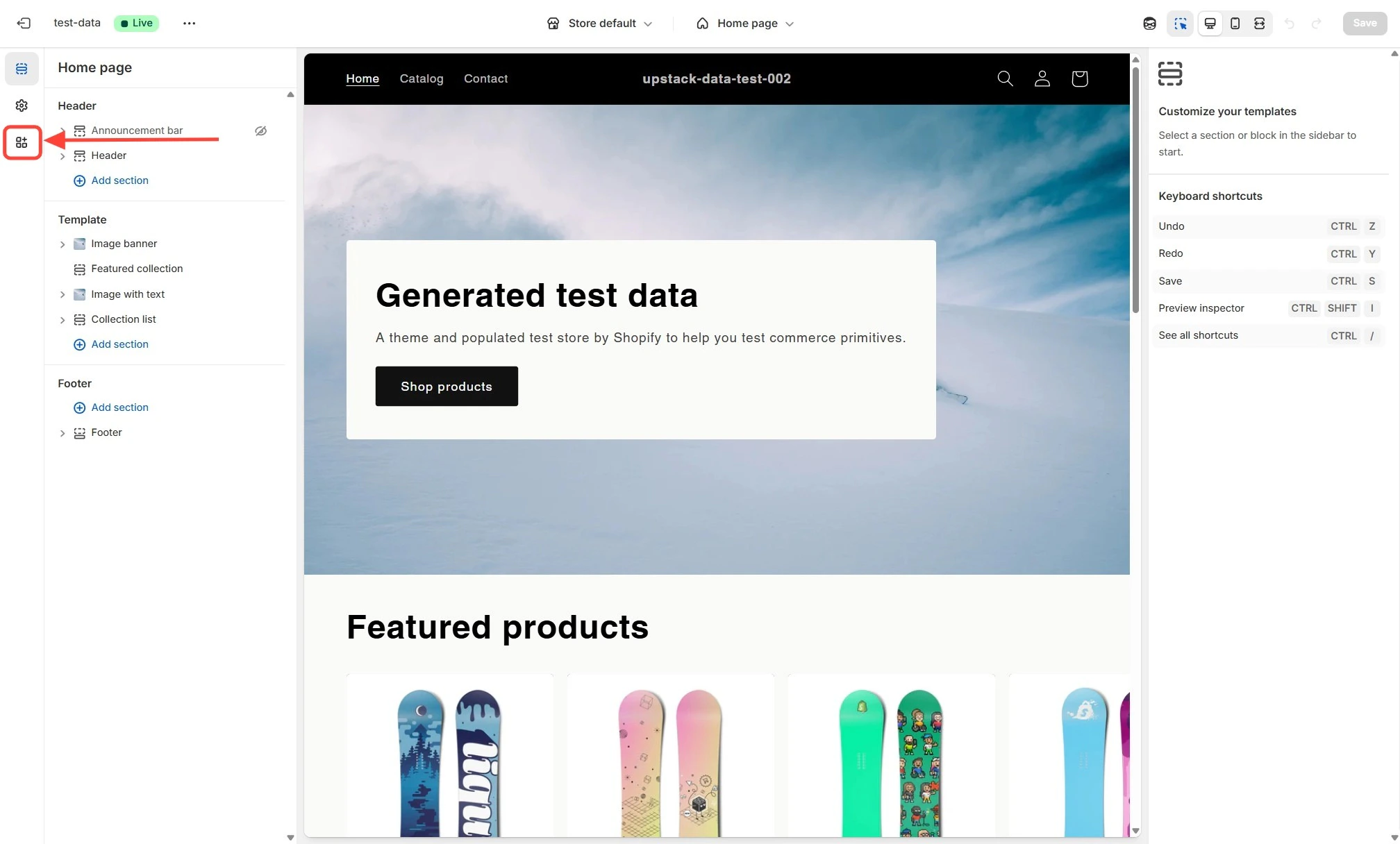
5
Enable UpStackified Pixel
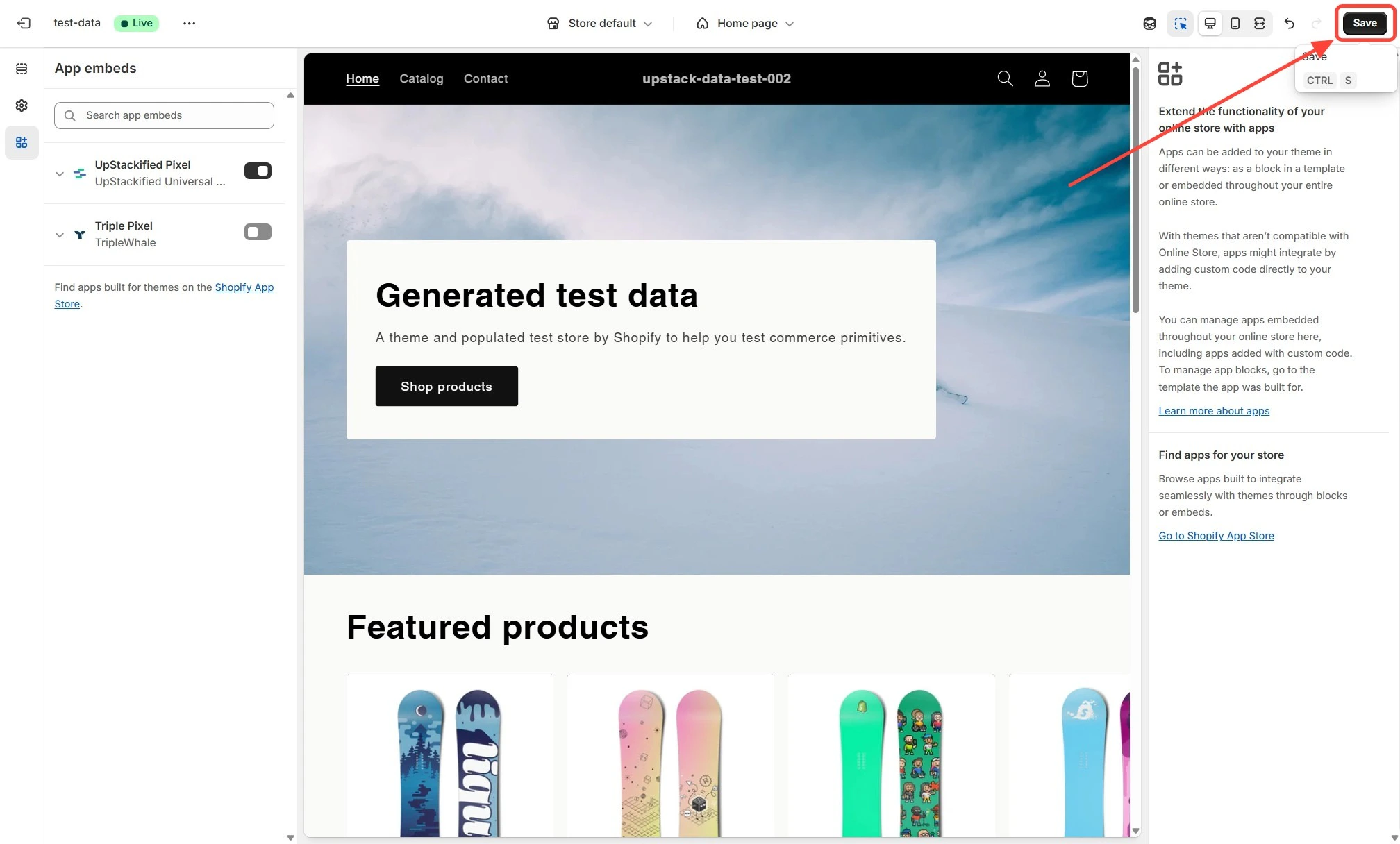
In the list, locate UpStackified Pixel and toggle the switch to enable it.Click Save at the top-right of the page to apply the changes.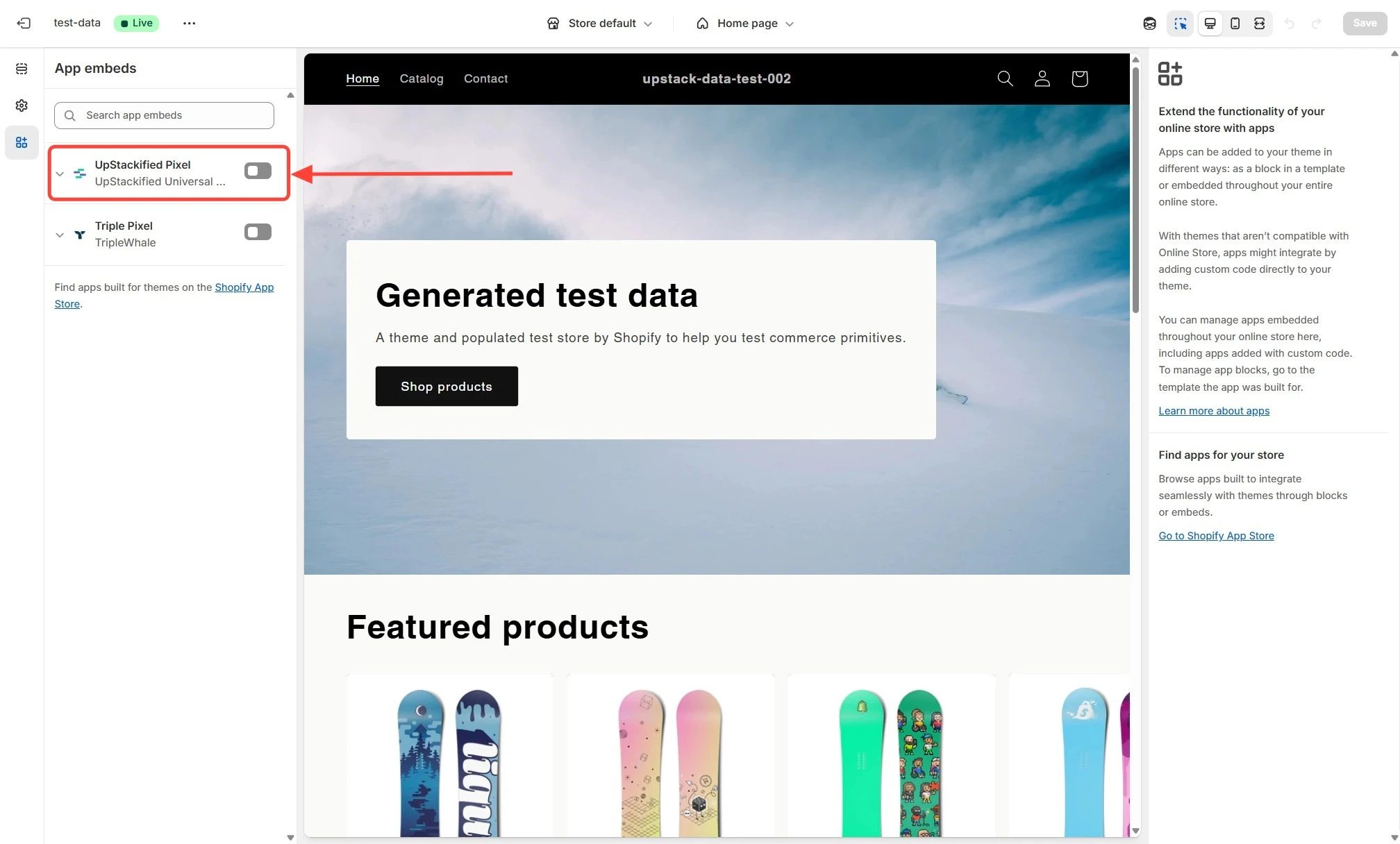
6
Verify activation
Once enabled, UpStackified Pixel will show as active with a green check mark or Enabled status.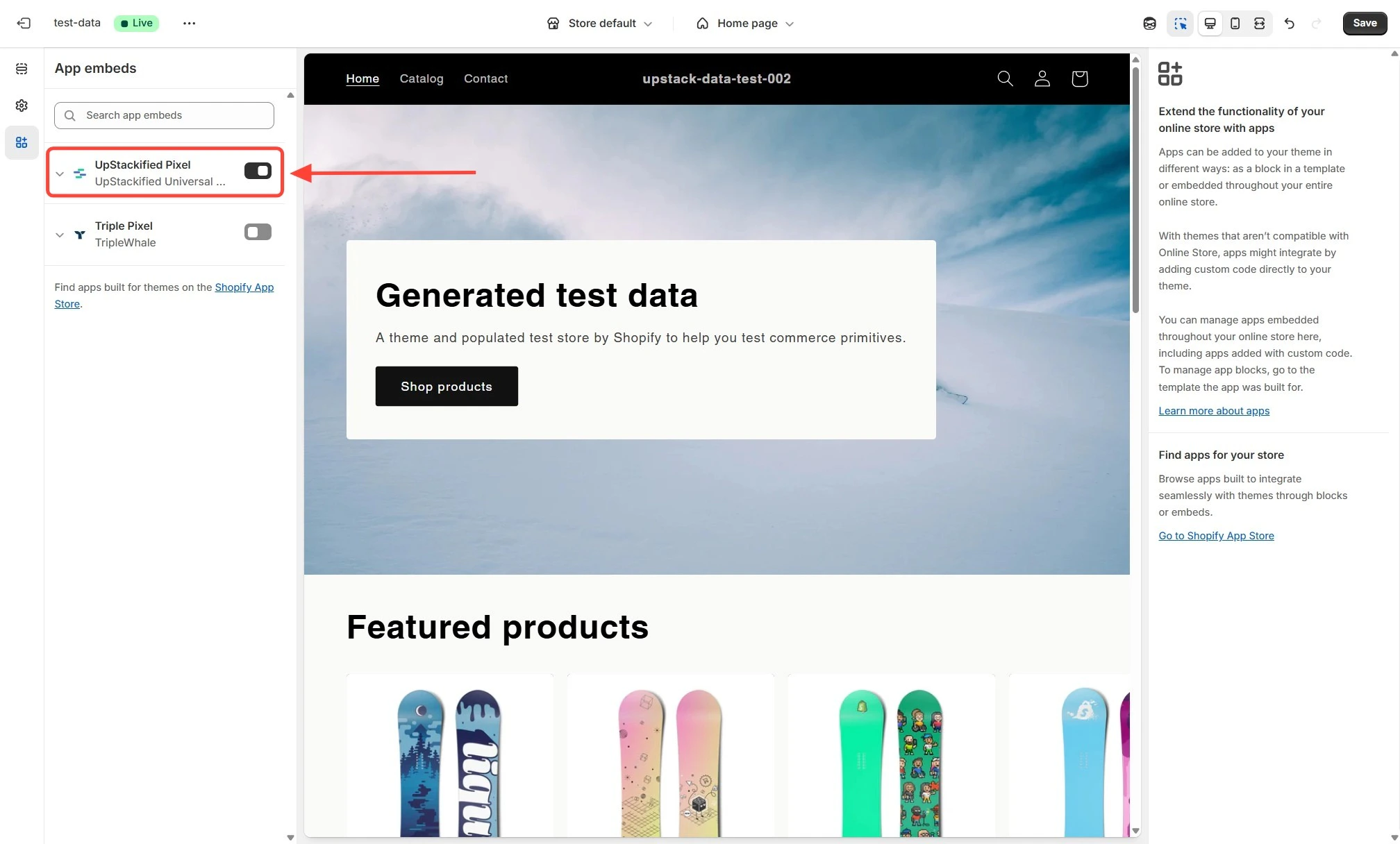
7
Verify with a test purchase
Place a test order on your store, then open the Upstack dashboard and confirm a
Purchase event appears under Events Manager within a few minutes. If the event does not appear, recheck that the App embed is enabled and saved on your live theme (not a draft).