

- Data Sources (under Data Sources in the sidebar) — OAuth connections that pull spend and performance data from ad platforms into your Upstack dashboard for reporting. These are the connections that can disconnect when passwords change or tokens expire.
- Destinations (under Destinations in the sidebar) — where Upstack sends conversion events to your ad platforms. These use Pixel IDs, Conversion IDs, or API keys configured during setup.
Why integrations disconnect
Integrations connect to platforms like Meta, Google Ads, and Klaviyo using OAuth tokens tied to a specific user account. A connection can break when:- The user who originally connected the integration changes their password or login credentials.
- The user’s permissions on the platform are revoked or modified.
- The OAuth token expires and cannot be refreshed automatically.
- The integration was only partially completed during setup (for example, the OAuth flow was started but the correct account or pixel was not selected).
How to reconnect a disconnected integration
1
Open Data Sources
Log in to your Upstack Data dashboard, then go to Data Sources.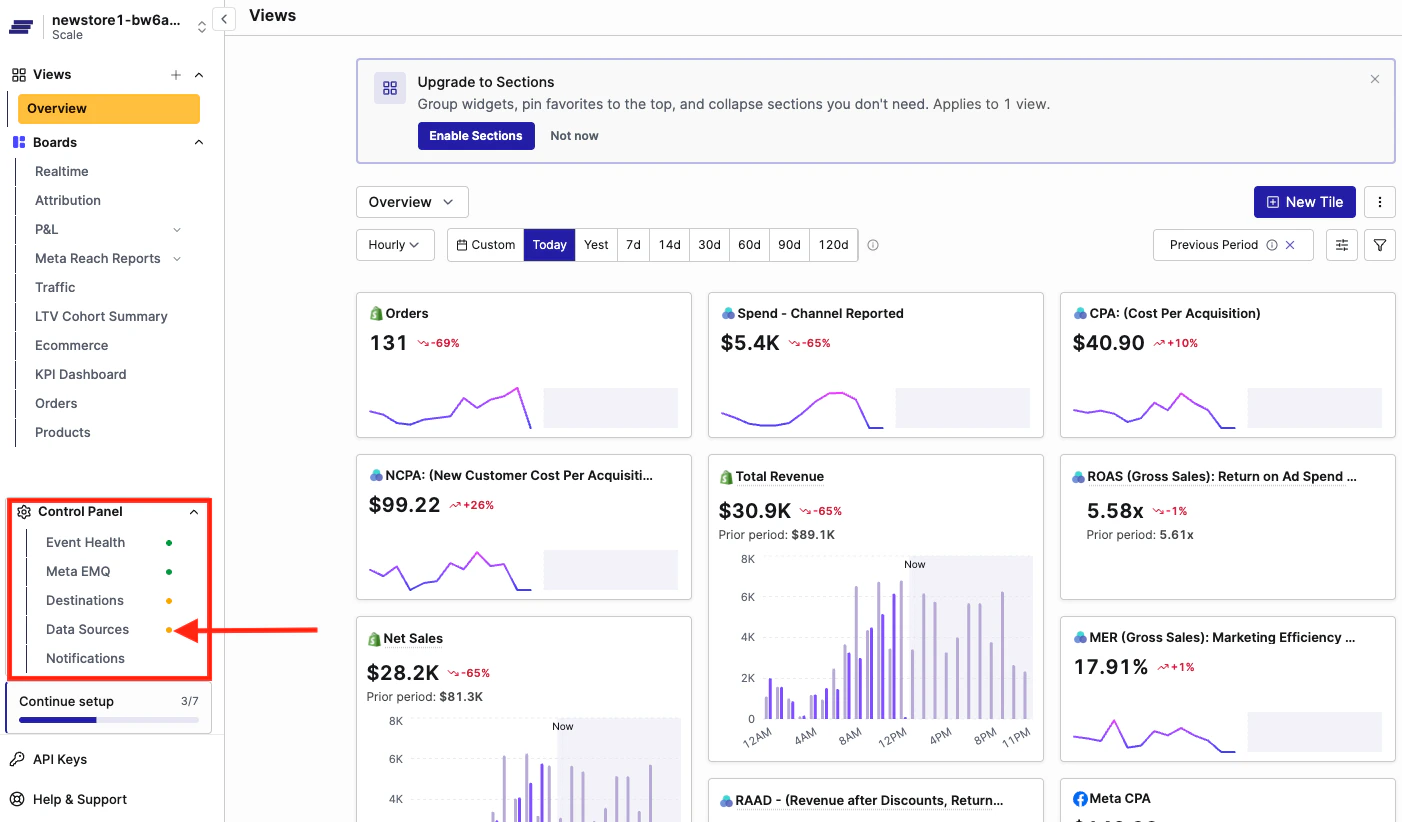
2
Find the affected integration
Find the affected integration (Facebook, Google, TikTok).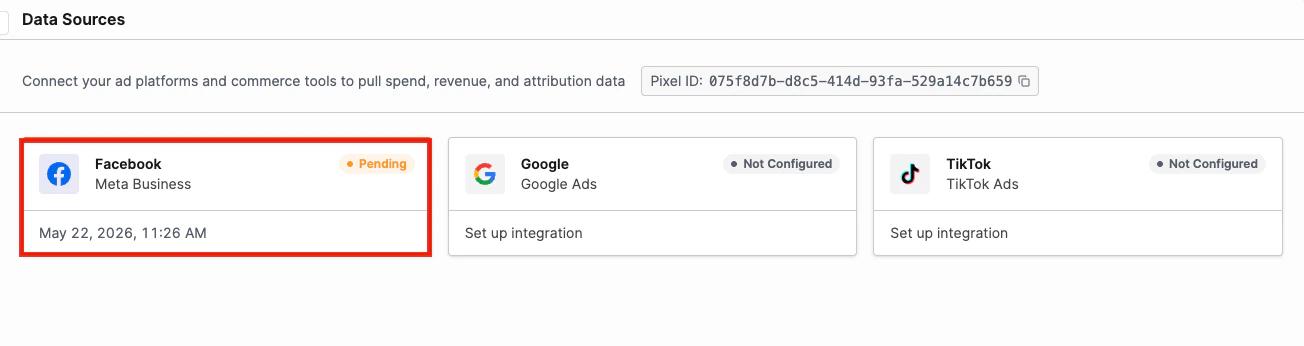
3
Disconnect and reconnect
Click Disconnect. Once the page refreshes, click the integration card again, then click Connect to the data source you require (for example, Connect Facebook).
4
Sign in with the right permissions
Sign in with an account that has the required permissions on that platform.
5
Select your ad accounts
Under Ad Accounts, select one or more ad accounts to sync (use Refresh if you don’t see them), then click Save.
The person reconnecting must have admin-level access on the platform being connected. For best results, have the brand owner — not an agency partner — complete the connection so it’s tied to a permanent account.
”Unhealthy” status on event destinations
If a destination like Meta shows an “unhealthy” status, it usually means events are failing to deliver. To check, go to Destinations in the left sidebar (not Data Sources). Common causes:- Wrong API key or pixel ID — the destination was configured with credentials from a different account or store. Update the credentials with the correct ones.
- Invalid or expired token — the token can no longer authenticate. Disconnect and reconnect the destination to refresh it.
- Insufficient permissions — the connected account lacks the permissions required to send events. Verify that the connected user has admin access on the platform.
Google Ads specifically
Google Ads connections can disconnect when the linked Google account changes its password or has its permissions updated — common when the original connection was set up by an agency or team member who later loses access. To fix it, go to Data Sources → Google (Ads), disconnect, and reconnect using a Google account with access to the correct Ads account. Google Ads in Upstack is used for reporting and attribution only — it does not affect ad delivery.Preventing future disconnections
- Connect integrations using the brand owner’s account rather than an agency or contractor account.
- Avoid changing passwords on the account used for the connection without reconnecting afterward.
- If multiple team members have access to your Upstack Data dashboard, coordinate so integrations aren’t accidentally overwritten — clicking Connect on an already-connected integration replaces the existing connection.