

Steps
1
Sign in to your Upstack account
Sign in to your Upstack account.
2
Open Settings
Open Settings. It sits in the bottom-left of the navigation.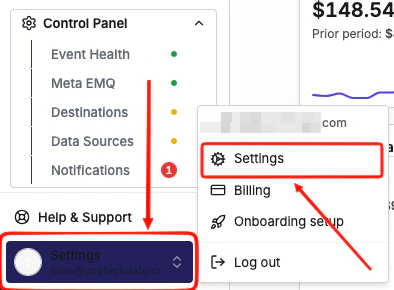
3
Go to the Team tab
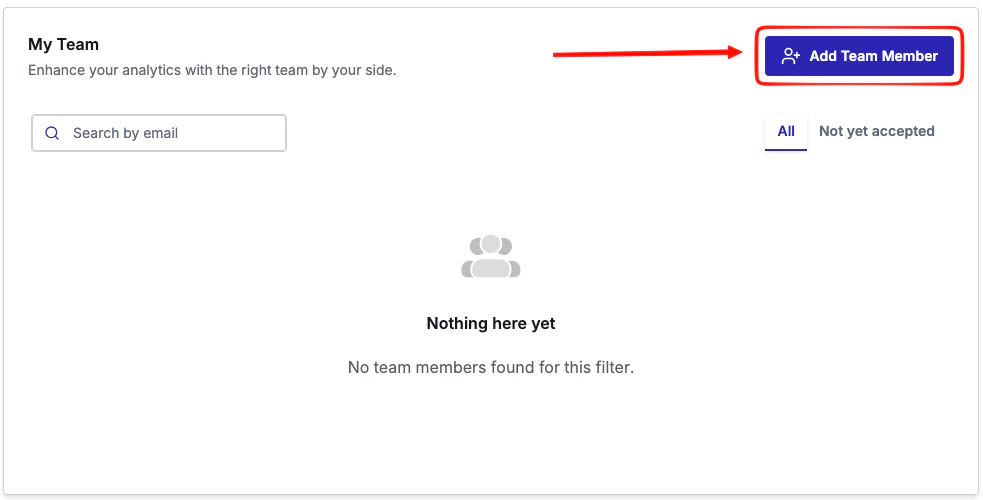
Go to the Team tab inside Settings, then click Add Team member.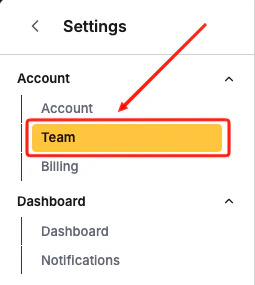
4
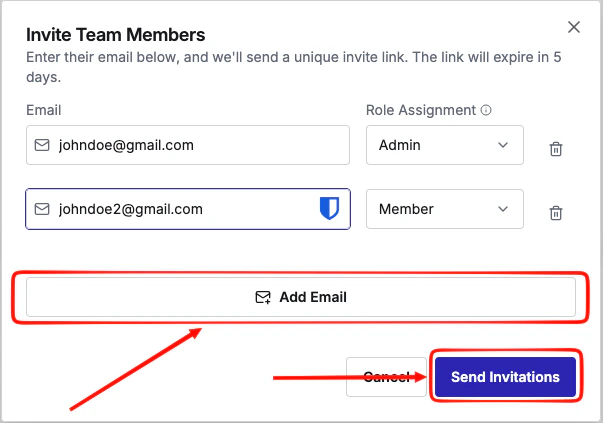
Enter the teammate's email and choose a role
- Enter the new teammate’s email address in the email field.
- Choose a role. For full access — including the ability to invite others, manage billing, and remove users — select Admin.
- Click Add Email for each user you add. You can add multiple users. When you’re done, click Send Invitations to invite everyone you added.
5
The invitee receives an email
The user receives an invite like the following: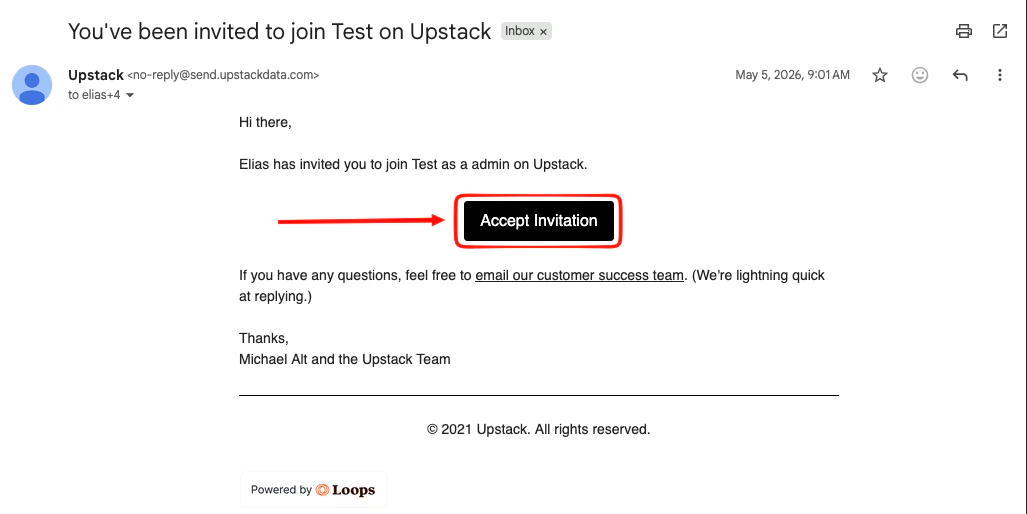
6
The invitee creates their credentials
After accepting the invite, the user is prompted to create their credentials. They can then log in and see the organization’s dashboard in the platform.
What the invitee should expect
Where can I find the email invite?
Where can I find the email invite?
An email invite arrives in the inbox of the address you entered. If they don’t see it, ask them to search their inbox for “upstack” — the from address and subject line both reference the brand. Check the spam folder in case it isn’t in the main inbox.
How do they accept the invite?
How do they accept the invite?
They click the link in the email to confirm the invite and finish signing in.
How long are team invites valid for in Upstack Data?
How long are team invites valid for in Upstack Data?
Invites are time-limited. They are valid for 5 days before the invitee link expires. To send a fresh one, go back to the Team page and re-add the email.
What if I invite someone who already has an Upstack login?
What if I invite someone who already has an Upstack login?
If they already have an Upstack login under that email, accepting the invite simply attaches the new account to their existing user. They can switch between accounts from the account switcher.
Common scenarios
What if a teammate created their own account by mistake?
What if a teammate created their own account by mistake?
A teammate may accidentally create their own Upstack account instead of joining yours. Invite their email to the correct account as an admin. Have them log out, accept the invite from their email, sign back in, and switch into the shared account. They can then cancel the duplicate account they created.
Can I add an agency or contractor to my Upstack account?
Can I add an agency or contractor to my Upstack account?
Yes. Use the same flow — add their work email as an admin, or a more limited role if available on your plan. Remove them from the Team page when the engagement ends.
What if the invite link expired?
What if the invite link expired?
Re-send by re-adding the email on the Team page. The previous invite is automatically superseded.