

How data sources work
Each source connects to an external platform and pulls (or receives) data on your behalf:- Shopify sends orders and products to Upstack directly, even if the pixel is blocked. Storefront events come from the Upstack pixel (the theme app extension plus the Upstack custom pixel).
- Ad platform sources (Facebook, Google Ads, TikTok) sync campaign structure, spend, and performance metrics every 15 minutes so you can blend cost data with conversion data inside Upstack.
Ad platform sources are optional. Without them you still see revenue and orders, but not spend, ROAS, or cost per acquisition.
Available sources
Shopify
Orders and products from your Shopify store, plus the storefront events the Upstack pixel captures.
Shopify Automatic Tracking
The storefront events Upstack captures automatically once the theme app extension and the Upstack custom pixel are on.
Facebook Ads
Campaign structure, ad spend, and performance metrics from your Facebook and Instagram ad accounts.
Google Ads
Campaign structure, ad spend, and performance metrics from your Google Ads accounts.
TikTok
Campaign structure, ad spend, and performance metrics from your TikTok Ads accounts.
Cost Settings
Business costs you enter in Upstack (product costs, handling, payment fees, shipping, and operating expenses) for contribution margin and profitability metrics.
The Data Sources page
Open System → Data Sources in the Upstack Data dashboard. Each source has a card showing its status. Click a card to open its settings, where you connect, change ad accounts, reconnect, or disconnect.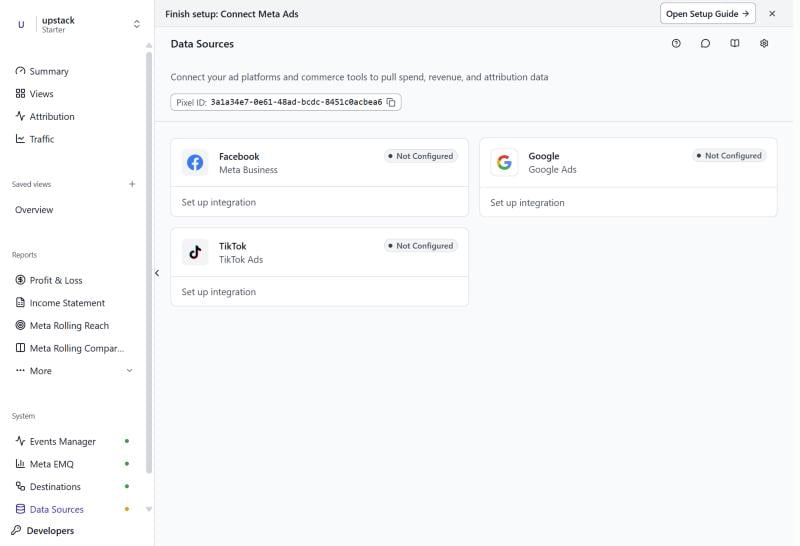
The Shopify card appears only on accounts created at app.upstackdata.com. If you installed Upstack from the Shopify App Store, Shopify is already connected through that install and has no card here.
Card statuses
How to connect an ad platform
To connect Shopify, see Connect Shopify. To connect Facebook, Google Ads, or TikTok:1
Open Data Sources
Log in to your Upstack Data dashboard and open System → Data Sources.
2
Open the platform's settings
Click the Facebook, Google, or TikTok card. Its Integration Settings dialog opens.
3
Connect and sign in
Click Connect Facebook, Connect Google, or Connect TikTok. A popup opens where you sign in to the platform and approve access for Upstack. If your browser blocks the popup, allow popups for app.upstackdata.com and click the button again.
4
Select ad accounts and save
Back in the dialog, the Ad Accounts list shows every ad account your login can access. Select one or more and click Save & Complete Setup.
5
Confirm the source is connected
The card shows Connected. The initial import (up to 36 months of history) starts right away; for Facebook Ads and Google Ads it usually completes within 2–4 hours.
Related
What are data sources?
What connected sources unlock, common issues, and FAQs.
Destinations overview
Learn how Upstack pushes enriched event data out to your ad platforms.
Attribution and reporting
How Upstack combines source data with conversion events to attribute revenue.
Connect Shopify
Connect your Shopify store as a data source.