

Tracking parameters are snippets of code added to your URLs that track campaign performance. By using Upstack Data’s custom tracking parameters in your ads, each visitor informs the Upstack Pixel exactly which ad they clicked before arriving at your store.
Prerequisites
- The Upstack Data pixel installed on your store (see Install on Shopify)
- Admin access to each ad platform you want to update (Meta, Google, TikTok, AppLovin, etc.)
- Your active campaigns identified — UTMs are added at the ad level, not the campaign level
Required UTM parameters by platform
Copy the following tracking parameters and add them to the tracking settings of your active ads. Place these parameters in the URL Parameters field of each ad — not the Destination URL.Meta Ads
Google Ads
TikTok Ads
Snapchat Ads
Pinterest Ads
AppLovin Ads
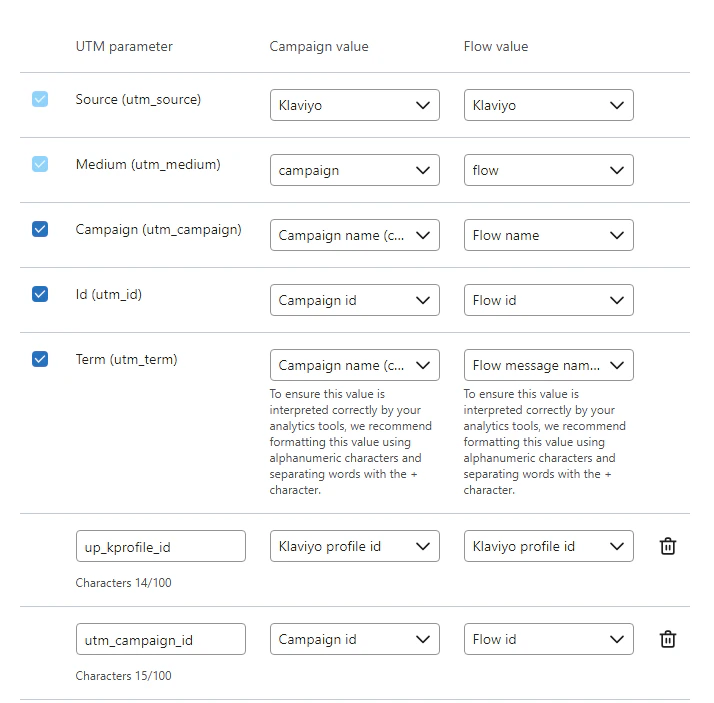
Klaviyo Email
Taboola Ads
Outbrain Ads
Criteo Ads
Adroll Ads
ShareASale
Verify UTM parameters are working
After adding UTMs to your ads:- Click one of your live ads (or use the platform’s preview link) and arrive on your store.
-
Confirm the URL in your browser’s address bar contains the expected UTM parameters (e.g.,
utm_source=,utm_campaign=). - In the Upstack dashboard, open your attribution report and confirm visits and conversions are being attributed to the expected source, campaign, and ad.
- Allow up to a few hours for newly tagged ads to populate reports.
Frequently asked questions
1. I’m already using different UTMs, what should I do?
- If you’re already using UTMs for another purpose, you can simply add these parameters to the end of that string - just be sure to write
&before pasting these parameters.
2. Can I bulk edit UTMs for all my ads?
- Every ad that you want to track with the Pixel will need our recommended tracking parameters in there. Good news: you can also bulk edit your ads within Facebook, so you won’t have to update UTMs one ad at a time.
3. Can I append the UTMs to the Destination URL?
- Meta recently published that anything in a Destination URL after the domain itself will be automatically shortened and removed. If UTMs are appended to the Destination URL, they will be automatically removed by Meta. Therefore, UTMs should properly be placed in the URL Parameters field.
4. Will my ads go live right away after adding UTMs?
- Updating the URL Parameters on your ads will send the ad into a “processing” phase. The processing phase can take up to 1 hour and will pause spend on your ads while they’re being processed by Facebook.
5. Will I lose social proof by adding UTMs?
- On some occasions, updating the URL Parameters on an active ad has reset the social proof on the ad & sent the ad back into the “learning phase”. However, social proof was often lost for ads where creative assets were manually uploaded directly into the ads manager (versus creating the ad via the Post ID or Use Existing Post method). You can add UTMs without losing Social Proof - click here to learn how.
- This is not a fool-proof method, but it is the most effective method we have found for updating UTMs on your ads without losing social proof. Unfortunately, we cannot make guarantees that social proof will not be lost.