

What this setup enablesSetting up the Meta Ads Pixel destination in Upstack Data enables dual tracking via browser pixel and server-side Conversions API (CAPI), ensuring accurate conversion data despite iOS restrictions and ad blockers.
Prerequisites
Before you start, you need:- An active Upstack Data account (sign up)
- Admin access to a Meta Business Manager account
- A configured Meta Pixel in Meta Events Manager — see How to find your Meta Pixel ID
- A Conversions API access token — see How to generate your CAPI token
Tracking Method
Tracking Method is set to Browser + Server by default, and this is the recommended way to run Meta: Upstack loads the Meta tag on your storefront and also sends events server-side, and the two copies are deduplicated. If you don’t want to load the Meta tag in the browser, switch the Tracking Method to Server. See Tracking Method.Health & wellness stores in Restricted Category Mode use Server. See How to Set Up Restricted Category Mode for Meta in Upstack Data.
Configuration steps
1
Sign in to Upstack Data
Sign in to Upstack Data at app.upstackdata.com.
2
Open the destination configuration
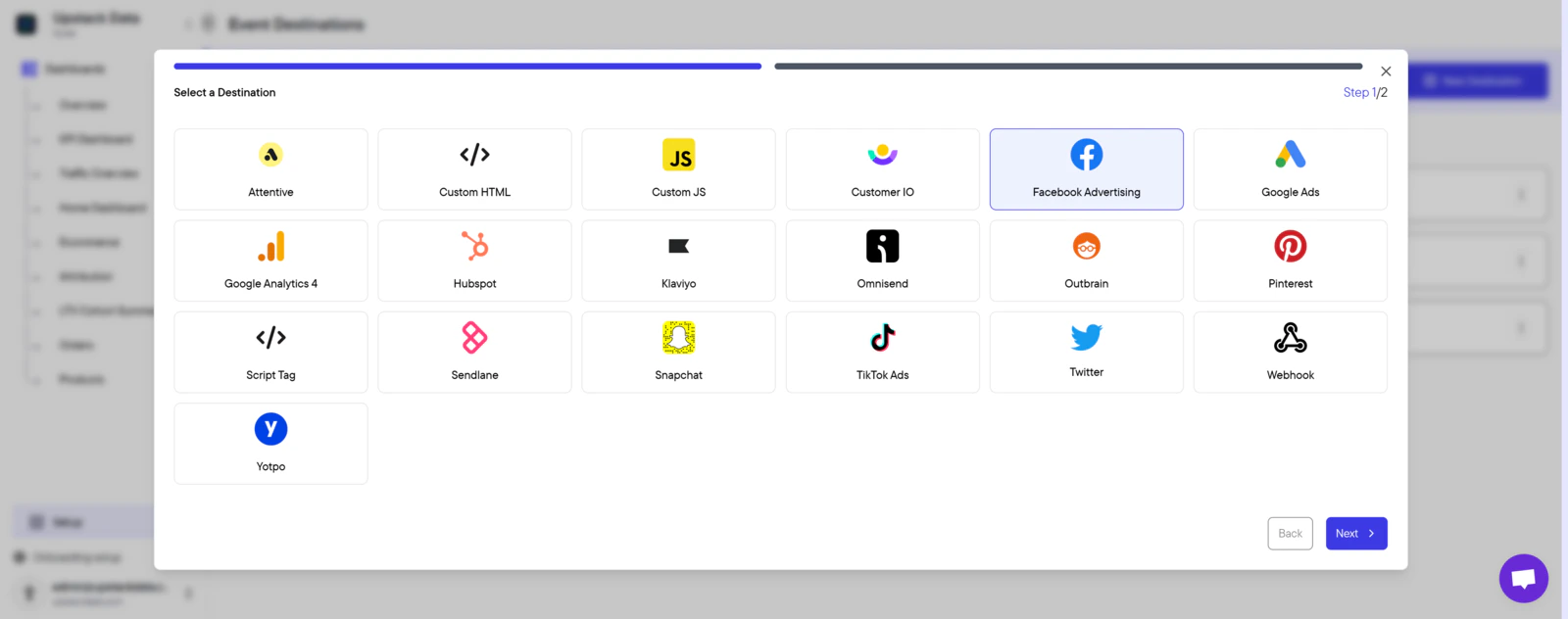
In the Upstack dashboard, navigate to Destinations.Click New Destination in the top-right of the page.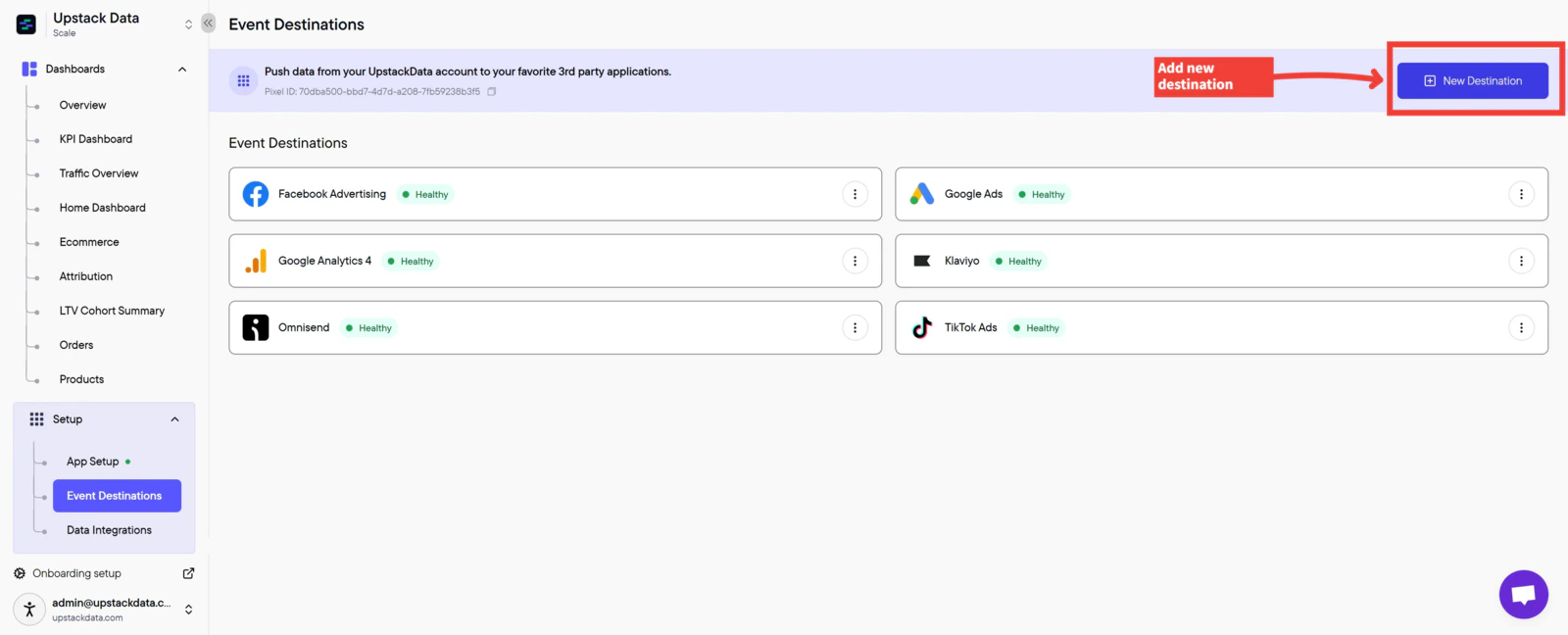
3
Enter your Pixel ID and CAPI token
Fill in the form:
-
Meta Pixel ID — the 15–16 digit number, no prefix (e.g.,
123456789012345). Meta Pixel IDs do not have anAW-prefix; that prefix belongs to Google Ads. -
Conversion API Key — your Conversions API access token, which starts with
EAAand is about 190 characters long.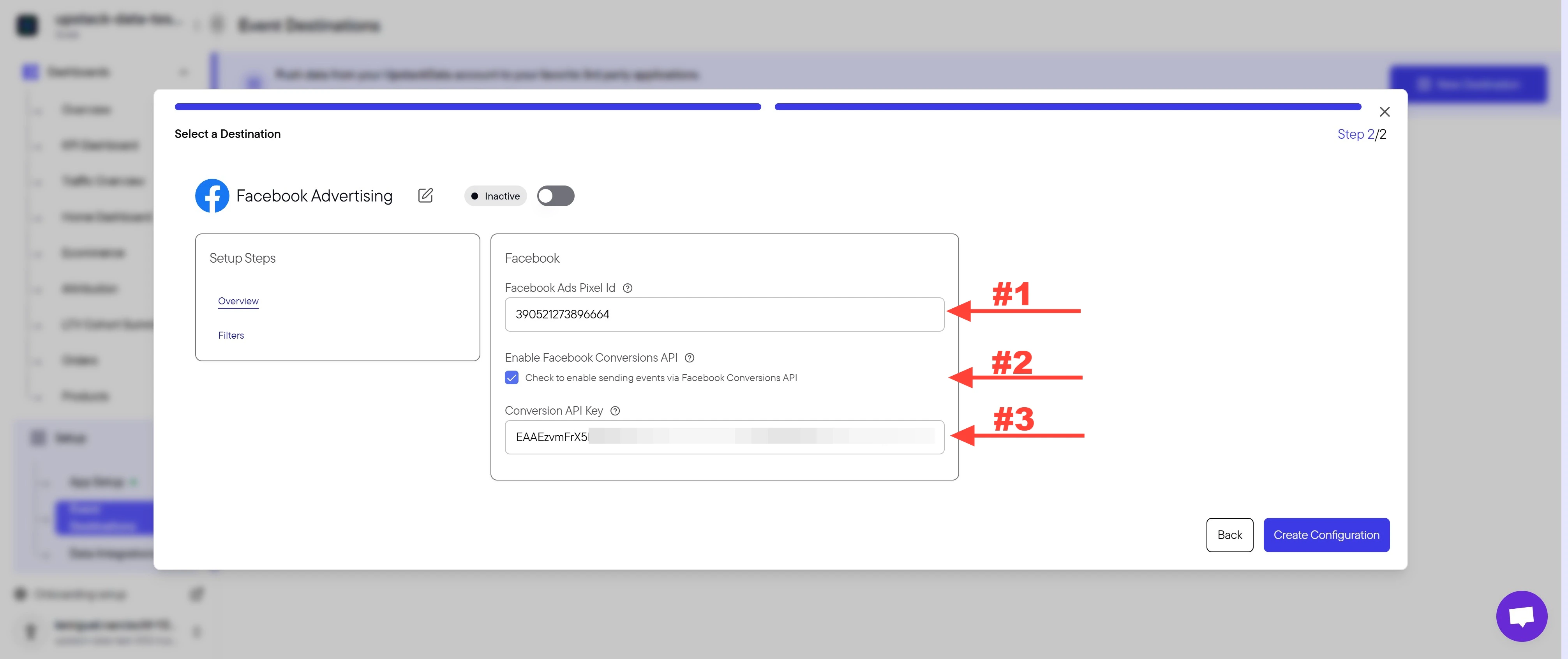
Need help finding these?
4
Create the configuration
Click Create Destination.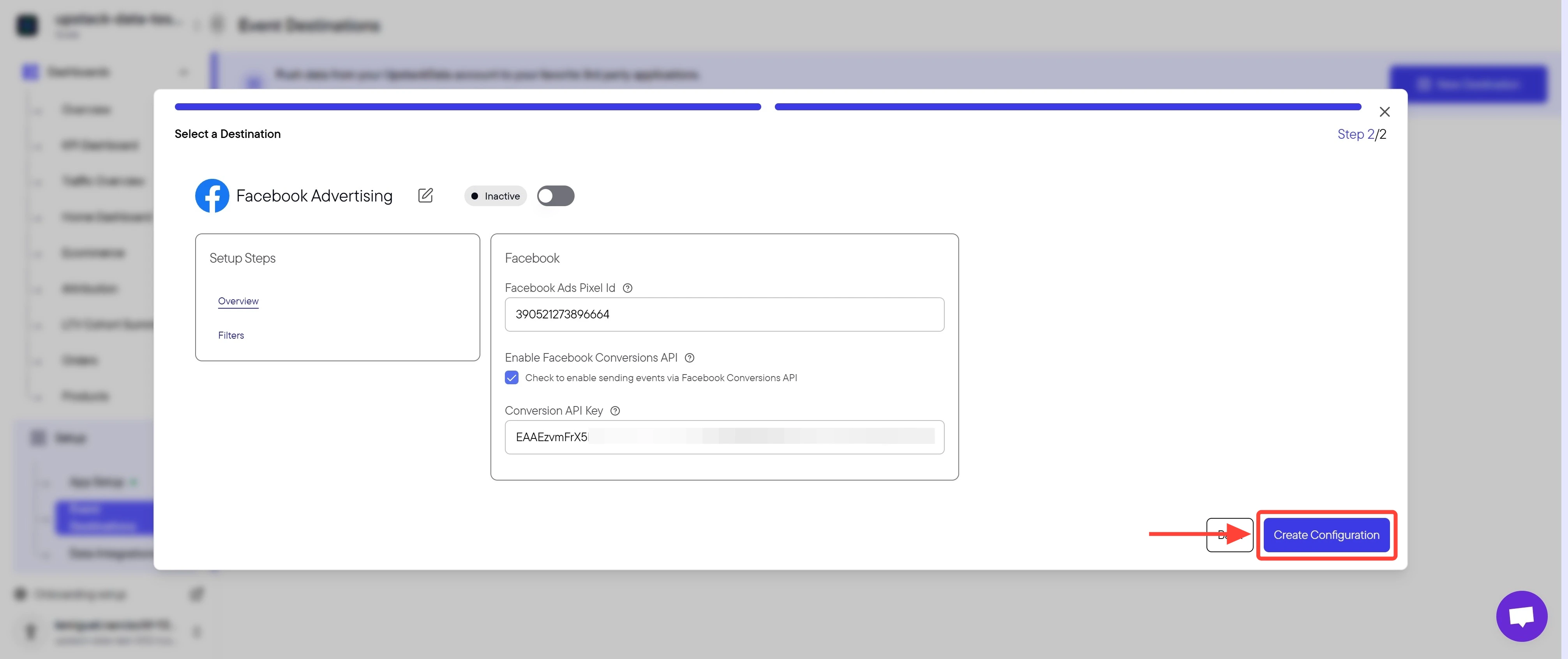
5
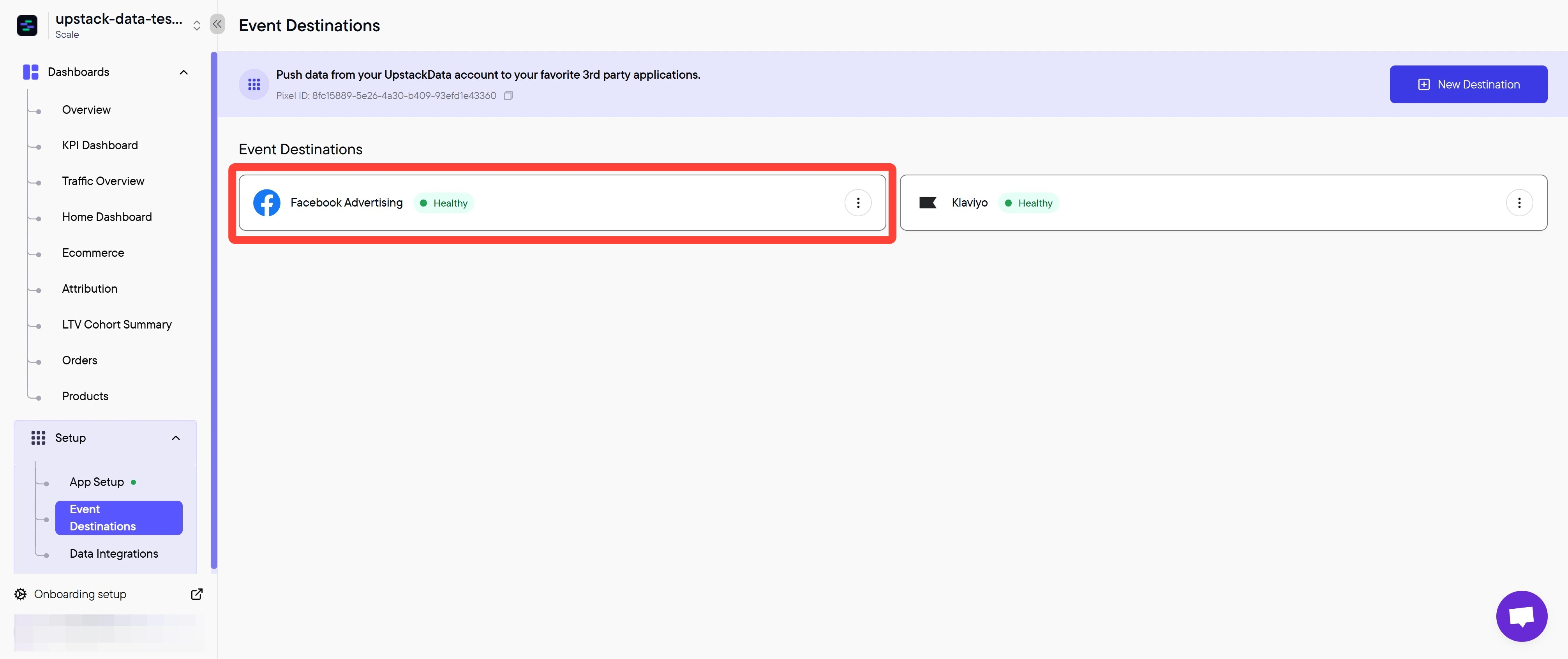
Verify the destination is healthy
In the Upstack dashboard, the Meta destination card should display Healthy with a green status indicator.If the status shows Unhealthy:
- Confirm your Pixel ID is correct (15–16 digits, no leading/trailing spaces, no prefix).
- Confirm your Conversion API Key is the full token starting with
EAA. - See How to update your CAPI token if your token may have expired.
Restricted Category Mode (health & wellness stores)
For stores that Meta has flagged or restricted under its Health & Wellness category, such as supplements, CBD, and wellness brands. Restricted Category Mode sends events to Meta from Upstack’s servers only, removes product details from them, and reports them from your alias domain. You turn it on, with the domain alias, on the destination’s Category Mode tab.- Every screen and click: How to Set Up Restricted Category Mode for Meta in Upstack Data
- The full onboarding, from alias domain to moving campaigns: How to Set Up a Health & Wellness Pixel for Meta