

- never loads the Meta browser pixel on your store
- sends events to Meta through the Conversions API only
- replaces product names with placeholders and removes product categories and brands
- reports every event from your alias domain, with a hashed page path, once you turn on the domain alias
This page covers the settings in Upstack. For the full onboarding, including the alias domain, the new dataset, Meta’s allow list, and moving your campaigns, follow How to Set Up a Health & Wellness Pixel for Meta.
Before you start
You need:- The ID of a new Meta dataset (pixel). A pixel that Meta has already flagged stays flagged. See How Do I Find My Facebook Ads Pixel (Dataset) ID.
- A Conversions API access token for that dataset. See How to Generate My Facebook Conversion API Key.
- An alias domain with a live splash page, added to the new dataset’s allow list. See How to Set Up an Alias Domain for Health & Wellness Tracking.
- Every other source that sends events to Meta turned off, such as the Shopify Facebook & Instagram app’s data sharing. See How to Disable Facebook and Instagram Data Sharing in Shopify.
Set up a new Meta destination
Turn on Restricted Category Mode before you create the destination, so no event reaches the new dataset without it.1
Open Destinations
Sign in to app.upstackdata.com and click Destinations in the left sidebar.
2
Add a Meta destination
Click New Destination in the top-right corner. Click the Meta Ads card. To find it faster, type
Meta in Search destinations….3
Set the Tracking Method to Server
On the Overview tab, under Tracking Method, select Server.Restricted Category Mode never loads the Meta browser pixel, whichever Tracking Method you pick. Server matches what it does.
4
Enter the dataset ID and access token
- Meta Pixel ID: enter the new dataset’s ID, digits only.
-
Conversion API Key: paste the dataset’s Conversions API access token. It’s required when the Tracking Method includes Server.

5
Open the Category Mode tab
In the destination’s left menu, click Category Mode.
6
Turn on Restricted Category Mode
Turn on the Enable Restricted Category Mode switch. The Enable Restricted Category Mode? dialog opens. Click Enable.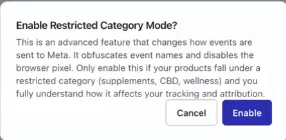
7
Turn on the domain alias
The Enable Domain Alias switch appears below. Turn it on.
8
Enter your alias domain
In Domain Alias, enter your alias domain as a full URL, including 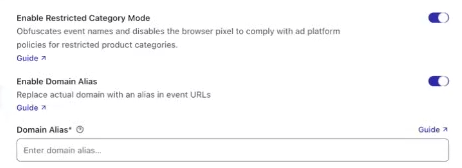
https://. For example, https://youraliasdomain.com.If you see “Domain alias must be a valid URL (e.g., https://example.com)”, add the https:// prefix.9
Create the destination
Click Create Destination at the bottom of the page. Upstack starts sending events to the new dataset.
Turn it on for an existing Meta destination
1
Open the destination
Click Destinations in the left sidebar, then click your Meta destination.
2
Switch the destination off
Use the switch in the top-right corner of the destination page, next to its status. No events go out while you change the settings.
3
Check the Overview settings
On the Overview tab, set Tracking Method to Server. Check that Meta Pixel ID and Conversion API Key belong to the new dataset.
4
Turn on Restricted Category Mode and the domain alias
Click Category Mode in the left menu, then:
- Turn on Enable Restricted Category Mode, and click Enable in the dialog.
- Turn on Enable Domain Alias.
- In Domain Alias, enter your alias domain, such as
https://youraliasdomain.com.
5
Save and switch the destination back on
Click Save Changes at the bottom of the page, then turn the switch in the top-right corner back on.
Check that it’s working
In Meta Events Manager, open the new dataset’s Overview or Test Events. Events usually show up within about 2 hours.- Events arrive through the Conversions API, with no browser events. If browser events appear, another source is still sending to the dataset. Turn it off.
- The Event Source URL is your alias domain followed by
?path=and a hash, not your store’s domain. - You see the standard events, such as Purchase, and also custom events:
ncPurchase,rcPurchase, and the legacyUPSTACK_HW_*events. If Meta asks you to review the custom events, approve them. Optimize on the standard Purchase event.
Change the alias domain or turn it off
- To change the alias domain: open the destination, click Category Mode, update Domain Alias, and click Save Changes. Add the new domain to the dataset’s allow list in Meta too (Settings → Traffic permissions).
- To turn Restricted Category Mode off: turn off Enable Restricted Category Mode and click Save Changes. Events then go to Meta with your product details and your store’s domain. If the Tracking Method includes Browser, the Meta browser pixel loads again.
Troubleshooting
I don't see a Category Mode tab
I don't see a Category Mode tab
The Category Mode tab appears only on Meta destinations. Check that you added a Meta Ads destination.
The Domain Alias field shows an error
The Domain Alias field shows an error
Enter the full URL, including
https://, such as https://youraliasdomain.com.Events still show my store's domain
Events still show my store's domain
Check that Enable Domain Alias is on and that Domain Alias holds your alias domain, then click Save Changes. Without the domain alias, Upstack still hashes the page path but keeps your store’s domain.
Related
Set Up a Health & Wellness Meta Pixel
The full Health & Wellness onboarding, from alias domain to moving campaigns.
What Meta Receives
What Restricted Category Mode removes and what Meta still gets.
Set Up an Alias Domain
Register the alias domain and publish its splash page.
Set Up Meta
The standard Meta destination setup.