

Purpose of this setupConnecting your Facebook ads account is required to access performance data at the account, campaign, ad set, and ad levels, which powers your dashboards and attribution reporting.
Prerequisites
Before you start, you need:- An active Upstack Data account (sign up)
- Admin or advertiser access to the Facebook ad account you want to connect
- A Facebook user account that can sign in via OAuth on this browser
Configuration steps
1
Sign in to Upstack Data
Sign in to Upstack Data at app.upstackdata.com, then navigate to Data Integrations in the left-hand menu (or open it directly at app.upstackdata.com/pixel/integrations).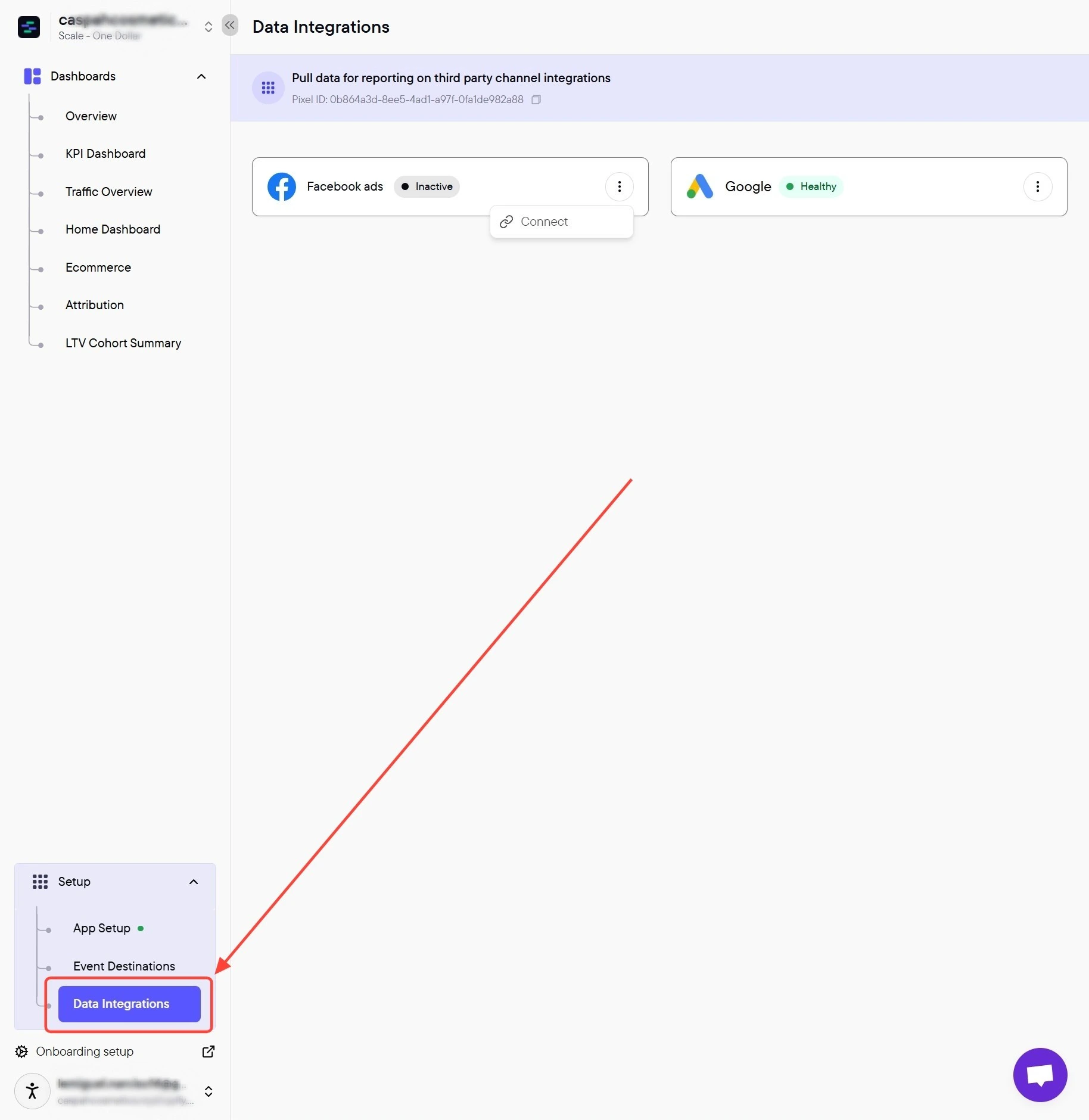
2
Open the Facebook ads connector
On the Data Integrations page, find the Facebook ads card and click the kebab menu (3 dots) in the top-right of the card, then click Connect.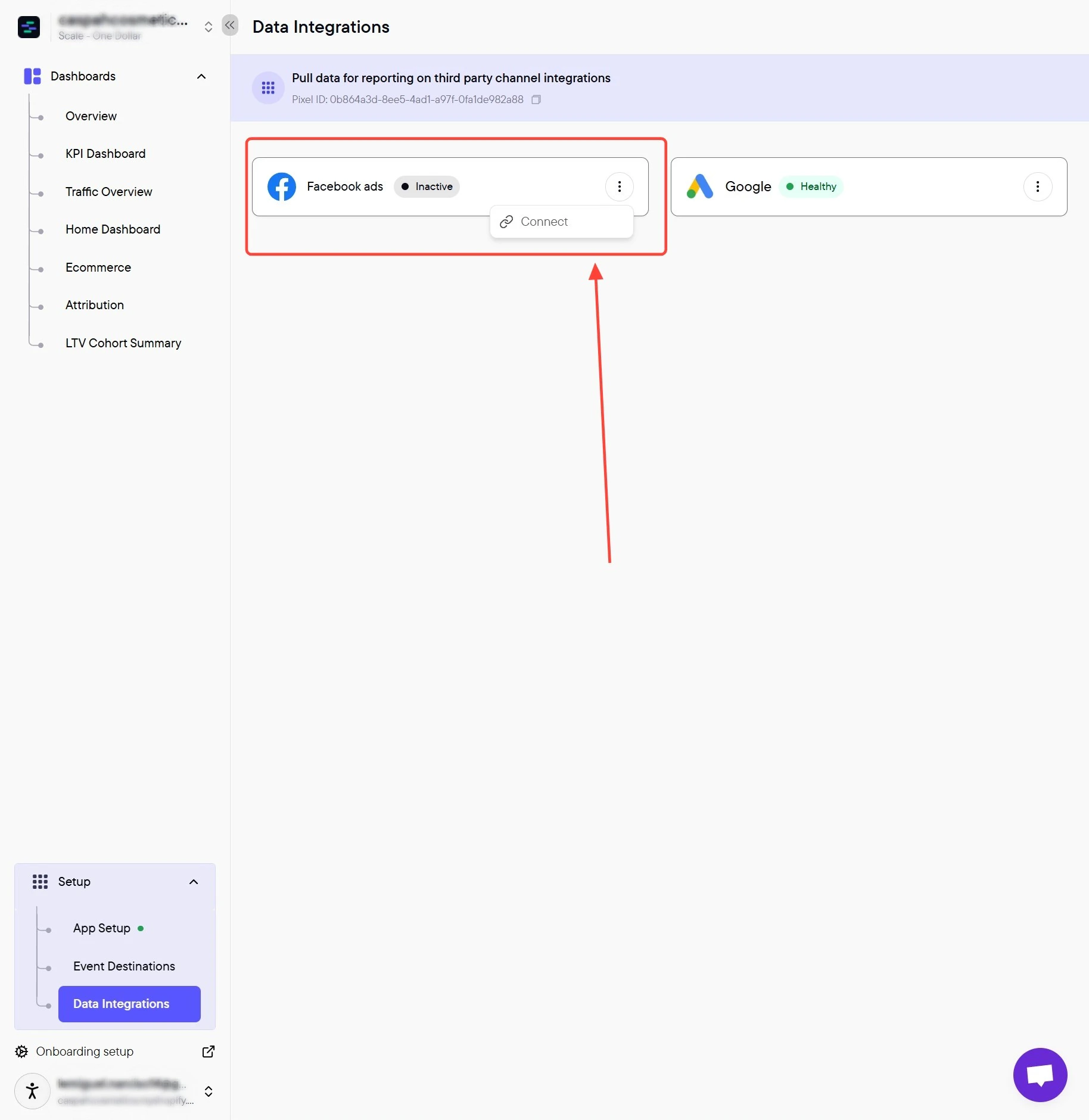
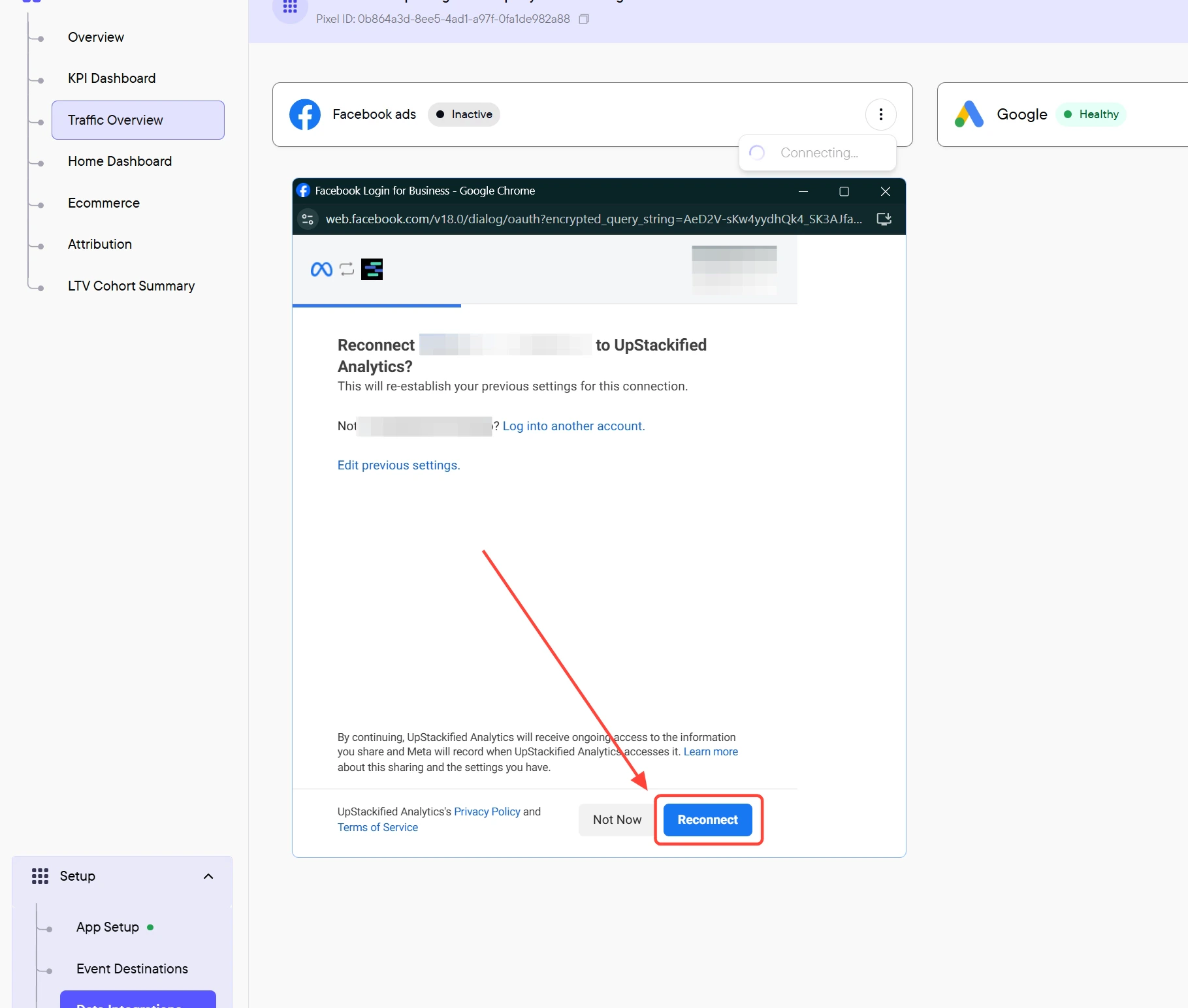
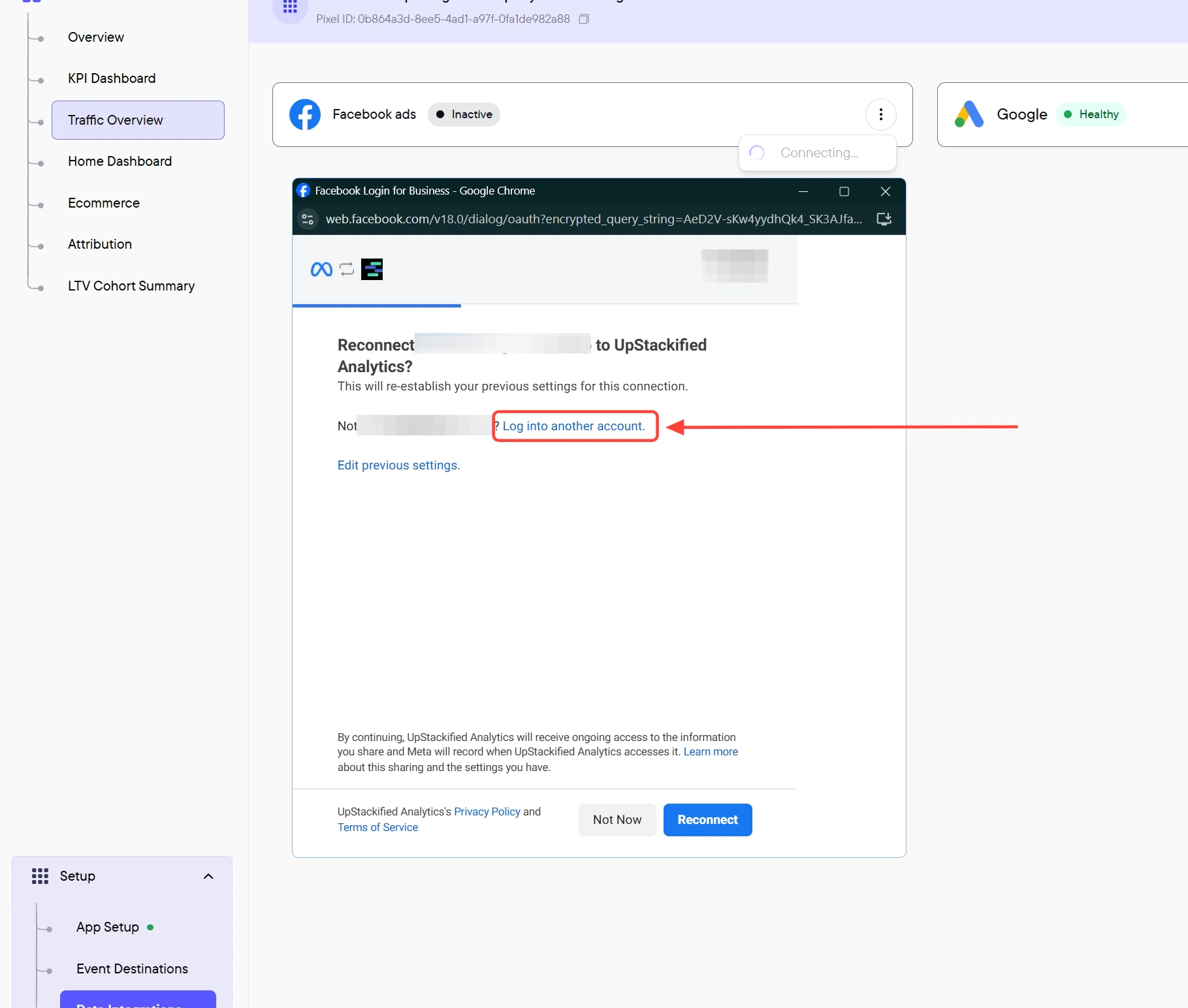
3
Select the Facebook ad account
A popup displays every ad account linked to your Facebook user. Select the Facebook ad account you want Upstack Data to read performance data from.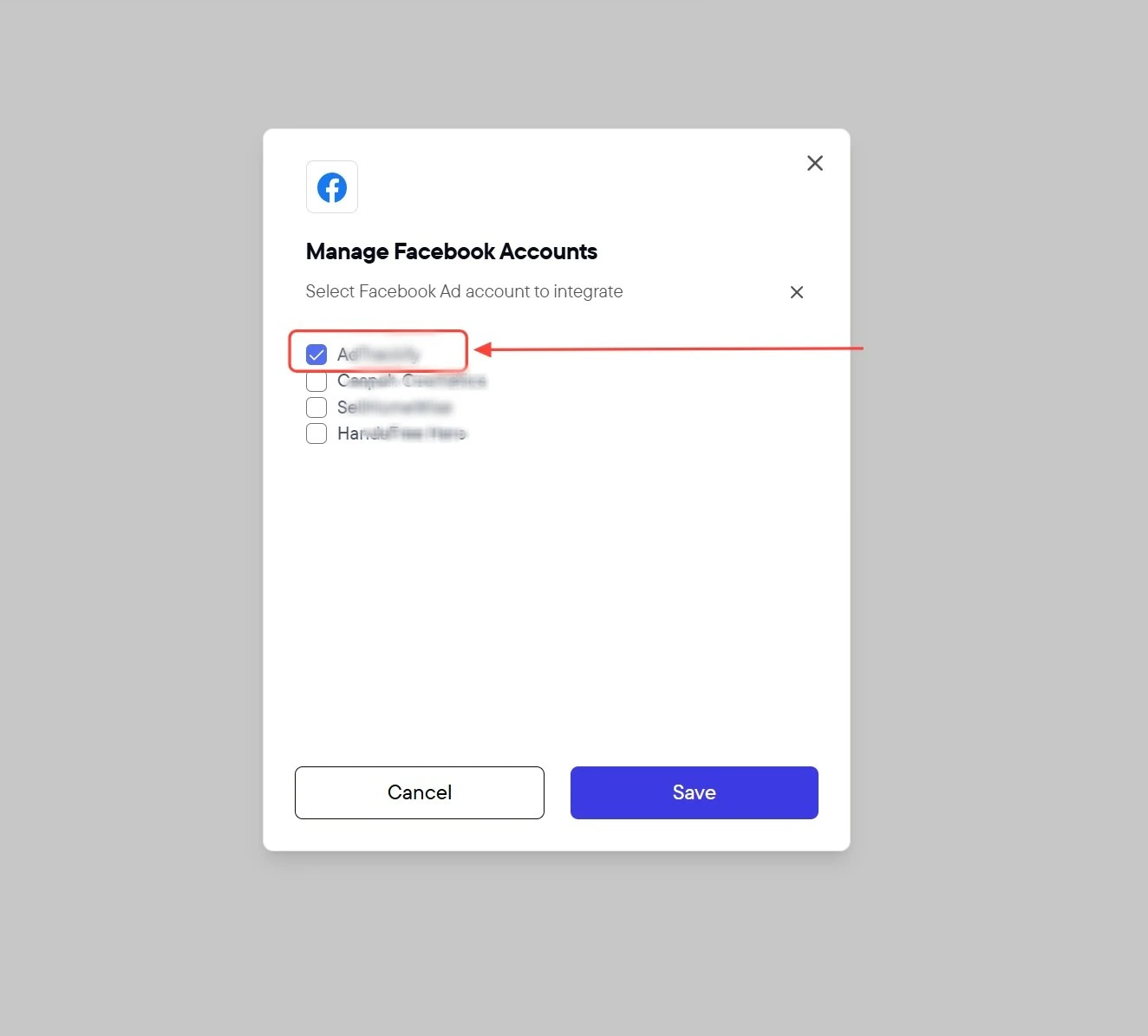
4
Save the configuration
Click the Save button.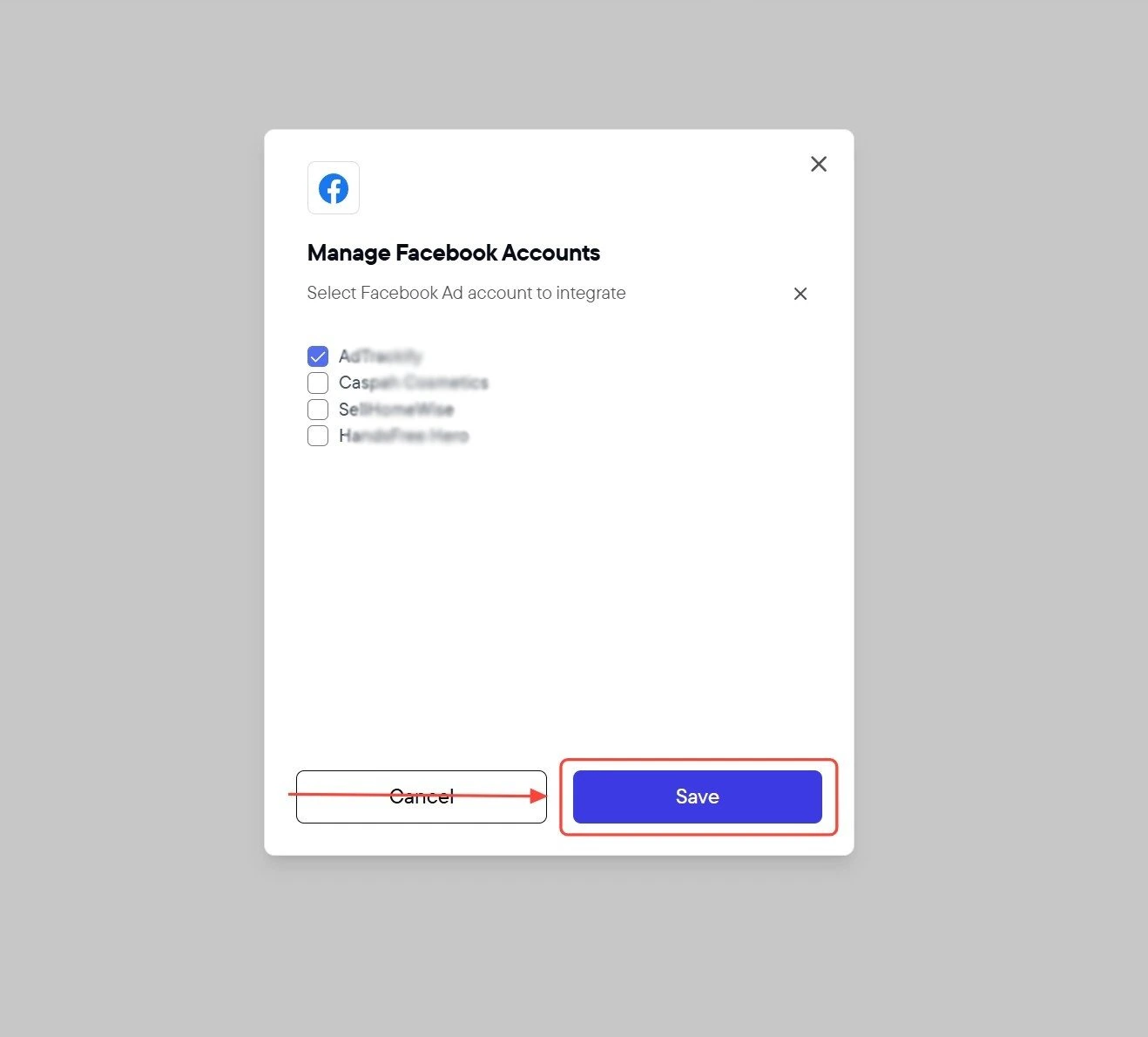

5
Verify the integration is healthy
In the Upstack dashboard, the Facebook ads integration card should display Healthy with a green status indicator within 5 minutes.If the status shows Unhealthy or Reconnect required:
- Confirm the Facebook user that authorized the connection still has access to the ad account.
- Re-run the Connect flow and re-grant all requested permissions when prompted.