

Data direction: This is a source — data flows into Upstack from this platform for analytics, reporting, and enrichment.
Prerequisites
Prerequisites:
- An Upstack Data account (sign up for free)
- Access to your workspace in the Upstack dashboard
- A Facebook login with access to the ad accounts you want to connect
- At least one ad account with active or historical campaigns
- Popups allowed for app.upstackdata.com (the Facebook sign-in opens in a popup)
This is a source connection — it pulls cost and performance data into Upstack. To send conversion events to Meta, see the Meta CAPI destination guide.
Setup
1
Open Data Sources
Sign in to Upstack Data at app.upstackdata.com, then open System → Data Sources in the left-hand menu (or go directly to app.upstackdata.com/integrations).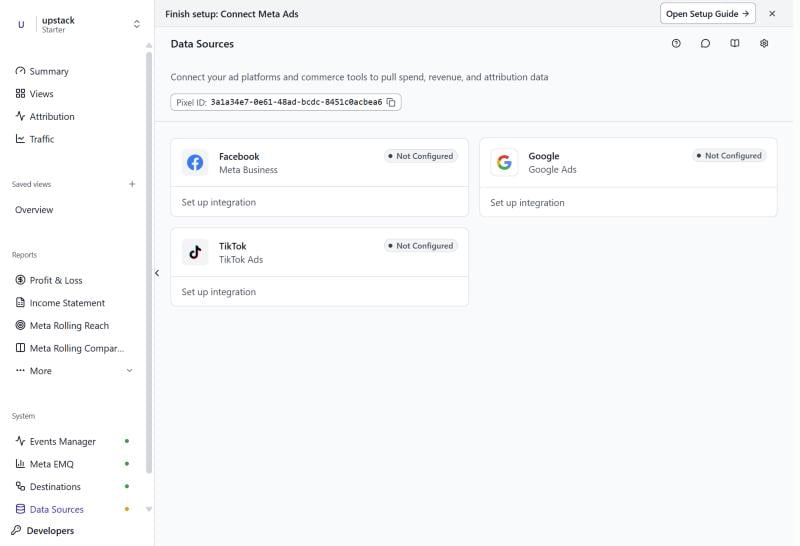
2
Open the Facebook settings
Click the Facebook card. The Facebook Integration Settings dialog opens with the connection status.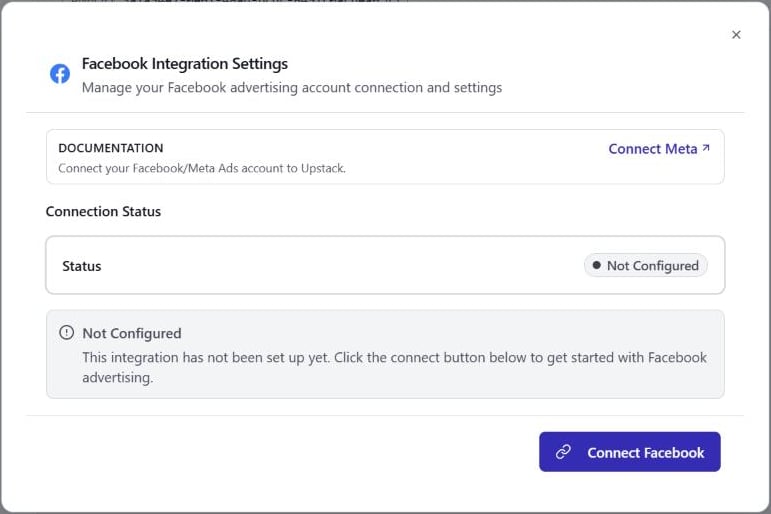
3
Connect Facebook
Click Connect Facebook. In the popup, sign in with the Facebook account that has access to your ad accounts and approve access for Upstack. If Facebook shows a different account than the one you need, switch accounts in the popup before continuing.When the popup closes, the card status changes to Pending until you finish the next step.
4
Select ad accounts
Back in the dialog, the Ad Accounts section lists every ad account your Facebook login can access, with each account’s name and ID. Select one or more accounts to sync. If an account is missing, click Refresh.
5
Save
Click Save & Complete Setup. The dialog closes and the Facebook card shows Connected with the number of ad accounts connected.The initial import covers up to 36 months of history and usually completes within 2–4 hours. After that, Upstack checks for updated metrics every 15 minutes, re-pulling the most recent 2 days so late-arriving spend is captured.
If you close the dialog before saving, Upstack asks you to confirm. Choosing Close & Finish Later leaves the card in Pending, and nothing syncs until you select an ad account and save.
Change, reconnect, or disconnect
Click the Facebook card on System → Data Sources to manage the connection:- Add or remove ad accounts: click Edit, change the selection, and click Save Changes.
- Reconnect: if the card shows Error or Disconnected, click Reconnect and sign in again.
- Disconnect: click Disconnect to stop syncing Facebook spend.
What Data Flows In
Upstack imports performance data at the account, campaign, ad set, and ad level, by day and by hour:
Upstack also imports the campaign structure (campaigns, ad sets, and ads), so you can drill down from campaign to ad. This includes names, status, objective, bid strategy, budgets, bid amount, optimization goal, and billing event.
Spend is stored in the ad account’s currency and each day follows the ad account’s time zone. Reports convert spend to your reporting currency using daily exchange rates.
You’ll Know It’s Working When…
- The Facebook card on System → Data Sources shows Connected and the number of ad accounts connected
- Facebook spend appears in the Attribution dashboard within 2–4 hours of connecting
- ROAS populates for campaigns that have both spend data and attributed conversions
Troubleshooting
No data appearing after connecting
No data appearing after connecting
Check that the Facebook card shows Connected, not Pending. A Pending card means no ad account was saved: click the card, select your accounts, and click Save & Complete Setup.If the card shows Connected and no data appears after 4 hours:
- Verify the selected ad accounts had spend in the last 36 months (the import window)
- Click the card and confirm the right ad accounts are selected
- Contact support with your Pixel ID
An ad account is missing from the list
An ad account is missing from the list
The list shows the ad accounts your Facebook login can access. Click Refresh to reload it. If the account is still missing, make sure your Facebook user has been given access to that ad account in Meta Business Settings, then click Reconnect and sign in again.
Spend numbers don't match Meta Ads Manager
Spend numbers don't match Meta Ads Manager
Small discrepancies between Upstack and Meta Ads Manager are normal while the most recent days are still being re-pulled.Common causes of larger discrepancies:
- Time zone — each day follows the ad account’s time zone. If your Upstack reporting timezone differs, compare the same date range in both time zones.
- Currency — Upstack converts spend from the ad account’s currency to your reporting currency with daily exchange rates, so totals can differ slightly from Ads Manager’s.
- Ad accounts — make sure every ad account that spends for your store is selected.
Card shows Error
Card shows Error
The saved Facebook sign-in no longer works, usually because access was revoked or the Facebook password or permissions changed. Syncing stops until you reconnect.
- Click the Facebook card on System → Data Sources
- Click Reconnect and sign in to Facebook again
- Check that your ad accounts are still selected
Still stuck? Contact support@upstackdata.com with your Pixel ID and a description of the issue. We typically respond within a few hours.
Related
Meta CAPI Destination
Send conversion events to Meta — the outbound counterpart to this inbound source.
Attribution and Reporting
How Upstack blends ad spend data with conversion events to calculate ROAS and CPA.
Connect Google Ads
Import Google Ads spend data to get a complete picture of your paid media performance.
Data sources overview
Every data source and what each card status means.