

Purpose of this setup
Connecting your Google Ads account is required to access performance data at the account, campaign, ad set, and ad levels, which powers your Upstack dashboards and attribution reporting.
Prerequisites
- An Upstack Data account with subscription active
-
A Google account with admin access to the Google Ads account you want to connect (Customer ID format:
123-456-7890) - No active Google Ads OAuth session that conflicts with the account you want to connect (sign out of unrelated Google accounts in your browser if needed)
Configuration Steps
1
Sign in to Upstack Data
Sign in to your Upstack Data account and navigate to Data Integrations.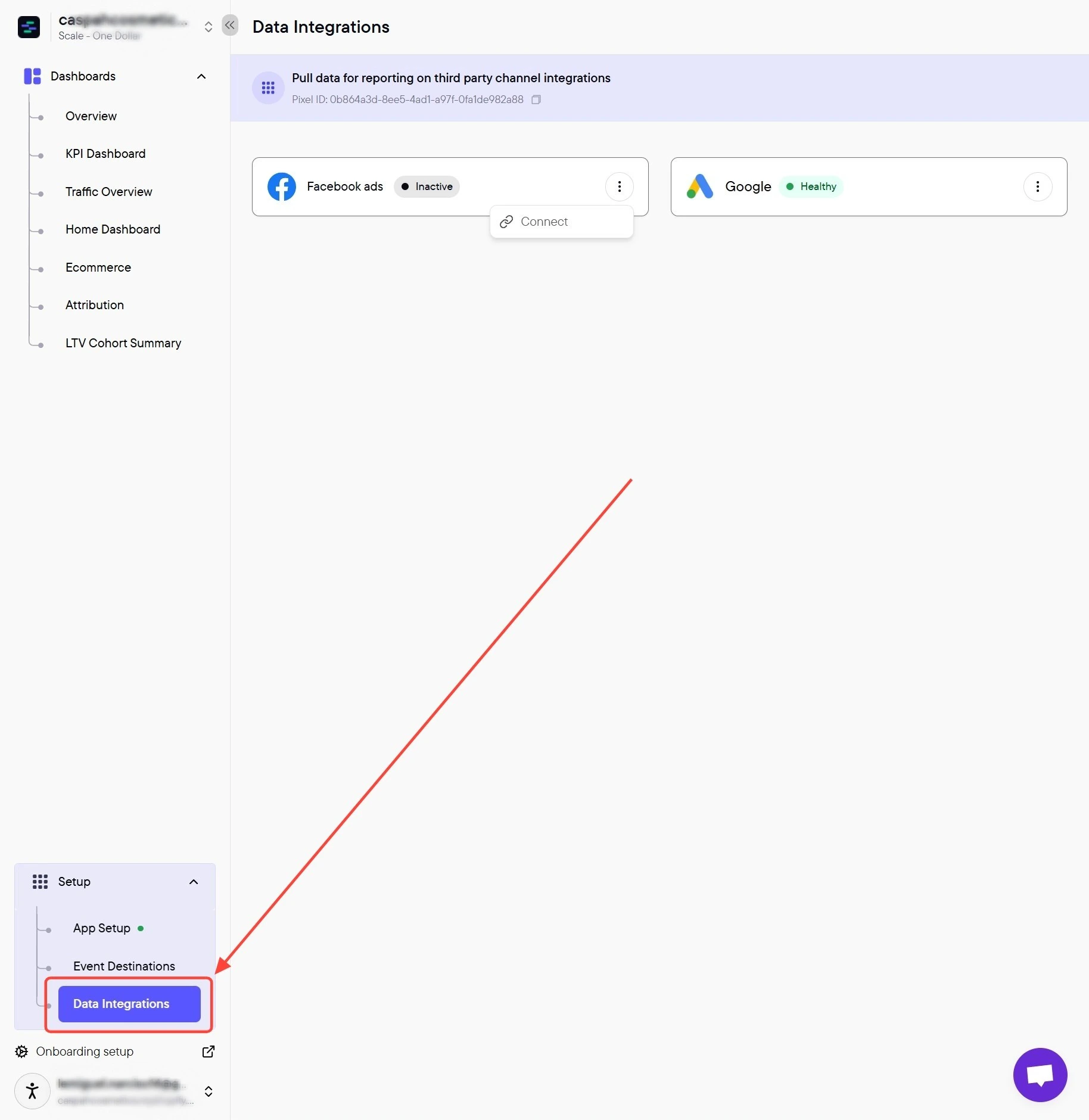
2
Start the Google Ads connection
On the Data Integrations page, click the kebab menu (3 dots) on the Google Ads row → click Connect.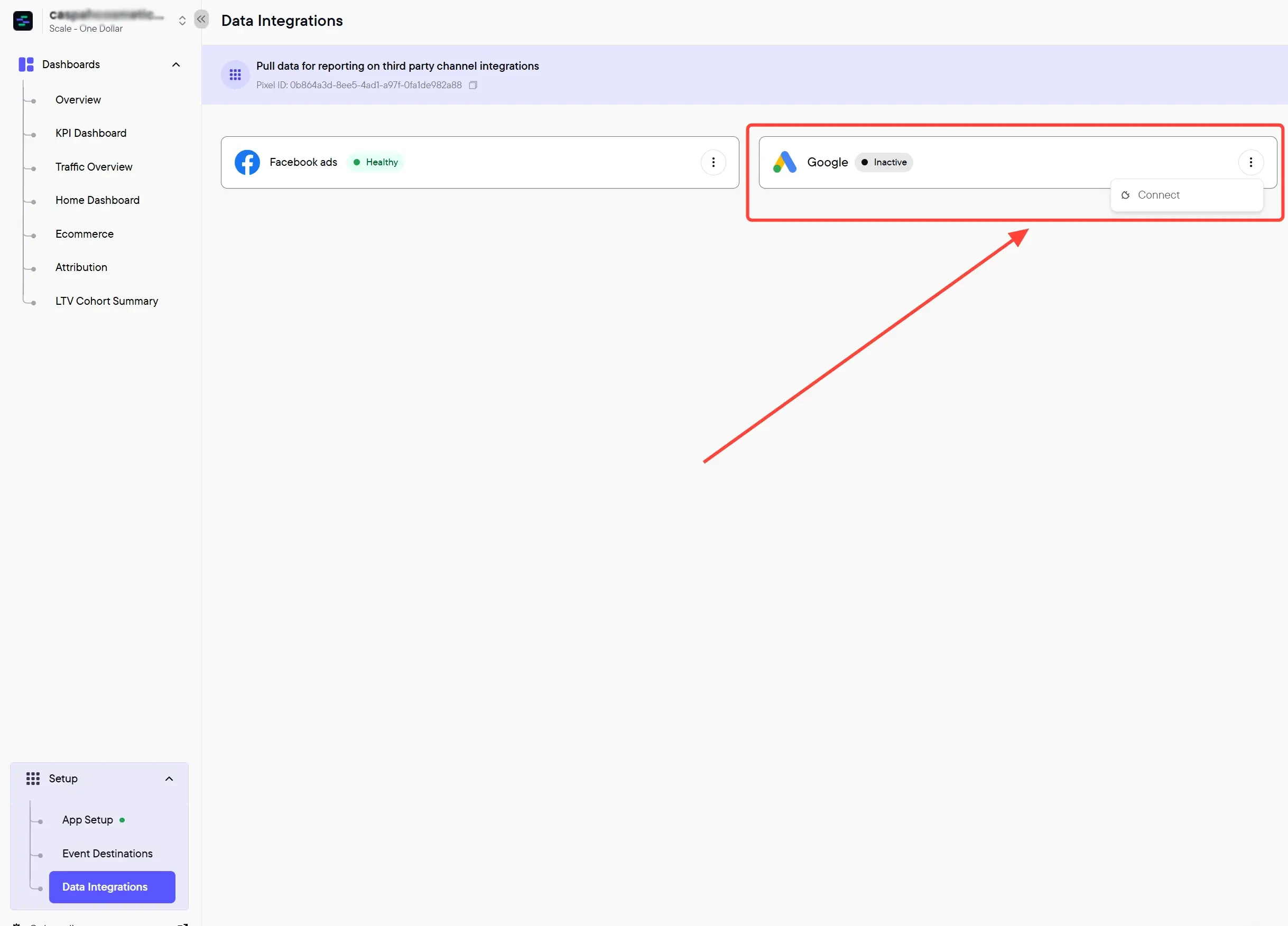
3
Select the Google Ads account
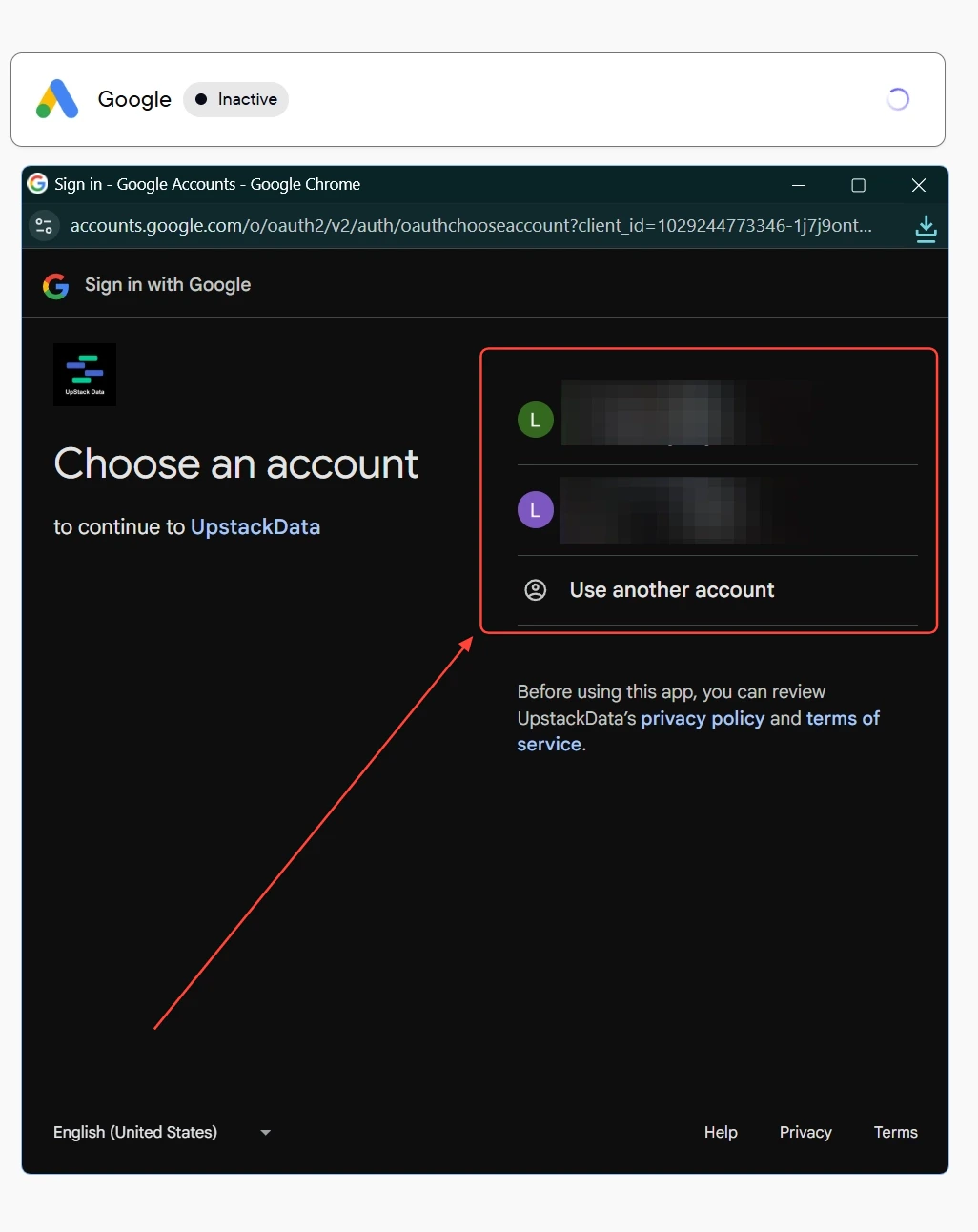
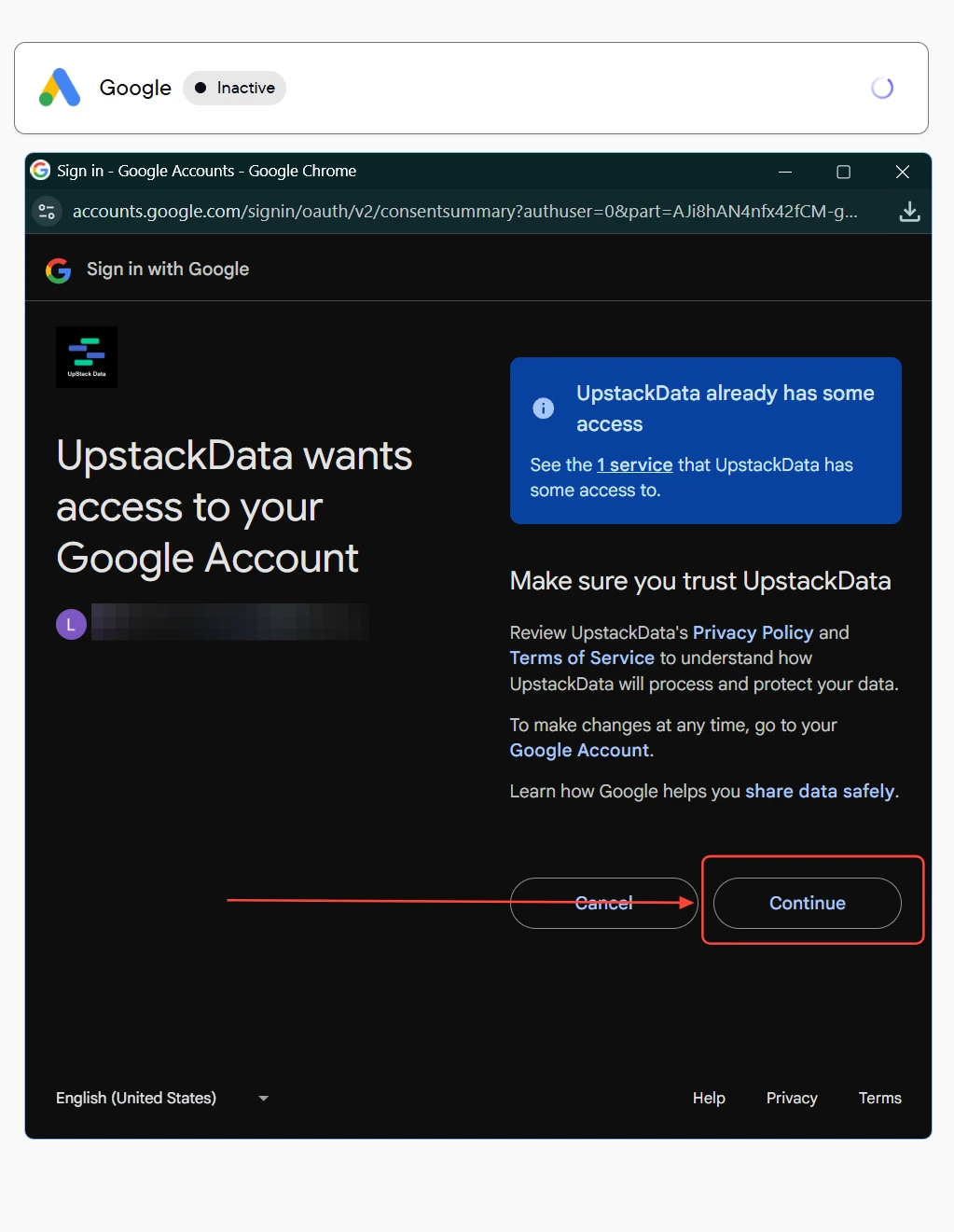
A popup displays all ad accounts linked to your Google account. Select the Google Ads account you want to connect.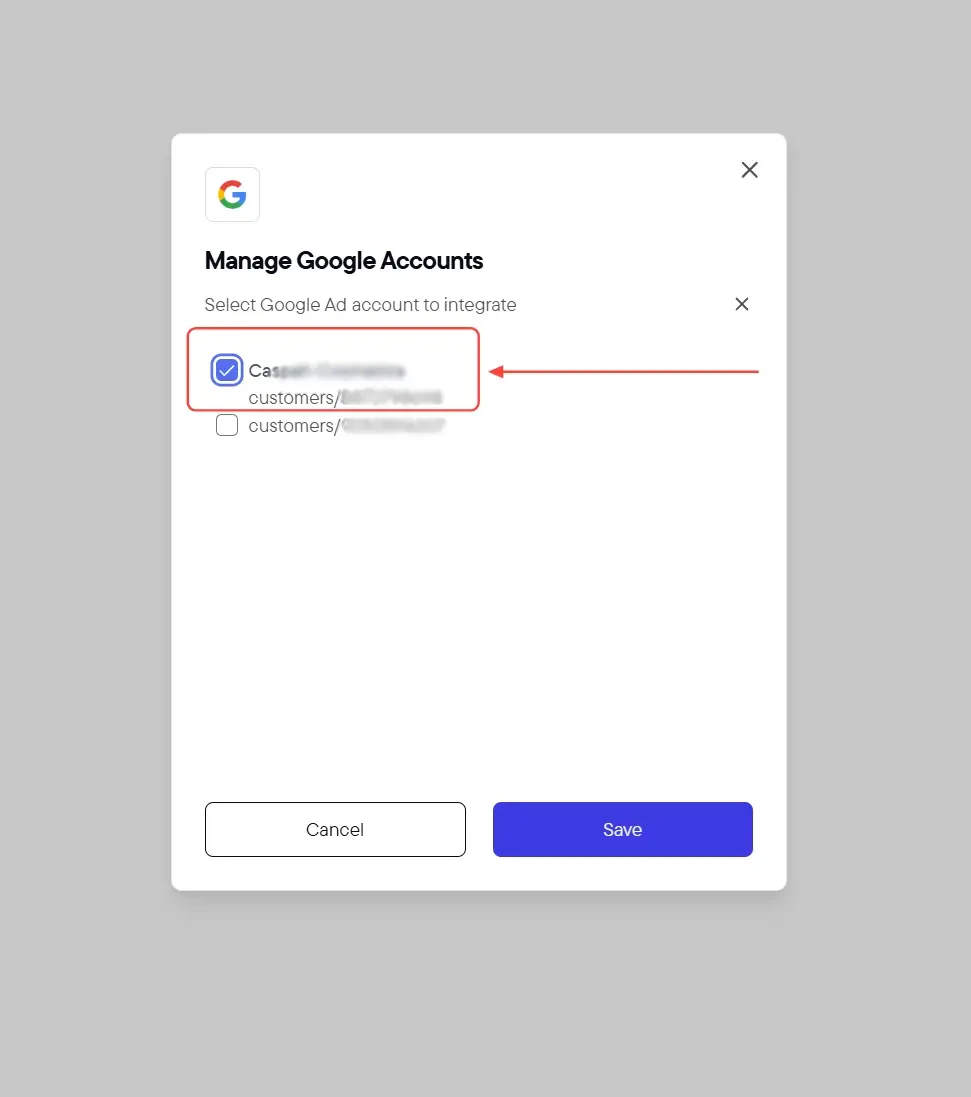
4
Save the configuration
Click the Save button.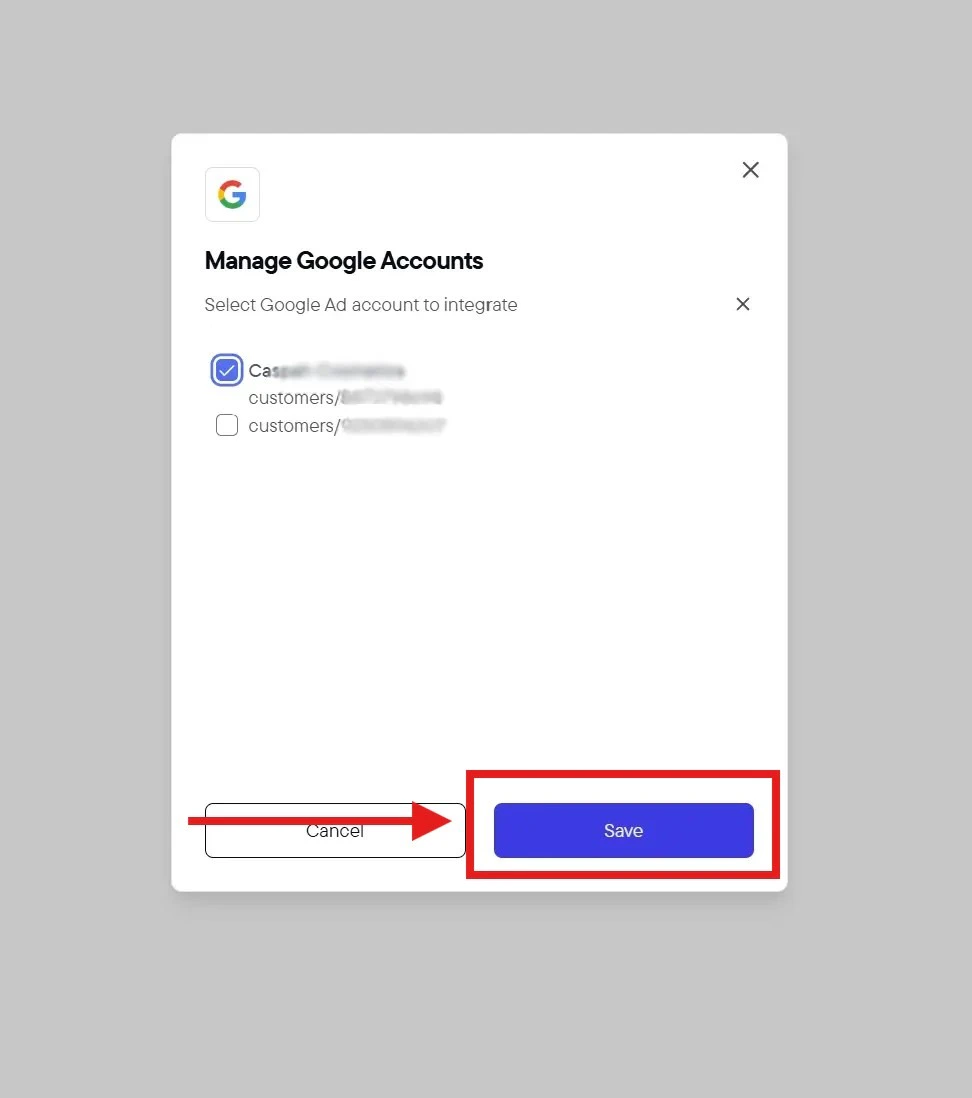
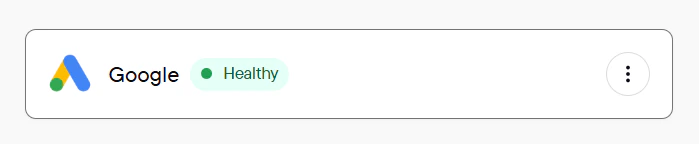
Success! You should see a confirmation message and the Google integration will appear as Healthy in your Data Integrations list.
5
Verify the connection
- On the Data Integrations page, confirm the Google Ads row shows status Healthy.
- Open your Upstack dashboard reporting and confirm Google Ads spend and campaign data appear within 24 hours of connecting.