

Tracking Method
Tracking Method is set to Browser + Server by default, and this is the recommended way to run Google Ads. The two paths work independently — there is no deduplication between them. The browser tag forwards your purchase to the Conversion ID and Conversion Label configured above. The server side is configured separately in Event Conversion Mappings, where you can map as many events to conversion actions as you want. If you don’t want to load the Google Ads tag in the browser, switch the Tracking Method to Server. See Tracking Method.
Prerequisites
Before you start, you need:- An active Upstack Data account (sign up)
- Admin or Manager access to a Google Ads account
- An existing Purchase conversion action in Google Ads (or follow How to Create a New Upstack Data Purchase Goal in Google Ads first)
Configuration Steps
1
Sign in to Upstack Data
Sign in to Upstack Data at app.upstackdata.com.
2
Add a new Google Ads destination
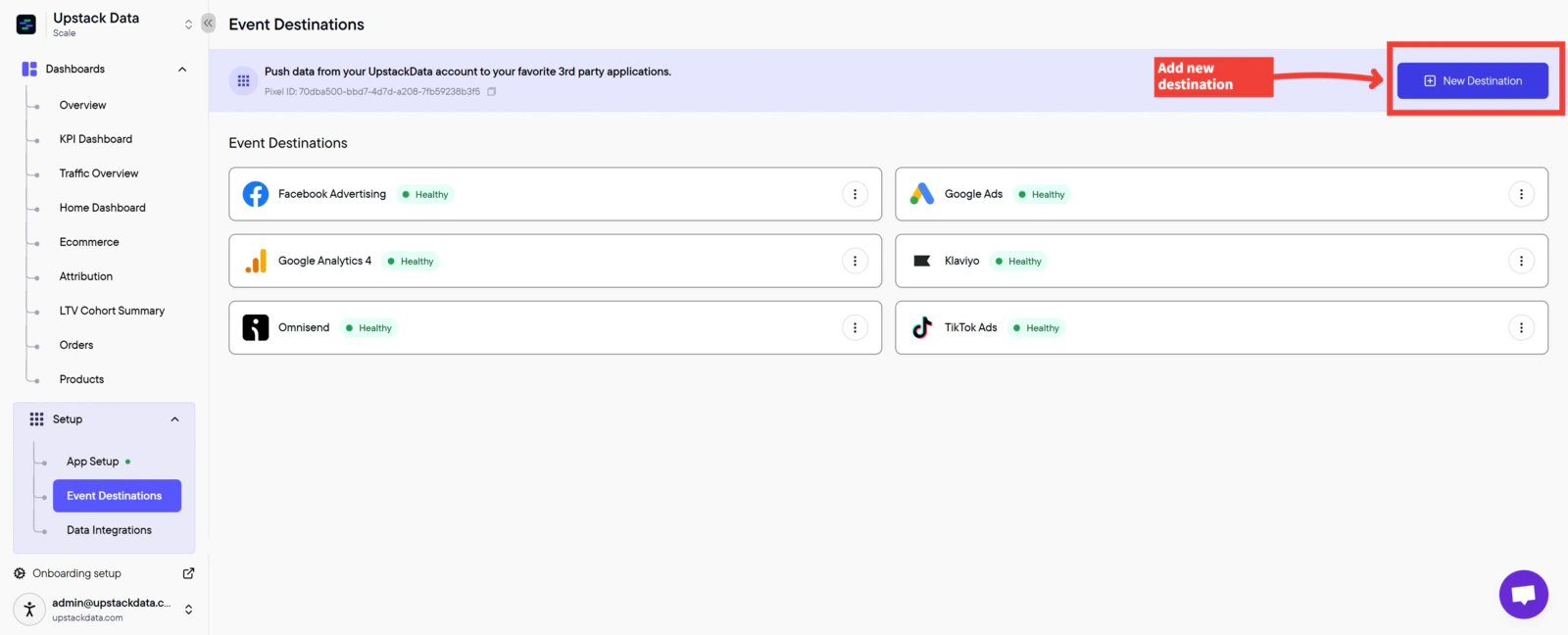
- In the Upstack dashboard, navigate to Events Destination (app.upstackdata.com/pixel/event-destinations)
-
Click ”+ New Destination” in the top-right corner of the page
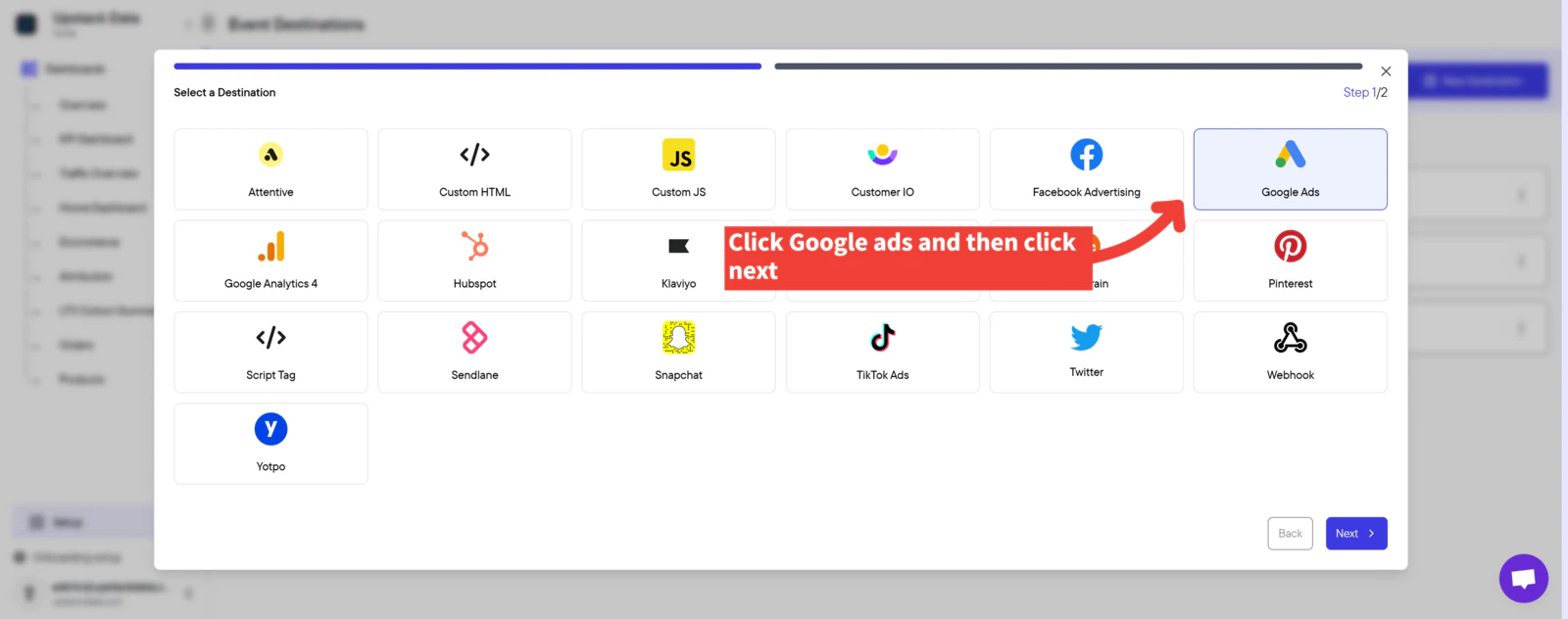
- In the Select a Destination popup, click “Google Ads”
-
Click Next
3
Find your conversion in Google Ads
- In a new tab, sign in to Google Ads
-
In the left-hand menu, navigate to Goals → Conversions → Summary
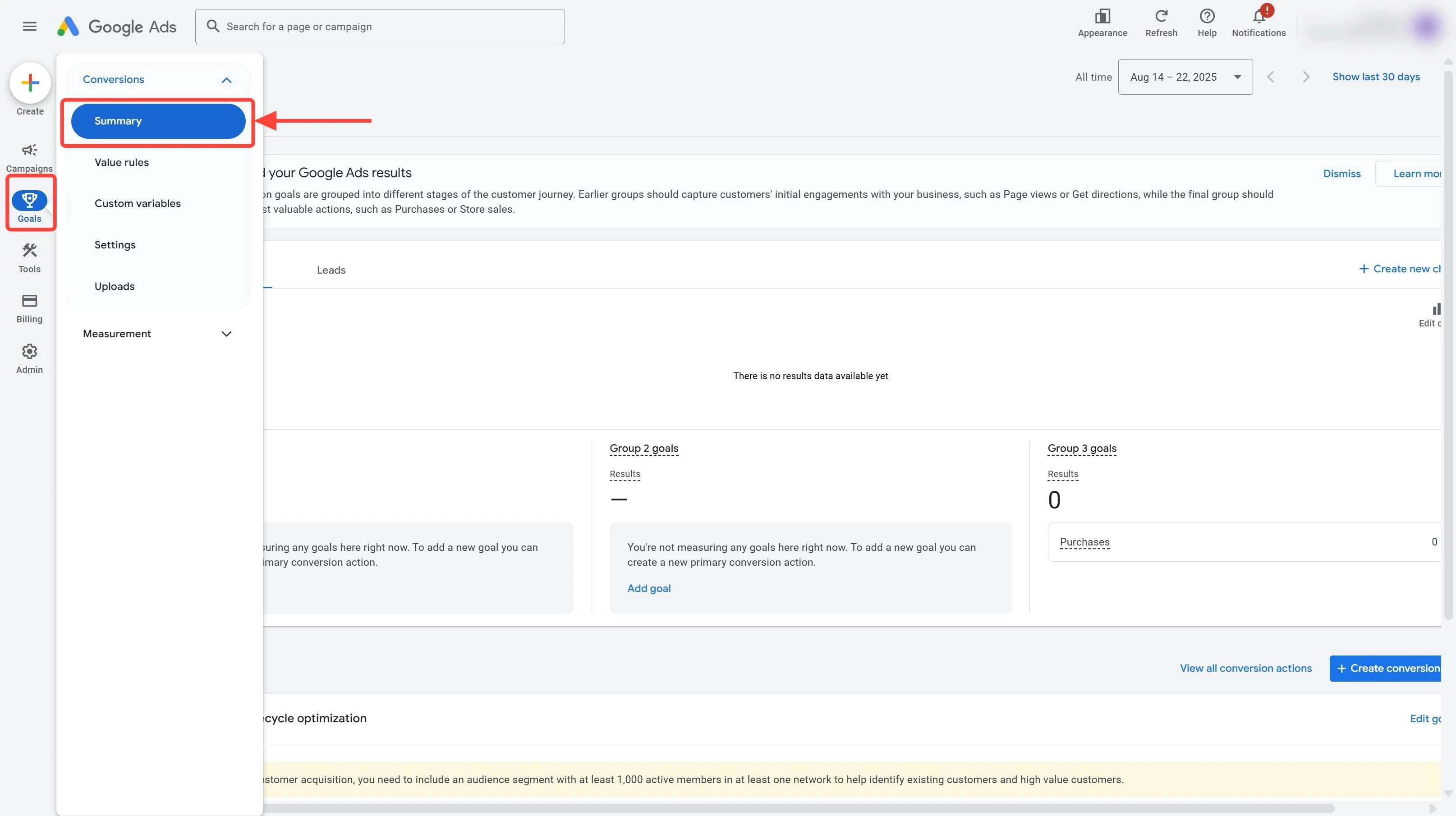
Google Ads Conversions Summary PageFind your primary Purchase conversion (usually named “Purchase - UpstackData”) and click to open it.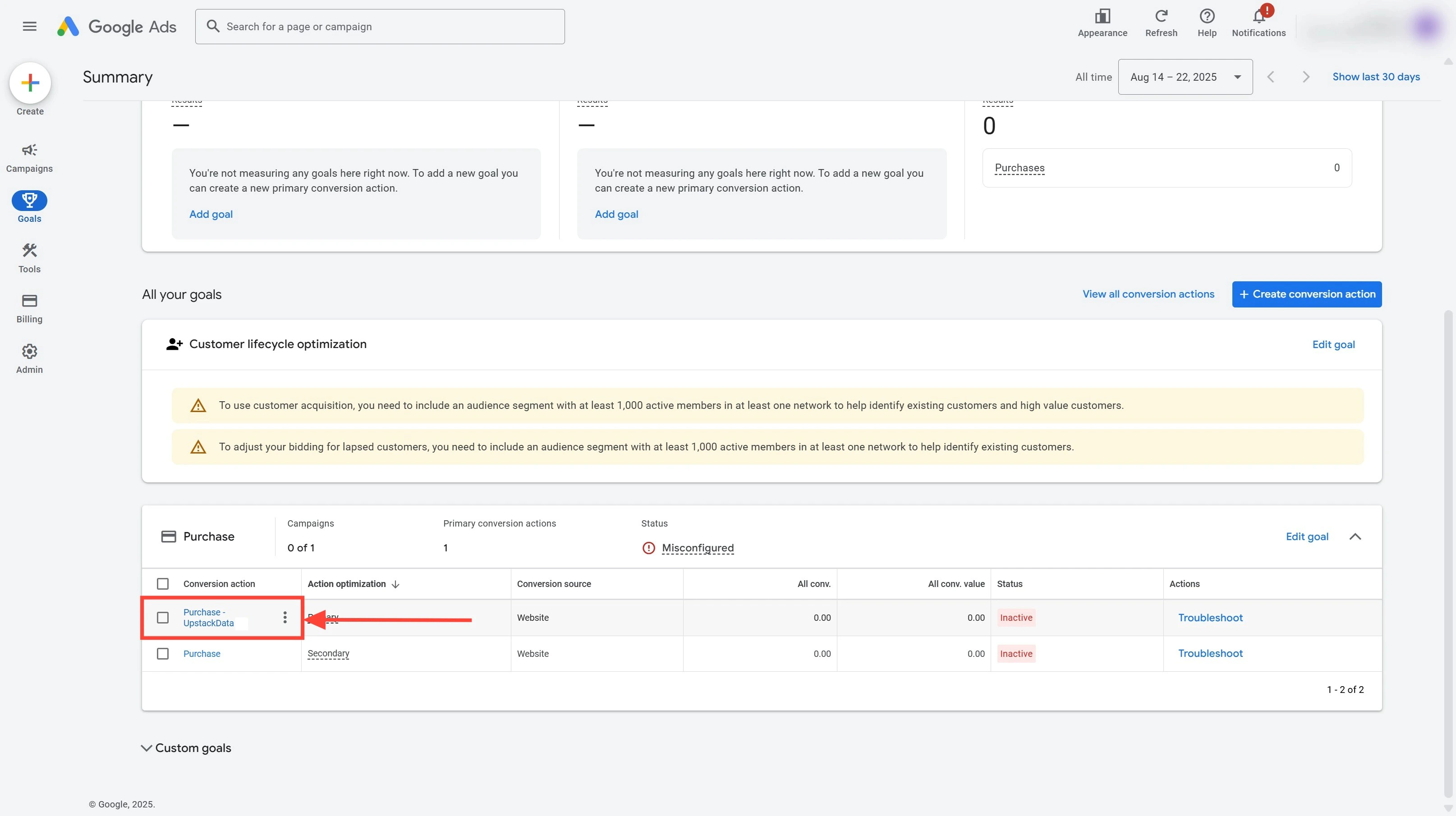
Example Primary Conversion EventNote: Your conversion may be named differently. Look for the primary event linked to your purchase conversion.
4
Open Tag Setup to reveal your IDs
On the conversion detail page, scroll down to the Tag Setup section and click “Use Google Tag Manager”.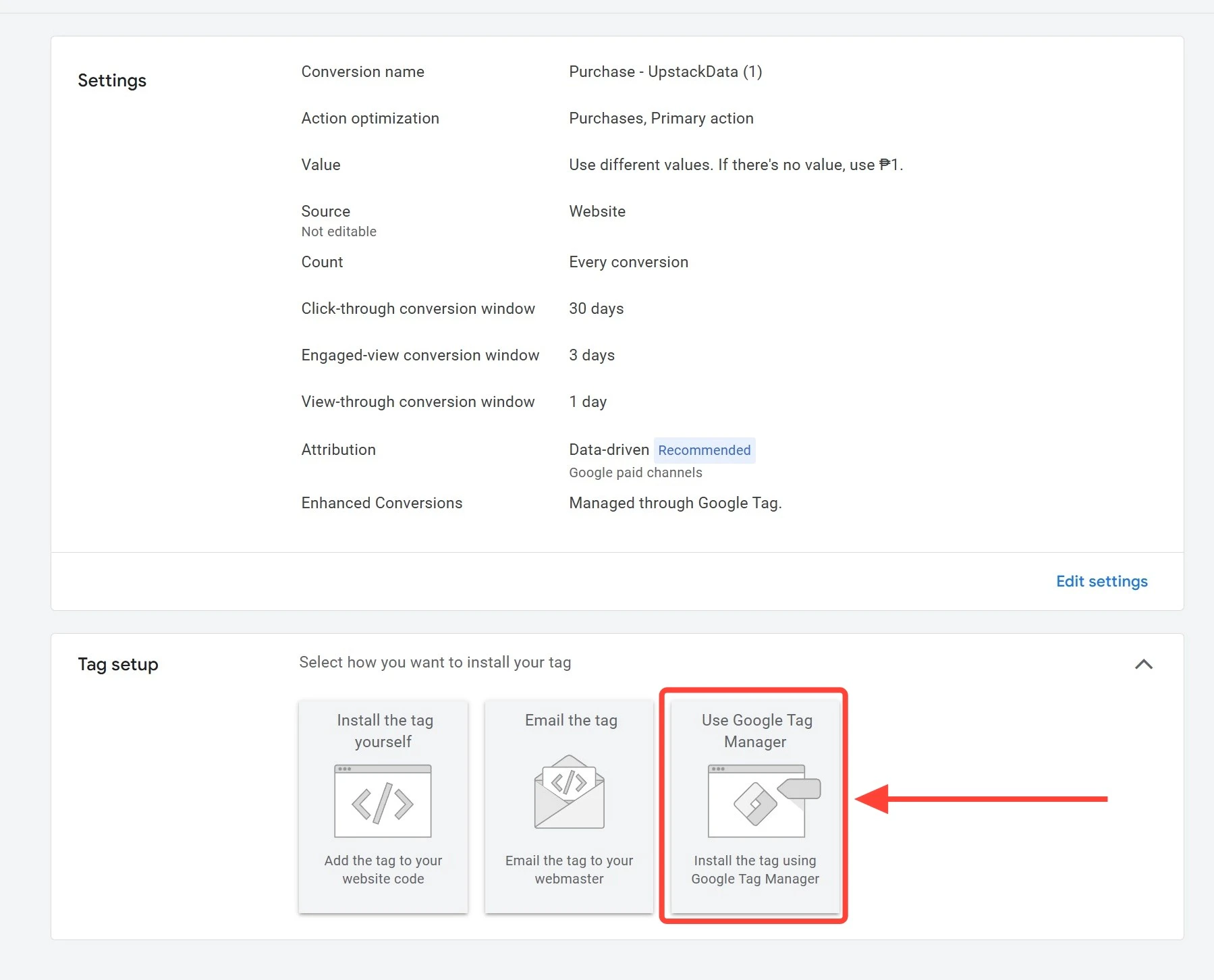
For a step-by-step walkthrough, see How to Get Your Google Ads Conversion ID and Label →.
-
Conversion ID — starts with
AW-followed by 9–10 digits (e.g.,AW-123456789) -
Conversion Label — 11-character alphanumeric string (e.g.,
ABc1d2EFG3h)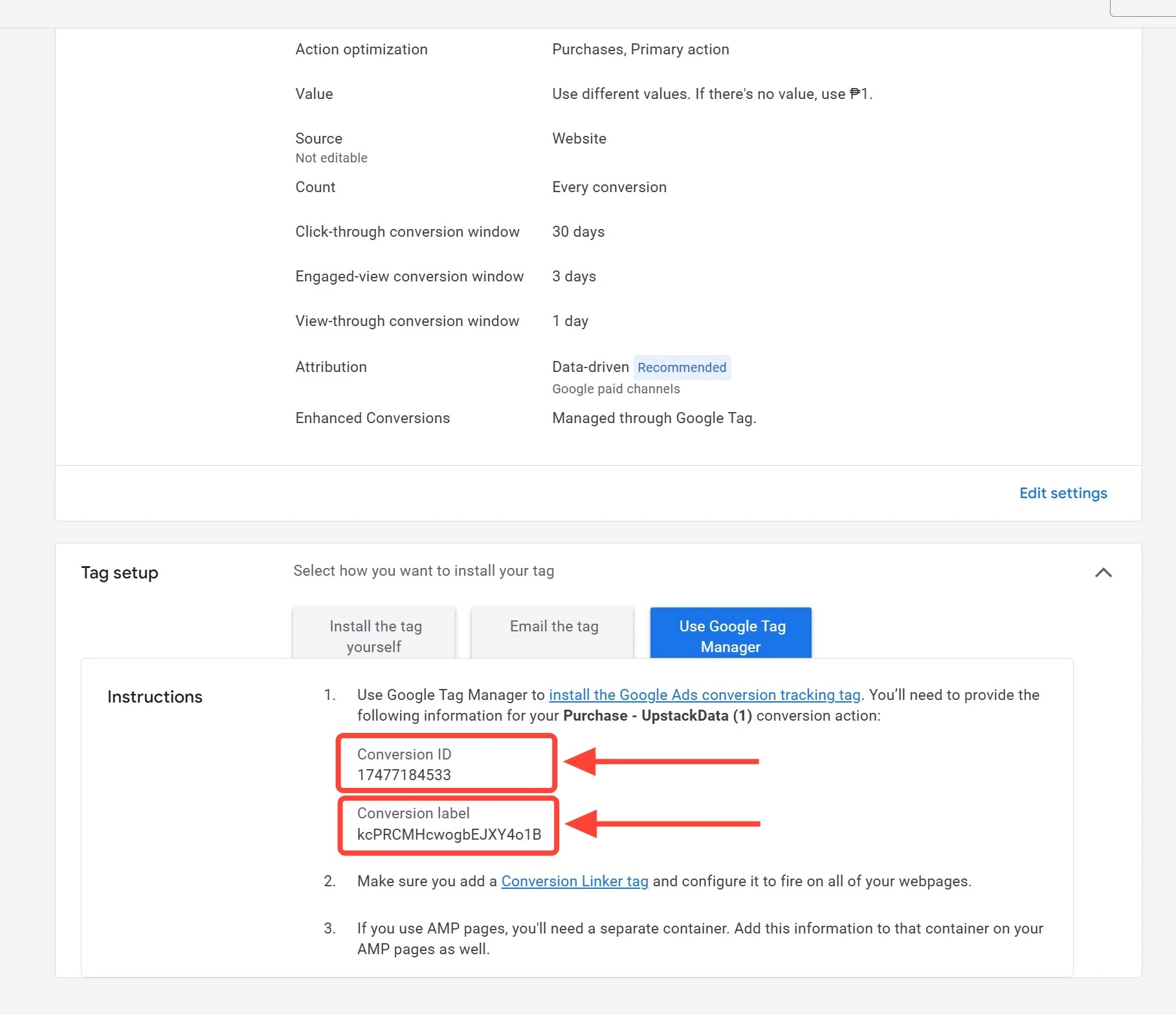
5
Enter your Conversion ID and Conversion Label
Back in the Upstack dashboard:
-
In the Conversion ID field, paste your full Conversion ID from Google Ads (e.g.,
AW-123456789). TheAW-prefix is required. -
In the Conversion Label field, paste your Conversion Label from Google Ads (e.g.,
ABc1d2EFG3h).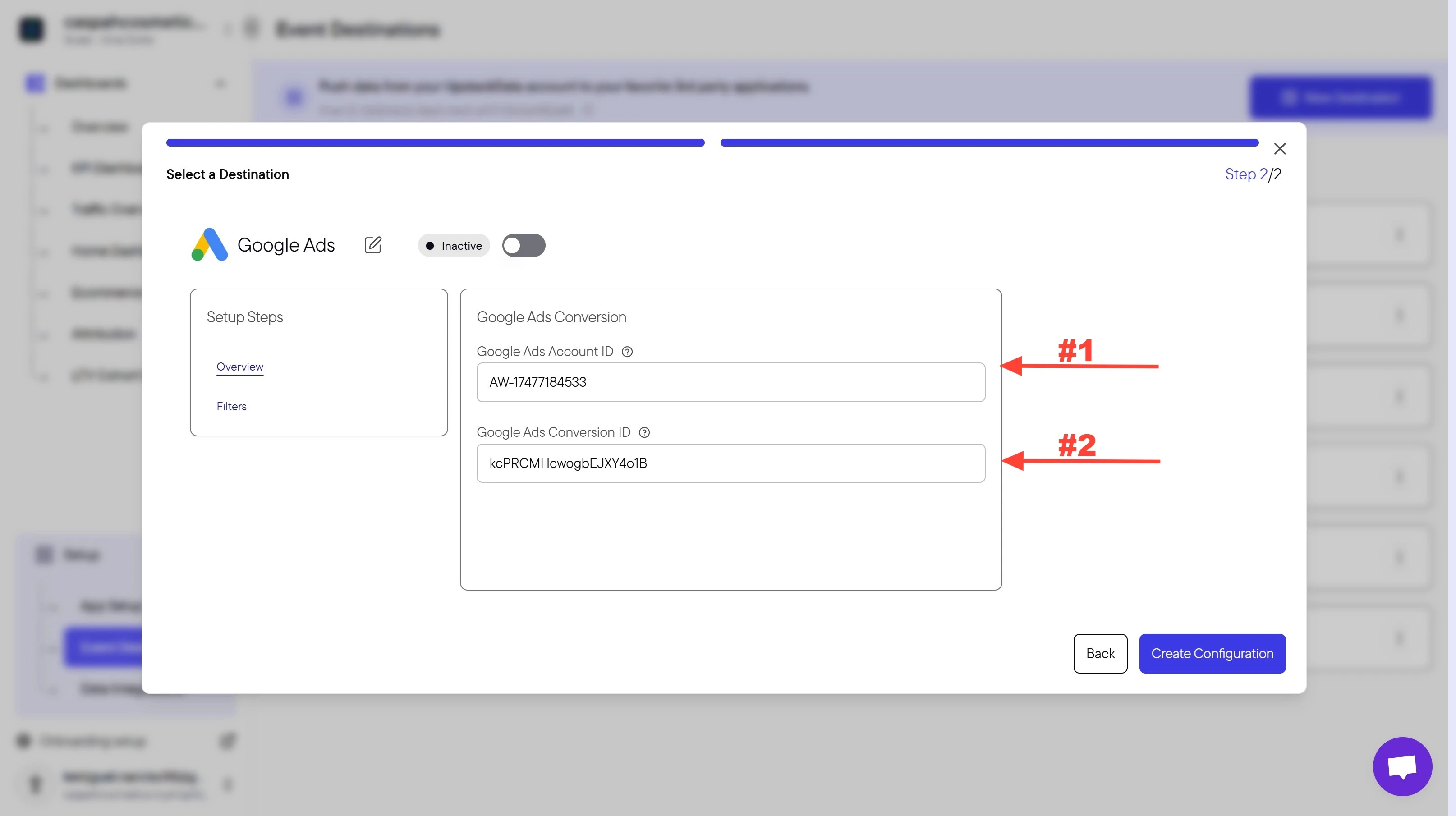
6
Create the configuration
Click the Create Configuration button to save the setup.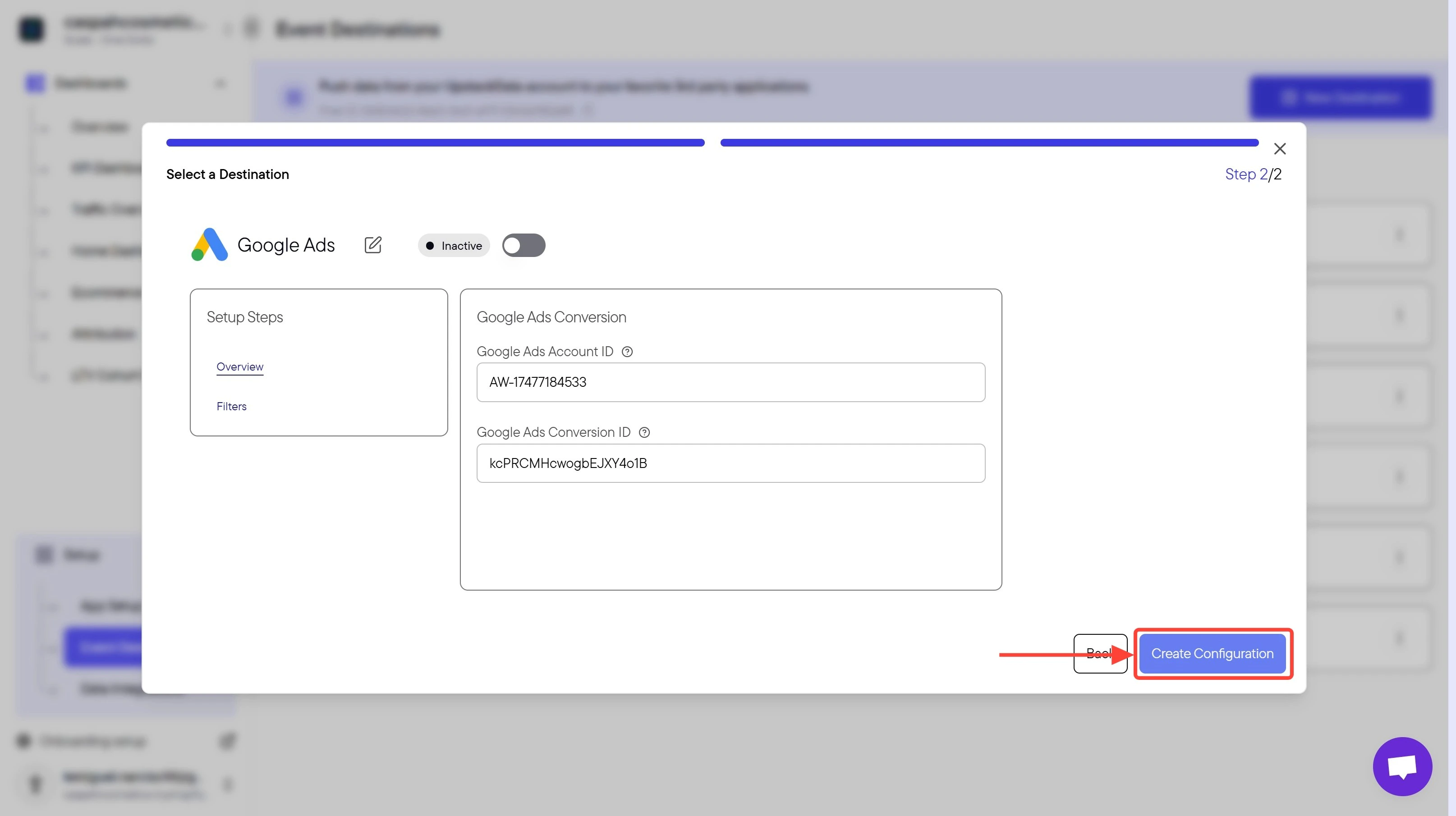
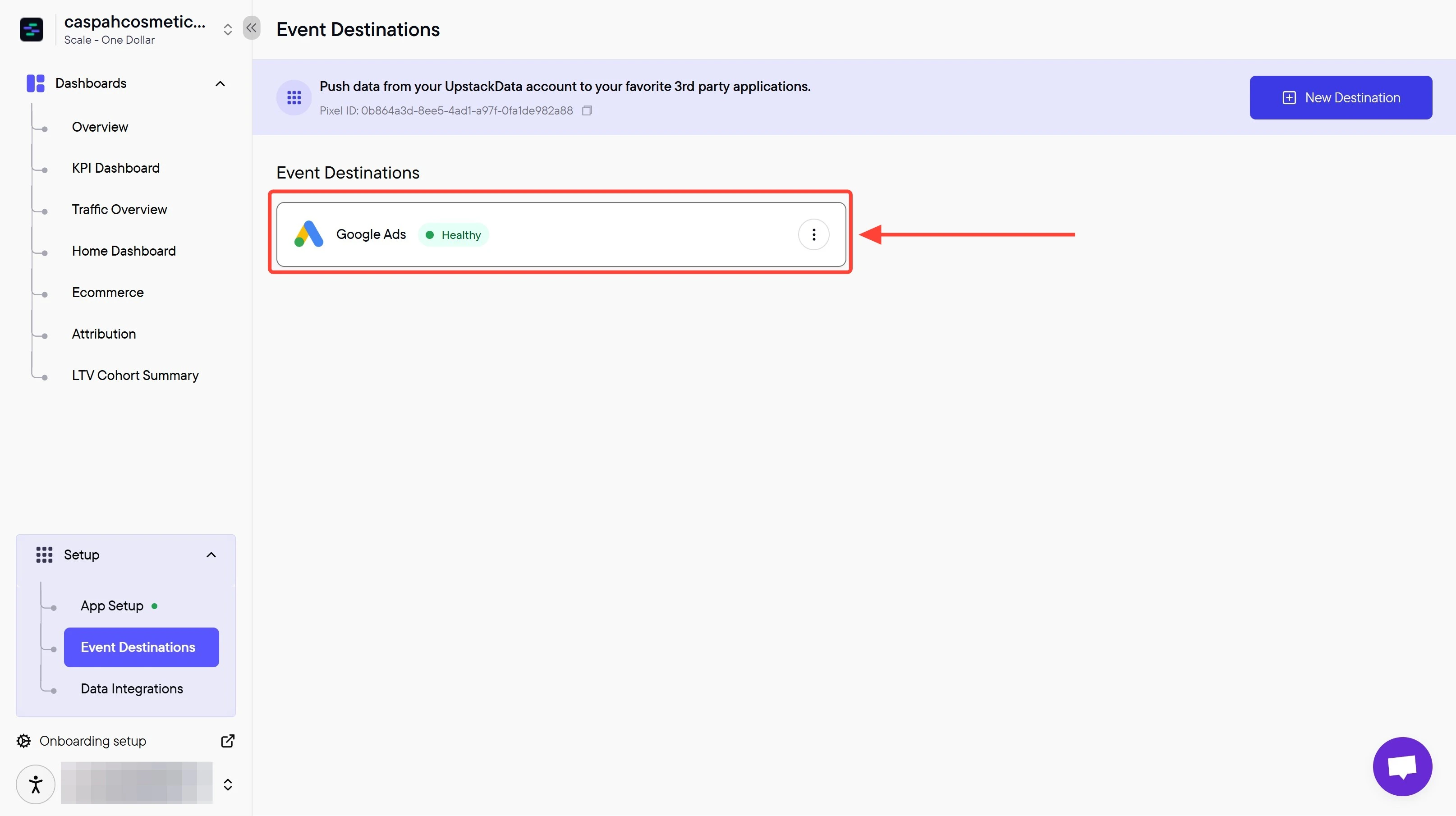
Success! 🎉 You should see a confirmation message and the Google Ads destination will appear as “Healthy” in your destinations list.
Verify the Setup
To confirm the destination is working:- In the Upstack dashboard, the Google Ads destination should show Healthy status under Events Destination.
- Place a test order on your store and check Google Ads Goals → Conversions → Summary within 24–48 hours to confirm the conversion is recorded.
- The Conversion ID starts with
AW-and matches the value shown in Google Ads. - The Conversion Label was copied without leading or trailing spaces.
- The conversion action in Google Ads is enabled and not paused.