

Before you start
- A Google user with Admin access to the Google Ads account. That user must have direct access to the advertising account: Upstack lists only active advertising accounts the user can open directly, not manager (MCC) accounts or test accounts.
- The Google Ads Conversion ID and Google Ads Conversion Label if you keep the browser tag on (Tracking Method Browser + Server). See How to Configure Google Ads Destination in Upstack Data. With Server, you don’t need them.
Set up server-side delivery
1
Turn on enhanced conversions in Google Ads
Do this first, before you connect Google Ads in Upstack.
- In Google Ads, go to Goals → Conversions → Settings.
- Open the Enhanced conversions section.
- Accept the customer data terms if Google asks you to.
- Turn on Enhanced conversions for leads.
2
Open the Google Ads destination in Upstack
In Upstack, click Destinations in the left sidebar (app.upstackdata.com/destinations).
- New destination: click New Destination in the top-right corner, then click the Google Ads card.
- Existing destination: click your Google Ads destination.
3
Set the Tracking Method
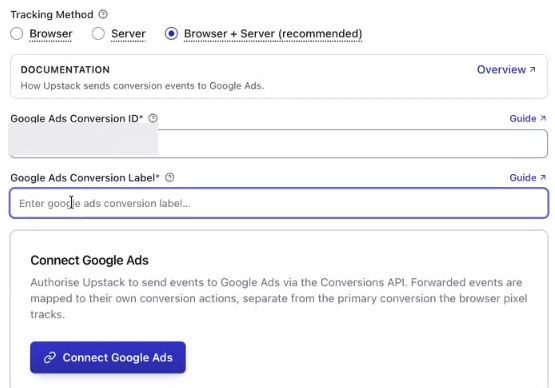
On the Overview tab, under Tracking Method, select Browser + Server (the default) or Server. The Connect Google Ads card appears below the destination fields.
- Browser + Server keeps the Google Ads tag on your store, so fill in Google Ads Conversion ID and Google Ads Conversion Label.
-
Server sends events from Upstack’s servers only. Both fields become optional.
4
Connect Google Ads
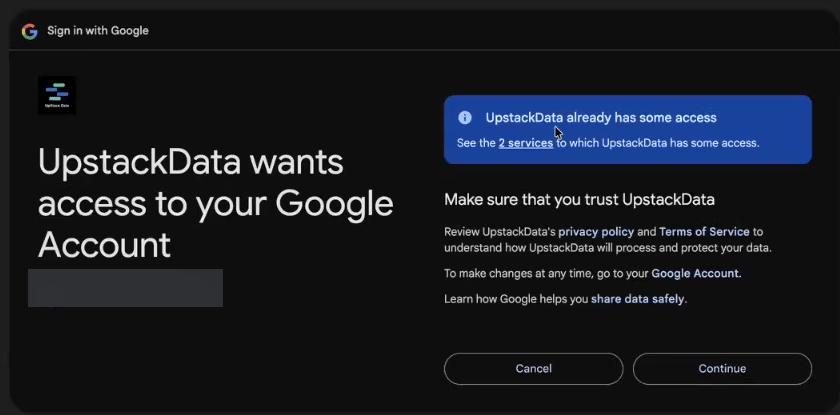
Click Connect Google Ads. A Google window opens:
- Choose the Google user from Before you start.
- If Google asks you to confirm it’s you, sign in with your password or passkey.
-
On UpstackData wants access to your Google Account, click Continue. If Google lists permissions with checkboxes, click Select all first.
5
Choose your Google Ads account
Open Google Ads Account (Select an account) and choose the advertising account to send conversions to. Accounts are shown as Name (ID).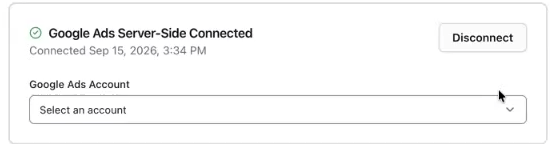
6
Link your events to conversion actions
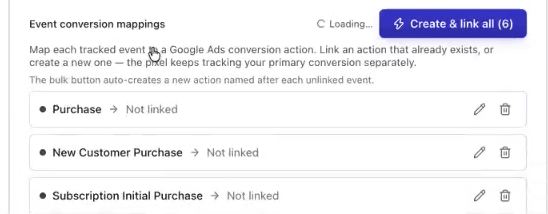
Event conversion mappings lists six events, each marked Not linked: Purchase, New Customer Purchase, Subscription Initial Purchase, Subscription Recurring Purchase, Add To Cart, and Initiate Checkout.
- Remove any event you don’t want to send with its trash icon. Purchase is the event most stores bid on. Keep New Customer Purchase or Subscription Initial Purchase if a campaign will optimize toward new customers or first subscription orders.
- To add another event, such as RC Purchase, click Add mapping and choose it in Select or enter event name.
-
Click Create & link all (N). Upstack creates a conversion action in Google Ads for each unlinked event, named after the event, such as Purchase - Upstack (Server-side), and links it.
7
Check every row, then save
Each linked row shows the event, an arrow, and its conversion action, such as Purchase → Purchase - Upstack (Server-side) (UPLOAD_CLICKS). If a row still shows Not linked, click Create & link all again or link it with the pencil icon.Then click Create Destination for a new destination, or Save Changes for an existing one. Only linked rows are saved and sent.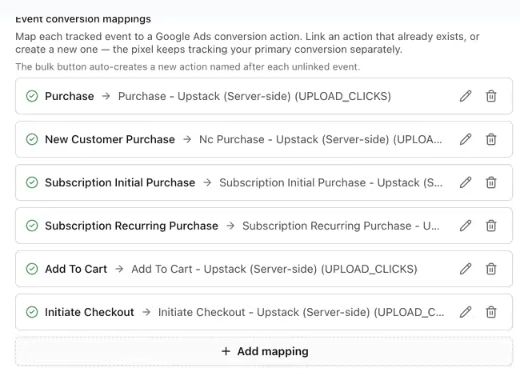
Choose your Primary purchase action
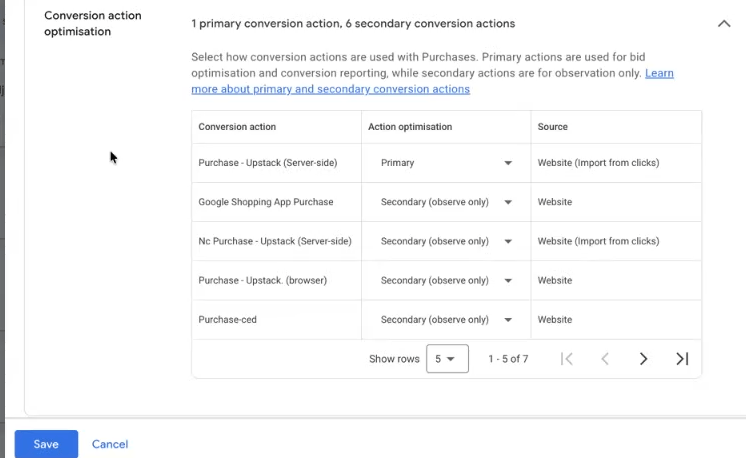
Google Ads bids toward Primary conversion actions. It counts the browser tag’s action and the server-side actions separately and doesn’t deduplicate between them, so keep exactly one purchase action Primary. Do this as soon as you save; there’s no waiting period.- In Google Ads, go to Goals → Summary and refresh the page. The actions Upstack created are listed with the source Website (Import from clicks).
- In the Purchase list, click Edit goals, and expand Conversion action optimisation.
- Set Purchase - Upstack (Server-side) to Primary.
- Set every other purchase action, including Purchase - UpstackData, to Secondary (observe only).
- Click Save.
Verify the setup
- On the Destinations page, the Google Ads destination shows Healthy.
- In Google Ads, Goals → Conversions → Summary lists the conversion actions you linked.
- Place a test order, then check that Purchase - Upstack (Server-side) records it. Google Ads can take a few hours to show a new conversion.
What Upstack sends to Google Ads
With server-side delivery on, Upstack sends each linked event from its servers to Google Ads through Google’s Data Manager API, to the conversion action you linked it to. This is separate from the Google Ads tag in the browser, which reports purchases to the conversion action set by the Google Ads Conversion ID and Google Ads Conversion Label fields. Each server-side event includes whatever Upstack has for that visitor or order:- the Google click ID (
gclid,gbraid, orwbraid) - SHA-256 hashed email addresses and phone numbers, plus hashed first and last name with the postal code and country
- the IP address and user agent
- the order ID, value, currency, and line items (product IDs follow the Product ID Format field)
- for new-customer and returning-customer purchase events, whether the customer is new or returning
Send custom events (optional)
After you save with server-side delivery on, the destination’s Event Mappings tab appears. Add a custom event there and choose its Conversion action, or pick + Create new in Google Ads. See Destination event mappings.FAQ & Troubleshooting
No conversions are arriving
No conversions are arriving
Check that the events you want are linked (not Not linked) and that you saved. Check that the destination shows Healthy, and allow a few hours for Google Ads to report the conversion. Upstack skips events with no click ID, no customer data, and no IP address.
My Google Ads account isn't in the list
My Google Ads account isn't in the list
The list shows only active advertising accounts that the connected Google user can open directly. Manager (MCC) accounts and test accounts aren’t listed. Add the Google user to the advertising account itself, then reopen the destination.
The Google sign-in window doesn't finish
The Google sign-in window doesn't finish
Close any other Google sign-in windows, refresh the destination page, and click Connect Google Ads again.
I connected the wrong Google Ads account
I connected the wrong Google Ads account
If the right account is in the Google Ads Account list, choose it, link your events again, and save. If it belongs to a different Google user, click Disconnect, save, set Tracking Method again, and connect with the right Google user.
Create & link all says a conversion action name already exists
Create & link all says a conversion action name already exists
Google keeps the names of conversion actions reserved, including removed ones, so creating an action fails if one with that name exists or existed before. This also happens when a second store sends to the same Google Ads account. Click the row’s pencil icon, change the Conversion action name (for example, add the store name), and click Create & link.
A mapping shows 'Removed in Google Ads'
A mapping shows 'Removed in Google Ads'
The linked conversion action is no longer enabled in Google Ads. Click the pencil icon, create or link a different action, then save.
How do I turn off server-side delivery?
How do I turn off server-side delivery?
Click Disconnect on the Google Ads Server-Side Connected card, then click Save Changes. This turns server-side delivery off and clears the connection, the selected account, and your event mappings. The conversion actions stay in Google Ads.
Related
Set Up Google Ads
Add the Google Ads destination and its Conversion ID and Conversion Label.
Set Google Ads Primary Goal
Make one purchase conversion action Primary and set the others to Secondary.
Destination event mappings
Send custom events to their own conversion actions.
Tracking Method
Choose Browser, Server, or Browser + Server for a destination.