

Prerequisites
Before you start, you need:- Admin or Manager access to the Google Ads account
- The “Purchase - UpstackData” conversion already created and live for 4–7 days (see How to Create a New Upstack Data Purchase Goal in Google Ads →)
Importance of this Step
When creating the “Purchase - UpstackData” goal in Google Ads, we initially set it as Secondary for observation only. This allows Google to collect baseline data without disrupting current optimization. After 4–7 days, switching to Primary activates the goal as the optimization target with sufficient data.
Steps to Switch Your Purchase Goal
1
Sign in to Google Ads
Sign in to Google Ads.
2
Open the Goals summary
In the left-hand menu, navigate to Goals → Summary.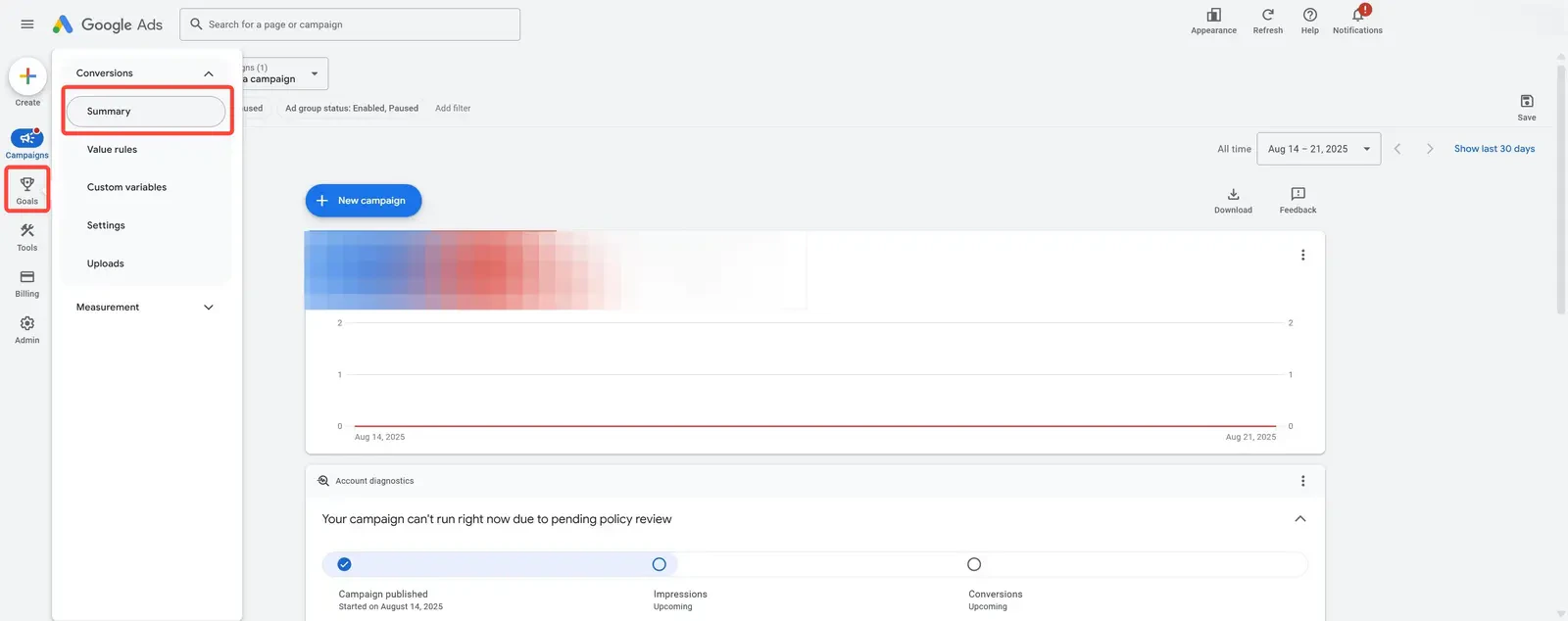
3
Find the Purchase conversions list
On the Goals Summary page, scroll down to the Purchase conversion list.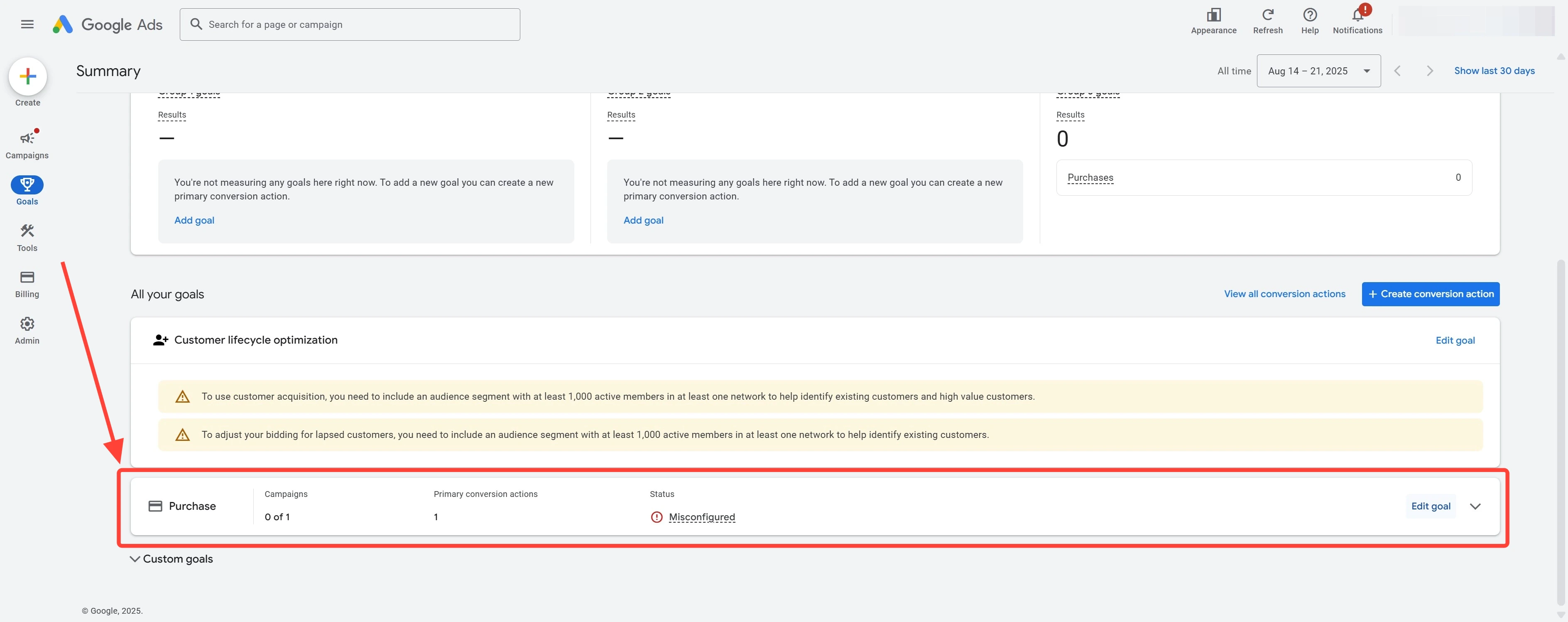
4
Open the goal settings
Click Edit goals to open the goal settings panel.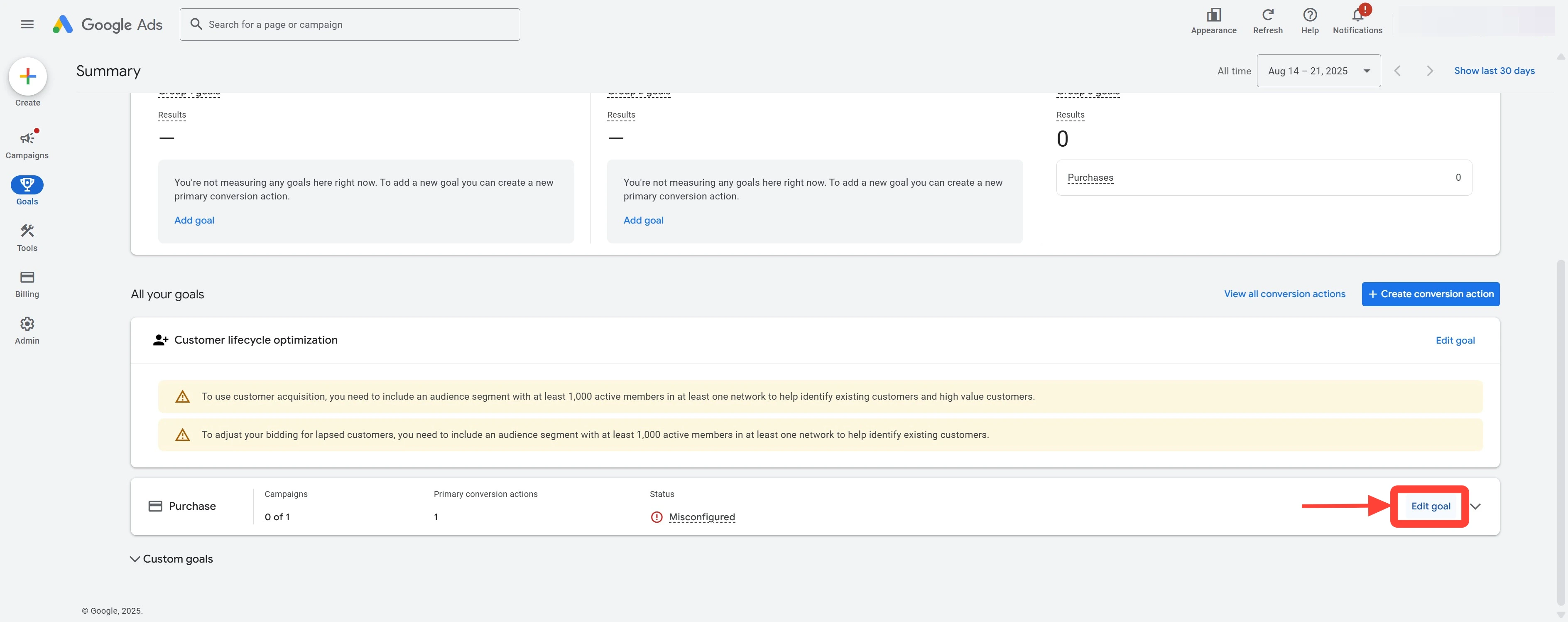
5
Expand Conversion action optimization
Click “Conversion action optimization” to expand the section.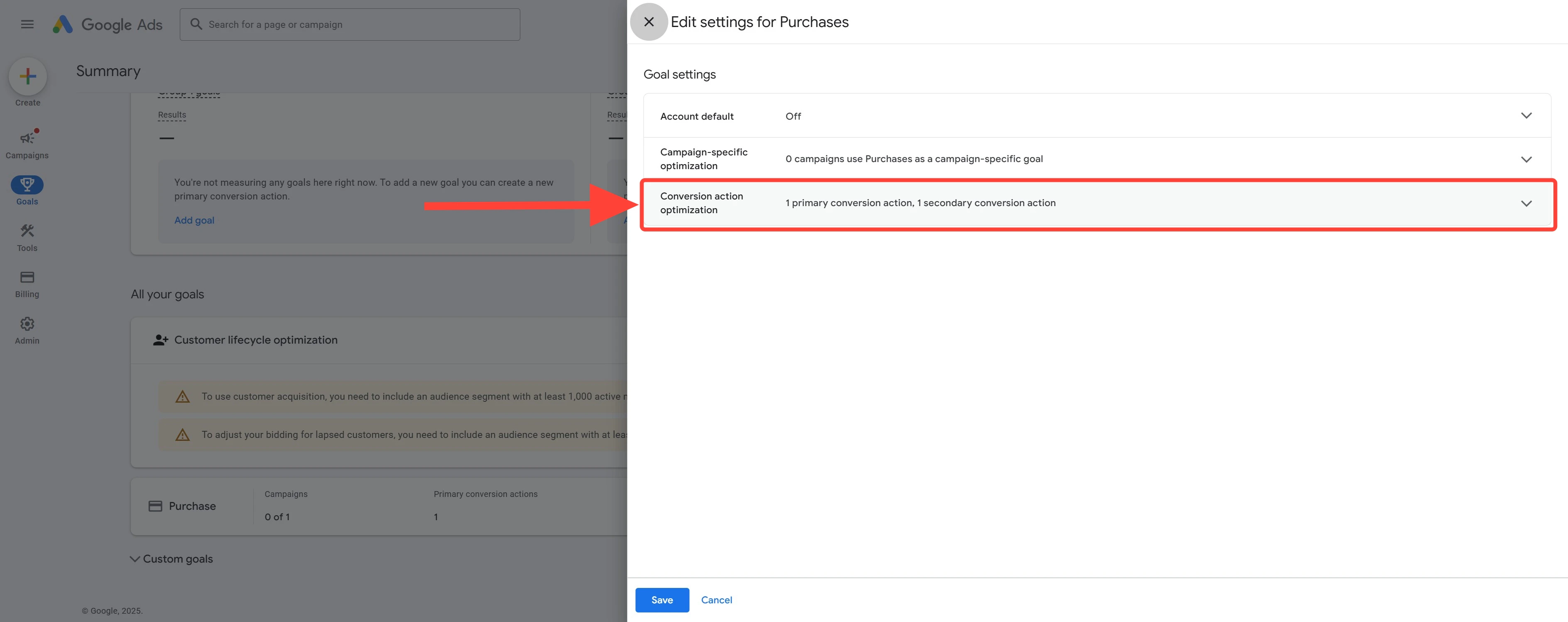
6
Set Purchase - UpstackData as Primary
Set “Purchase - UpstackData” as Primary.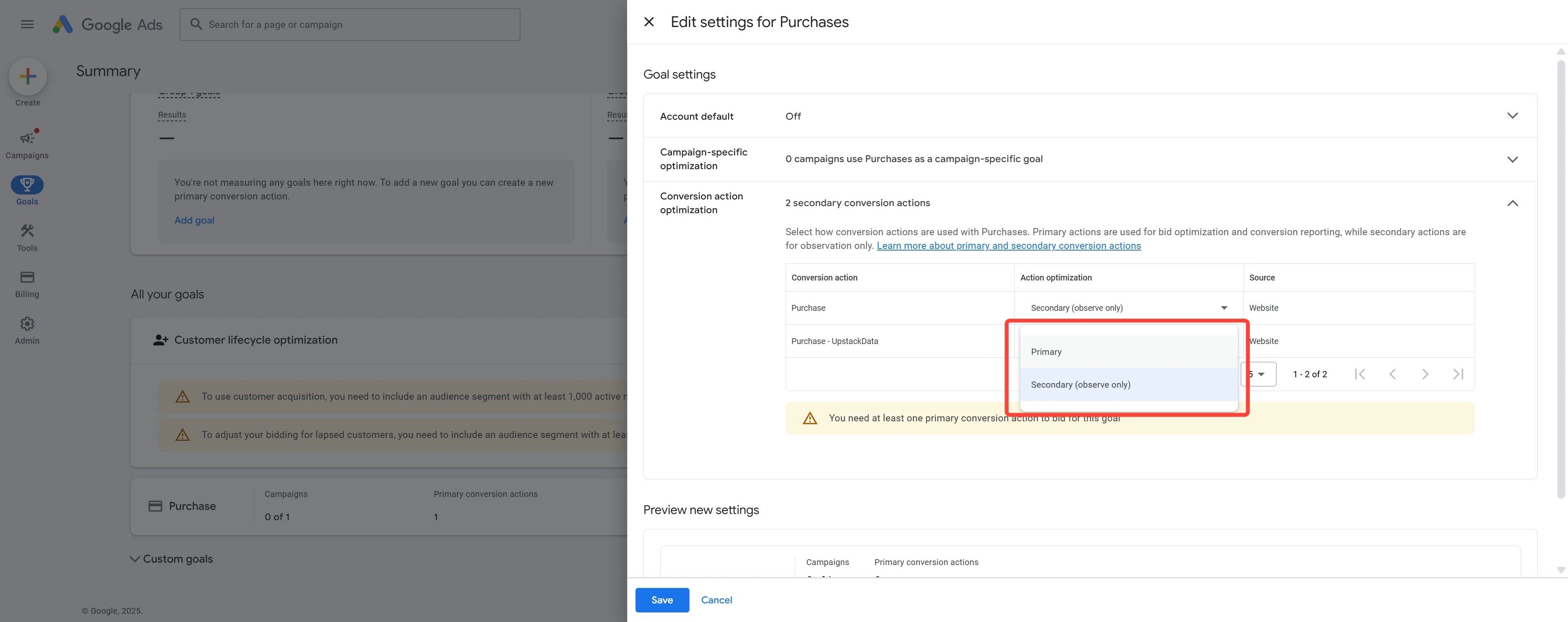
7
Set other Purchase goals to Secondary
Set all other Purchase goals to Secondary.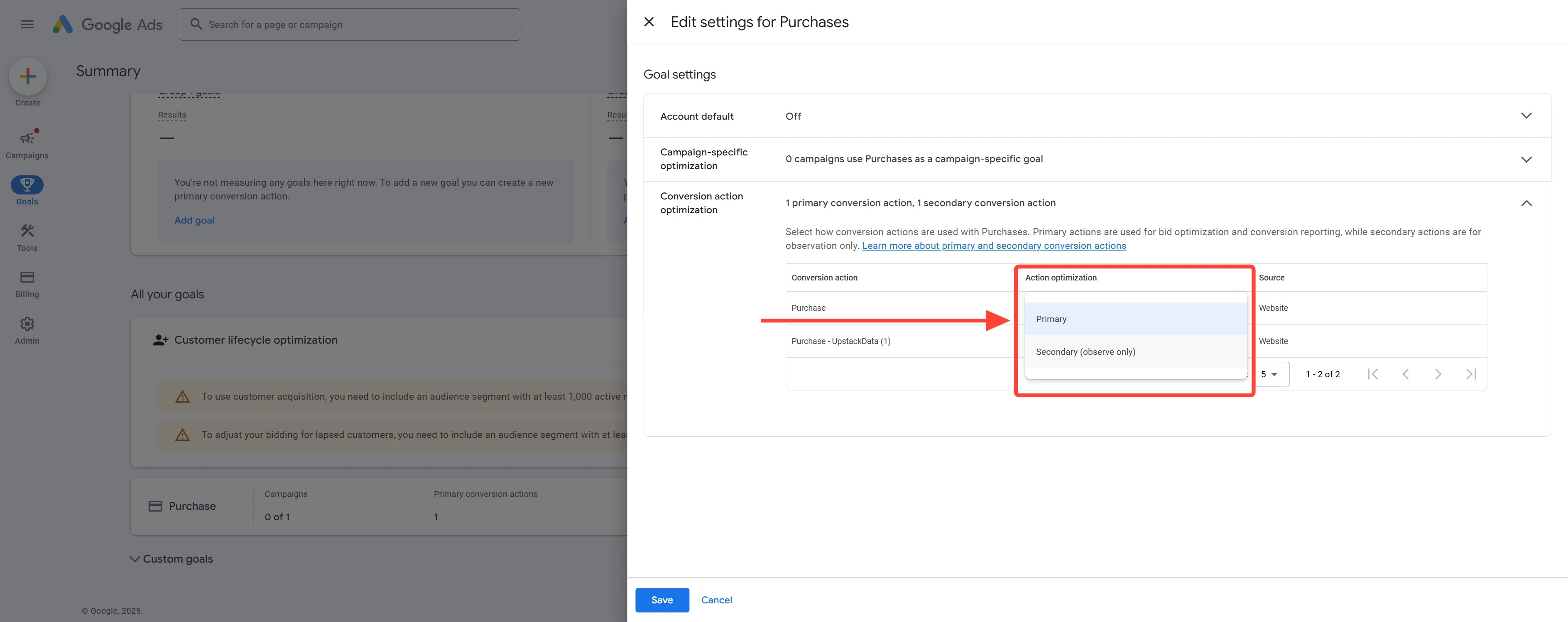
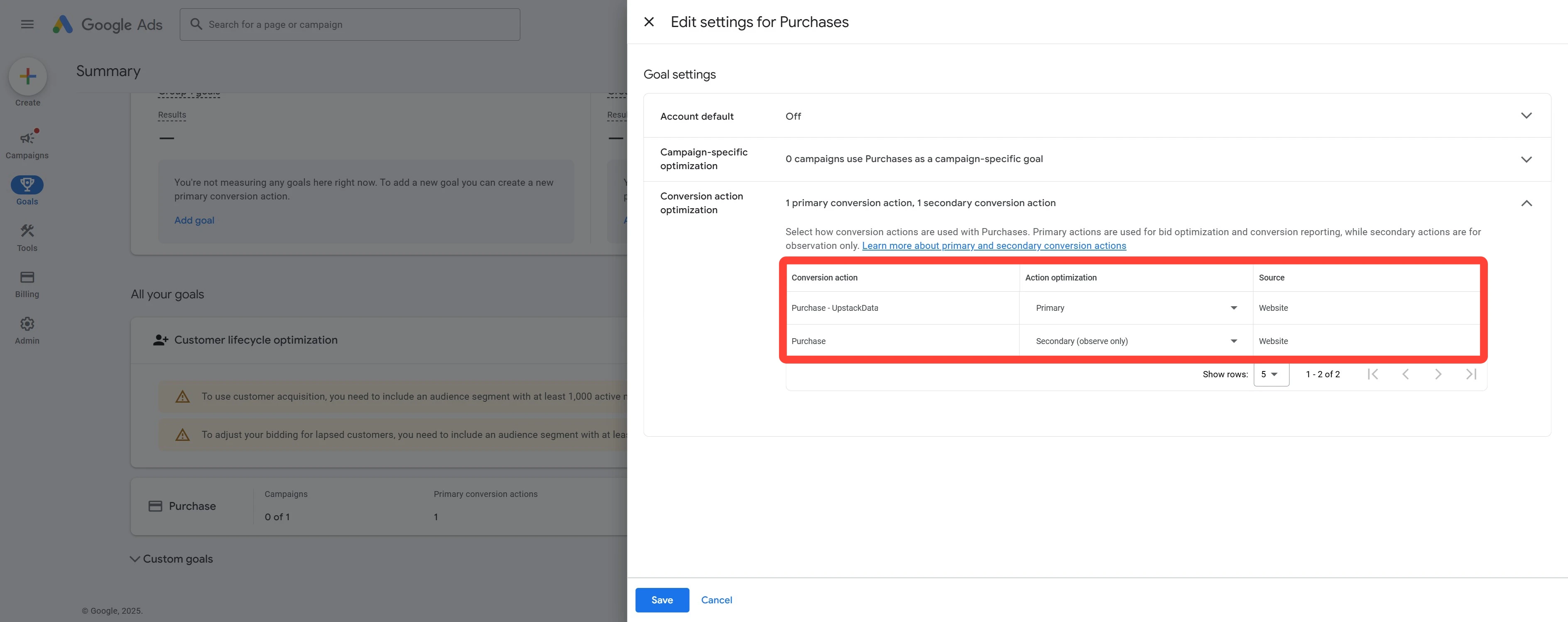
Example: Purchase - UpstackData is Primary and other Purchase conversions are Secondary8
Save the changes
Click Save to apply the new settings.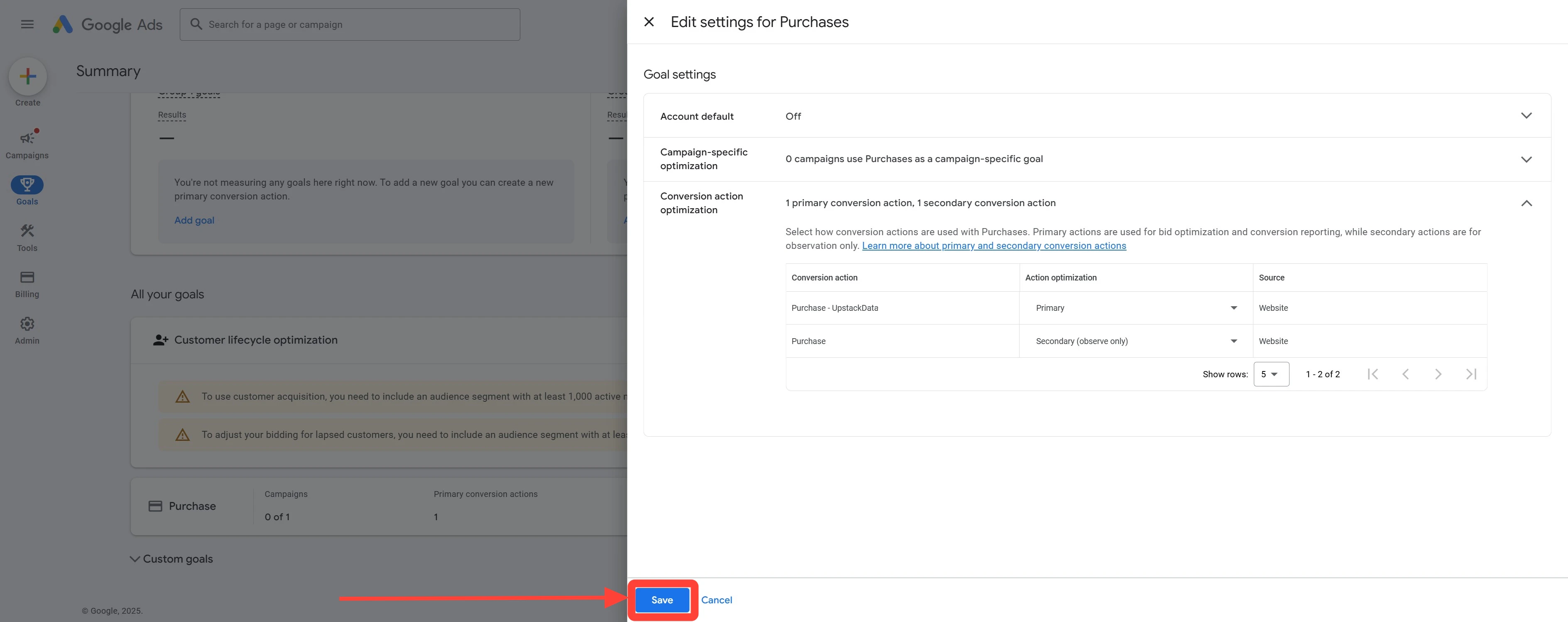
Verify the Setup
To confirm the switch was applied:- Return to Goals → Summary in Google Ads — “Purchase - UpstackData” should be labelled Primary and all other Purchase goals should be labelled Secondary.
- Open one of your active Search or Performance Max campaigns and confirm it is optimizing against the new Primary goal.