

Prerequisites
Before you start, you need:- Admin or Manager access to a Google Ads account
- An existing Purchase conversion action (e.g., “Purchase - UpstackData”). If you haven’t created one yet, see How to Create a New Upstack Data Purchase Goal in Google Ads →.
Steps to Find Your Conversion ID and Label
1
Sign in to Google Ads
Sign in to Google Ads.
2
Open the Conversions summary
In the left-hand menu, navigate to Goals → Conversions → Summary.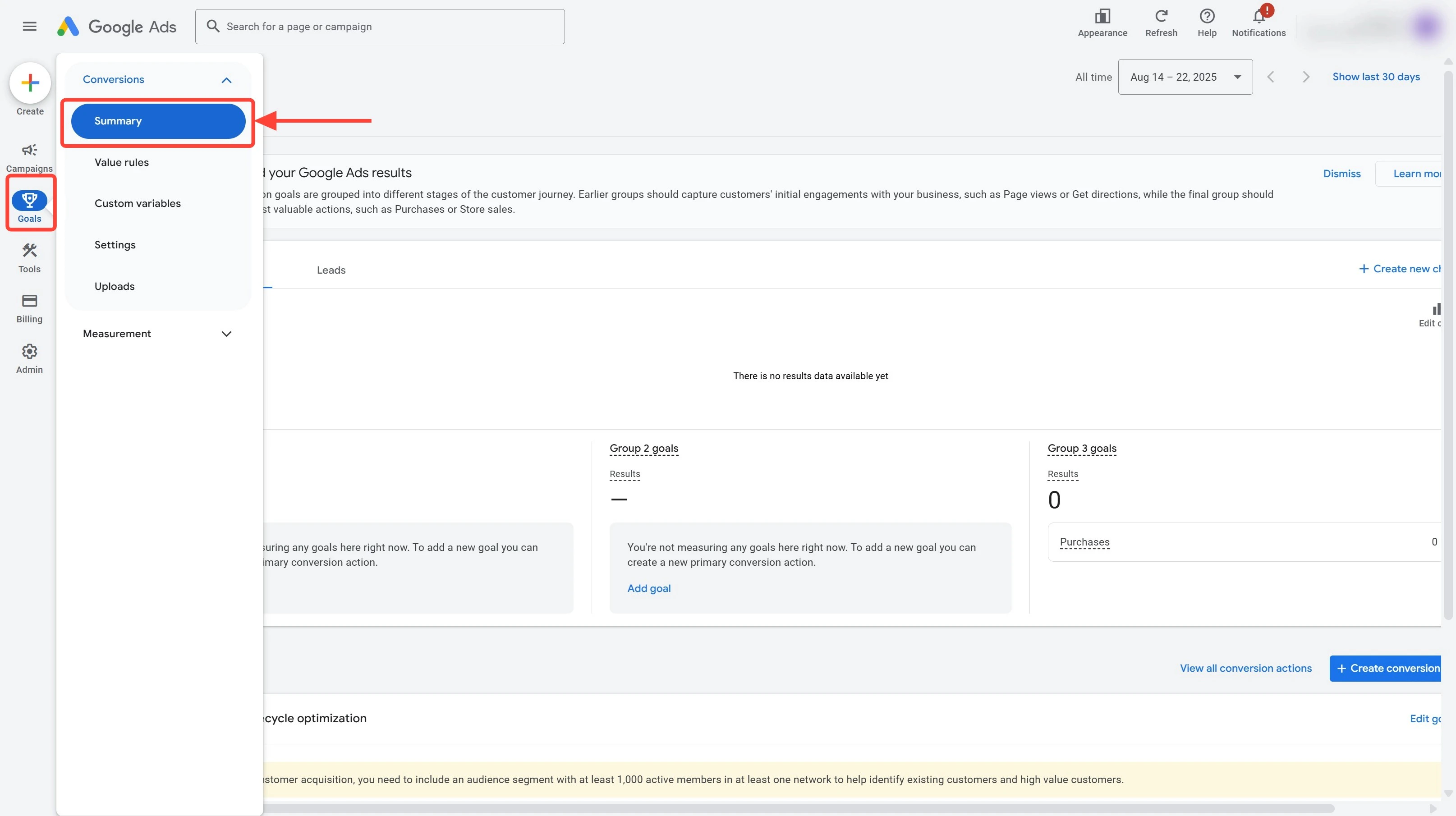
3
Open your Purchase conversion
Find and click your “Purchase - UpstackData” conversion (or your existing purchase conversion).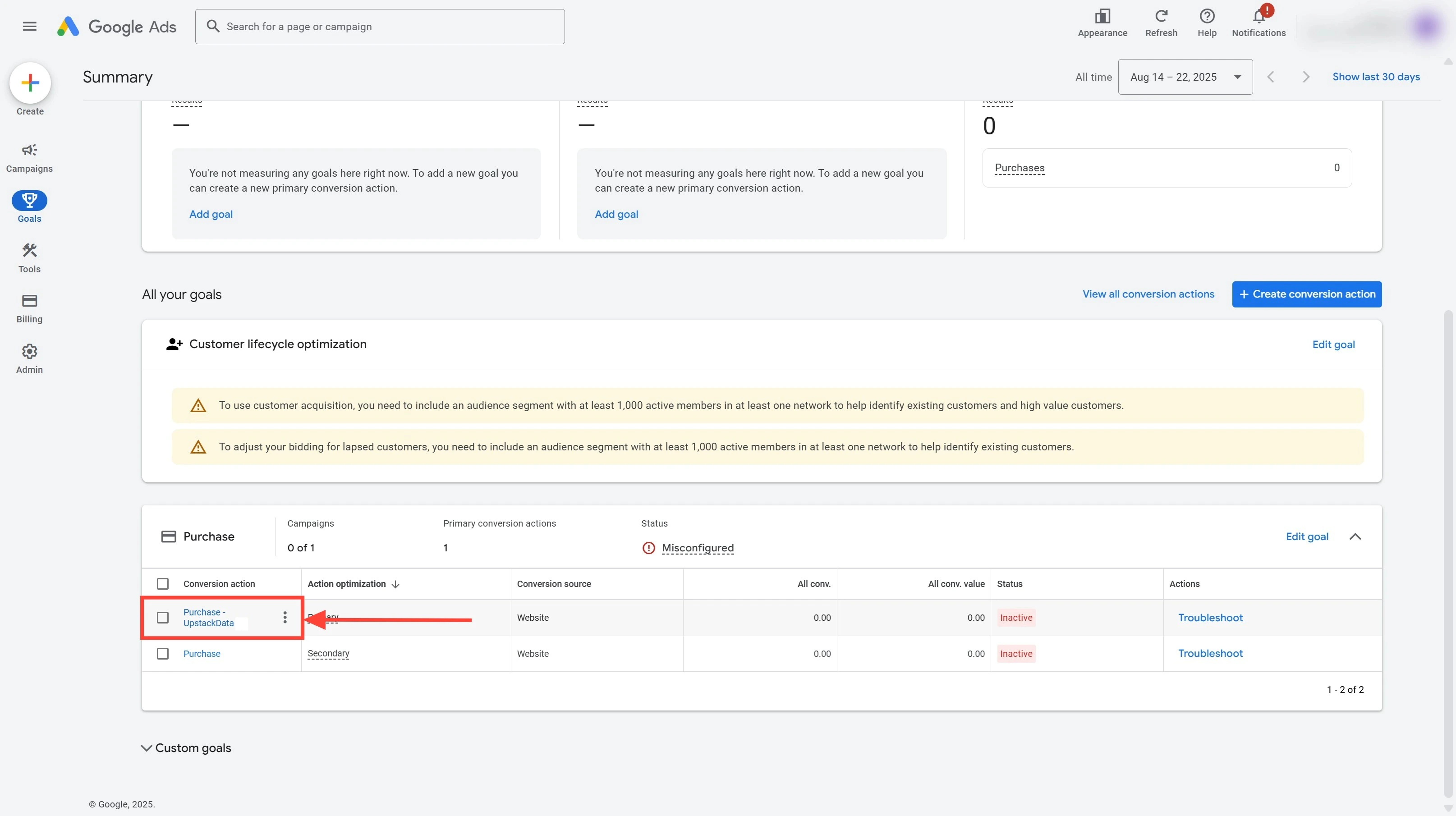
4
Scroll to Tag Setup
On the conversion detail page, scroll down to the Tag Setup section.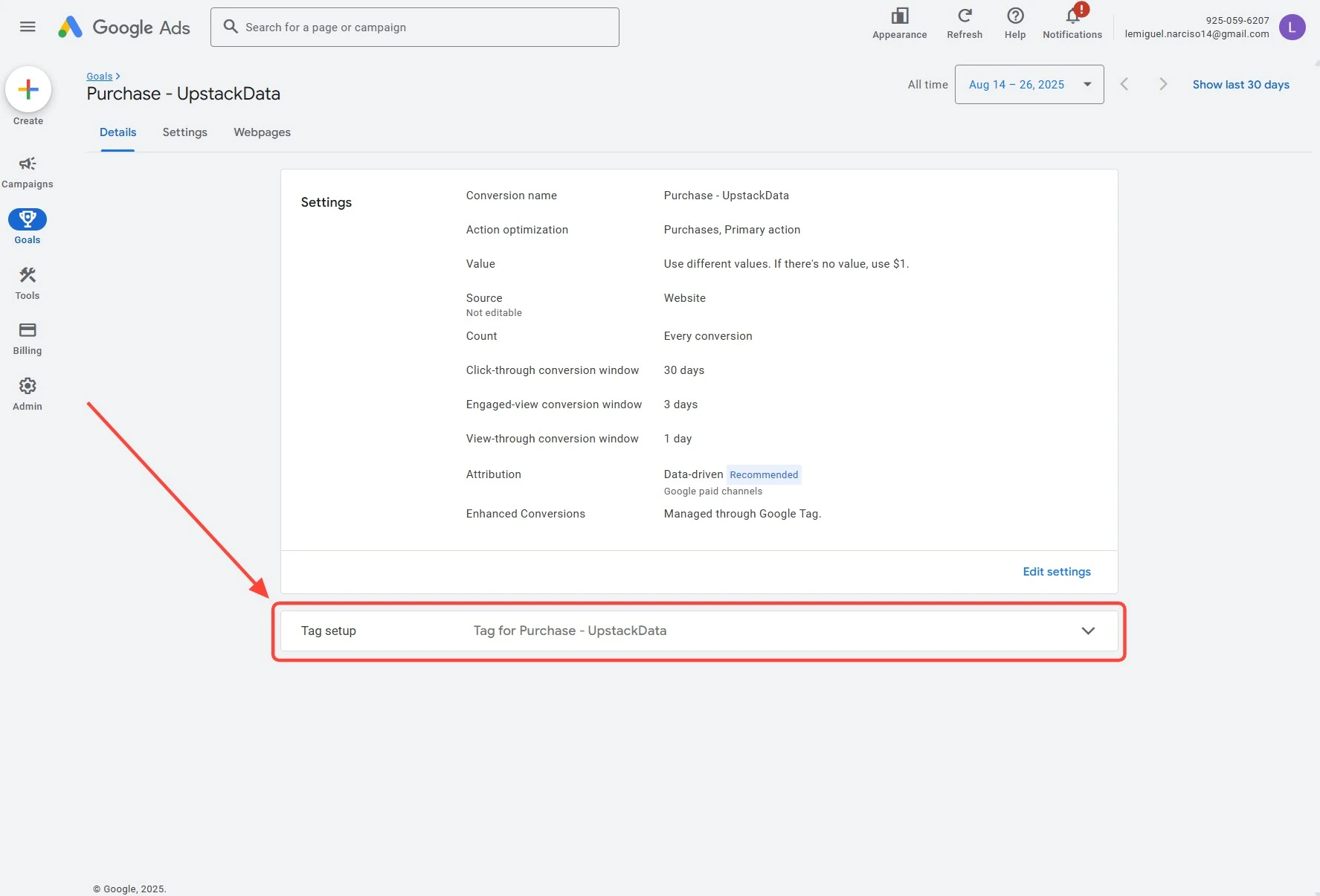
5
Click Use Google Tag Manager
Click “Use Google Tag Manager”.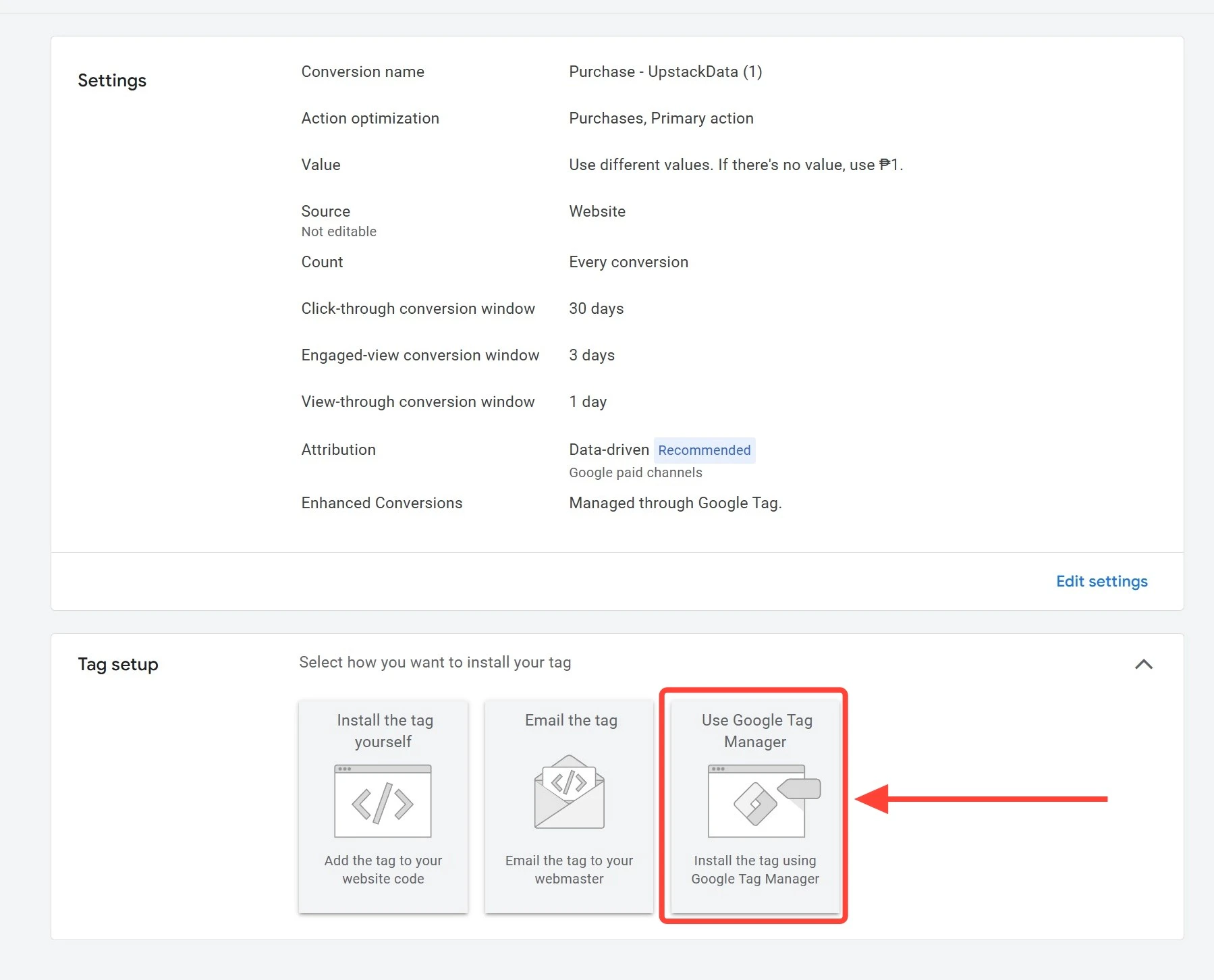
Use Google Tag Manager button6
Copy your Conversion ID and Conversion Label
Google Ads displays: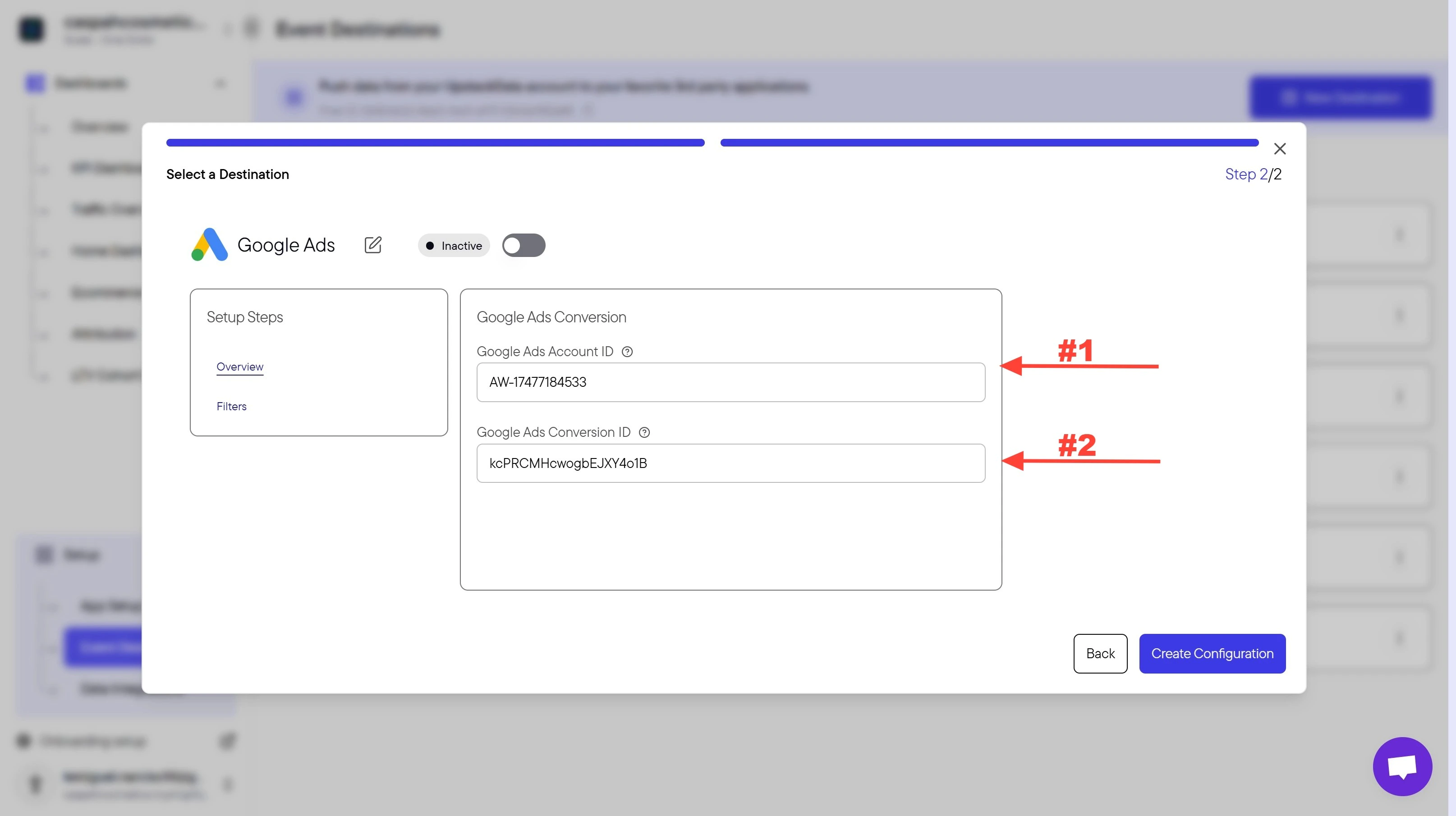
-
Conversion ID — starts with
AW-followed by 9–10 digits (e.g.,AW-123456789) -
Conversion Label — 11-character alphanumeric string (e.g.,
ABc1d2EFG3h)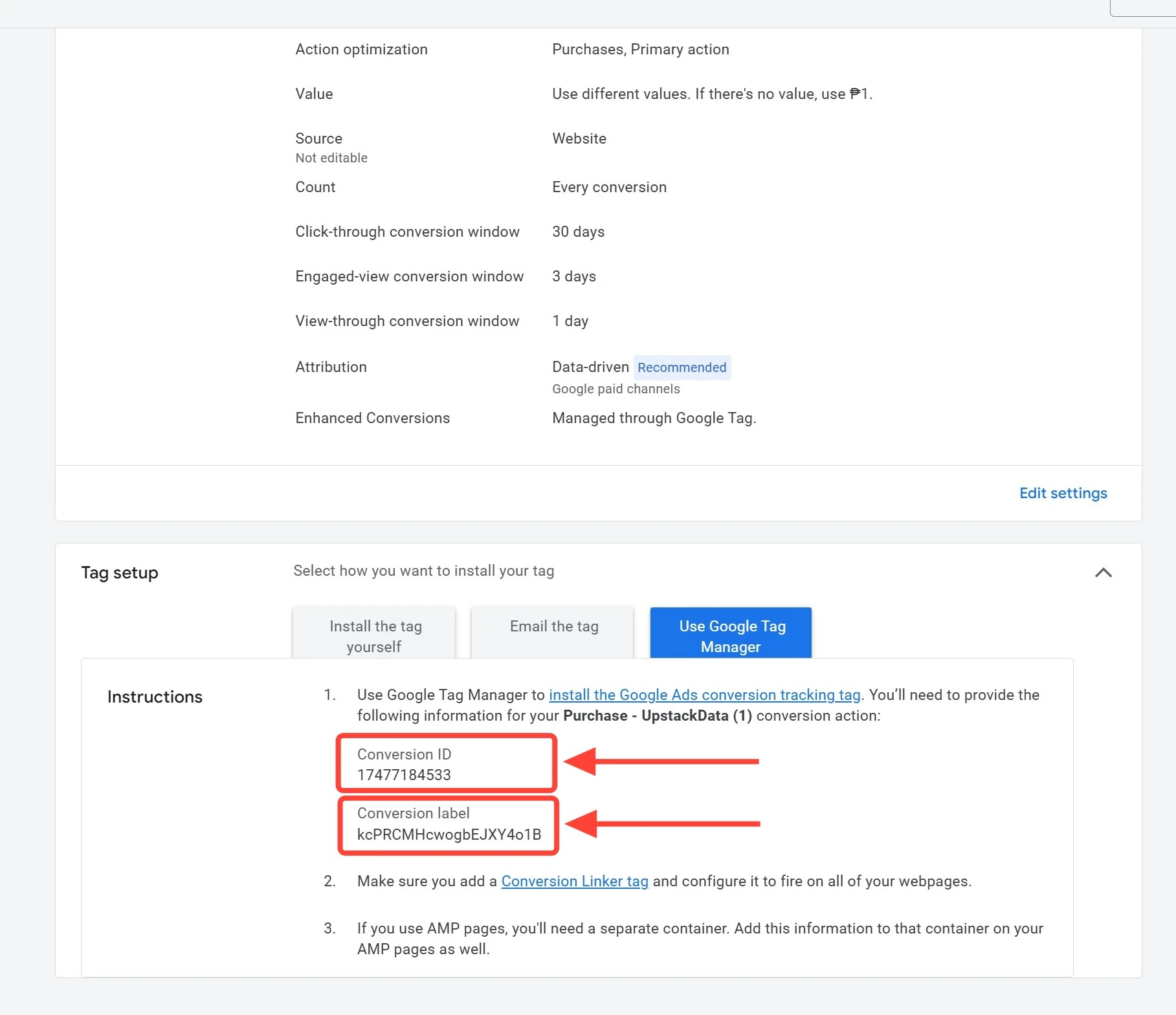
Verify the Setup
To confirm you copied the correct values:- The Conversion ID should match the format
AW-+ 9–10 digits. - The Conversion Label should be exactly 11 characters (letters and digits, no spaces).
- After saving in the Upstack dashboard, the Google Ads destination should appear as Healthy under Events Destination.