

Prerequisites
Before you start, you need:- Owner or staff access to your Shopify admin with permission to edit sales channels
- The Facebook & Instagram sales channel installed in Shopify (if it’s not installed, there’s nothing to disable)
- A configured Meta destination in Upstack Data so the pixel keeps firing after you disable Shopify’s native integration — see How to configure the Meta Pixel destination
Steps to disable Facebook and Instagram data sharing in Shopify
1
Sign in to Shopify
Sign in to your Shopify admin at admin.shopify.com.
2
Open the Facebook & Instagram sales channel
In the Shopify admin, click Sales channels in the left-hand menu, select Facebook & Instagram, then click the Settings tab.Tip: You can also use the top search bar to jump directly to the Facebook & Instagram sales channel.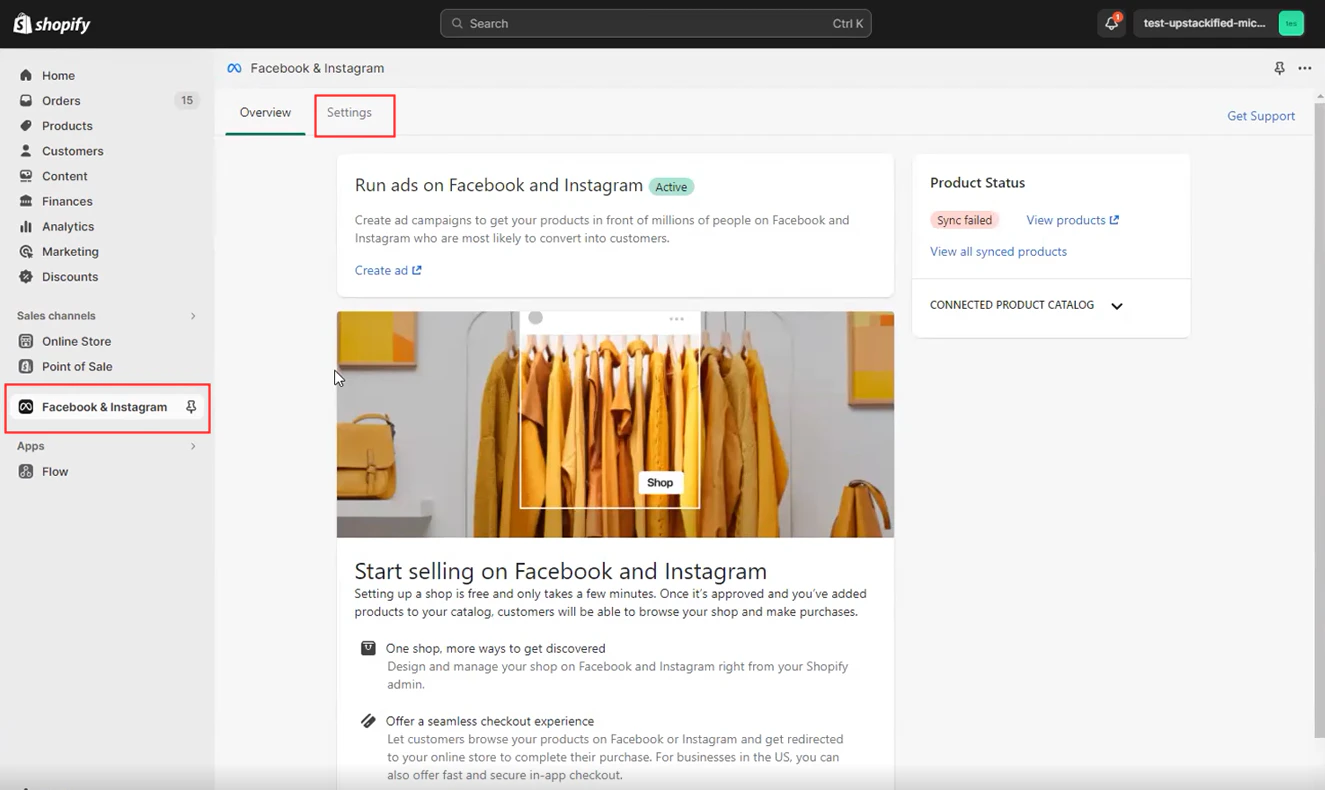
3
Open the Share data settings
On the Facebook & Instagram Settings page, locate the Share data section and click Change.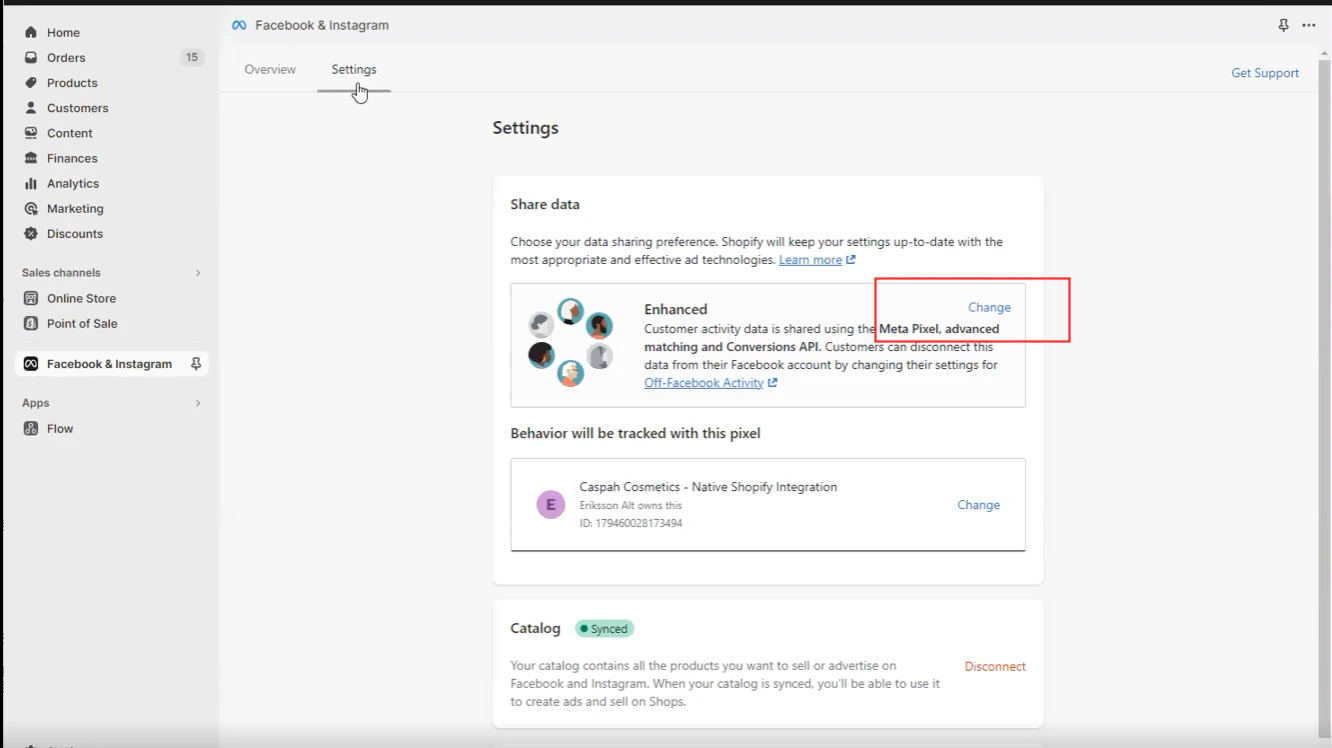
4
Toggle off data sharing
Toggle Share data to Off.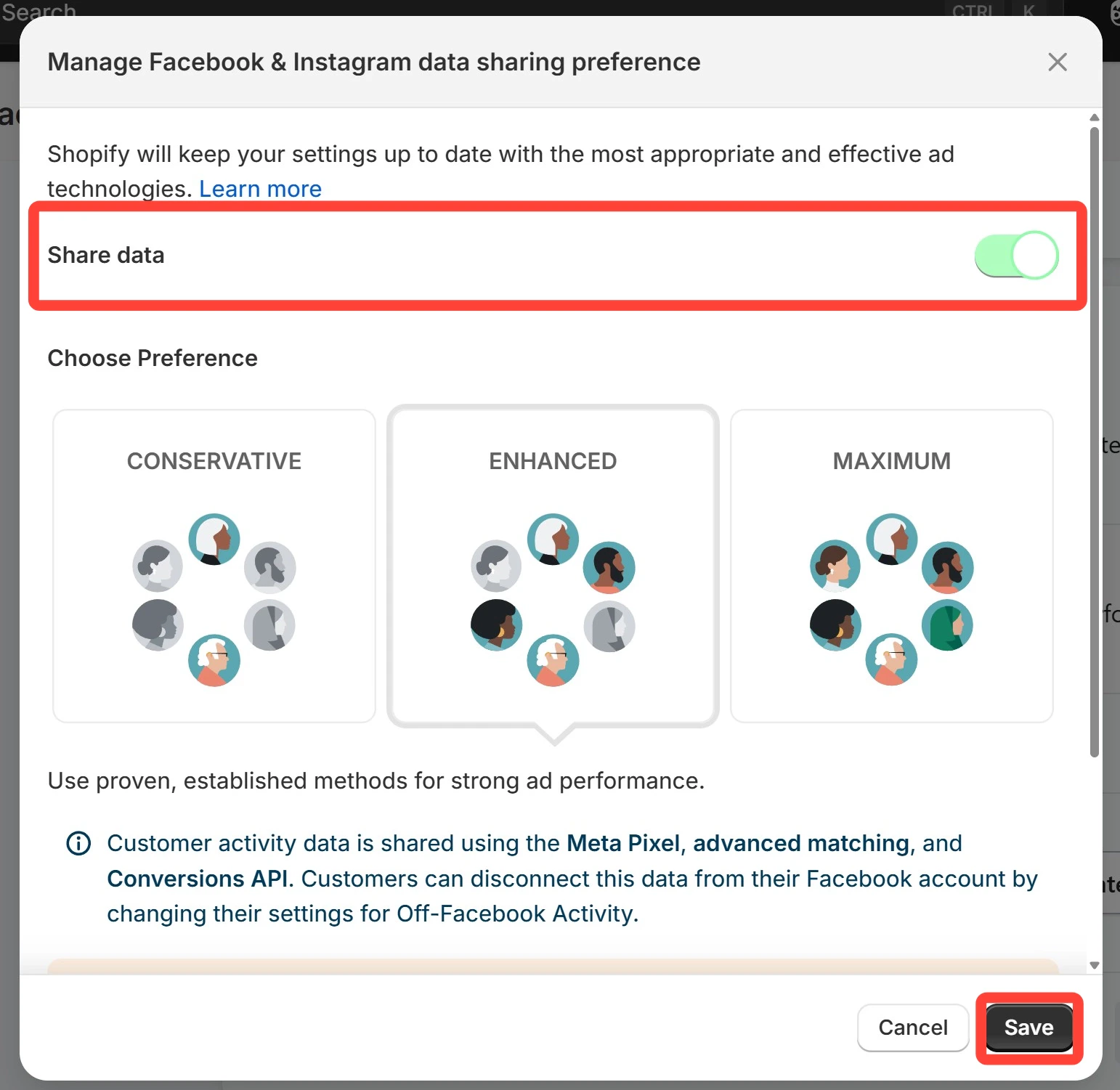
5
Save your changes
With Share data now set to Off, click the Save button at the bottom of the page.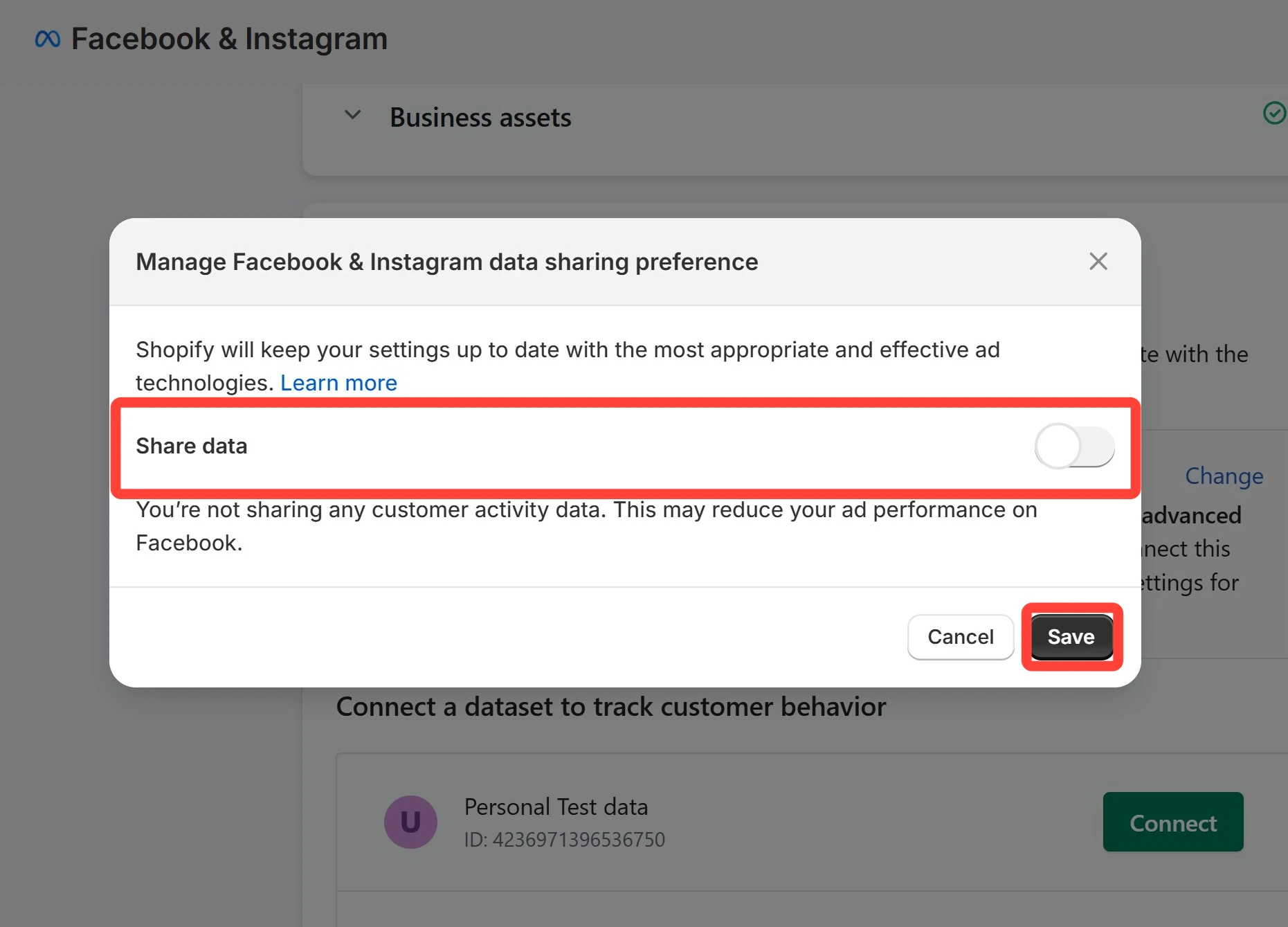
6
Verify data sharing is disabled
After saving, the Facebook & Instagram Settings page should now show Share data: Off.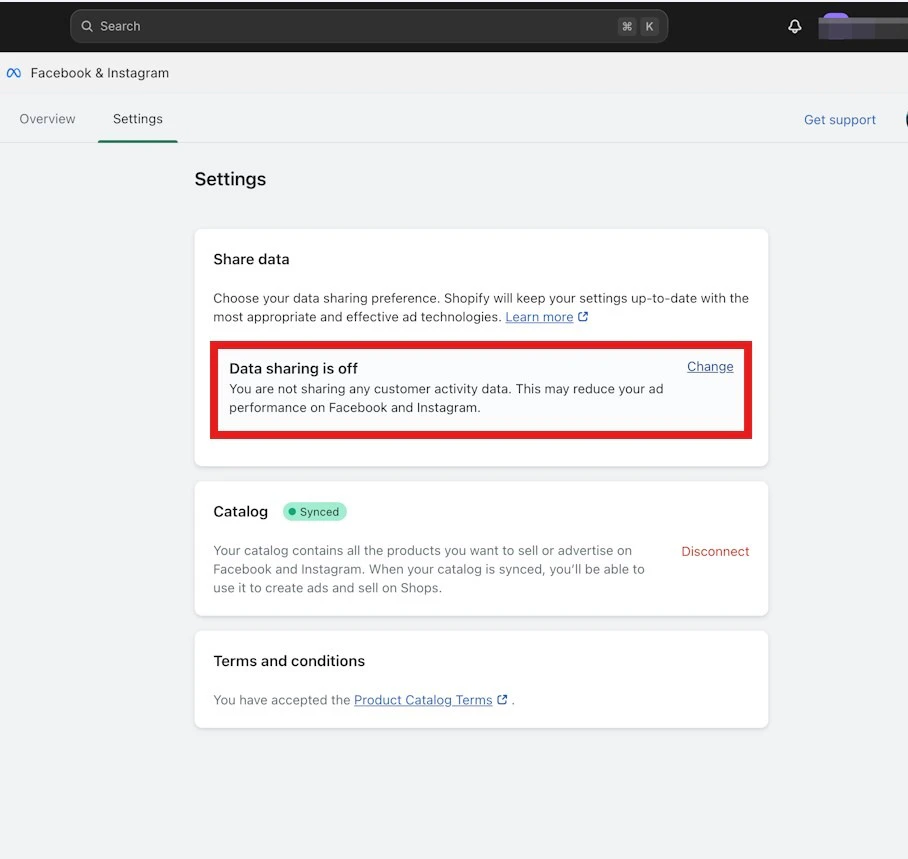
- Third-party Facebook pixel apps in Shopify
- Manual pixel code in your theme files (
theme.liquid, header snippets) - Facebook pixel tags inside Google Tag Manager
Need help?If duplicate events continue after disabling Shopify’s native integration, contact our support team with your Pixel ID and we’ll help diagnose the source.