

Prerequisites
Before you start, you need:- An active Upstack Data account (sign up)
- Admin access to your Pinterest Business account
- Your Pinterest Pixel Tag ID (how to find it)
- Your Pinterest Advertiser ID (how to find it)
- Your Pinterest Conversion API key (how to generate it)
Configuration Steps
1
Sign in to your Upstack dashboard
Sign in to Upstack Data and open the Events Destination page.
2
Add a new Pinterest destination
In the Events Destination page, click + New Destination in the top-right of the page.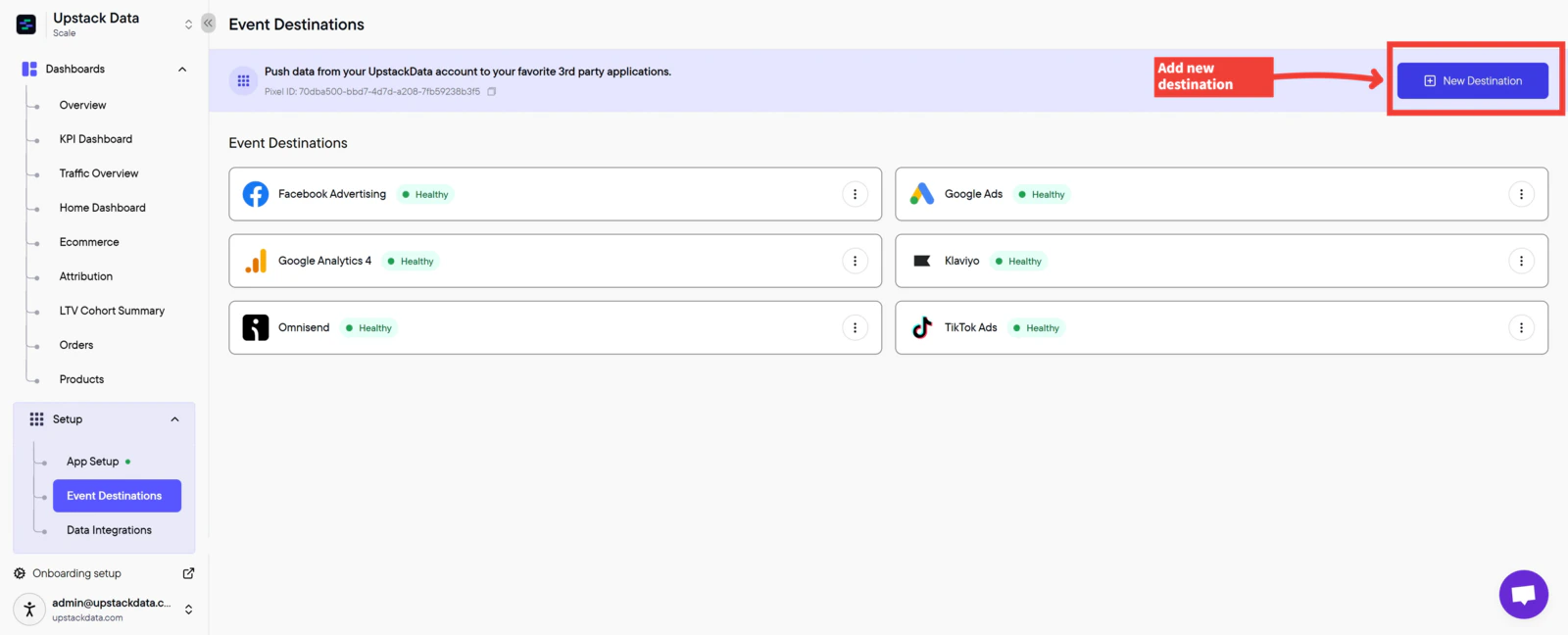
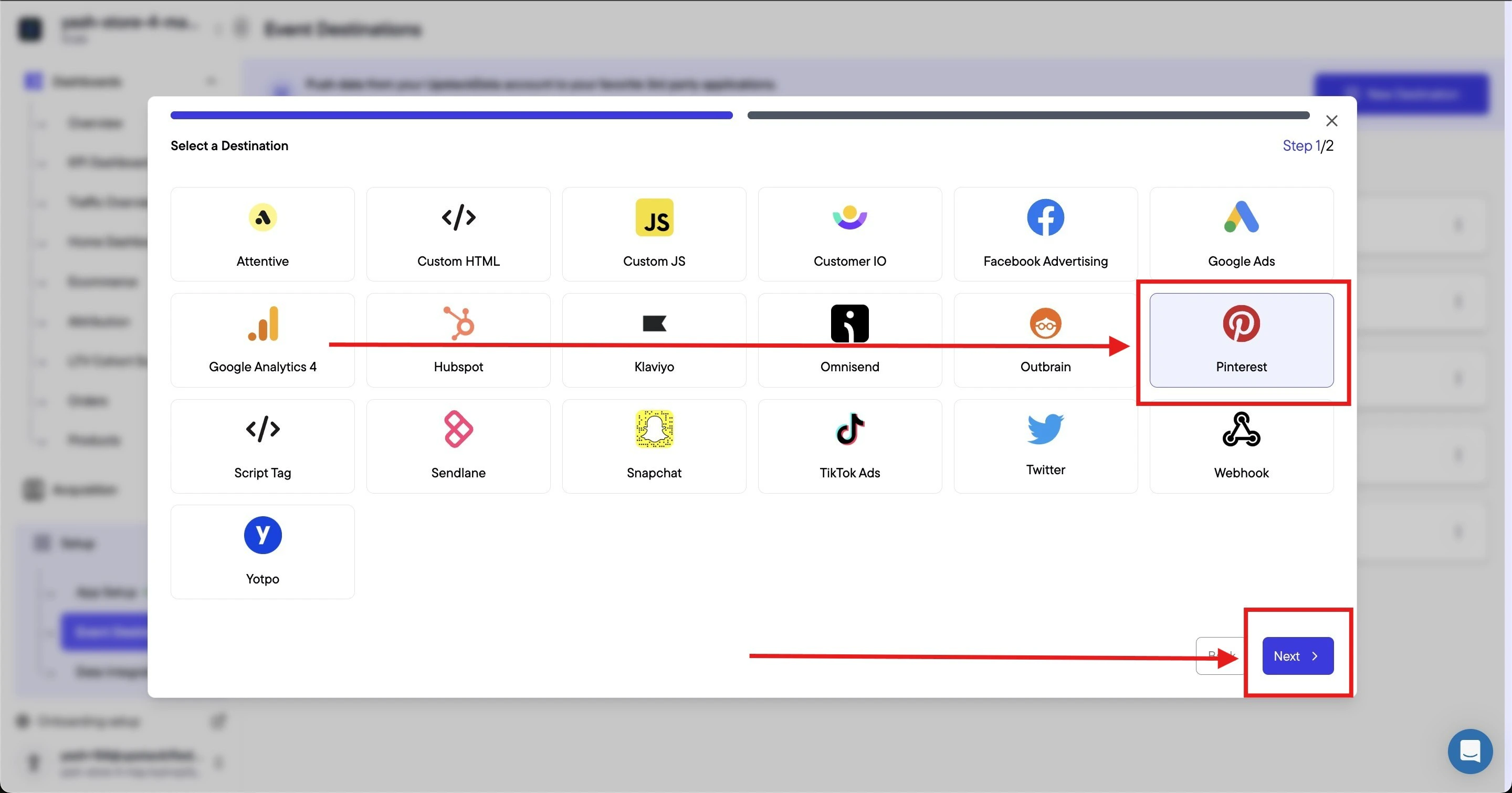
3
Choose whether to load the Pinterest tag
Tracking Method is set to Browser + Server by default, which loads the Pinterest tag on your storefront alongside Upstack’s own server-side delivery. Keep Browser + Server unless you already load the Pinterest tag yourself through Google Tag Manager, your theme, or another app — in that case, switch the Tracking Method to Server and see Server-Only Destinations.Unchecking it does not stop Upstack tracking. The Upstack Pixel keeps capturing events and forwarding them through the Conversions API. See Server-Only Destinations.
4
Enter your Pinterest credentials
Fill out the form with the following: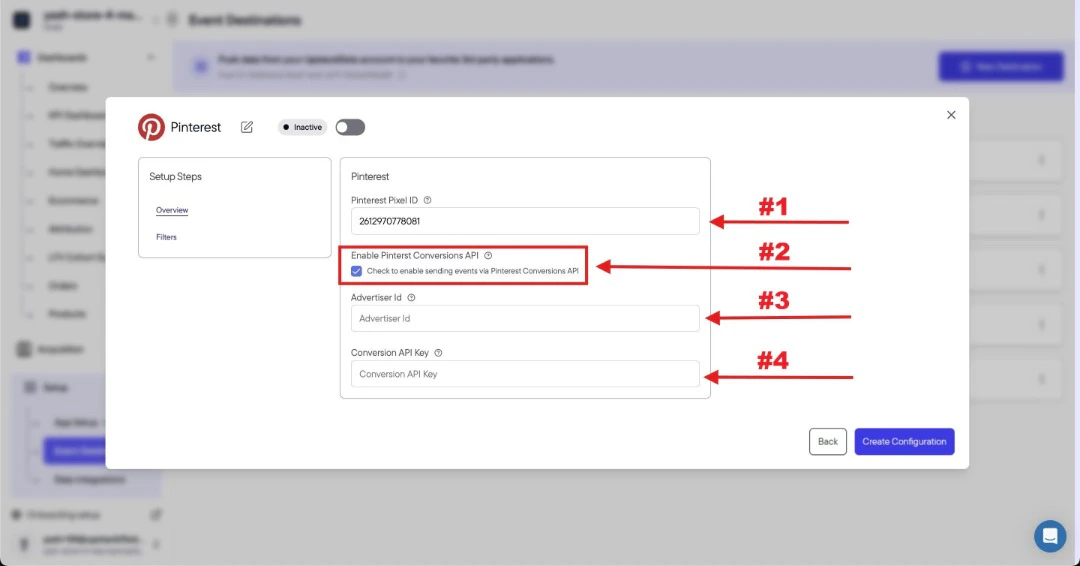
-
Pinterest Pixel Tag ID — a 13-digit number, for example
2613000000000 - Check the box Check to enable sending events via Pinterest Conversions API
-
Advertiser ID — a 12-digit numeric ID, for example
549000000000 -
Conversion API key — the access token starting with
pina_
5
Create the configuration
Click the Create Configuration button at the bottom of the form.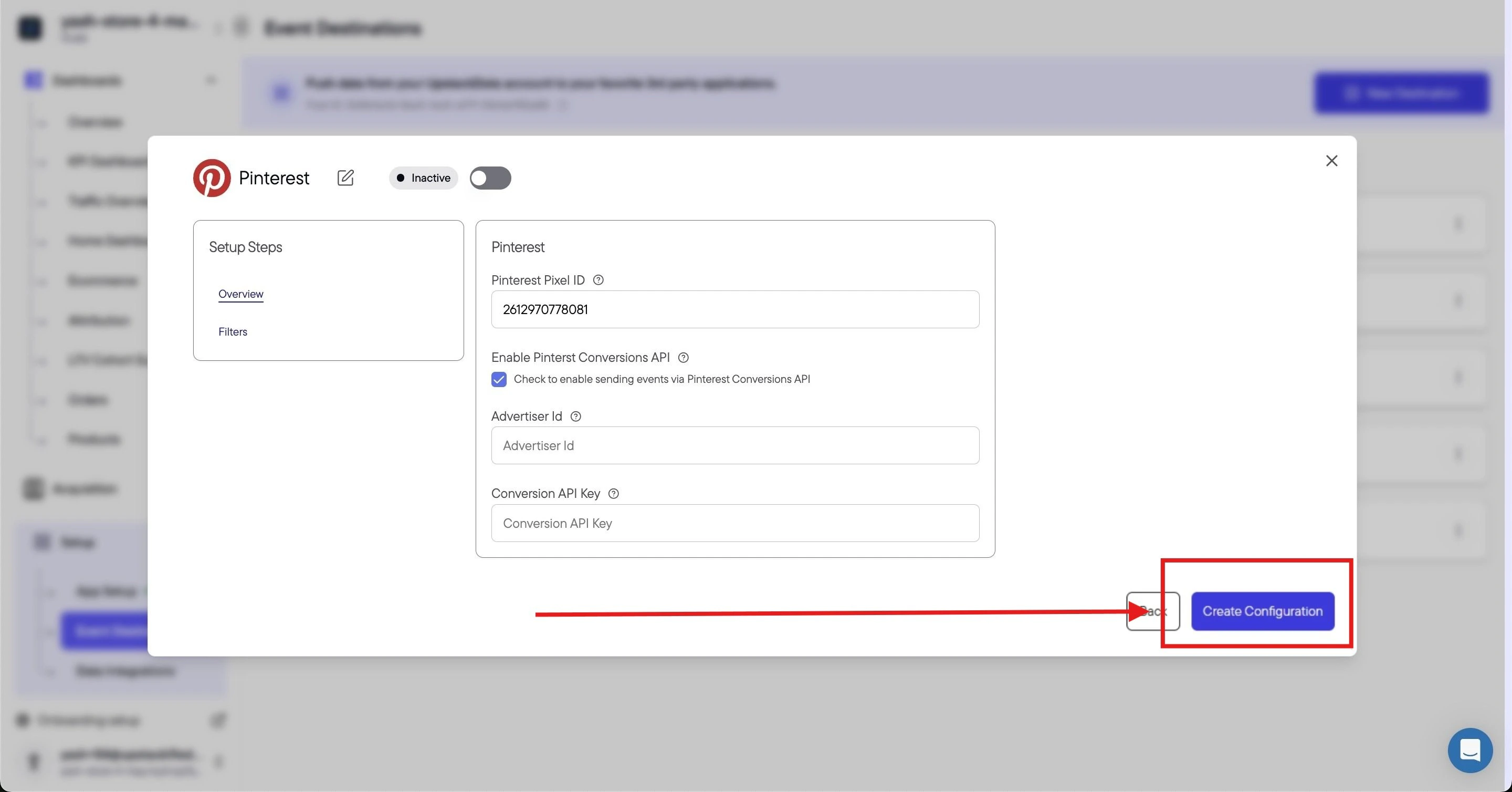
Success! 🎉 You should see a confirmation message and the Pinterest destination will appear as Healthy in your destinations list.
6
Verify the destination is sending events
Back in the Events Destination page, confirm that the new Pinterest destination shows a Healthy status.Then, in Pinterest Business, open Conversions → Pinterest tag and confirm that events are being received from your Conversions API integration. New events typically appear within a few minutes after a test purchase or page view.