

What this setup enables
Configuring Omnisend as a destination in Upstack Data ensures accurate tracking of customer events, consolidates attribution reporting, and provides more reliable data to optimize ad performance.
Prerequisites
Before you start, you need:- An active Upstack Data account (sign up)
- Admin access to your Omnisend account
- Your Omnisend API key (how to generate it)
Configuration Steps
1
Sign in to your Upstack dashboard
Sign in to Upstack Data and open the Events Destination page.
2
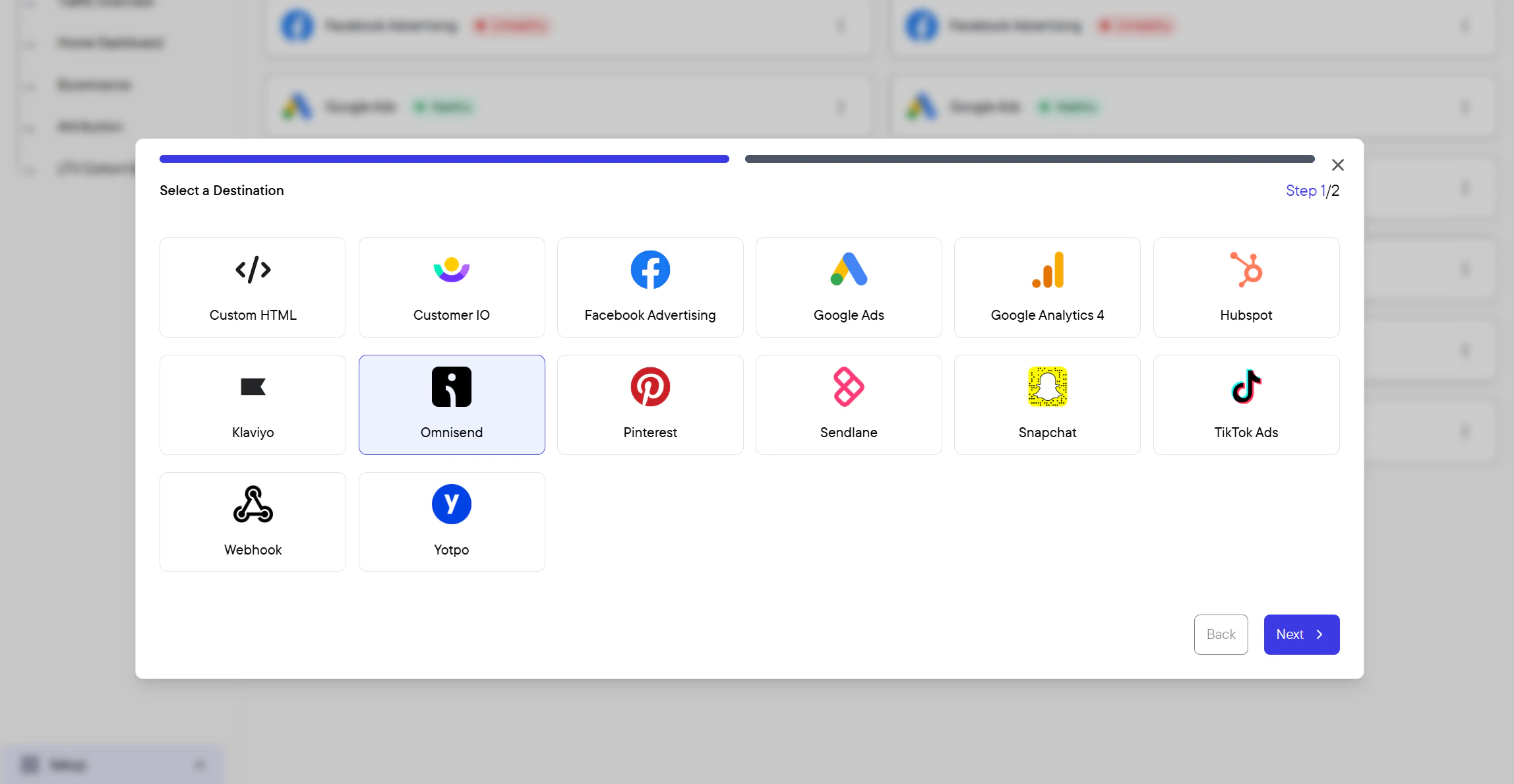
Add a new Omnisend destination
In the Events Destination page, click + New Destination in the top-right of the page.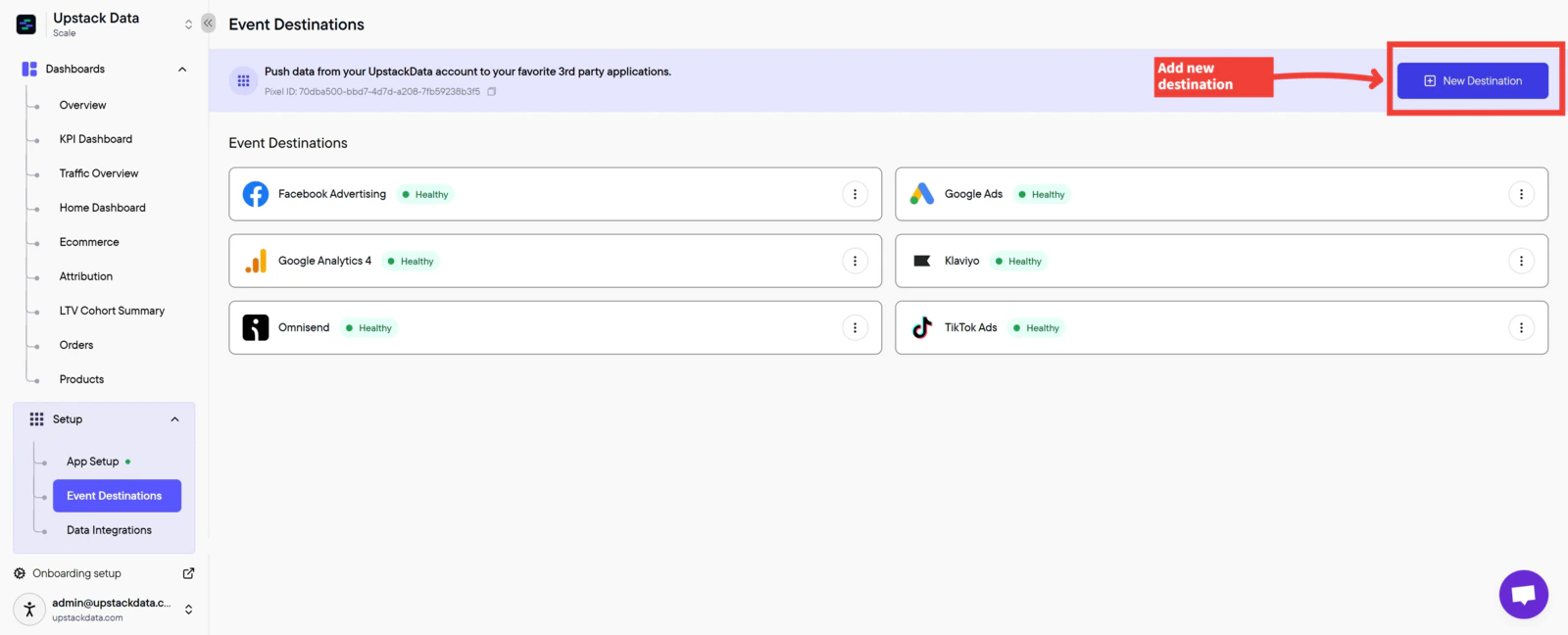
3
Enter your Omnisend API key
In the configuration form, paste your generated Omnisend API key into the API key field.The API key is a long alphanumeric string, typically formatted as a 64-character secret followed by a 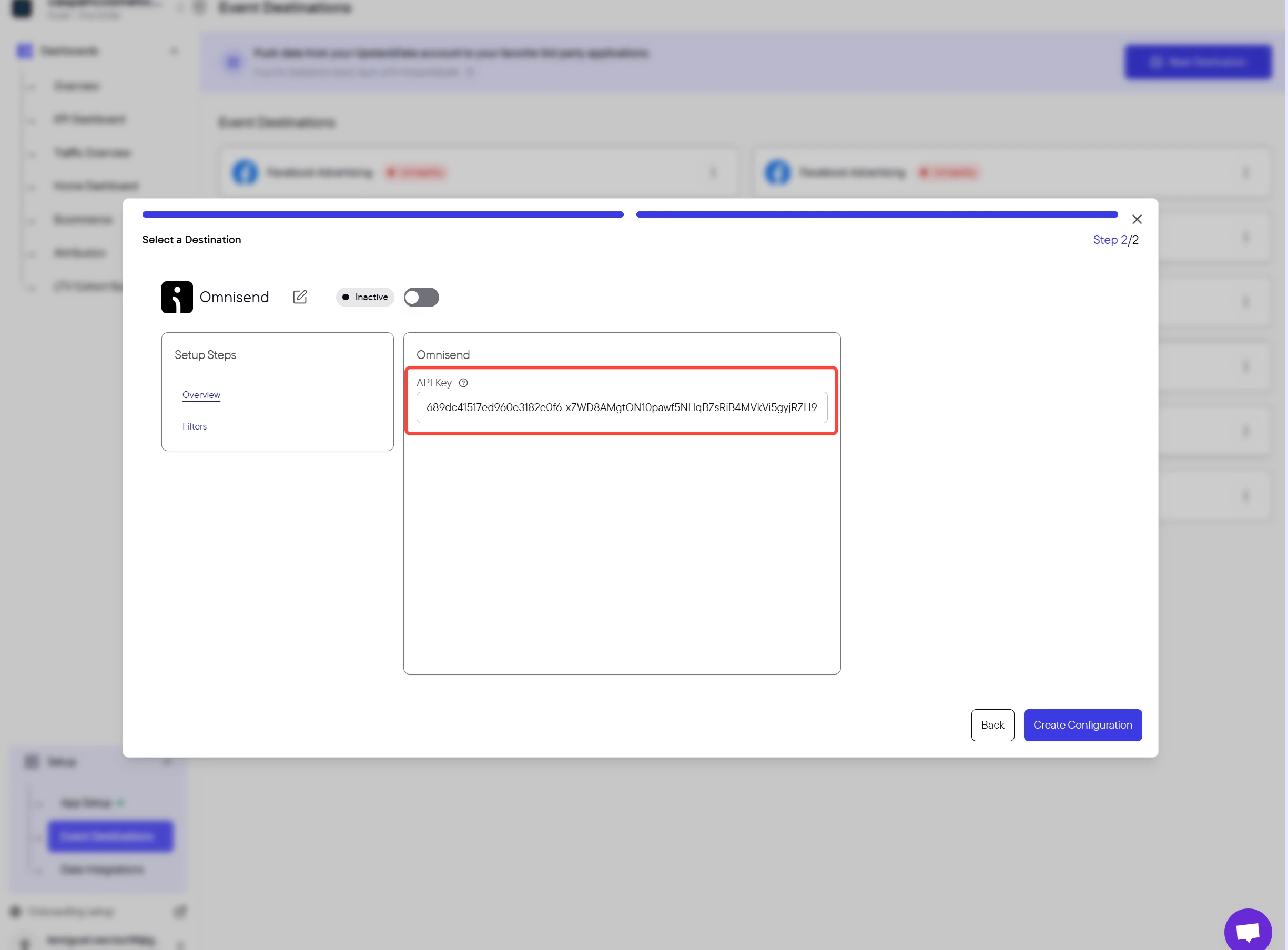
- and a short identifier (for example, xxxxxxxxxxxxxxxxxxxxxxxxxxxxxxxxxxxxxxxxxxxxxxxxxxxxxxxxxxxxxxxx-xxxxxxxxxx).4
Create the configuration
Click the Create Configuration button at the bottom of the form.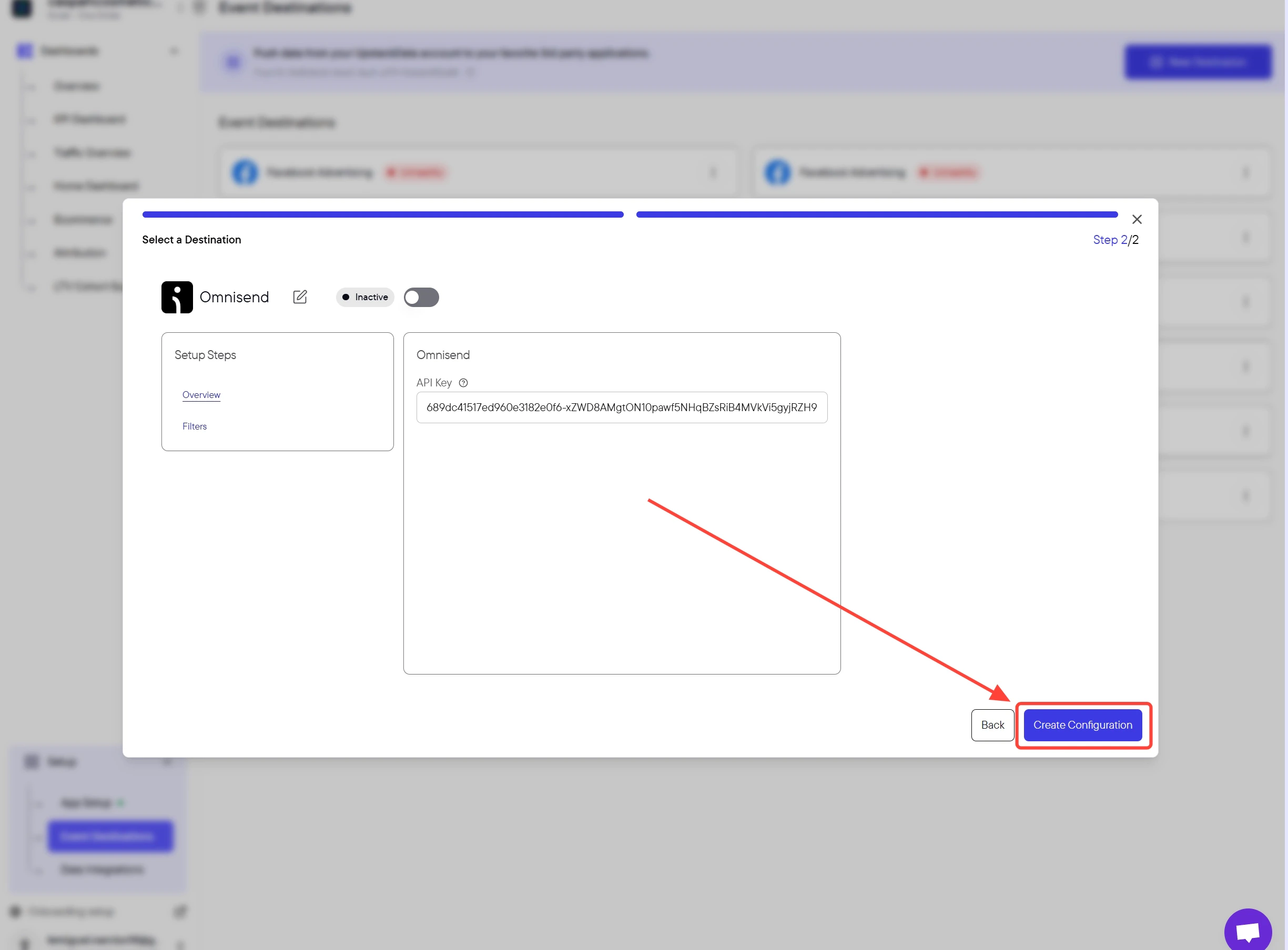
Success! 🎉 You should see a confirmation message and the Omnisend destination will appear as Healthy in your destinations list.
Here’s a help guide on How to Generate your Omnisend API Key →
5
Verify the destination is sending events
Back in the Events Destination page, confirm the new Omnisend destination shows a Healthy status.Then, in Omnisend, open Audience or Reports and confirm contacts and events from Upstack Data are arriving as expected. New events typically appear within a few minutes after a test purchase or page view.