

What this setup enablesSetting up the Meta Ads Pixel destination in Upstack Data enables dual tracking via browser pixel and server-side Conversions API (CAPI), ensuring accurate conversion data despite iOS restrictions and ad blockers.
Prerequisites
Before you start, you need:- An active Upstack Data account (sign up)
- Admin access to a Meta Business Manager account
- A configured Meta Pixel in Meta Events Manager — see How to find your Meta Pixel ID
- A Conversions API access token — see How to generate your CAPI token
Configuration steps
1
Sign in to Upstack Data
Sign in to Upstack Data at app.upstackdata.com.
2
Open the destination configuration
In the Upstack dashboard, navigate to Event Destinations.Click + New Destination in the top-right of the page.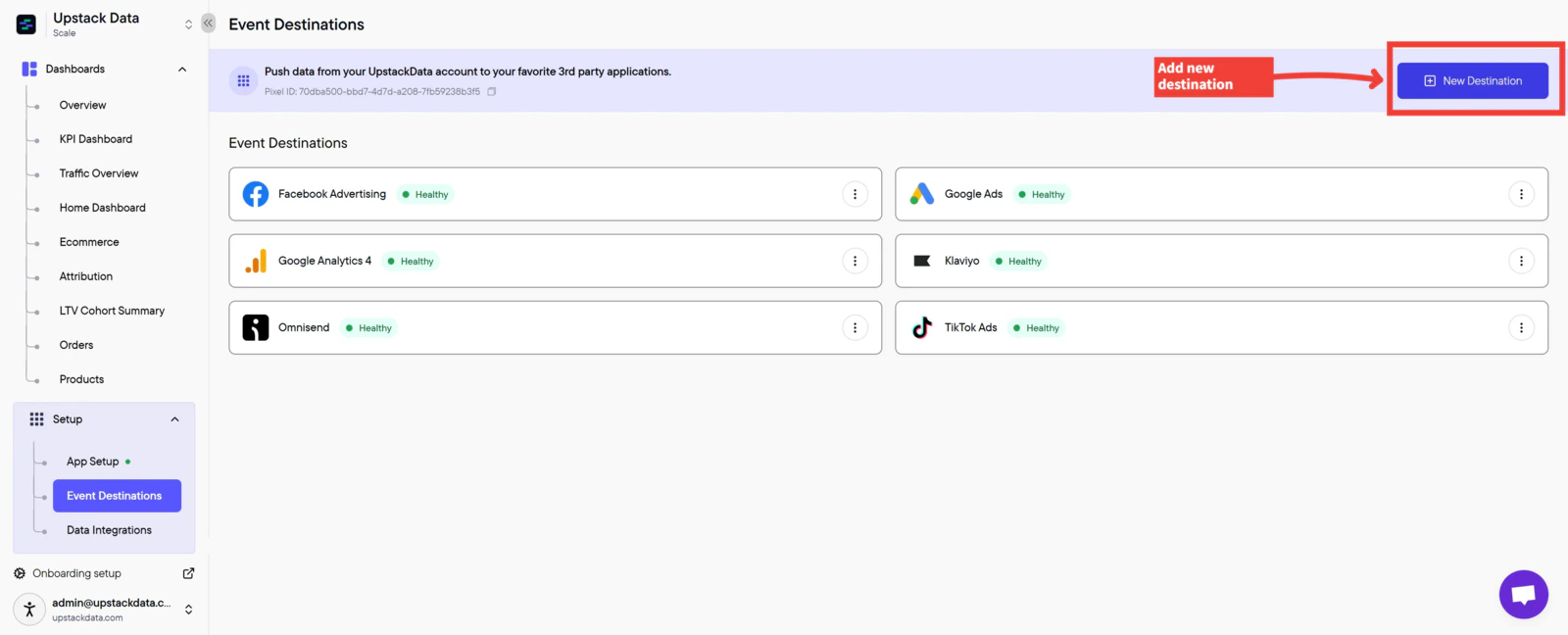
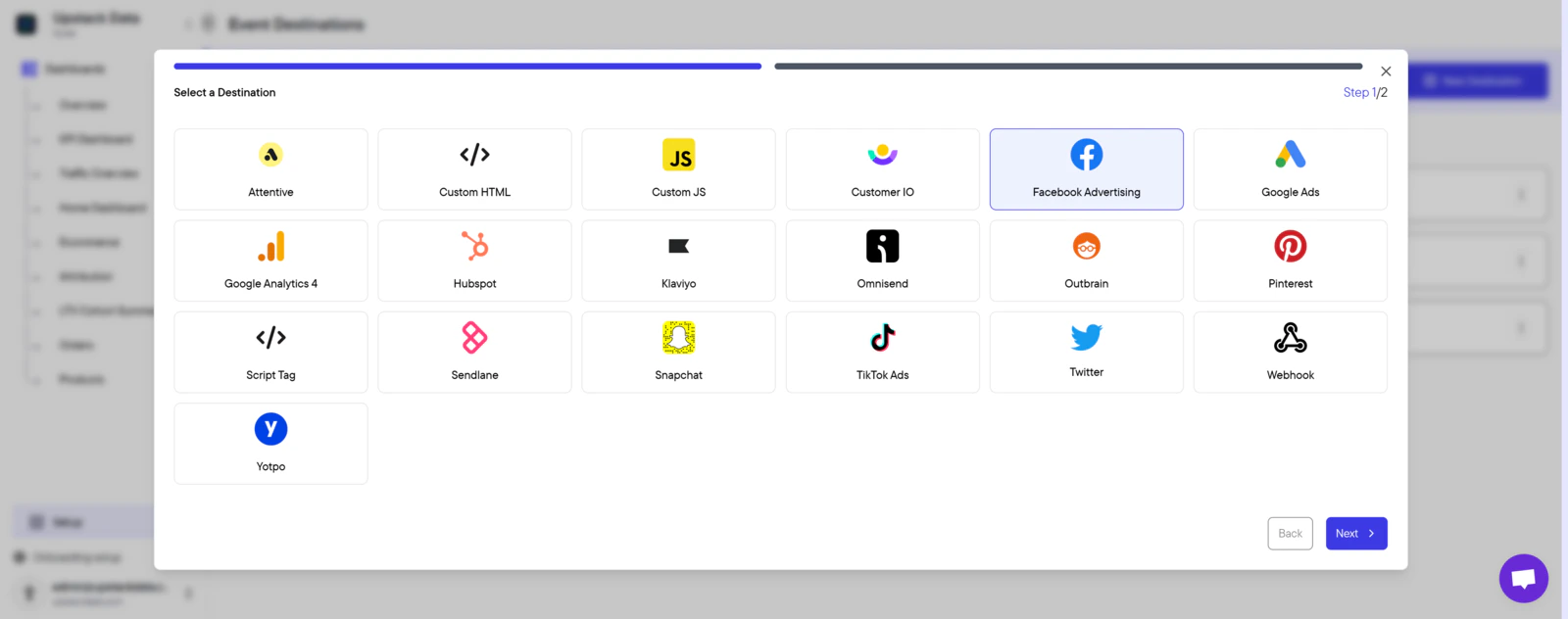
3
Enter your Pixel ID and CAPI token
Fill in the form: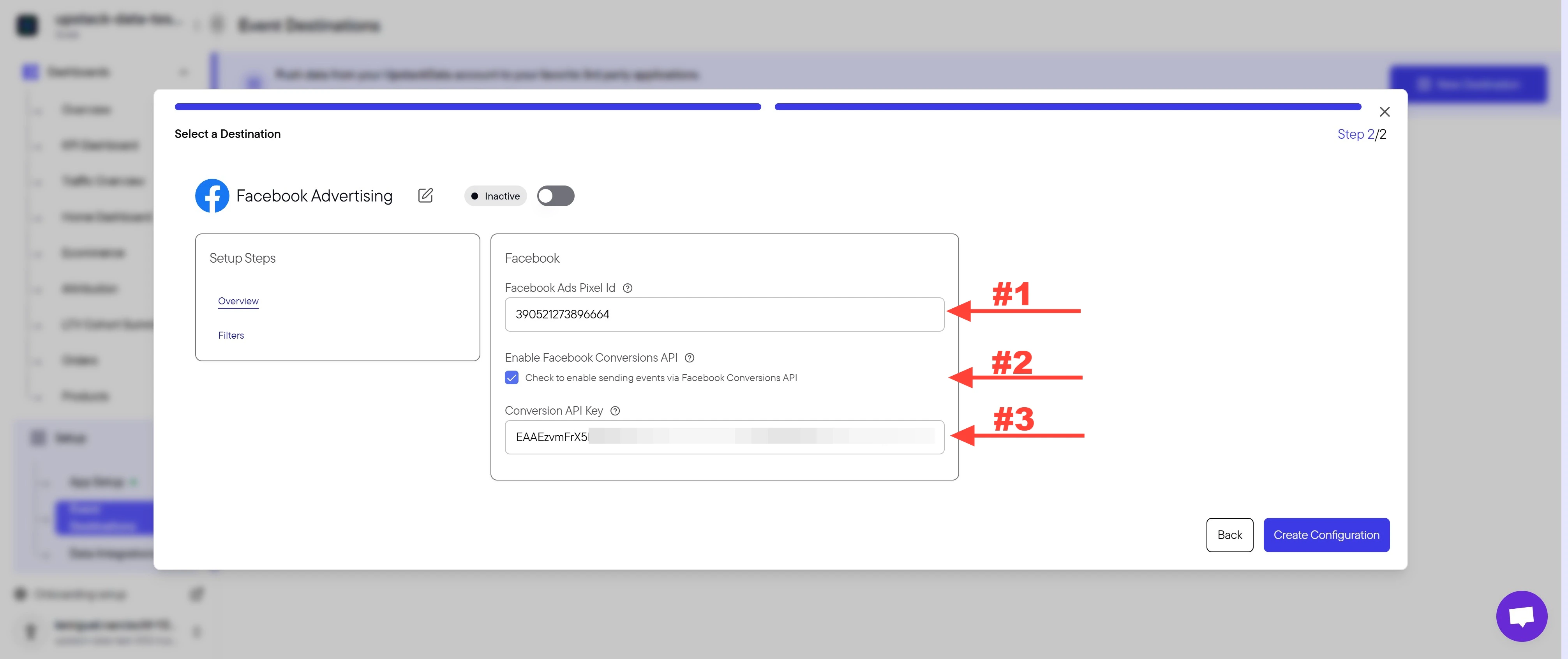
-
Meta Pixel ID — the 15–16 digit number, no prefix (e.g.,
123456789012345). Meta Pixel IDs do not have anAW-prefix; that prefix belongs to Google Ads. - Check the box Check to enable sending events via Facebook Conversions API.
-
CAPI token — starts with
EAA, approximately 190 characters long.
Need help finding these?
4
Create the configuration
Click the Create Configuration button.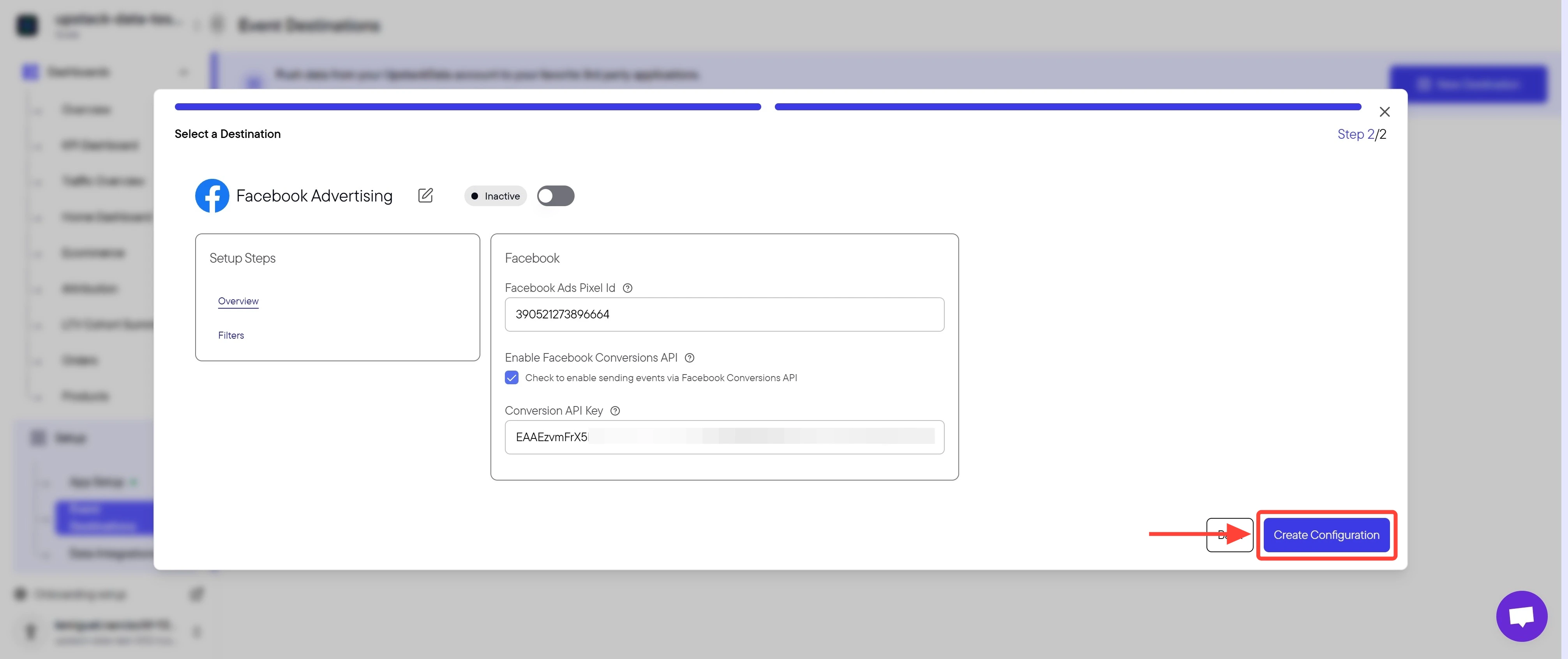
5
Verify the destination is healthy
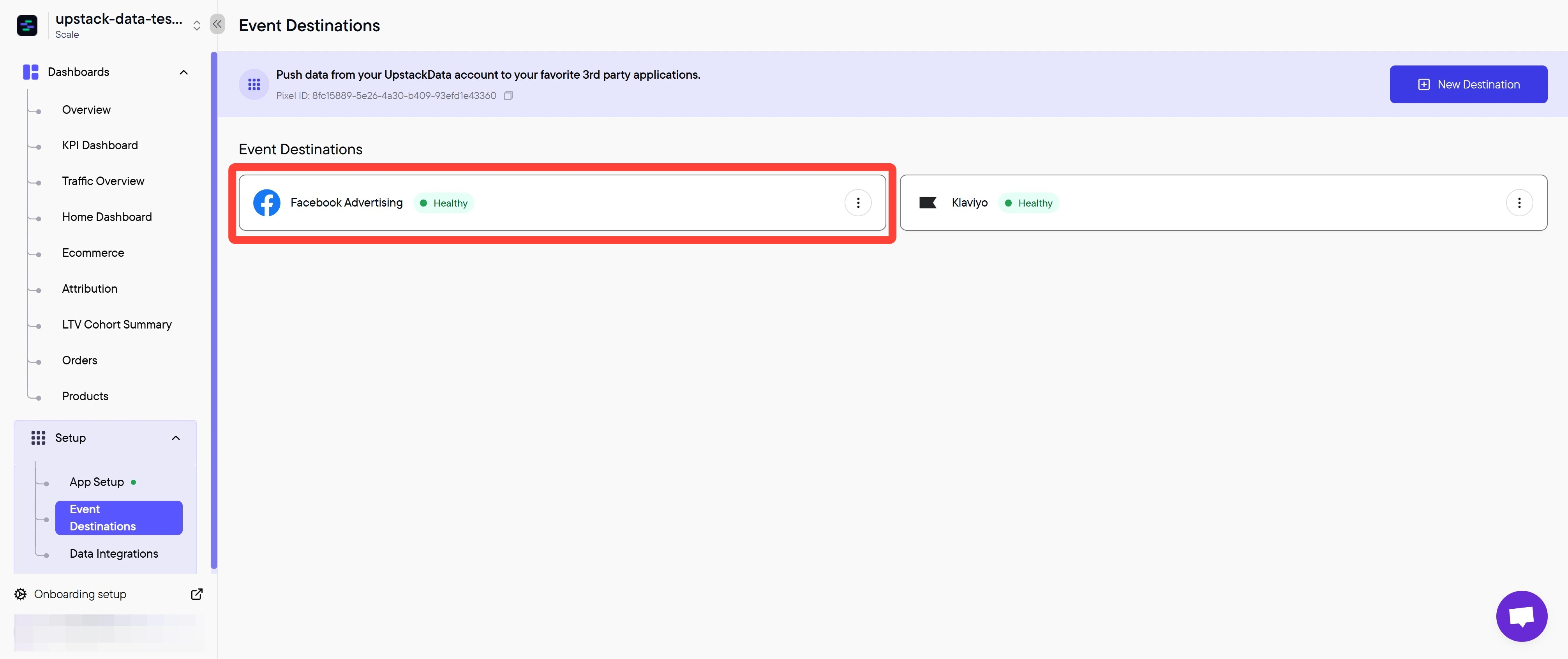
In the Upstack dashboard, the Meta destination card should display Healthy with a green status indicator within 5 minutes.If the status shows Unhealthy:
- Confirm your Pixel ID is correct (15–16 digits, no leading/trailing spaces, no prefix).
- Confirm your CAPI token is the full string starting with
EAA. - Confirm the Conversions API checkbox was selected.
- See How to update your CAPI token if your token may have expired.