

What is a CAPI token?A Conversions API (CAPI) token is a Meta access token that lets Upstack Data send conversions from your server to Meta, improving accuracy for iOS users and ad-blocked traffic.
Prerequisites
Before you start, you need:- Admin access (or full access) to a Meta Business Manager account
- A pixel already created in Meta Events Manager — see How to find your Meta Pixel ID
- An Upstack Data account ready to receive the token (sign in)
Steps to generate your CAPI token
1
Sign in to Meta Events Manager
Sign in to Meta Events Manager at business.facebook.com/events_manager.
2
Find or create your pixel
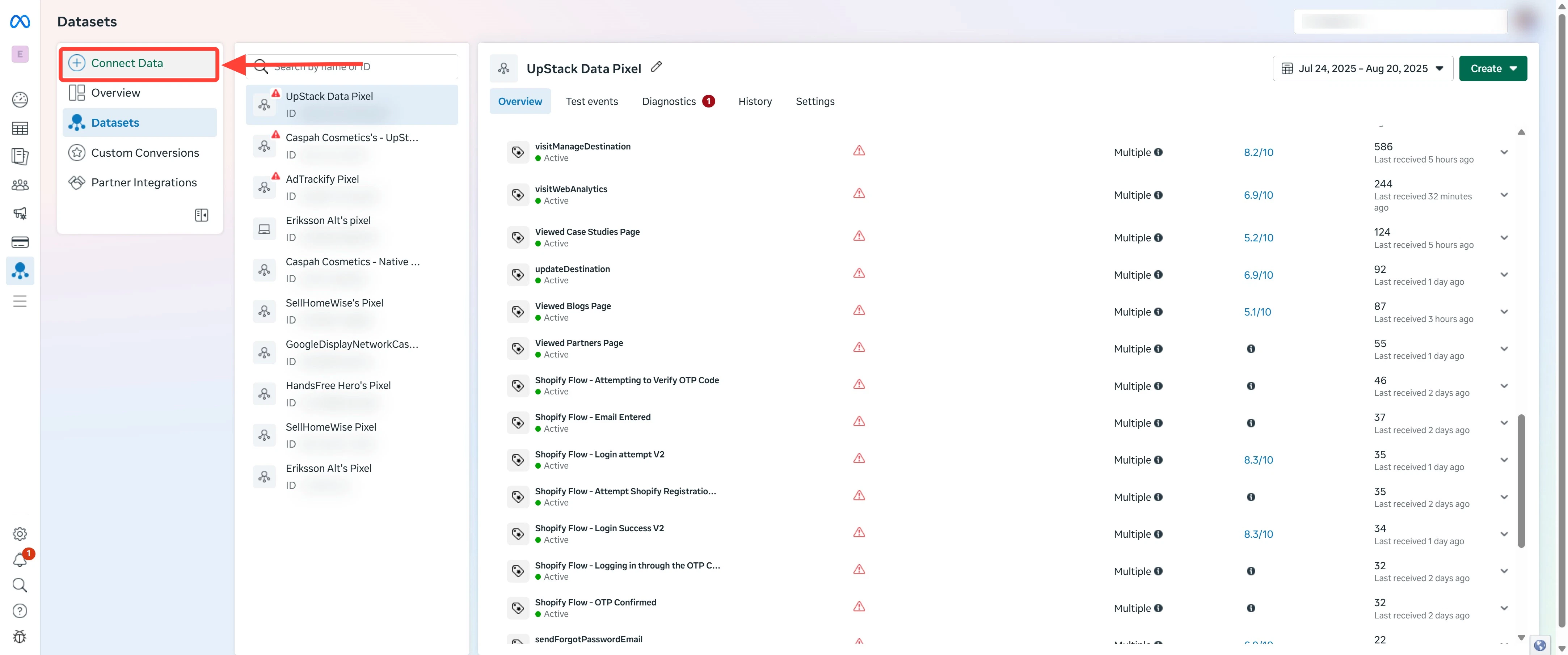
If you already have a pixel, you’ll see it listed in the Data Sources panel — proceed to the next step.If you need to create one:
- Click the green Connect Data Sources button
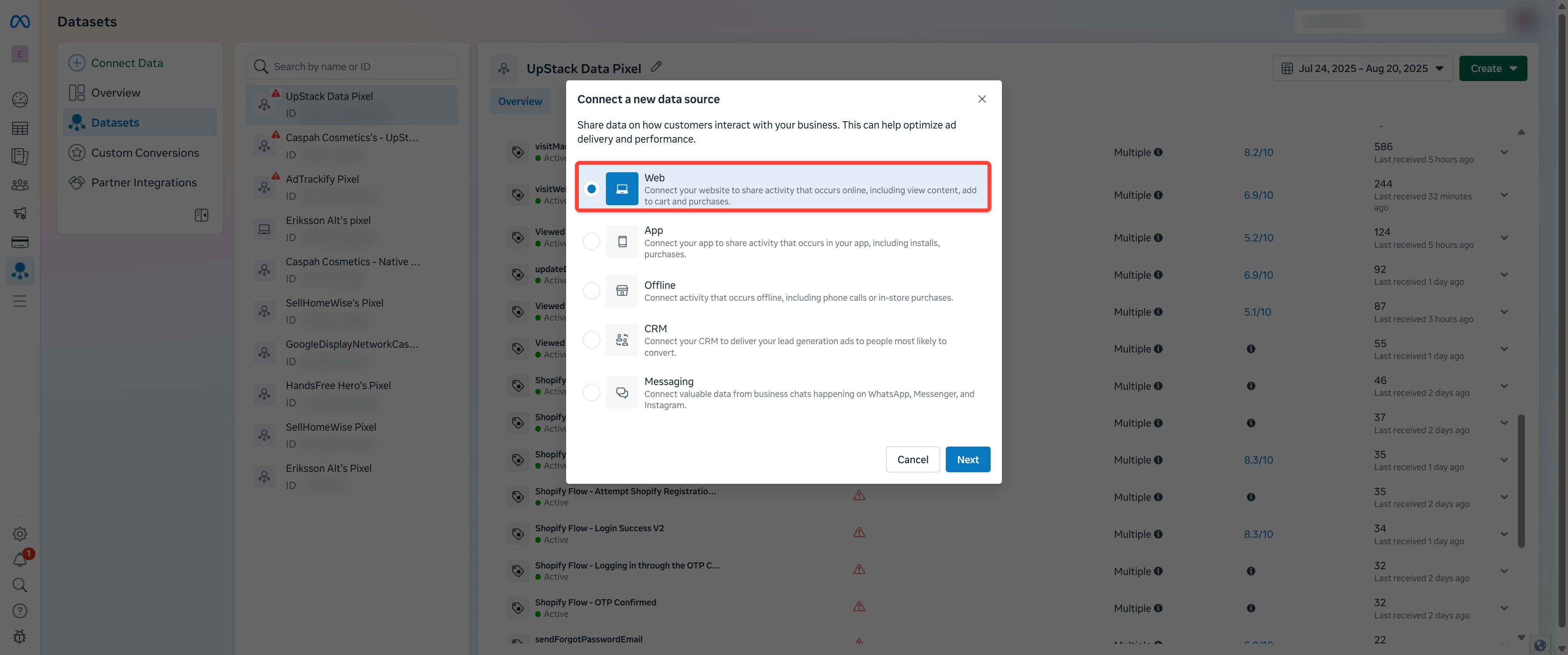
- Select Web
- Click Next or Get Started
-
Follow the instructions to create a new Meta Pixel
3
Open the pixel overview
In the Data Sources list, click your pixel’s name. You’ll land on the pixel’s Overview page.
4
Navigate to the Settings tab
On the pixel Overview page, click the Settings tab in the left-hand menu.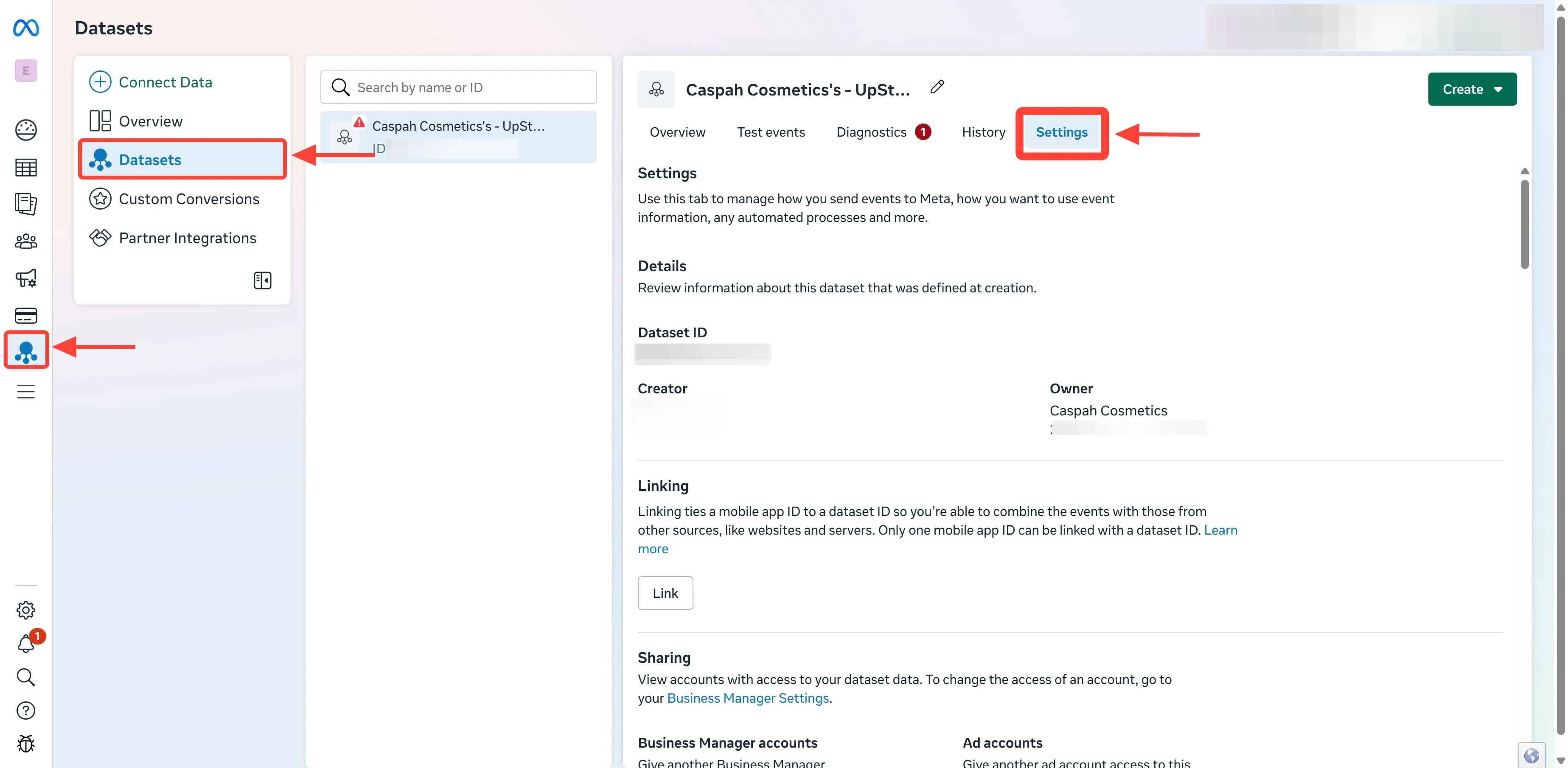
5
Generate the access token
On the Settings tab, scroll down to the Conversions API section and click Generate access token.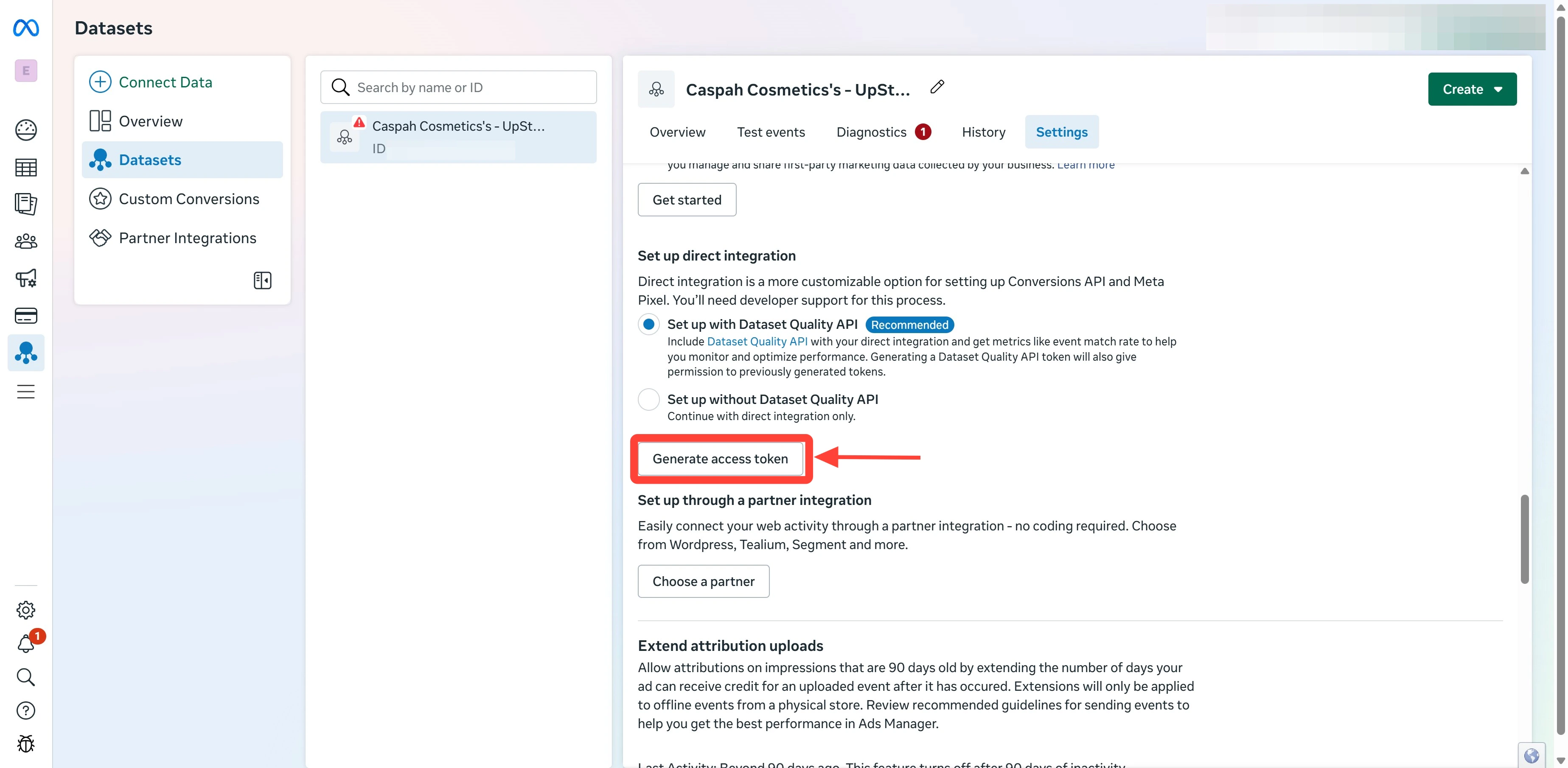
6
Copy your CAPI token
Copy the value of the access token shown in the dialog. This is your CAPI token.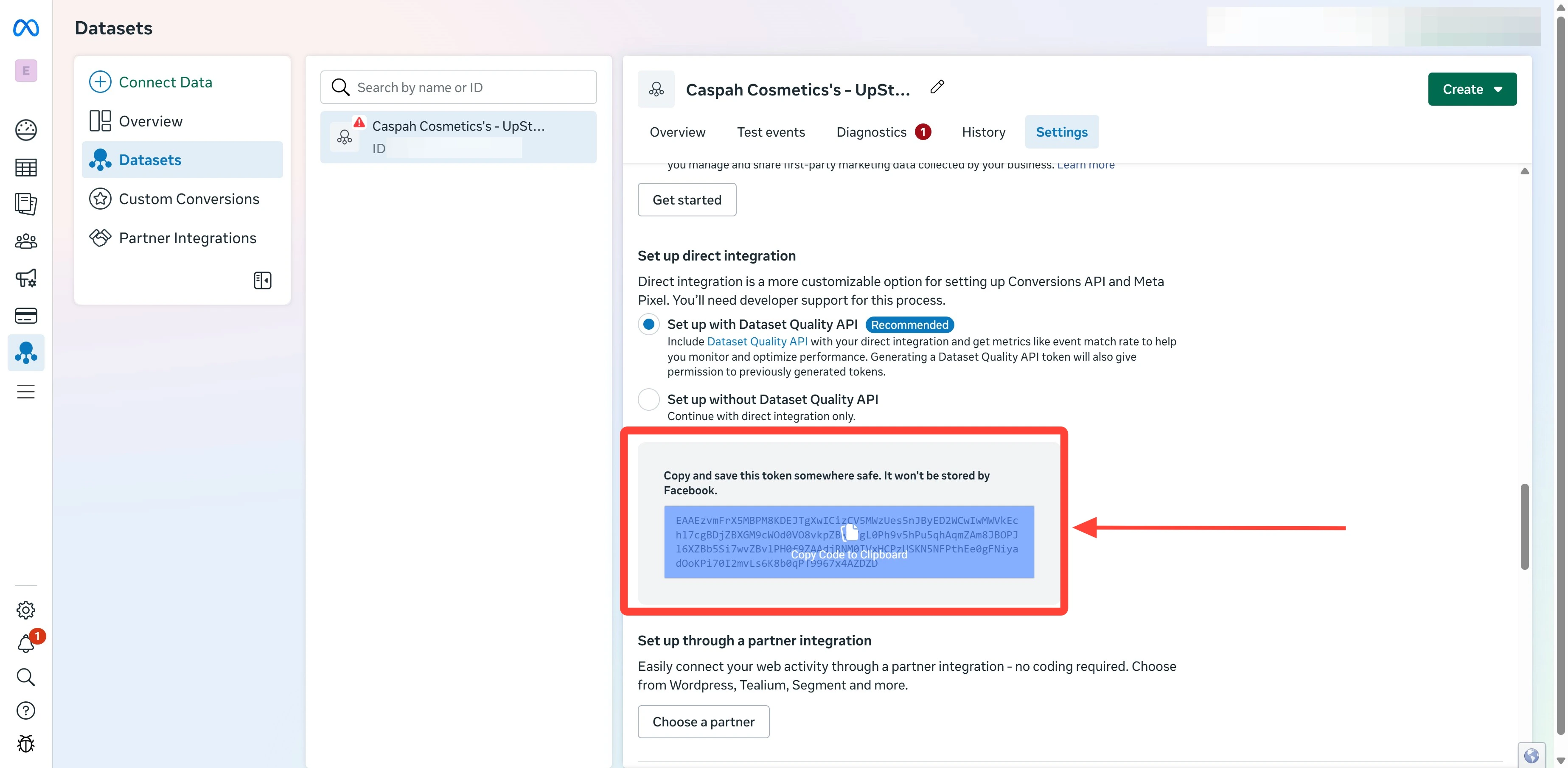
EAA, approximately 190 characters long (e.g., EAAxxxxxxxxxxxxxxxxxxxxxxxxxxxxxxxx...).7
Add the token to Upstack Data
Sign in to Upstack Data at app.upstackdata.com and open your Meta destination under Event Destinations. Paste the token into the Conversions API token field.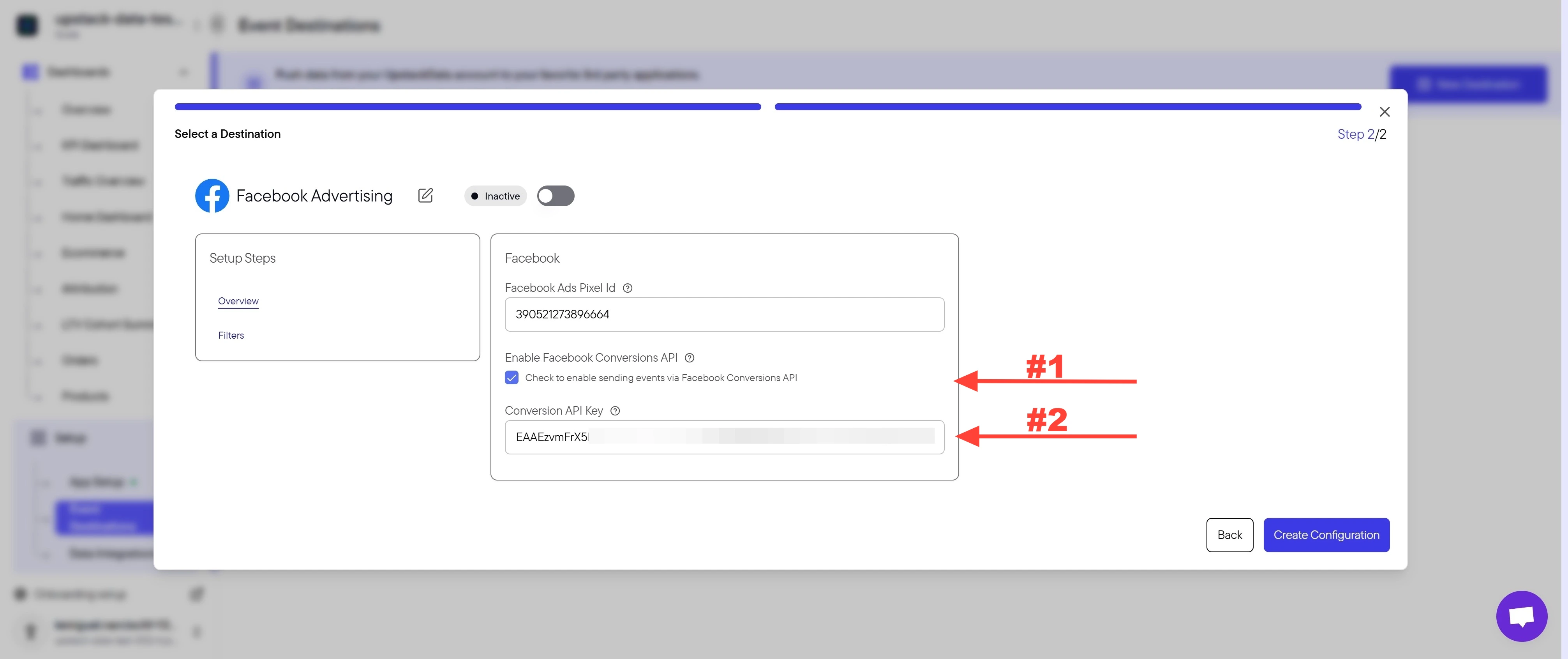
Make sure the Check to enable sending events via Facebook Conversions API checkbox is selected.
8
Verify the destination is healthy
In the Upstack dashboard, the Meta destination card should show Healthy with a green status indicator within 5 minutes.If the status shows Unhealthy:
- Confirm the token starts with
EAAand was pasted in full (no truncation, no whitespace). - Confirm the Conversions API checkbox is selected.
- Confirm the Pixel ID matches the pixel you generated the token for.
Need help with the Pixel ID? See How to find your Meta Pixel ID.