

Prerequisites
Before you start, you need:- An active Upstack Data account (sign up)
- Admin access to your Snapchat Ads account (Snapchat Ads Manager)
- Your Snapchat Pixel ID (how to get it)
- Your Snapchat Conversion API Token (how to generate it)
Configuration Steps
1
Sign in to your Upstack dashboard
Sign in to Upstack Data and open the Events Destination page.
2
Add a new Snapchat destination
In the Events Destination page, click + New Destination in the top-right of the page.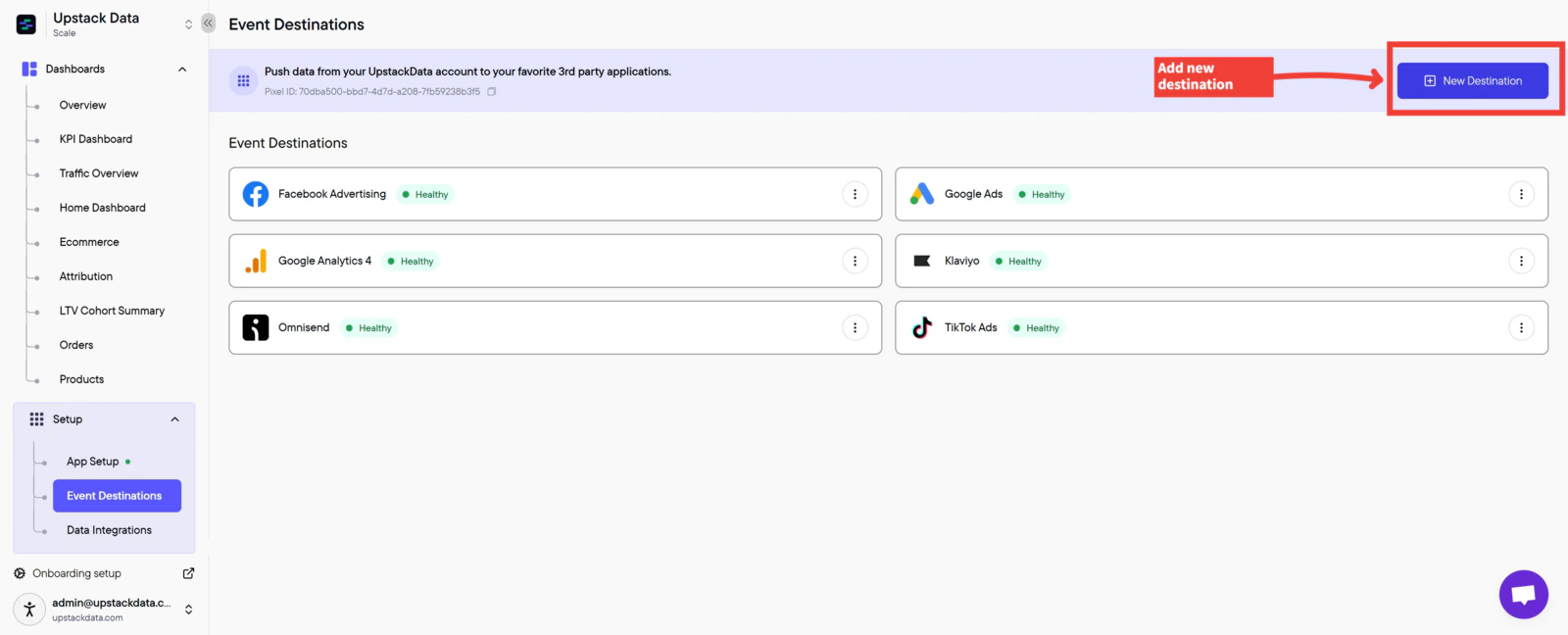
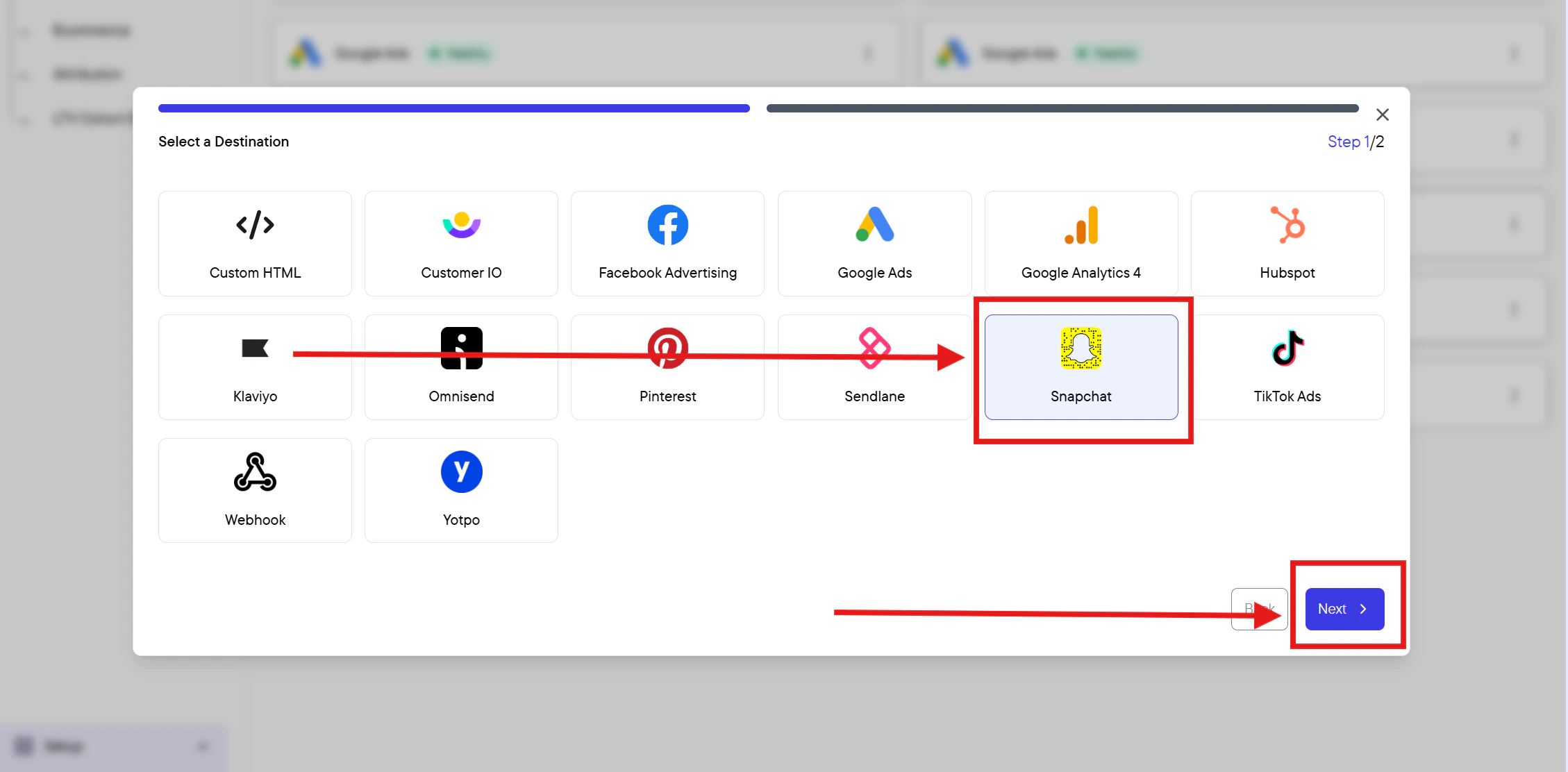
3
Enter your Snapchat credentials
Fill out the form with the following: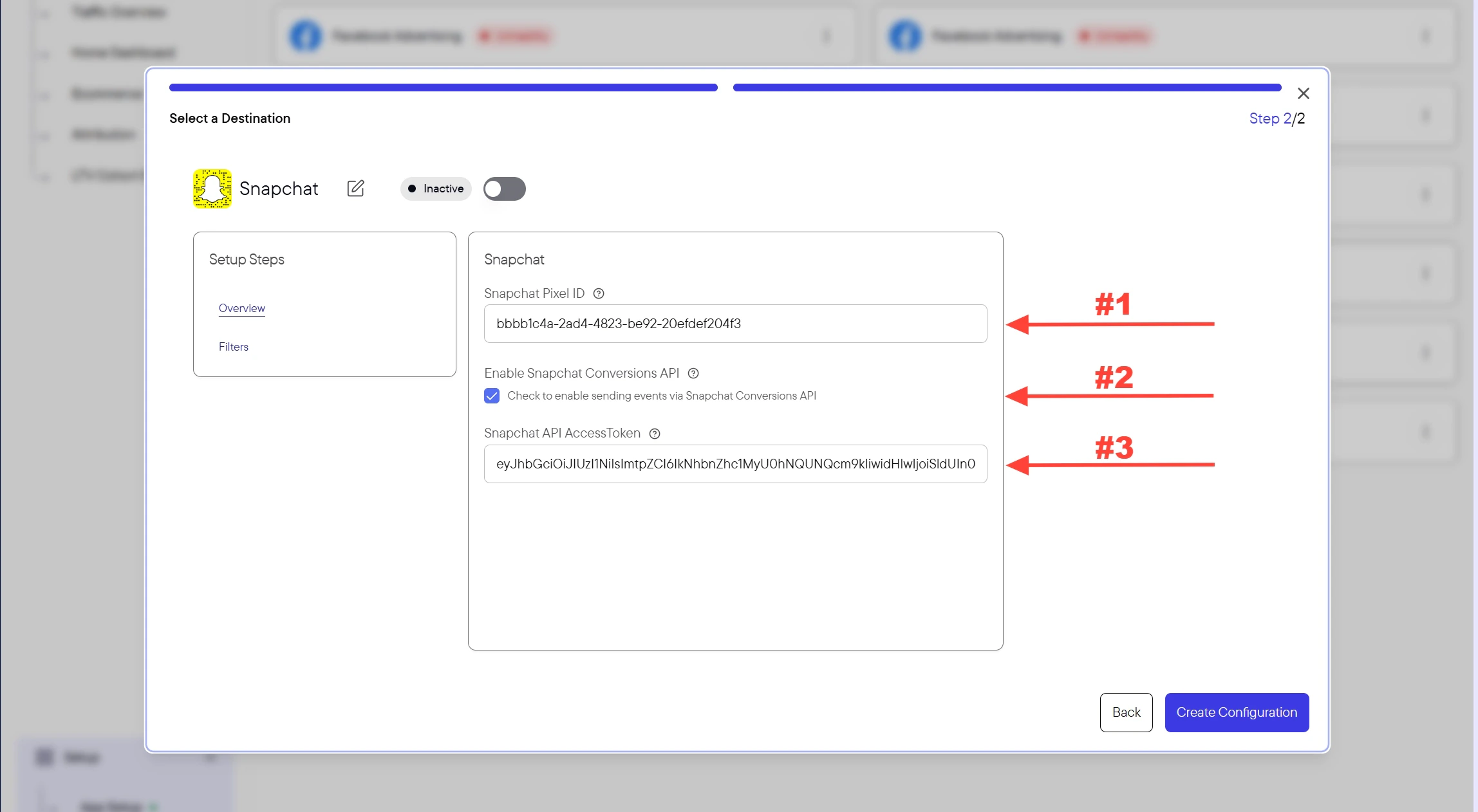
-
Snapchat Pixel ID — a 32-character UUID, for example
00000000-0000-0000-0000-000000000000 - Check the box Check to enable sending events via Snapchat Conversions API
- Snapchat Conversion API Token — the long alphanumeric token (typically 100+ characters) generated in Snapchat Business Manager
Need help finding these?How to Get my Snapchat Pixel ID →How to Generate my Snapchat Conversion API Token →
4
Create the configuration
Click the Create Configuration button at the bottom of the form.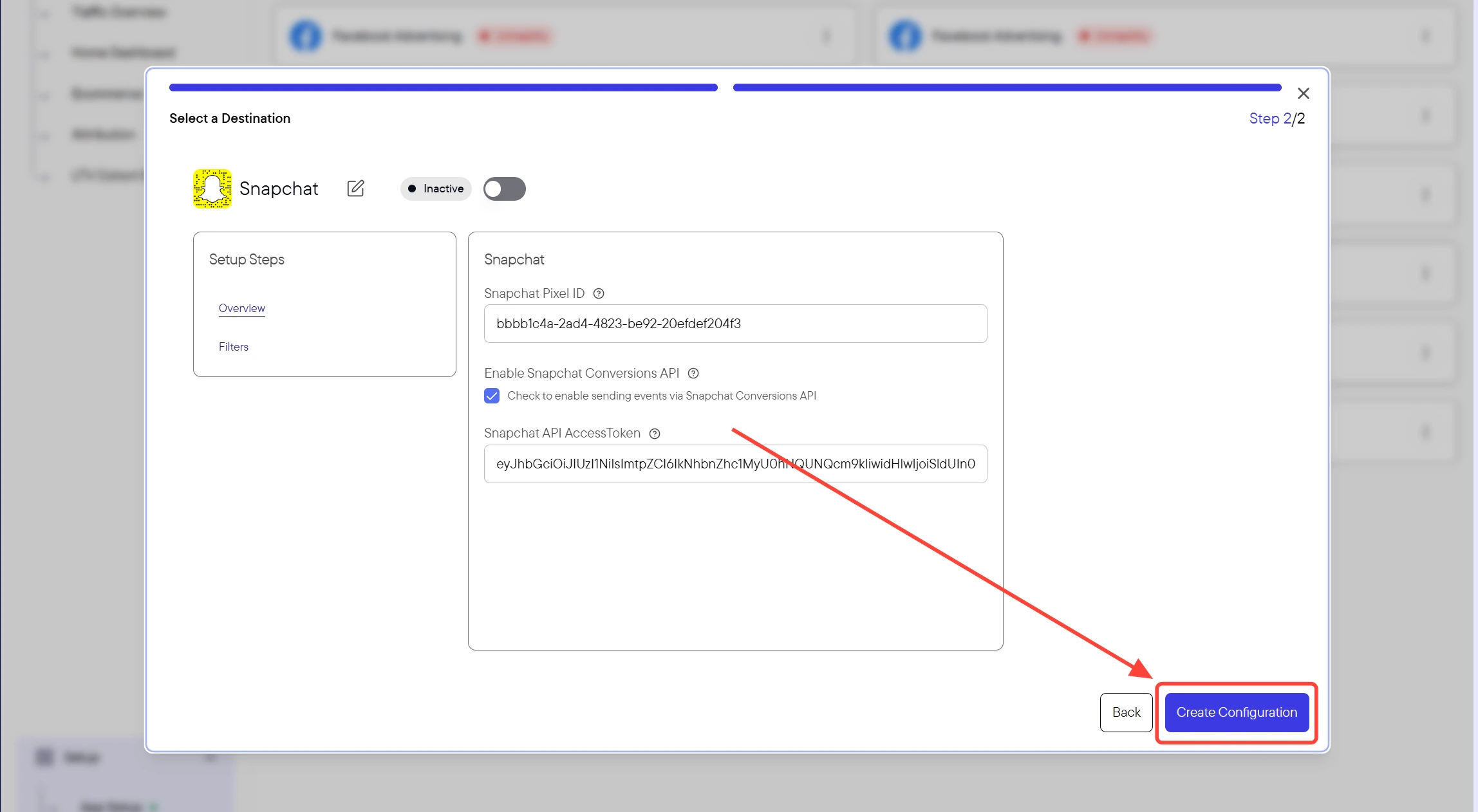
Success! 🎉 You should see a confirmation message and the Snapchat destination will appear as Healthy in your destinations list.
5
Verify the destination is sending events
Back in the Events Destination page, confirm the new Snapchat destination shows a Healthy status.Then, in Snapchat Ads Manager, open Events Manager for your pixel and confirm events are arriving from your Conversions API integration. New events typically appear within a few minutes after a test purchase or page view.