

Prerequisites
Before you start, you need:- Admin access to your Shopify store (Shopify admin)
- The Snapchat Ads sales channel currently installed in Shopify
- A configured Snapchat destination in your Upstack dashboard (setup guide)
Steps to Disable Snapchat Data Sharing in Shopify
1
Sign in to Shopify admin
Sign in to Shopify admin for the store where the Snapchat Ads sales channel is installed.
2
Open the Snapchat Ads sales channel
In the left-hand menu, click Sales channels, then select Snapchat Ads. (You can also use the search bar at the top of Shopify admin to locate the Snapchat Ads sales channel.)Make sure you are on the Settings tab of the Snapchat Ads sales channel.
3
Open the Data sharing tab
In the Snapchat Ads settings, click the Data sharing tab.Scroll to the Pixel ID section and find your connected Snapchat Pixel.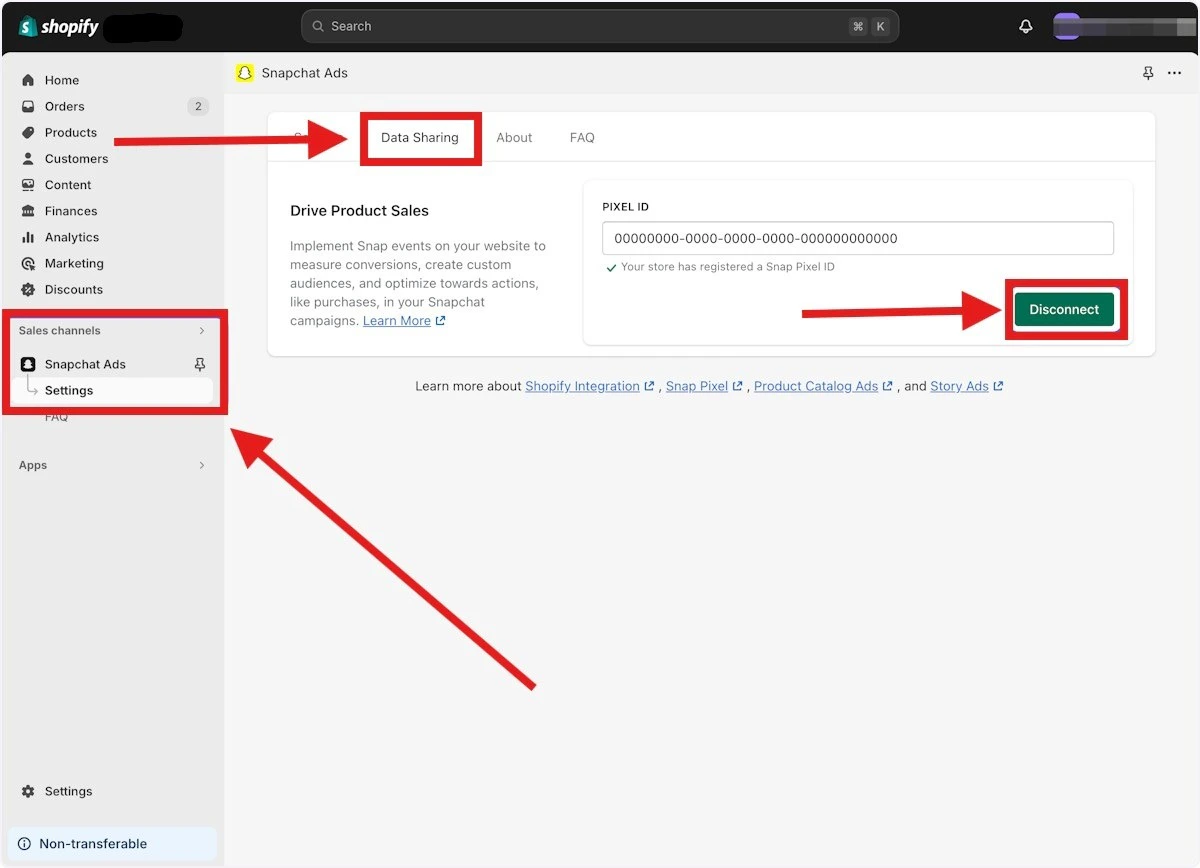
4
Disconnect the Snapchat Pixel from Shopify
Click Disconnect next to the connected Pixel ID to unlink it from Shopify, then confirm the action in the dialog.
5
Verify Snapchat is no longer sharing data through Shopify
Refresh the Data sharing tab and confirm the Pixel ID section no longer shows a connected pixel.Then, in your Upstack dashboard, confirm the Snapchat destination is still Healthy and continuing to send events through Upstack Data.
Need Help?
If you encounter any issues during setup, contact our support team and we’ll help diagnose the problem.