

Prerequisites
Before you start, you need:- Admin access to your TikTok Business Center
- A TikTok Pixel already created (see How to Create New TikTok Ads Pixel ID → if you haven’t created one yet)
What is a TikTok Pixel ID?
A TikTok Pixel ID is a unique identifier automatically assigned to your TikTok Pixel when you create it in TikTok Events Manager.
- Identify your Pixel and connect it to the correct TikTok ad account and campaigns
- Track user actions on your website such as views, clicks, sign-ups, and purchases
- Send event data back to TikTok Events Manager for reporting, audience creation, and optimization
- Improve attribution and targeting by linking website activity to your TikTok ads
Configuration Steps
1
Sign in to TikTok Events Manager
- Sign in to TikTok Events Manager
-
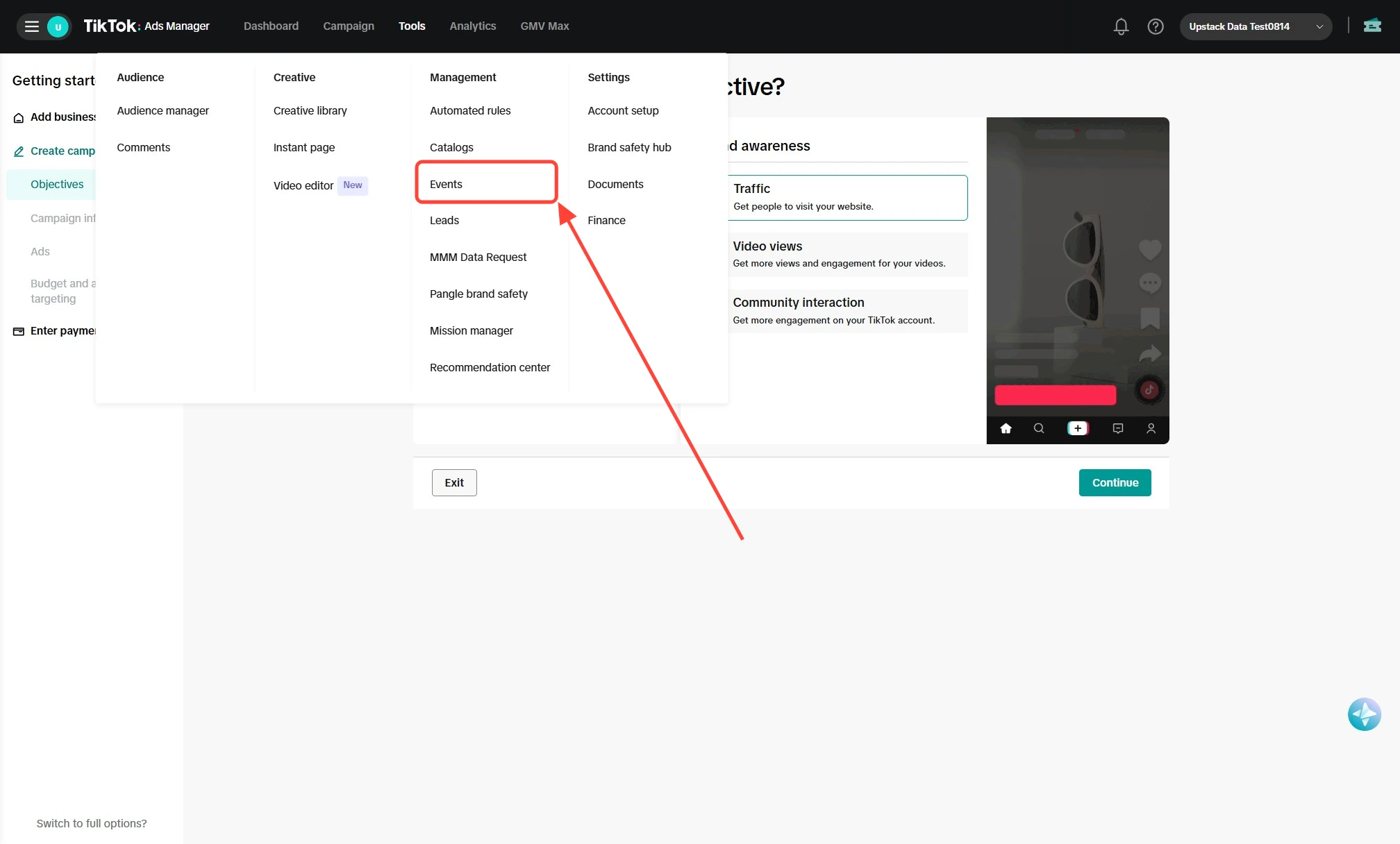
In the top navigation, click Tools → Events
2
Open your UpstackData Pixel
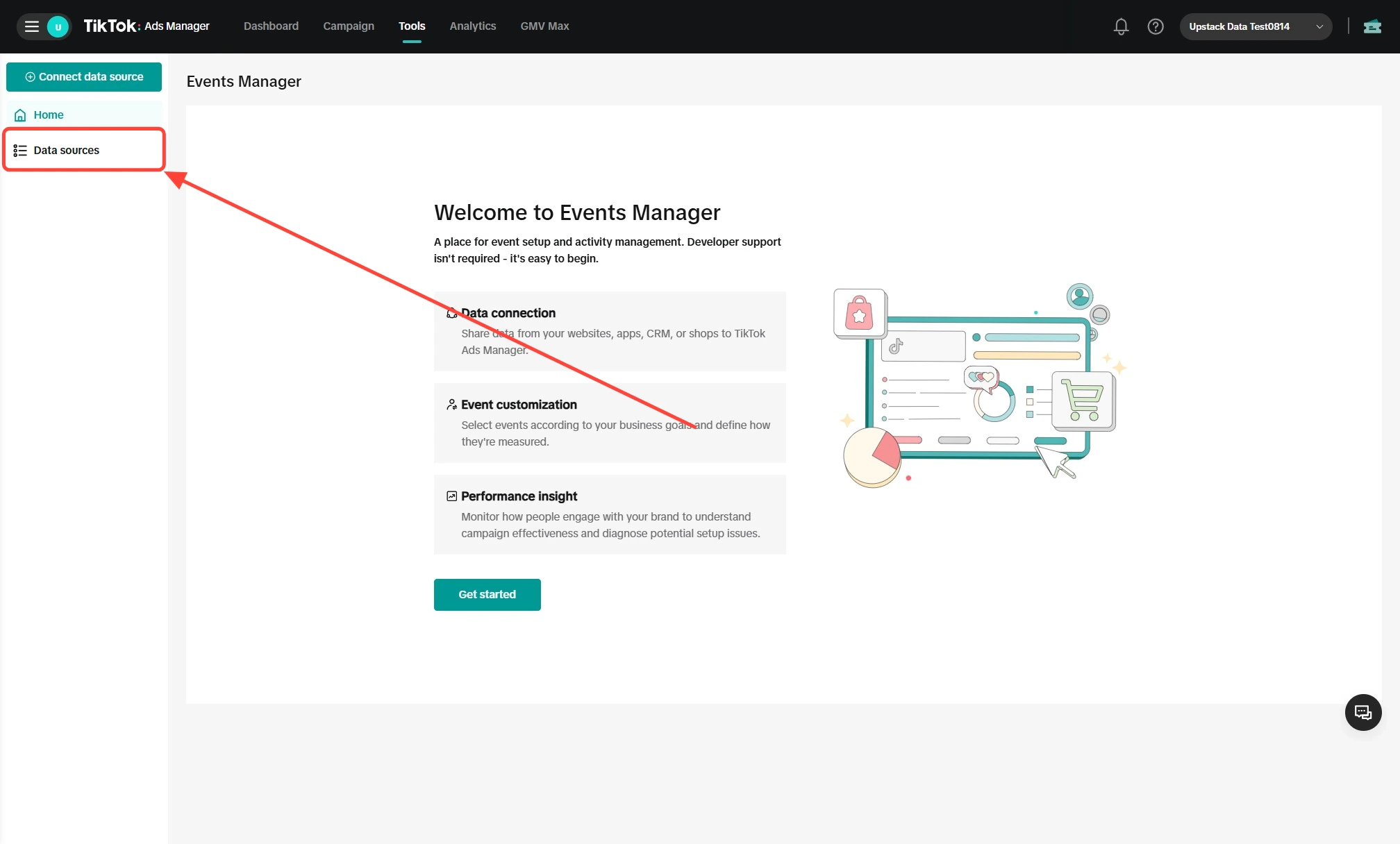
- In TikTok Events Manager, click Data sources in the left-hand menu
-
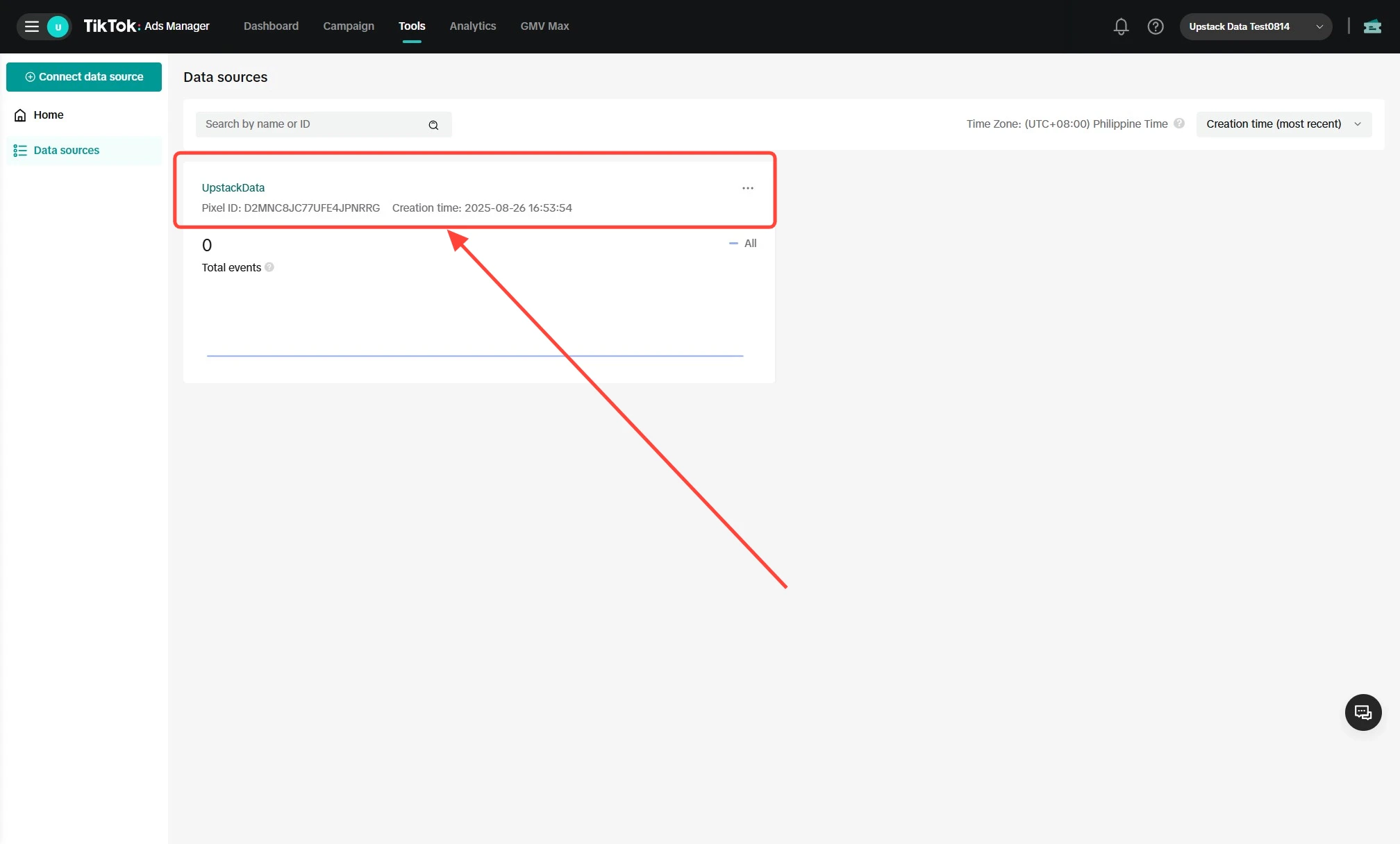
Find your UpstackData Pixel in the list and click its name to open the Pixel overview page
Note: If you haven’t created a Pixel yet, see How to Create New TikTok Ads Pixel ID → first.
3
Copy your Pixel ID
- On the Pixel overview page, locate the Pixel ID at the top of the page (next to the Pixel name)
- Click the copy icon to copy the Pixel ID to your clipboard
-
Paste it into the TikTok Pixel ID field in the Upstack dashboard at app.upstackdata.com/pixel/event-destinations
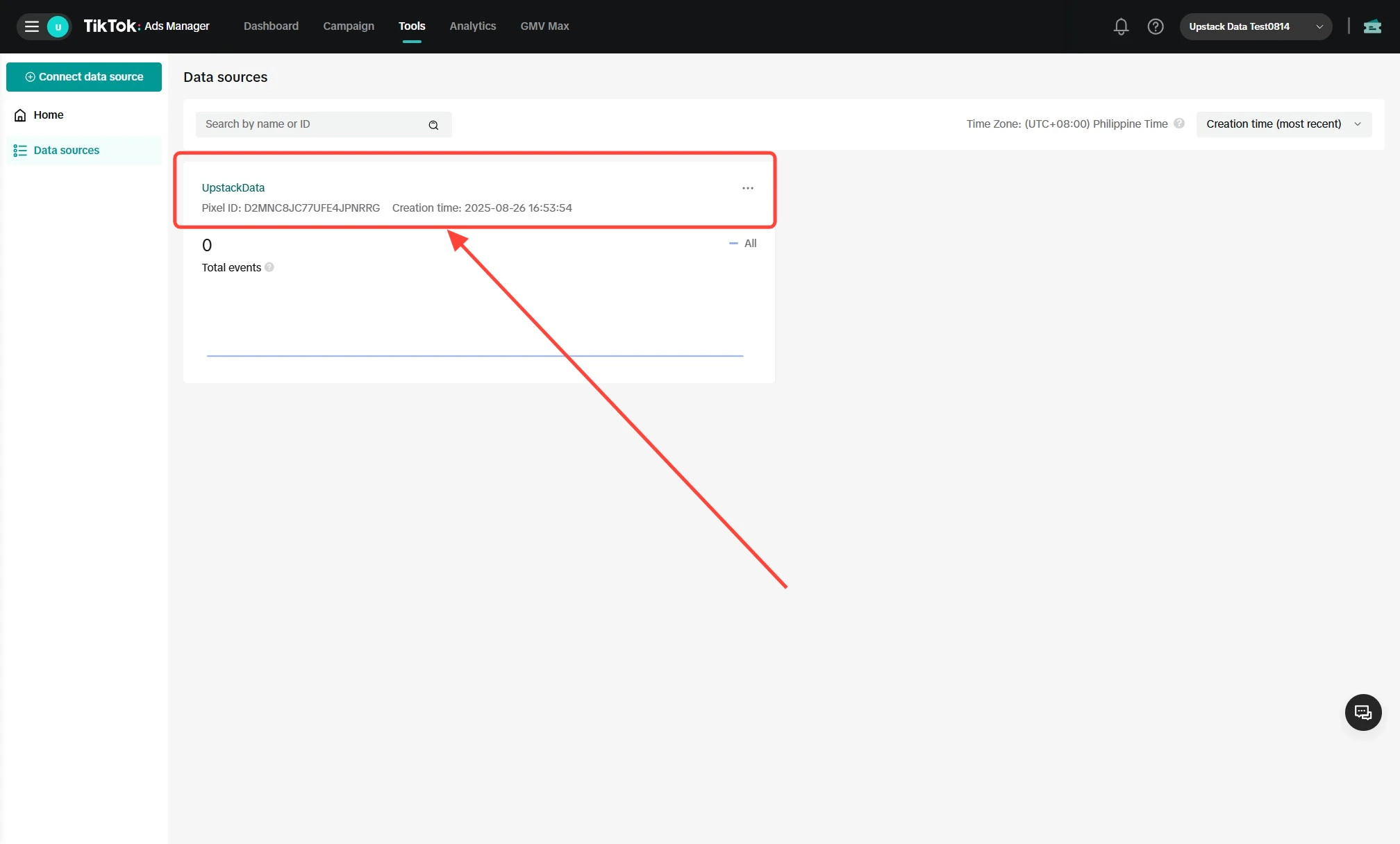
Format: The Pixel ID is a 20-character alphanumeric string (e.g.,
C2A3B4C5D6E7F8G9H0I1).Verify the Setup
To confirm you copied the correct value:- The Pixel ID should be exactly 20 characters with no spaces.
- In the Upstack dashboard, after saving the destination it should show as Healthy under Events Destination.