

Prerequisites
Before you start, you need:- Admin access to your Shopify store (Shopify admin)
- The Pinterest Sales Channel currently installed in Shopify
- A configured Pinterest destination in your Upstack dashboard (setup guide)
Why You Should Disable Pinterest Data Sharing
Shopify’s Pinterest Sales Channel automatically enables both catalog and pixel tracking, without allowing you to manage them separately. It can cause duplicate events because it sends conversion data from both your browser and server. When combined with Upstack Data’s server-side tracking, this may inflate conversions, ROAS, and event counts. Disabling Pinterest’s own data-sharing features allows Upstack Data to:- Ensure consistent and deduplicated event tracking
- Improve attribution accuracy across platforms
- Maintain reliable performance reporting
Steps to Disable Pinterest Data Sharing in Shopify
1
Sign in to Shopify admin
Sign in to Shopify admin for the store where Pinterest is installed.
2
Open Apps and sales channels
In the left-hand menu, click Settings, then select Apps and sales channels.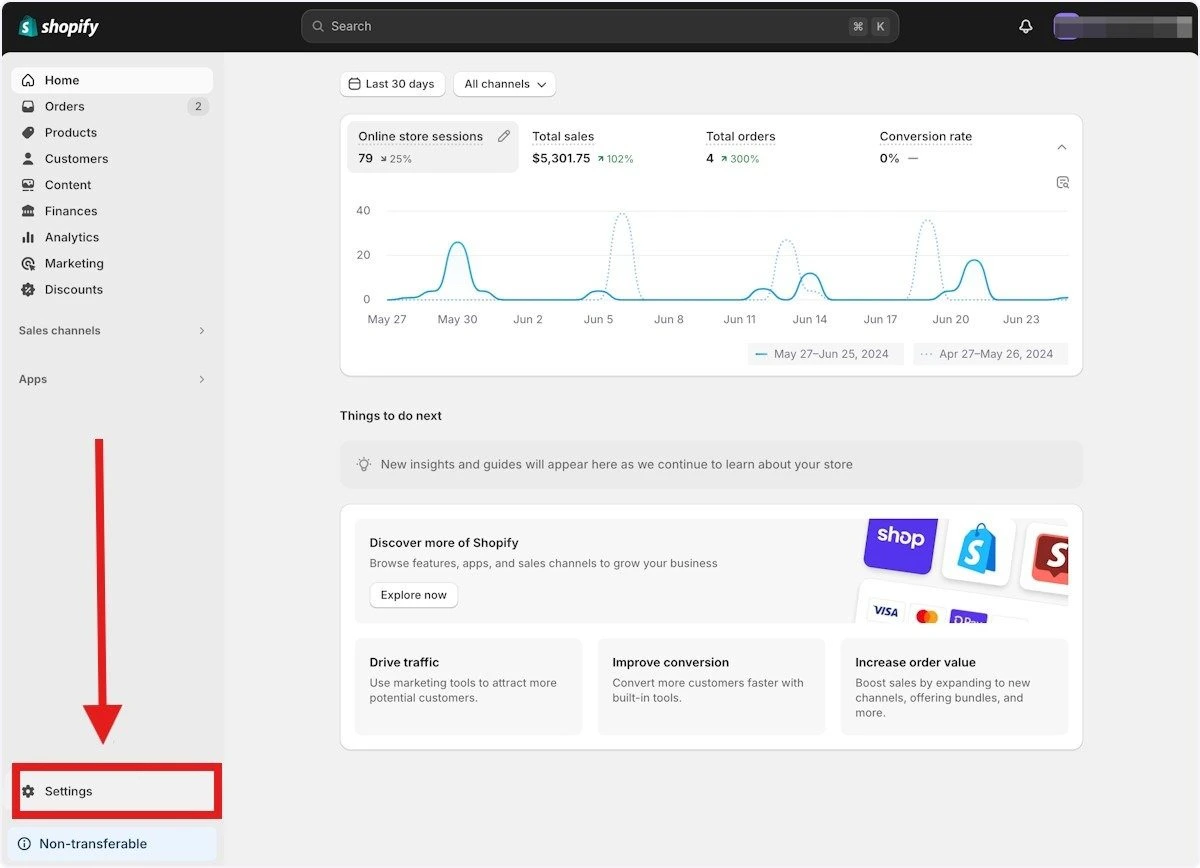
3
Uninstall the Pinterest sales channel
Locate Pinterest in the list, click the three-dot (⋮) menu, then select Uninstall.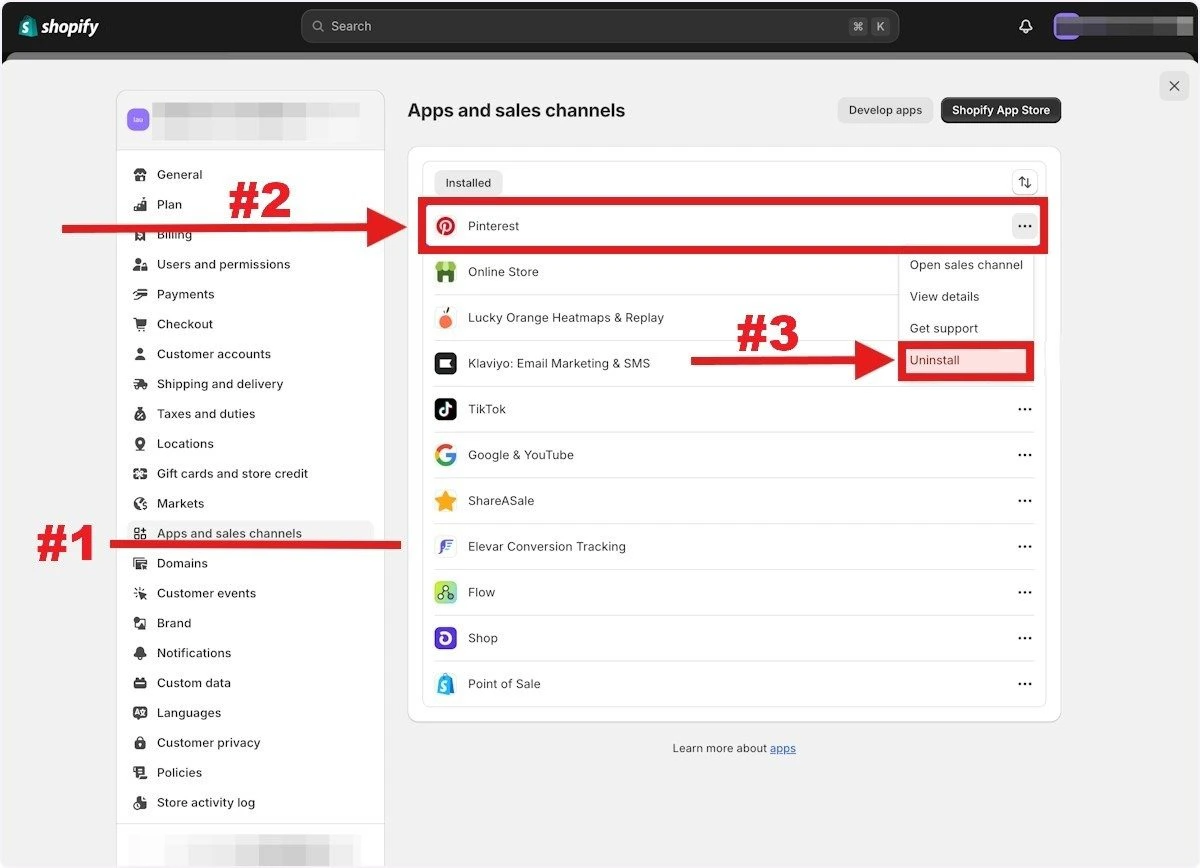
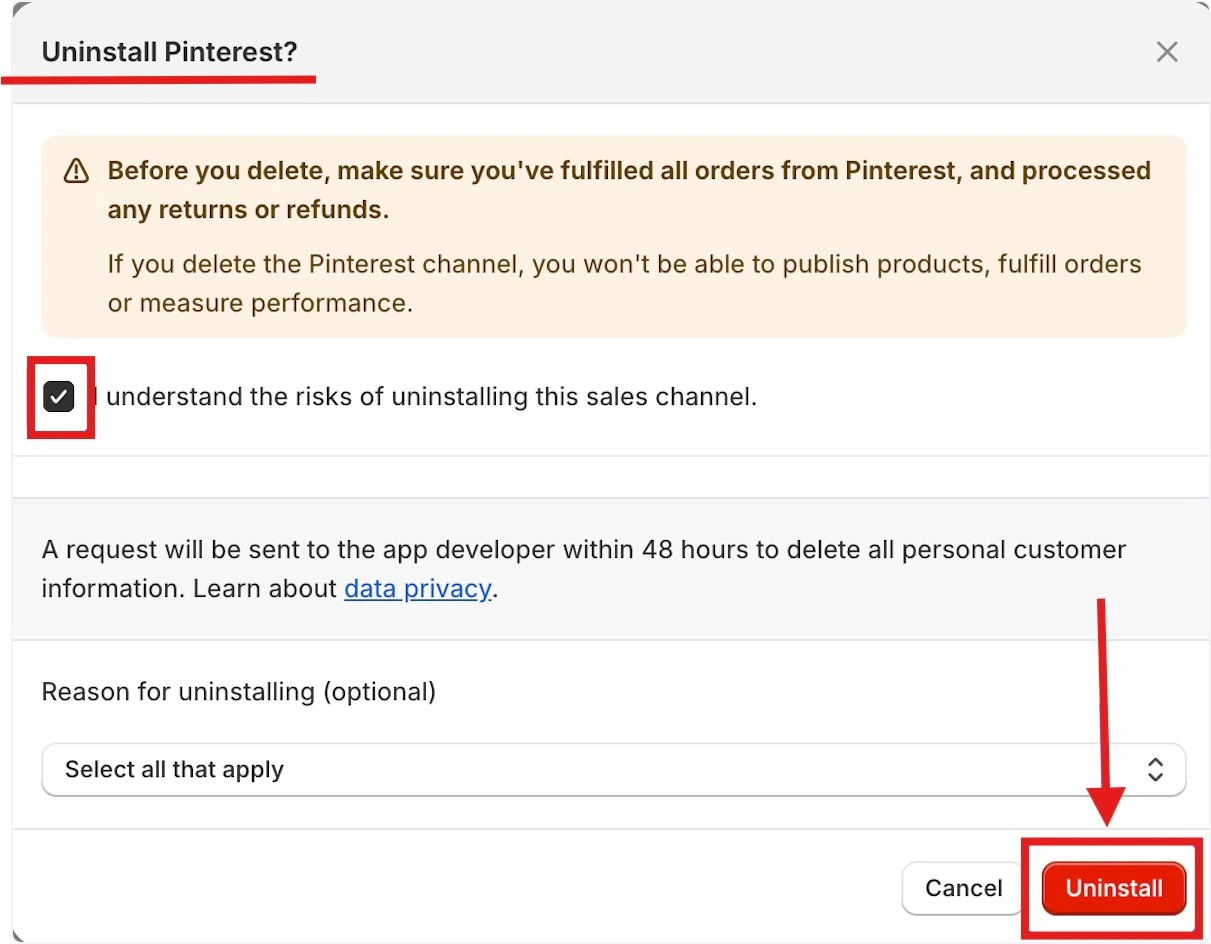
4
Verify Pinterest is no longer connected
Refresh the Apps and sales channels page and confirm Pinterest no longer appears in the list of installed channels.Then, in your Upstack dashboard, confirm the Pinterest destination is still Healthy and continuing to send events through Upstack Data.
Uninstalling the Pinterest app in Shopify is important because it helps prevent duplicate tracking and data conflicts between Pinterest’s native integration and Upstack Data.
Need Help?
If you encounter any issues during setup, contact our support team and we’ll help diagnose the problem.