

What is a Pinterest Advertiser ID?
A Pinterest Advertiser ID is a unique numeric identifier assigned to your Pinterest Business advertising account. It is typically a 12-digit number (for example,
549000000000).Prerequisites
Before you start, you need:- Admin access to your Pinterest Business account
- At least one Pinterest ad account associated with your business
Steps to Find Your Advertiser ID
1
Sign in to Pinterest Business
Sign in to Pinterest Business.
2
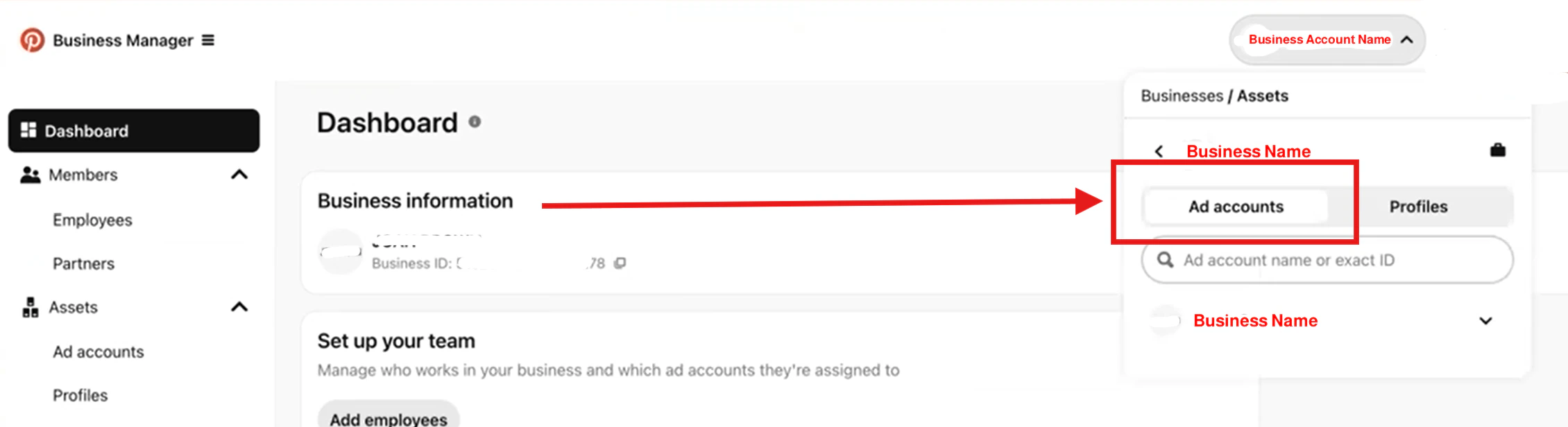
Open Ad Accounts
In the top-right of the page, click your Business account name.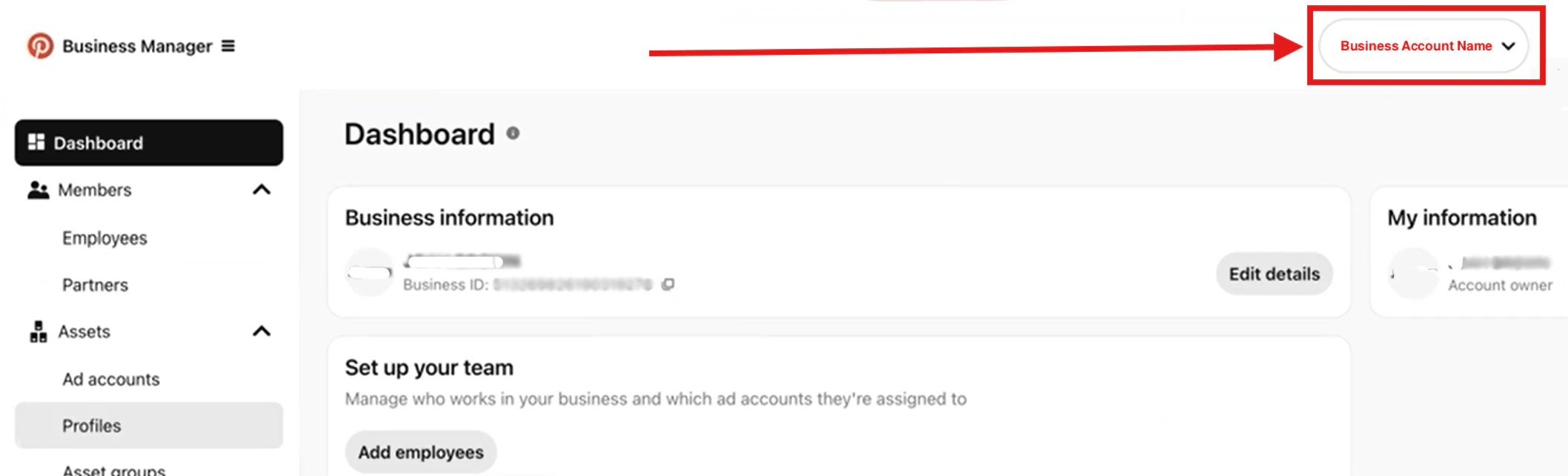

3
Copy the Advertiser ID
Select the ad account you want to connect to Upstack Data. The Advertiser ID is displayed next to the ad account name as a 12-digit numeric value (for example, 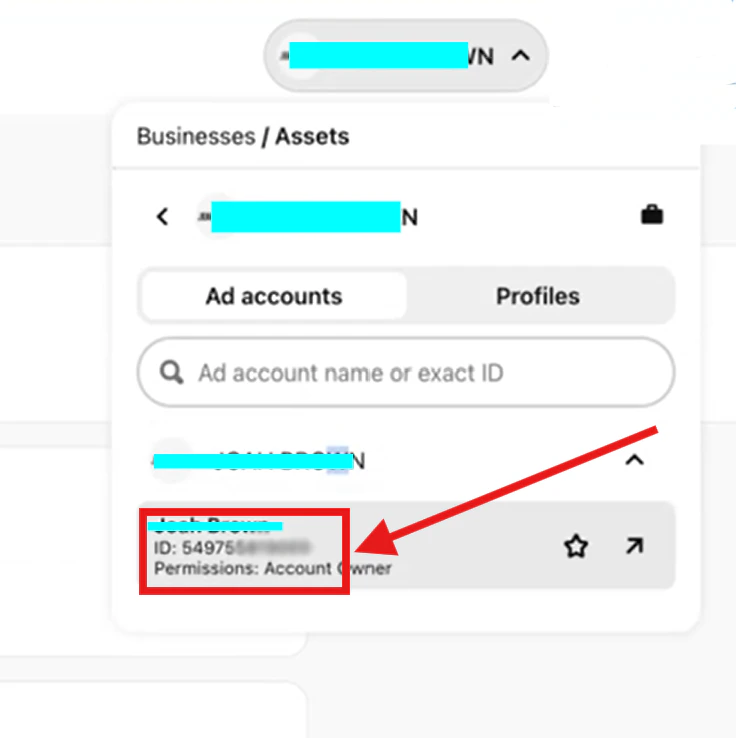
549000000000).Copy the Advertiser ID — you’ll paste it into the Pinterest destination form in your Upstack dashboard.4
Verify the Advertiser ID
Confirm the value you copied is a 12-digit number with no extra characters or spaces. You can paste it into the Advertiser ID field when configuring the Pinterest destination in your Upstack dashboard.
Need help finding these?How to Find Pinterest Pixel Tag ID →How to Generate Pinterest Conversion API Key →