

What is a Pinterest Pixel Tag ID?
A Pinterest Pixel Tag ID is a unique identifier assigned to your Pinterest Pixel, which tracks user actions (like page views, add-to-cart, or purchases) on your website. It’s what you use to connect your site activity with Pinterest Ads for measurement and optimization. The ID is a 13-digit number (for example,
2613000000000).Prerequisites
Before you start, you need:- Admin access to your Pinterest Business account
- An existing Pinterest tag (if you don’t have one yet, follow How to Create a New Pinterest Pixel Tag ID first)
Steps to Find Your Pixel Tag ID
1
Sign in to Pinterest Business
Sign in to Pinterest Business.
2
Open Tag manager
In the top-left of the page, click the Menu icon (three horizontal lines).Under Manage business, select Conversions.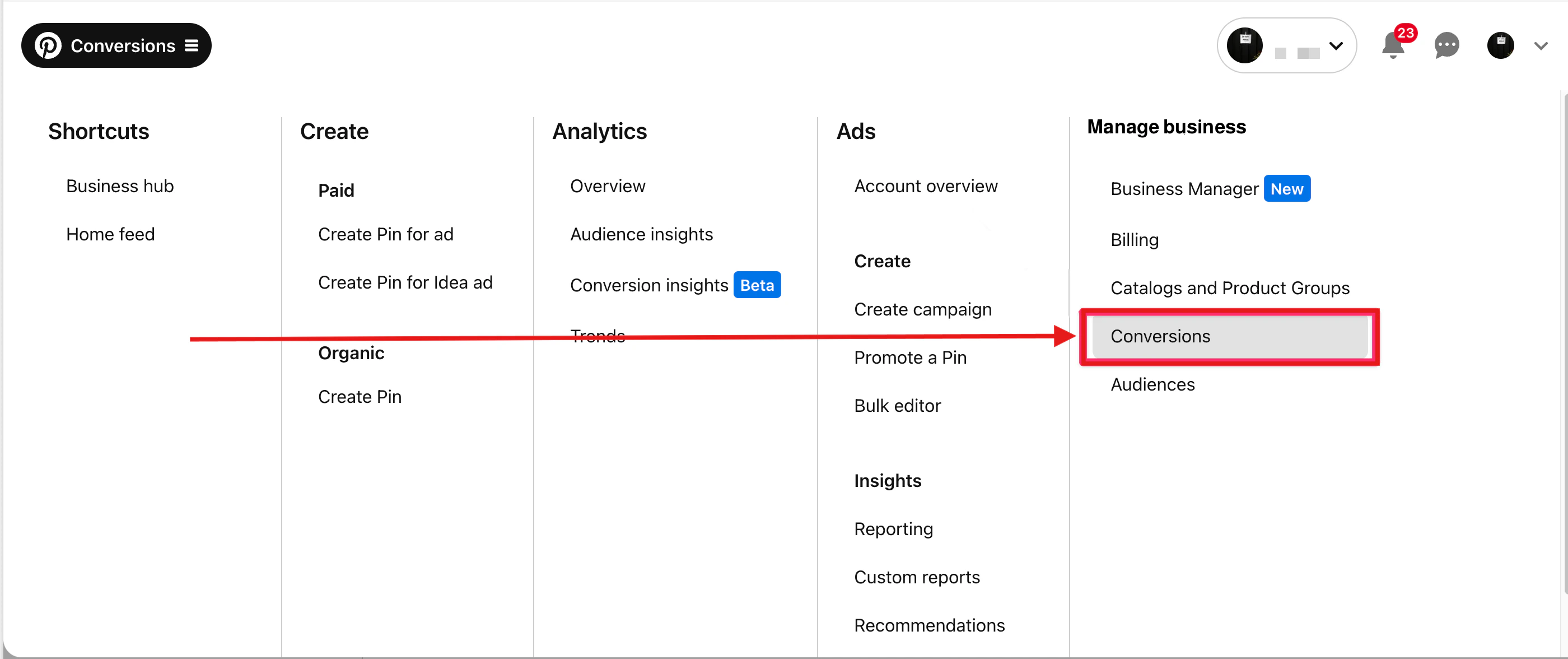
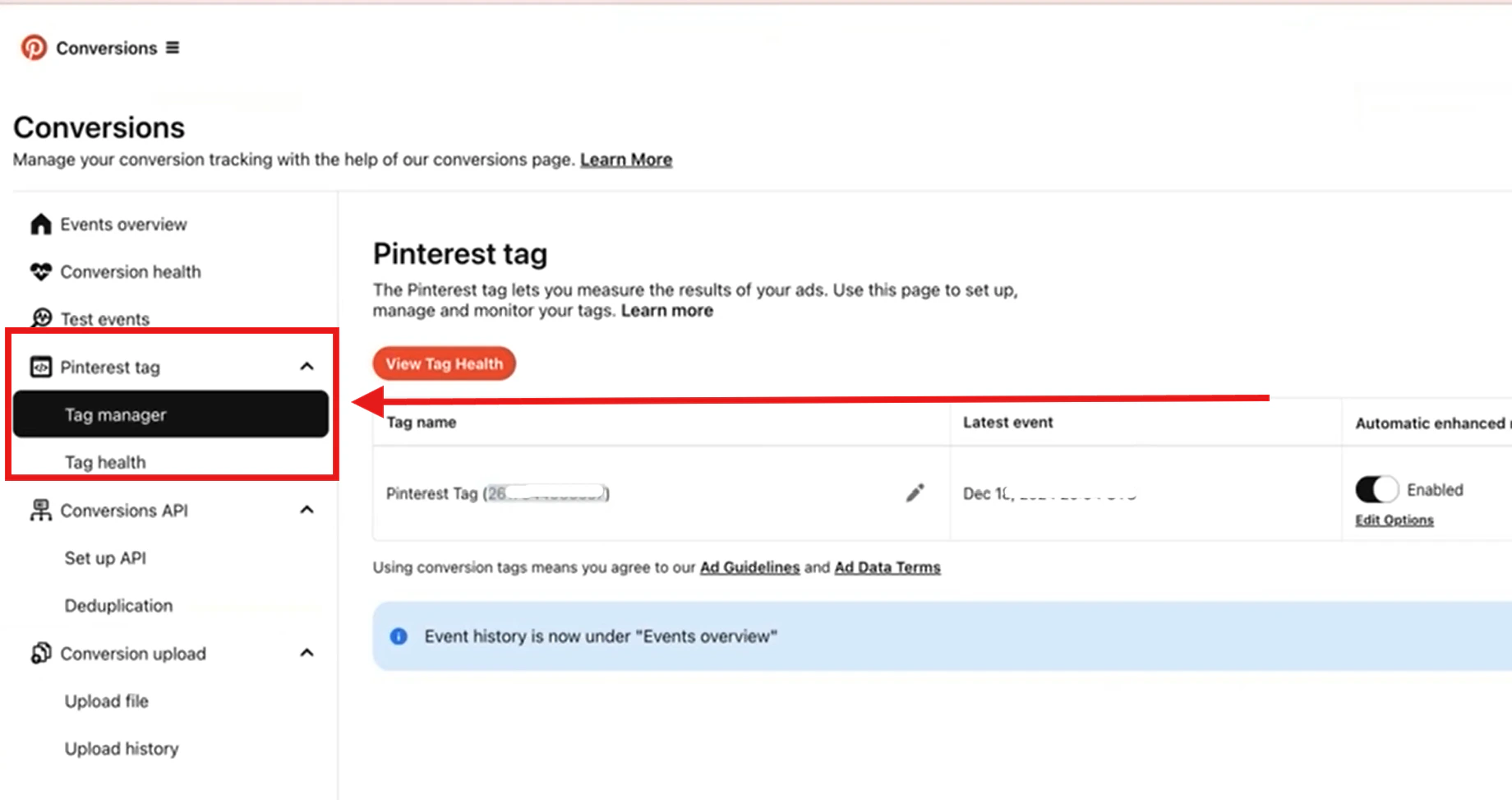
3
Copy your Pixel Tag ID
If you already have a tag, you’ll see it listed under Pinterest Tag with a 13-digit ID (for example, 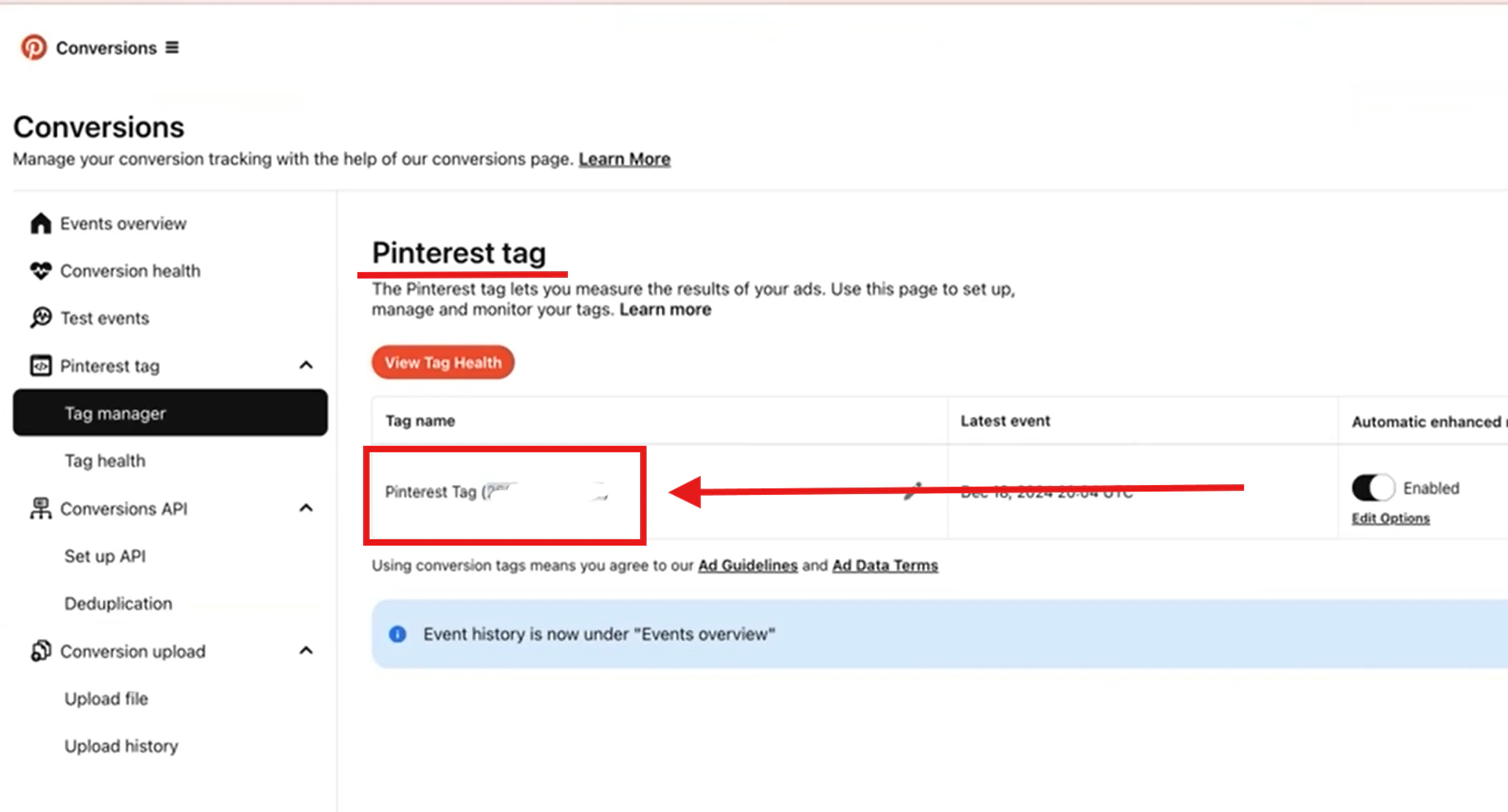
2613000000000).Copy the Pinterest tag — this is your Pinterest Pixel Tag ID for the Upstack Data integration.No tag yet? If you don’t see a Pinterest tag listed, you need to create one first.How to Create a New Pinterest Pixel Tag ID →
4
Verify the Pixel Tag ID
Confirm the value you copied is a 13-digit number with no extra characters or spaces. You can paste it into the Pixel Tag ID field when configuring the Pinterest destination in your Upstack dashboard.
Need help finding these?How to Generate Pinterest Conversion API Key →How to Find Pinterest Advertiser ID →