

Prerequisites
Before you start, you need:- The Klaviyo destination configured in Upstack Data
- Admin (manager) access to the store’s Klaviyo account
- The following Upstack-emitted events present in Klaviyo (under Analytics → Metrics):
- Viewed Product - Upstackified
- Added to Cart - Upstackified
- Started Checkout - Upstackified
- Active on Site - Upstackified
Configuration Steps
1
Sign in to Klaviyo
Sign in to Klaviyo.
2
Open the UTM Tracking settings
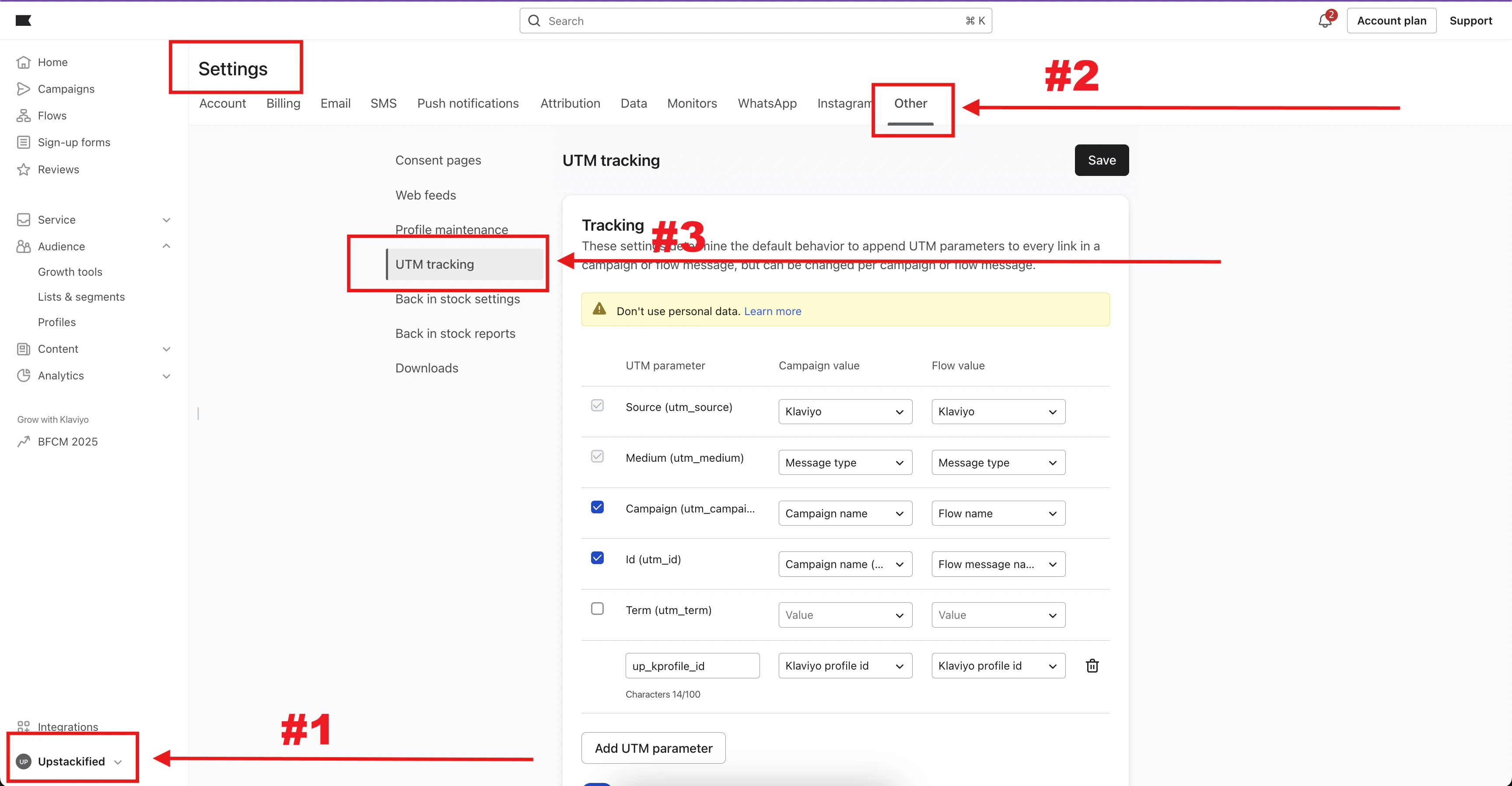
- In Klaviyo, click your profile icon / account name in the bottom-left navigation.
-
Go to Settings → Other → UTM Tracking.
3
Enable account-wide UTM tracking
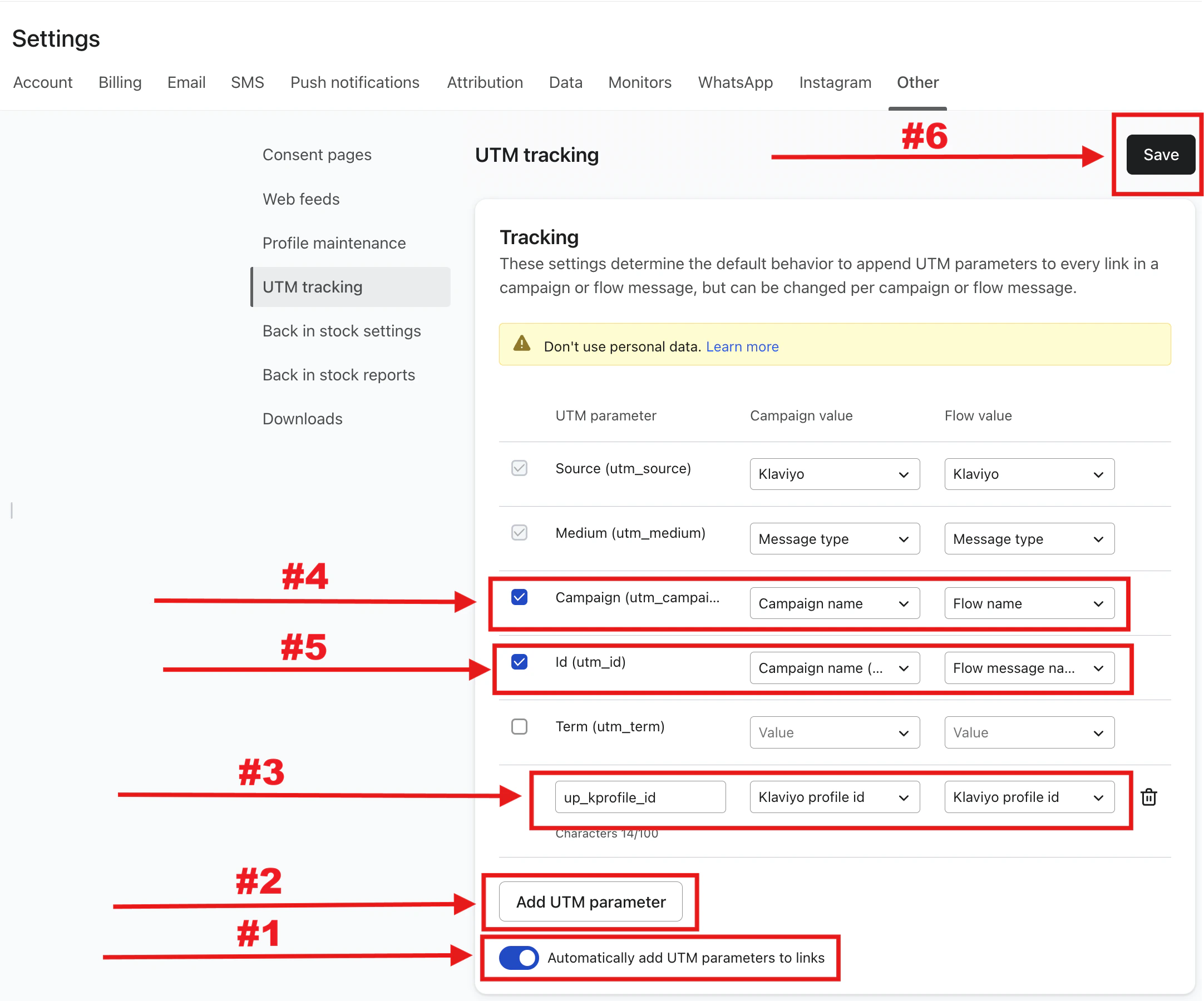
- At the bottom of the UTM parameter list, toggle on Automatically add UTM parameters to links.
- Click the Add UTM parameter button.
-
Set UTM Parameter Name to
up_kprofile_id, then set both the Campaign value and the Flow value to Klaviyo profile id. -
Confirm the UTM parameter named Campaign (
utm_campaign) is enabled, with Campaign value set to Campaign name and Flow value set to Flow name. -
Confirm the UTM parameter named Id (
utm_id) is enabled, with Campaign value set to Campaign name (campaign id) and Flow value set to Flow message name (flow message id). -
Click Save in the top-right of the page.
4
Verify UTM tracking is enabled
- Reload the Settings → Other → UTM Tracking page and confirm:
- Automatically add UTM parameters to links is toggled on.
- The
up_kprofile_id,utm_campaign, andutm_idparameters are all enabled with the values configured above.
- Send yourself a test email from any flow and confirm the links in the email contain
up_kprofile_id,utm_campaign, andutm_idquery parameters.
Done 🎉 Continue with the full setup walkthrough: How to set up your Upstack abandonment flows in Klaviyo.
Need help or found an issue?If you encounter any issues or have questions while following this guide, reach out to us at support@upstackdata.com.