

Prerequisites
Before you start, you need:- The NC Purchase custom conversion already created and shared with the ad account you’re configuring — see How to create and share the NC Purchase custom conversion
- Admin or campaign-management access to the Meta ad account you want to update columns for
What you’ll achieve
After completing this setup, you’ll see new-customer metrics — NC-ROAS (New Customer Return on Ad Spend), Cost per NC Purchase, and Total NC Purchases — directly in Meta Ads Manager.Part 1 — Add NC Purchase metrics to columns
1
Open Customize columns in Meta Ads Manager
Sign in to Meta Ads Manager at adsmanager.facebook.com, select the ad account you want to configure, then on the campaigns/ad sets/ads table click Columns in the toolbar above the table and select Customize columns.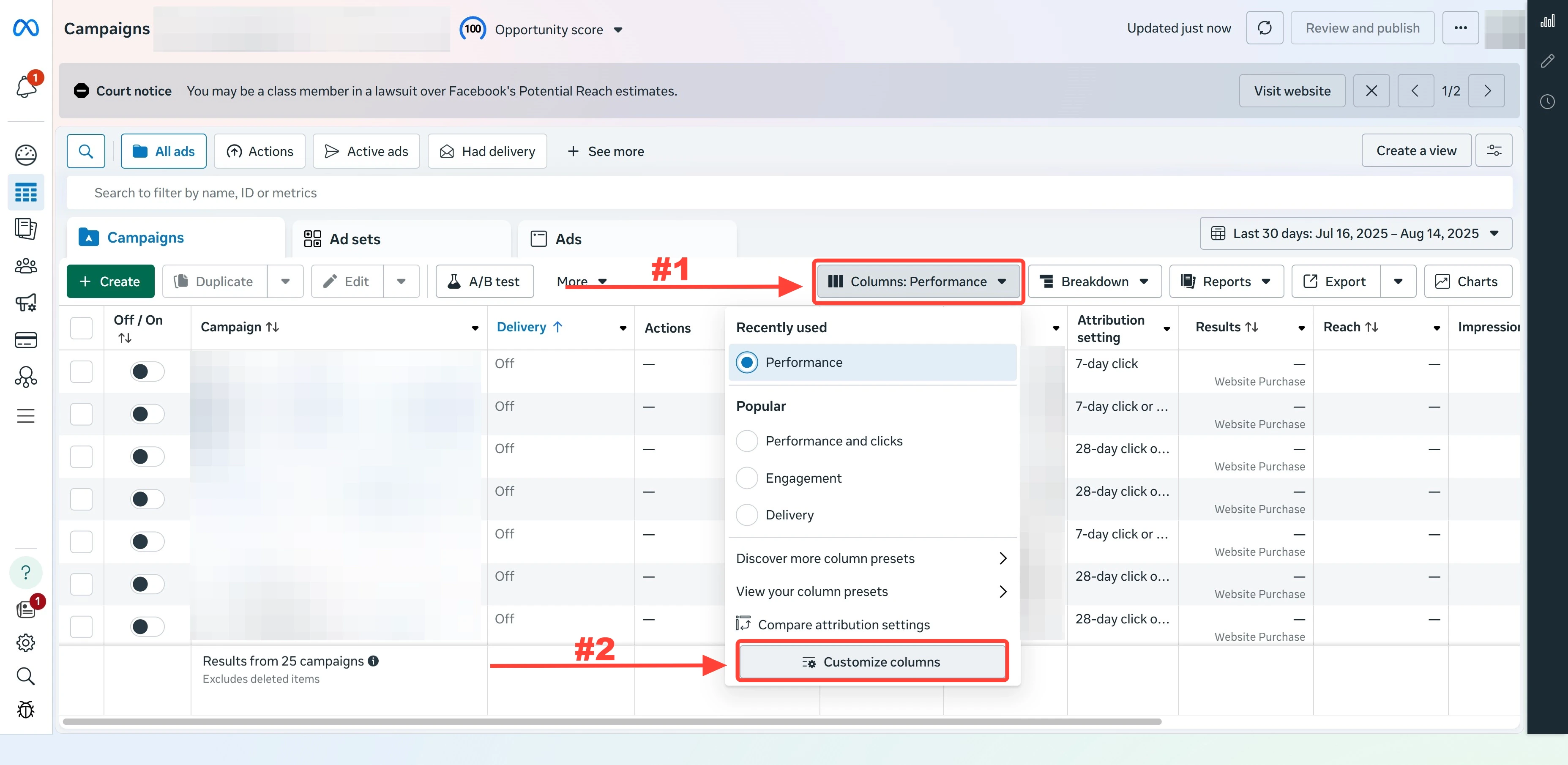
2
Add the NC Purchase metrics
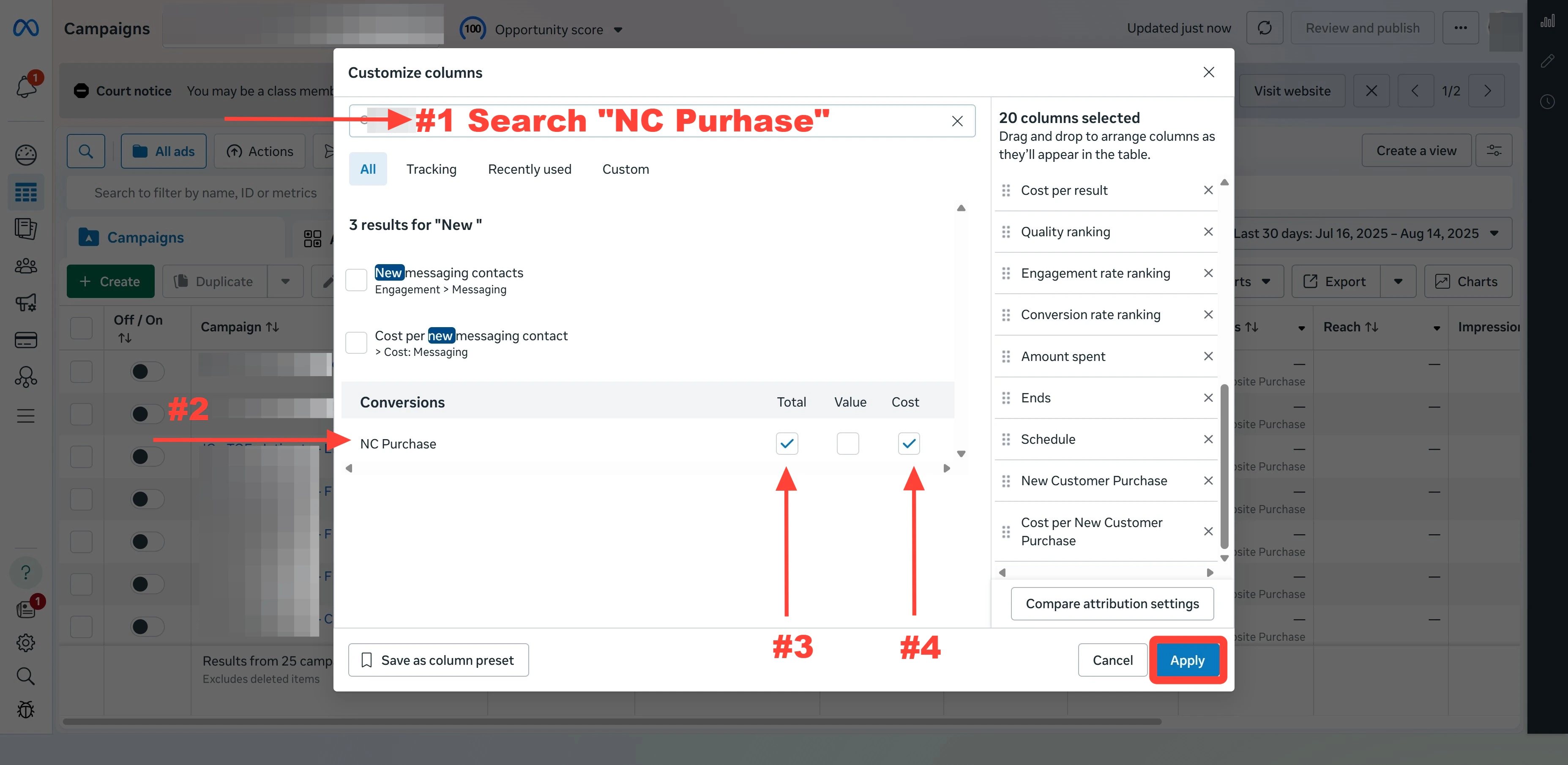
In the Customize columns dialog, scroll the left-hand category list to Custom Conversions and select your NC Purchase conversion (it may be named NewCustomerPurchase depending on how you created it).Check both checkboxes that appear:
- Total — total number of new-customer purchases attributed
-
Cost — cost per new-customer purchase
Part 2 — Set up the NC-ROAS custom metric
1
Open Create custom metric
Inside the Customize columns dialog, click Create custom metric in the bottom-left.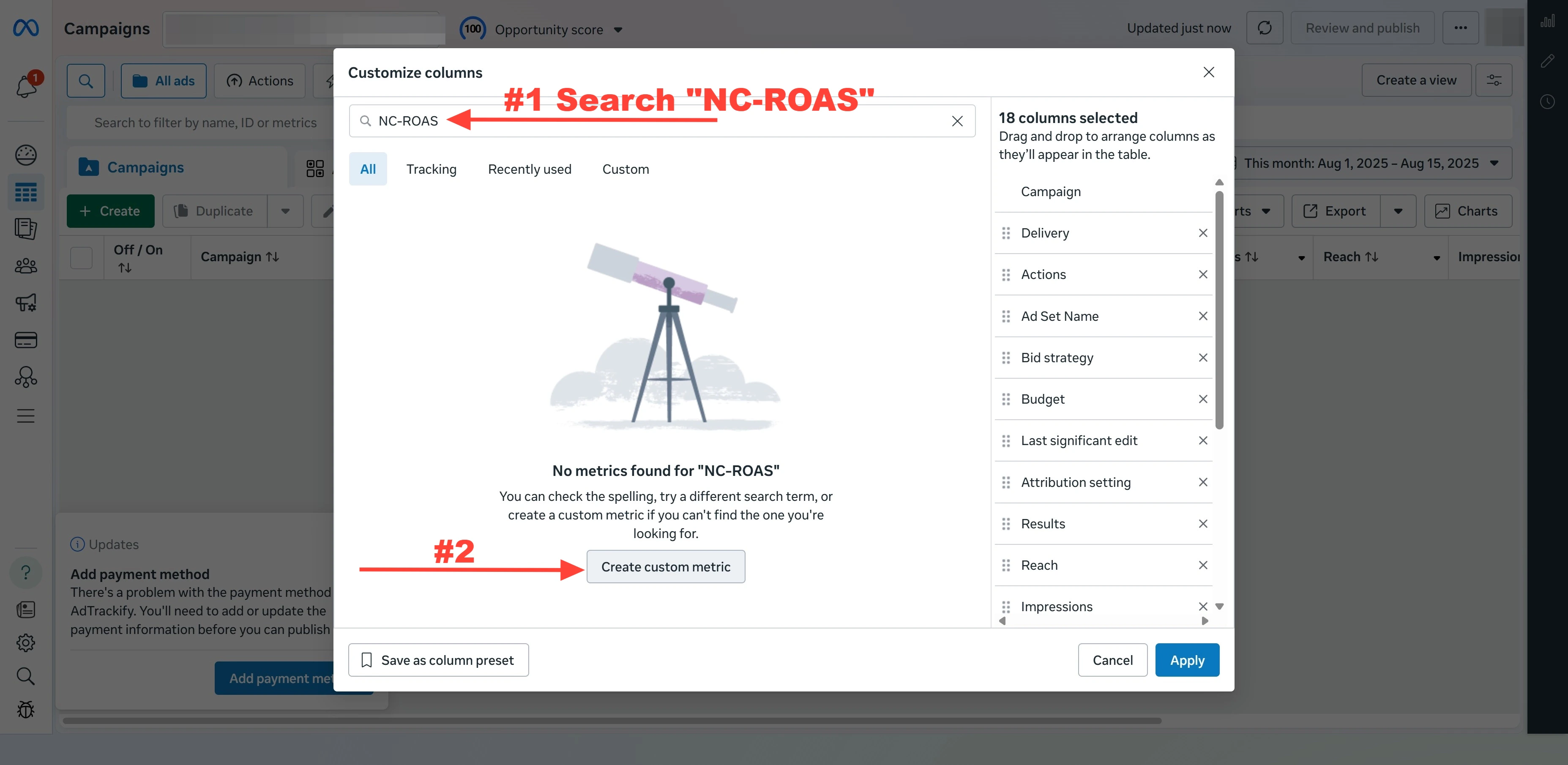
2
Configure the NC-ROAS formula
Fill in the new-metric form: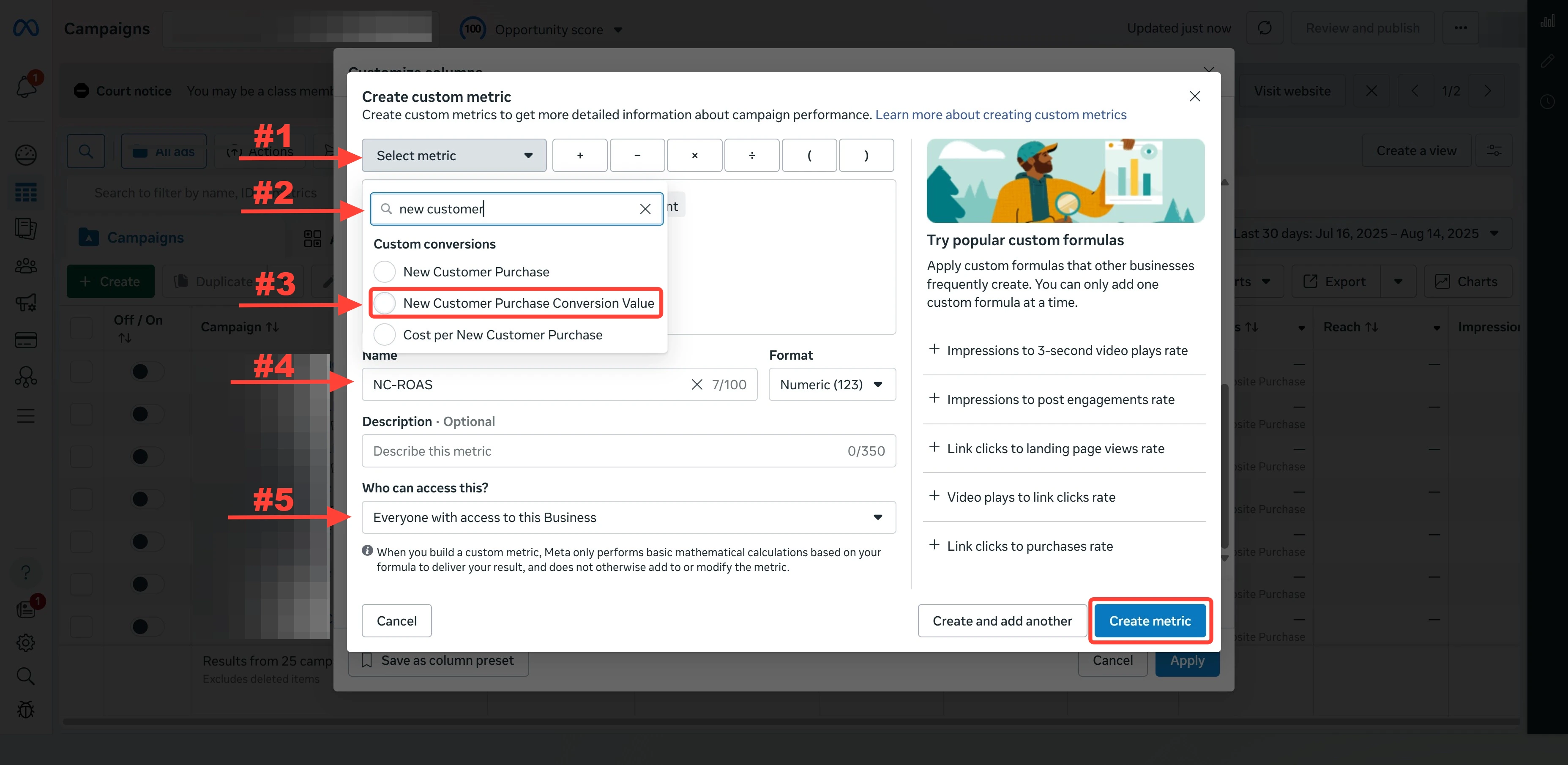
- Name:
NC-ROAS - Formula:
NC Purchase Conversion Value÷Amount spent - Click Create metric
3
Add NC-ROAS to your columns and apply
Back in Customize columns, find NC-ROAS under Custom metrics and check it so it appears in your table.Click Apply in the bottom-right of the dialog to save the column layout.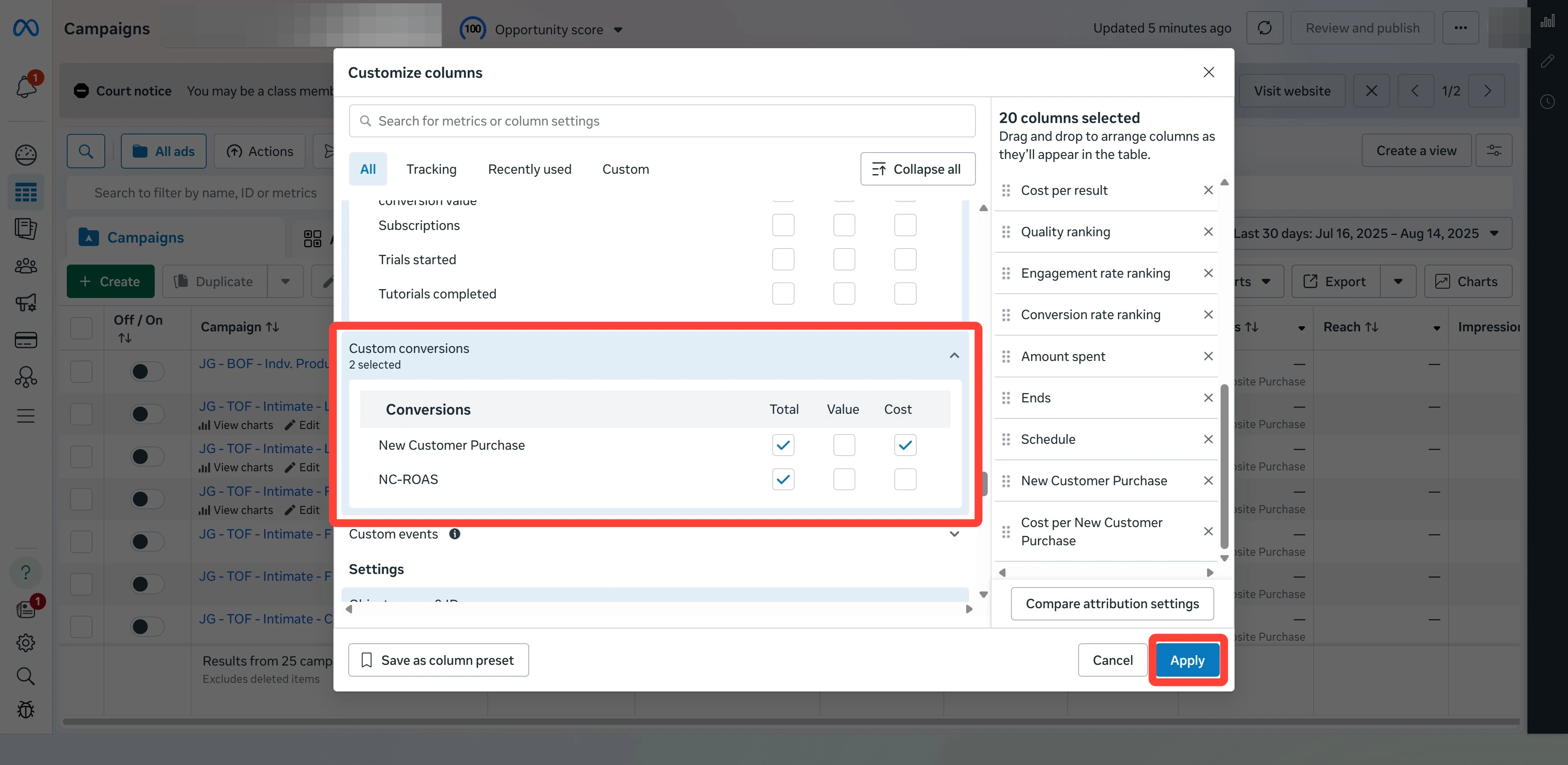
4
Verify the new columns appear
Your Ads Manager table should now show three new columns:
- NC Purchase (Total) — number of new customers acquired
- NC Purchase (Cost) — cost per new customer
- NC-ROAS — return on ad spend from new customers